Top 5 Disk Test Software: Which One You Should Choose?

5 mins read

Updated on 2026-08-05 18:16:21 to Windows Fix

When a drive becomes slow, disappears from File Explorer, reports read errors, or makes unfamiliar noises, you need to determine whether the cause is performance, file-system damage, or physical wear. The right disk test software can read S.M.A.R.T. health data, monitor temperature, scan for bad sectors, and measure transfer performance. This guide compares five Windows tools by testing scope, ease of use, free-version limits, and what you can do after a warning appears. Back up important files before running a long surface scan on a drive that may already be failing.

Quick Comparison of the Best Disk Testing Software

A useful disc diagnostic tool should match the type of problem you are investigating. The table below separates health monitoring, bad-sector scanning, and broader disk management so you do not mistake a health monitor for dedicated disk speed test software.

Best For S.M.A.R.T. / Health Bad-Sector Scan Other Disk Tools
4DDiG Partition Manager All-in-one Windows workflow Yes Yes Partitioning, cloning, migration
CrystalDiskInfo Fast health checks Yes No full surface scan Monitoring and alerts
Hard Disk Sentinel Always-on monitoring Yes Edition-dependent tests Reports, alerts, benchmarks
HDDScan Advanced diagnostics Yes Yes Read/verify tests, temperature
EaseUS Partition Master Surface test plus management Yes Yes Partitioning, cloning, benchmark

The following reviews focus on practical use rather than assigning identical star ratings. Each hard disk test program has a different strength, so the best choice depends on whether you need a fast warning, a full surface scan, or tools to move data away from a risky drive.

⚡ 4DDiG Partition Manager - Best Overall Disk Test Software for Windows

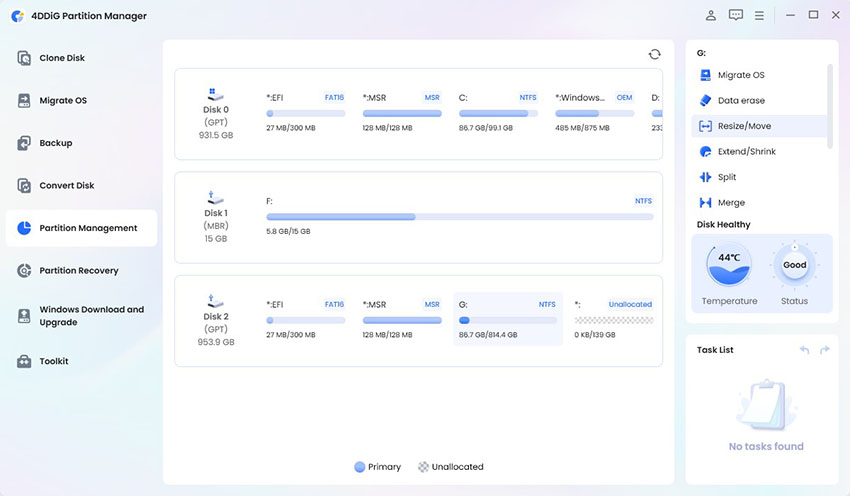
4DDiG Partition Manager suits users who want to diagnose a disk and act on the result without switching utilities. It combines health information and bad-sector scanning with partition management, disk cloning, and OS migration. That makes it more than an HDD health tester: it supports the workflow from checking a drive to preparing a replacement. It is not a specialist synthetic benchmark.

Key Features

  • Checks disk health information in a graphical Windows interface.
  • Scans a selected physical disk for unreadable or slow sectors.
  • Provides cloning and migration options when a drive should be replaced.
  • Partition resize, merge, split, create, delete, and format
  • MBR/GPT and NTFS/FAT32 conversion
  • Windows boot repair and bootable WinPE media creation
  • Find BitLocker recovery key and remove BitLocker

Pros and Cons

  • Pros
  • Cons
    • Combines diagnosis and follow-up actions in one application.
    • Clear interface for users unfamiliar with command-line hard drive checking.
    • Primarily intended for Windows.

How to Test a HDD/SSD with 4DDiG Partition Manager

Before scanning, save active work and copy irreplaceable files if the drive is already clicking, disconnecting, or producing I/O errors.

  • Install and open 4DDiG Partition Manager, then enter the Partition Management workspace and locate disk test feature.

    FREE DOWNLOAD

    Secure Download

    locate disk health test
  • Open Disk Health Status and select the physical HDD, SSD, or supported removable drive you want to inspect. Next, click Run button to start.

    click run
  • After scanning, review the temperature, the random read and write speeds and available health indicators.

    disk test results
  • If the health result or symptoms suggest a surface problem, start Bad Sector Scan and confirm the correct physical disk. Avoid choosing a disk only by drive letter when several devices have similar names.

  • Allow the scan to finish without disconnecting the drive. Review the map, and if errors appear, back up files before using disk cloning to move data or the system to a healthy replacement.

    bad sector scan results

For instructions on checking disk health with Windows' built-in tools, refer to this guide.

CrystalDiskInfo

CrystalDiskInfo is a lightweight, free drive checker for reviewing S.M.A.R.T. attributes, health status, temperature, power-on hours, and drive identity. It supports HDDs and SSDs, including NVMe and some USB or RAID configurations. Its traffic-light labels are easy to scan, but a "Good" result cannot guarantee that a drive will not fail suddenly.

Key Features

  • Displays S.M.A.R.T. attributes and overall health status.
  • Monitors temperature and selected drive statistics.
  • Supports Windows, NVMe, and some USB or RAID devices.

Pros and Cons

  • Pros
  • Cons
    • Free and fast to install.
    • Excellent for routine health and temperature checks.
    • No full visual bad-sector map.

Hard Disk Sentinel

Hard Disk Sentinel is built for ongoing HDD diagnostic software monitoring rather than a one-time scan. It tracks health, temperature, S.M.A.R.T. changes, and real-time transfer speed, while reports and alerts help reveal gradual degradation. It is valuable for technicians and multi-drive systems but may feel excessive for a quick pass/fail check.

Key Features

  • Continuous health, temperature, and S.M.A.R.T. monitoring.
  • Text explanations, reports, history, and alerts.
  • Real-time transfer-speed monitoring.

Pros and Cons

  • Pros
  • Cons
    • Detailed monitoring and early warnings.
    • Good coverage for multi-drive systems.
    • Many functionalities are paid.
    • The interface can overwhelm casual users.

HDDScan

HDDScan is free hard disk drive test software for users who need more control over surface and self-tests. It can generate S.M.A.R.T. reports, run short or extended tests, monitor temperature, and scan selected sectors. Because it exposes low-level and write-capable options, beginners should prefer non-destructive read or verify modes when data matters.

Key Features

  • Read and verify surface-testing modes.
  • Short, extended, and conveyance S.M.A.R.T. tests where supported.
  • Temperature monitoring and drive identity reports.

Pros and Cons

  • Pros
  • Cons
    • Free and relatively portable.
    • Deeper test control than basic monitors.
    • Dated interface and steeper learning curve.

EaseUS Partition Master

EaseUS Partition Master combines a bad-sector scan with partition and disk-management functions. Its surface test marks problem areas visually, and current versions also offer health and benchmark functions. It is useful for users who may later resize, clone, or migrate a disk, although it is heavier than a standalone monitor.

Key Features

  • Bad Sector Scan for internal and external storage.
  • Disk health information in supported editions.
  • Partitioning, cloning, migration, and benchmark tools.

Pros and Cons

  • Pros
  • Cons
    • Beginner-friendly visual scan.
    • Combines testing with partition tasks.
    • Many advanced features are paid.

The best disk test software depends on whether you need health monitoring, a surface scan, or a complete replacement workflow. CrystalDiskInfo is the simplest free choice for S.M.A.R.T. data, Hard Disk Sentinel is stronger for continuous monitoring, and HDDScan offers advanced free tests. EaseUS Partition Master is a capable surface-test alternative.

For most Windows users, 4DDiG Partition Manager provides the most balanced option because it combines disk health and bad-sector checks with cloning and partition tools. If a scan reports serious errors, protect the data first; repeated testing is less important than moving files to a healthy drive.

FREE DOWNLOAD

Secure Download

William Bollson (senior editor)

William Bollson, the editor-in-chief of 4DDiG, devotes to providing the best solutions for Windows and Mac related issues, including data recovery, repair, error fixes.

(Click to rate this post)

You rated 4.5 ( participated)