What Is a Virtual Machine? A Complete Guide to Using and Creating VMs

5 mins read

Updated on 2026-08-21 11:58:32 to Windows Fix

A virtual machine is a software-based computer that runs inside a physical computer. It uses assigned CPU power, memory, storage, and networking while remaining separated from the host operating system. This guide explains how VMs work, what hardware and virtual machine disk space you need, which platform to choose, and how to create a virtual machine safely with VirtualBox.

1. What is a Virtual Machine?

A Virtual Machine (VM) is a software-based emulation of a physical computer that runs its own operating system and applications independently of the host machine. It creates a complete, isolated computing environment with virtual hardware resources such as CPU, memory, storage, and network interfaces, allowing users to install and operate any supported operating system as if it were running on a real device.

Benefits of Virtual Machines:

  • Run multiple operating systems on one computer without dual-booting.
  • Keep experiments separate from the host installation.
  • Create repeatable environments and roll back with VM snapshots and backups.
  • Reduce the number of physical computers needed for labs and testing.

2. What Can You Do With a Virtual Machine?

Run a Different Operating System

A virtual machine is an easy way to explore Linux, evaluate another Windows version, or learn a new interface without repartitioning the boot drive.

Test Software Safely

You can isolate installers, configuration changes, and browser tests from daily work. Isolation reduces risk, but it is not perfect.

Build a Development or Learning Lab

Developers can reproduce a server stack, while students can connect several VMs to practice networking, Active Directory, or security administration.

Run Legacy Applications

A supported older guest OS may run software that no longer works on the host. Confirm licensing and avoid exposing an unsupported guest directly to the internet.

⚡ 3.Things to Do before Creating a Virtual Machine

Before learning how to install a VM, confirm that the host can spare enough resources while its own operating system remains responsive.

  • A 64-bit multi-core processor with hardware virtualization enabled in UEFI/BIOS. Hyper-V also requires SLAT and hardware-enforced data execution prevention.
  • At least 8 GB of RAM for a light guest; 16 GB or more is more comfortable when the host and VM run demanding apps together.
  • Enough free SSD space for the guest OS, updates, applications, snapshots, and temporary growth.

Step 1: Check Available Virtual Machine Disk Space

A basic Linux VM may fit in 25-40 GB, while a practical Windows VM often needs 64 GB or more once updates and applications are included. Keep extra free space on the host because dynamically allocated disks and snapshots can expand.

If the intended VM partition is too small but another partition has unused capacity, 4DDiG Partition Manager can extend the partition before setup.

  • Open 4DDiG Partition Manager and select Partition Management. Choose the partition whose boundary you need to adjust, then select Resize/Move.

    FREE DOWNLOAD

    Secure Download

    resize partition
  • Drag the boundary or enter a target size, review the proposed disk layout, and confirm the queued change.

    set the drive size
  • Keep the PC powered and do not interrupt the operation; after it finishes, verify the available space in Windows before creating the virtual disk.

    resize partition successfully

Step 2: Back Up Host Data Before Creating a VM

Installing a hypervisor normally does not erase personal files, but repartitioning, low disk space, power loss, or a mistaken disk selection can cause problems. Create an independent backup first. With 4DDiG Windows Backup, you can capture the computer before making storage or virtualization changes.

  • Connect a destination drive with enough free space and open 4DDiG Windows Backup. Select select “Create a backup task”.

    FREE DOWNLOAD

    Secure Download

    create a backup task
  • Select the source content, and choose the external destination. Next, Click "Satrt backup."

    Select Partitions to Backup
  • After backup, verify that the backup task appears in the restore area before continuing with VM installation.

    backup successfully

4. Which Virtual Machine Software Should You Choose?

The best virtual machine software depends on the host OS, the level of hardware integration you need, and whether you prefer a desktop app or Windows-native management.

Best for Advantages Potential drawbacks
VirtualBox Beginners / cross-platform Free, flexible, broad guest support Manual tuning may be needed
VMware Workstation Pro Advanced desktop use Polished tools and strong integration Heavier resource use; release terms can change
Microsoft Hyper-V Supported Windows users Native Windows integration Windows edition and feature restrictions

VirtualBox

Oracle VirtualBox is a practical choice for a first VirtualBox tutorial because it runs on Windows, macOS, and Linux hosts and supports many guest systems. It is free and approachable, though advanced graphics, networking, or USB use may need manual settings.

VMware Workstation Pro

A VMware Workstation virtual machine suits users who value mature desktop integration, snapshots, and detailed virtual networking. Workstation Pro is currently available free for all use, but users should still check current vendor terms and host compatibility. It can consume more resources than a minimal setup.

Microsoft Hyper-V

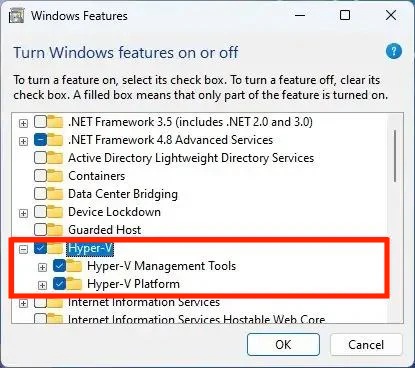
A Hyper-V virtual machine integrates well with supported Windows Pro, Enterprise, Education, and Windows Server environments. It is useful for Windows labs and virtual networking, but it is not included as a host feature in Windows Home, and enabling it can affect how other hypervisors access hardware virtualization.

5. How to Create a Virtual Machine With VirtualBox?

The following workflow assumes VirtualBox is installed and you have a bootable ISO plus sufficient host resources.

  • Download and install VirtualBox from the official website (virtualbox.org). Open VirtualBox and click New.

    select new in virtualbox
  • Enter a name for your virtual machine, and select the operating system type and version, then click Next.

  • Allocate memory (Base Memory). Choose an amount that fits your needs while leaving enough RAM for your host system, then click Next.

  • Select Create a virtual hard disk now and click Create.

  • Choose the hard disk file type (VDI is recommended) and click Next.

  • Select Dynamically allocated (recommended for most users) and click Next.

  • Set the virtual hard disk size, then click Create.

    set disk size for vm
  • Select the newly created virtual machine and click Start.

  • When prompted, choose the ISO file of the operating system you want to install and proceed with the installation.

After the operating system installation is complete, your virtual machine is ready to use.

FAQs About Virtual Machines

1. What is a virtual OS?

A virtual OS is a guest operating system installed inside a VM. It uses virtual hardware supplied by the hypervisor while the physical computer continues running the host OS.

2. Is a virtual machine free?

The VM itself can be free when you use tools such as VirtualBox or the current free edition of VMware Workstation Pro. However, the guest operating system and applications may require licenses.

3. How much storage does a VM need?

Allow roughly 25-40 GB for a light Linux guest and at least 64 GB for a practical Windows guest. Development tools, games, snapshots, and updates can require much more, so monitor host free space regularly.

4. Can I run a VM on my phone?

Some mobile apps can emulate or virtualize limited operating systems, but phone hardware, operating-system restrictions, and battery limits make full desktop VMs less practical than on a PC. Remote access to a VM running elsewhere is usually smoother.

Conclusion

A virtual machine program gives you a controlled way to run another operating system, test software, build a lab, or support legacy applications without replacing the host setup. Success depends on realistic CPU and RAM allocation, enough storage, and a separate backup—not only snapshots.

Before creating a large Windows VM, check the host drive and resize the intended partition with 4DDiG Partition Manager if necessary. Back up important host data, choose the hypervisor that fits your Windows edition and workflow, and begin with conservative settings that you can expand later.

FREE DOWNLOAD

Secure Download

William Bollson (senior editor)

William Bollson, the editor-in-chief of 4DDiG, devotes to providing the best solutions for Windows and Mac related issues, including data recovery, repair, error fixes.

(Click to rate this post)

You rated 4.5 ( participated)