How to Fix Vgk.sys Blue Screen on Windows 11/10?

5 mins read

Updated on 2026-04-01 17:56:21 to Windows Fix

If your PC suddenly crashes with a vgk.sys blue screen, you are not alone. The vgk.sys failed message can appear out of nowhere, even on a system that seemed to be working fine. The good news is that most of these are fixable without advanced technical knowledge. This guide walks you through everything you need to know, from what triggers vgk.sys BSOD error to the most effective solutions to get your game running again.

vgk.sys blue screen

Part 1: What Causes Vgk.sys Blue Screen?

Vgk.sys blue screen is a kernel-level crash. Because Vanguard runs at the kernel level, any conflict between its driver and other system components can trigger a vgk.sys failed blue screen. Here are the most common causes:

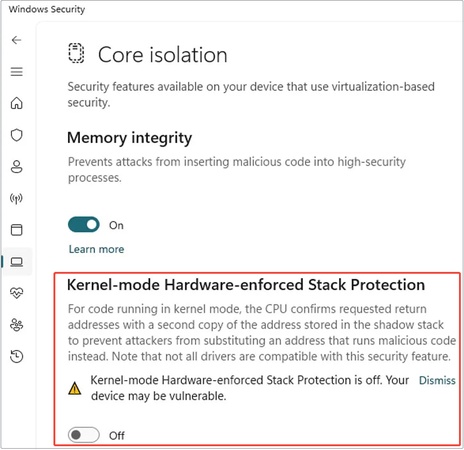
  • Core Isolation / Memory Integrity conflict: Windows Security's Core Isolation feature can block Vanguard's kernel driver from loading properly, resulting in a vgk.sys blue screen page fault in nonpaged area or similar stop error.
  • Outdated or incompatible graphics drivers: This is one of the most common reasons of Vanguard keeps crashing league or Vanguard causing blue screen.
  • CPU/RAM overclocking: Unstable memory or CPU overclocking settings directly destabilize kernel operations, often manifesting as a vgk.sys failed blue screen.
  • Outdated BIOS: A BIOS that lacks support for modern security features (such as TPM 2.0 or Secure Boot required by Vanguard) can trigger compatibility crashes.
  • Corrupted Valorant / Vanguard installation: Damaged game or anti-cheat files are another known cause of the Valorant blue screen vgk.sys error, particularly after an incomplete update.

⚡ Part 2: How to Solve Vgk.sys Blue Screen?

Work through the fixes below in order. Most users resolve the problem within the first two or three steps.

Fix 1: Enable Core Isolation Memory Integrity

A mismatch in Windows Security's Core Isolation settings is one of the top triggers for a vgk.sys blue screen on windows. If it is turned off or blocked by an incompatible driver, the vgk.sys blue screen can occur at startup.

  • Press Windows + I to open Settings. Navigate to Privacy & Security > Windows Security > Device Security.

    go to device security
  • Under Core isolation, click Core isolation details. Toggle Memory integrity to On.

    enable memory integrity
  • Then, restart your PC and launch Valorant to check if the vgk.sys BSOD is resolved.

Fix 2: Update Graphics Driver

An outdated GPU driver can interfere with Vanguard's kernel hooks and cause a vgk.sys blue screen on League of Legends. Here is how to update it correctly:

  • Right-click the Start button and select Device Manager. Expand Display adapters and right-click your GPU.

  • Select Update driver > Search automatically for drivers.

    update graphics driver
  • Alternatively, visit your GPU manufacturer's website, NVIDIA GeForce Experience or AMD Adrenalin, to download and install the latest driver package.

  • After the installation completes, restart your system and check whether the vgk.sys crashing PC issue persists.

Tip:

If you recently updated your GPU driver and the crash started afterward, consider rolling back to the previous driver version using Device Manager > Display adapters > Properties > Driver > Roll Back Driver.

Fix 3: Disable Overclocking

Overclocked memory running at unstable voltages or frequencies can trigger kernel memory errors that surface as a vgk.sys blue screen. Follow these steps to disable overclocking:

  • Restart your PC and enter the BIOS/UEFI setup (typically by pressing Delete, F2, or F10 during boot).

  • Locate the OC Tweaker, AI Overclocking, or Extreme Memory Profile (XMP/DOCP) settings.

  • Set CPU frequency and RAM frequency back to their default/stock values.

  • Disable XMP/EXPO profiles if your RAM is running above its base JEDEC frequency.

  • Save and exit BIOS. Boot into Windows and test whether the vgk.sys BSOD recurs.

🎉 Extra Tip: Secure Your System by Cloning before BIOS Update

Before you update your BIOS, it is strongly recommended to create a full disk clone of your system drive. A failed BIOS update, even a power interruption mid-flash, can leave your PC unbootable. Losing all your data on top of a vgk.sys blue screen problem makes a bad situation much worse.

4DDiG Partition Manager offers a reliable disk clone feature that creates a sector-by-sector copy of your entire system drive — OS, applications, and personal files included — so you can restore everything exactly as it was if anything goes wrong.

3 day free trial

  • After downloading and installing 4DDiG Partition Manager, connect an external disk. Launch the application and select the “Clone OS Disk” option.

    FREE DOWNLOAD

    Secure Download

    select clone os disk
  • Choose the target disk where you want to clone the data from the source disk, and click the "Next" button.

    click next to proceed
  • You will now see a preview interface that displays the cloning layout. By default, the partitions from the source disk will take up the entire target disk, but you can adjust the partition sizes by dragging the handles. Once you confirm the preview is correct, click "Start" to begin the cloning process.

    click start button
  • Be aware that cloning will overwrite all data on the target disk. After ensuring everything is correct, click the "Sure" button.

    click sure to clone

Wait for the cloning process to finish. Once the process is complete, you will have successfully cloned the data from the source disk to the target disk.

Fix 4: Update BIOS

An outdated BIOS may lack support for the security features (TPM 2.0, Secure Boot, virtualization-based security) that Riot Vanguard depends on, which can lead to a vgk.sys failed blue screen. Updating your BIOS resolves firmware-level incompatibilities.

  • Identify your motherboard model: Press Windows + R, type msinfo32, and look for BaseBoard Manufacturer and BaseBoard Product.

    check your motherboard model
  • Visit your motherboard manufacturer's official support page (ASUS, MSI, Gigabyte, ASRock, etc.). Download the latest BIOS update file for your exact motherboard model.

  • Copy the update file to a FAT32-formatted USB drive. Enter BIOS and use the built-in utility to apply the update.

  • After the update completes and the system reboots, verify that the vgk.sys blue screen no longer appears.

Fix 5: Reinstall Valorant

If none of the above fixes resolve the Valorant blue screen vgk.sys error, the culprit may be a corrupted game or Vanguard installation. A clean reinstall replaces all damaged files and resets the anti-cheat driver to a known-good state.

  • Press Windows + I > Apps > Installed apps. Find Riot Vanguard in the list and uninstall it first.

    uninstall riot vanguard
  • Next, restart your PC. Visit playvalorant.com and download the latest Riot Games installer.

  • Run the installer and allow it to download and set up both Valorant and Vanguard fresh.

  • Launch Valorant and verify the vgk.sys crashing PC issue is gone.

Part 3: What is Vgk.sys? What is Vgk.sys Blue Screen?

Vgk.sys is the kernel-mode driver file for Riot Vanguard. The ".sys" extension indicates it is a Windows kernel driver, meaning it runs at the lowest level of the operating system with direct access to hardware and memory. This deep integration is what makes Vanguard effective at detecting cheats, but it also means any instability in the driver has system-wide consequences.

V gk.sys blue screen is a kernel-level crash caused by Riot Vanguard, the anti-cheat driver used by Valorant and other Riot Games titles. This BSOD error occurs when the Windows kernel detects a fatal error in the vgk.sys driver that it cannot safely recover from. This is different from a normal application crash — because vgk.sys operates at the kernel level, the entire system must stop when it fails.

More FAQs about Vgk.sys Blue Screen

1. How to Delete Vgk.sys?

You can remove vgk.sys by fully uninstalling Riot Vanguard from your system. Go to Settings > Apps > Installed apps, find Riot Vanguard, and click Uninstall. After uninstalling, vgk.sys will be removed from the system32/drivers folder automatically.

2. Can Outdated Drivers Cause Vgk.sys Errors?

Yes, outdated drivers are one of the most common causes of the vgk.sys blue screen. Because Riot Vanguard's kernel driver interacts directly with hardware components (especially the GPU and chipset), any driver that conflicts with or does not properly expose its interfaces to Ring 0 software can trigger a crash.

Conclusion

A vgk.sys blue screen is disruptive, but it is almost always fixable with the right approach. By working through the fixes in this guide, you cover all the most common root causes. Before you update your BIOS, remember to use 4DDiG Partition Manager's Disk Clone feature to create a full backup of your system drive, giving you a reliable safety net. If you ever need to manage, resize, or recover partitions on your drive, 4DDiG Partition Manager is a comprehensive tool worth keeping around. Stay crash-free and enjoy your games!

FREE DOWNLOAD

Secure Download

William Bollson (senior editor)

William Bollson, the editor-in-chief of 4DDiG, devotes to providing the best solutions for Windows and Mac related issues, including data recovery, repair, error fixes.

(Click to rate this post)

You rated 4.5 ( participated)