How to Stop BitLocker Recovery Key Loop on HP?

5 mins read

Updated on 2026-06-15 18:03:44 to Windows Fix

A BitLocker Recovery Key Loop on HP usually happens when Windows detects a change in the trusted boot environment, such as a BIOS update, firmware change, TPM reset, or Secure Boot certificate mismatch. Instead of loading Windows normally, the HP laptop or desktop keeps asking for the 48-digit BitLocker recovery key on every reboot. This guide explains what triggers the loop, how to find your recovery key through your Microsoft account, and how to bypass the BitLocker recovery screen using practical fixes, including removing BitLocker with 4DDiG Partition Manager and adjusting HP Secure Boot Configuration safely.

1. What Triggers BitLocker Recovery Key Loop on HP PCs?

On HP computers, the recovery loop is often not caused by one simple Windows error. Recent reporting around Windows 11 reboot issues shows that OEM-level software and firmware updates can also trigger serious startup problems.

In HP’s case, the most relevant scenario is a BIOS or firmware update that fails to align correctly with Microsoft’s newer UEFI Secure Boot CA 2023 certificates. When that certificate process does not complete cleanly, BitLocker may keep treating the same PC as if its startup security state has changed.

  • Secure Boot certificate mismatch: If Microsoft UEFI CA 2023 certificates fail to apply properly, Windows may repeatedly request the recovery key.
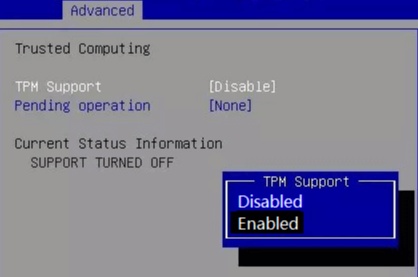
  • TPM or Secure Boot setting changes: Turning Secure Boot on or off, resetting TPM, or changing boot mode can make BitLocker enter recovery.

2. How to Find BitLocker Recovery Key?

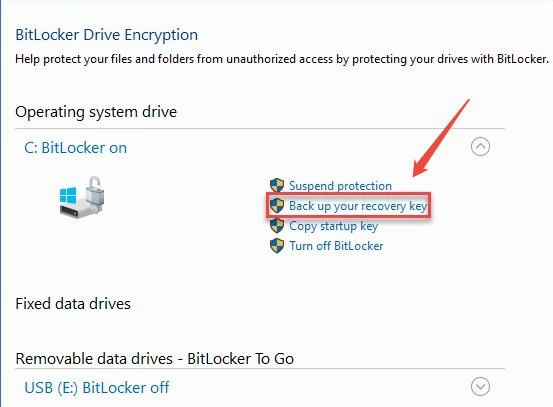
Before changing BIOS settings or removing BitLocker, try to locate your recovery key. The recovery key is a unique 48-digit number that unlocks a BitLocker-protected drive when Windows cannot verify the normal startup path. If your HP PC uses a personal Microsoft account, the key is usually stored online.

  • On another device, open a browser and go to https://aka.ms/myrecoverykey.

  • Sign in with the Microsoft account that was used on the locked HP computer. Look for the device name that matches your HP laptop or desktop.

    recovery key on microsoft account
  • Compare the Key ID shown on the BitLocker recovery screen with the Key ID listed online.

Tip:

If you printed the key, saved it to a USB drive or stored it in a password manager, check those places as well.

⚡ 3. How to Bypass BitLocker Recovery Key Loop on HP?

If the recovery key unlocks Windows once but the same BitLocker recovery screen returns after every restart, the problem is not simply a missing key. Start with the less risky option for your situation and avoid formatting the drive unless data loss is acceptable.

Fix 1: Remove BitLocker Automatically

4DDiG Partition Manager includes a Remove BitLocker feature that can help users manage a BitLocker-protected partition, unlock it in a recovery environment, and disable BitLocker when the encrypted state keeps interfering with startup.

  • Use another working computer to create a bootable recovery USB. Install and open 4DDiG Partition Manager. Select "Toolkit" in the left navigation bar, then click "Create WinPE".

    FREE DOWNLOAD

    Secure Download

    create winpe
  • After completing, connect the USB to the PC on the BitLocker recovery screen. Open the boot menu, boot from USB, and enter WinPE. Launch 4DDiG Partition Manager and select “Remove BitLocker” feature from Toolkit.

    select remove bitlocker section
  • Choose the BitLocker-encrypted disk or partition you want to access, then click Unlock.

    click unlock
  • Click Sure to allow 4DDiG to search for the BitLocker recovery key. Once the recovery key is found, you can click “Disable BitLocker” to remove BitLocker protection.

    disable bitlocker
  • Wait while 4DDiG decrypts the partition. The process may take some time depending on the size of the drive.

    decrypting partition

Now, you can break out of a BitLocker recovery loop. Once BIOS, Secure Boot, and Windows updates are stable, you can turn BitLocker back on and save a new recovery key securely.

Fix 2: Adjust Secure Boot Configuration on HP

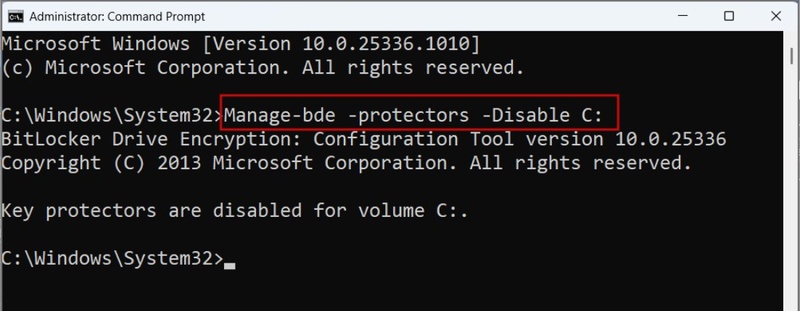
Before entering BIOS, suspend BitLocker first. This prevents Windows from treating your planned firmware change as suspicious and demanding the recovery key again immediately.

  • Restart the HP computer and press F10 repeatedly at the HP logo to enter BIOS Setup.

  • Go to Security > Secure Boot Configuration. The exact wording can vary by HP model.

    secure boot configuration
  • Review the Microsoft UEFI/Secure Boot certificate options. On affected devices, make sure the required Microsoft UEFI CA 2023, Microsoft Option ROM UEFI CA 2023, and MS UEFI CA Key options are enabled if available.

    adjust secure boot configuration
  • Save the BIOS changes and exit. Let the HP computer restart as many times as needed; do not force power off during firmware changes.

This fix targets the root cause behind many HP BitLocker recovery loops: a mismatch between BitLocker, TPM measurements, and Secure Boot certificate state.

FAQs About BitLocker Recovery Key Loop on HP

1. Should I disable Secure Boot to stop BitLocker recovery?

Disabling Secure Boot is not the best first option. For HP’s recent issue, the safer direction is to correct Secure Boot Configuration and certificate settings after suspending BitLocker.

2. Will removing BitLocker delete my files?

Removing or turning off BitLocker normally decrypts the drive instead of deleting files. However, you should still back up important data and avoid interrupting the process.

Conclusion

A BitLocker Recovery Key Loop on HP can be stressful, but it is usually manageable when you follow the right fixes. If the loop continues after every restart, remove BitLocker with 4DDiG Partition Manager to regain control of the encrypted drive, or adjust HP Secure Boot Configuration after suspending BitLocker. Once the PC starts reliably again, back up your recovery key and re-enable encryption if you still need full-drive protection.

FREE DOWNLOAD

Secure Download

William Bollson (senior editor)

William Bollson, the editor-in-chief of 4DDiG, devotes to providing the best solutions for Windows and Mac related issues, including data recovery, repair, error fixes.

(Click to rate this post)

You rated 4.5 ( participated)