[Solved] No BitLocker Recovery Key Found for This Device 2026

5 mins read

Updated on 2026-03-10 11:26:03 to Windows Update

Seeing the error about no BitLocker recovery key found for this device can be stressful, especially when you urgently need access to important files. BitLocker is designed to protect your data, but if the recovery key is missing, it can lock you out completely.

Fortunately, there are still several solutions you can try. In this guide, we’ll walk you through practical methods to regain access or recover your data safely.

Try BitLocker Recovery Software When No BitLocker Recovery Key Found for This Device

If you cannot locate your recovery key through normal methods, professional data recovery software may help. Instead of endlessly searching for the key, you can attempt to access or recover data from the encrypted drive using specialized tools.

4DDiG Windows Data Recovery supports BitLocker-encrypted drives and offers multiple unlocking options. Even when facing the no BitLocker recovery key found for this device error, it allows you to attempt recovery using available credentials or alternative methods. Below are the detailed steps:

FREE DOWNLOAD

Secure Download

FREE DOWNLOAD

Secure Download

  • Choose the Encrypted Drive to Scan

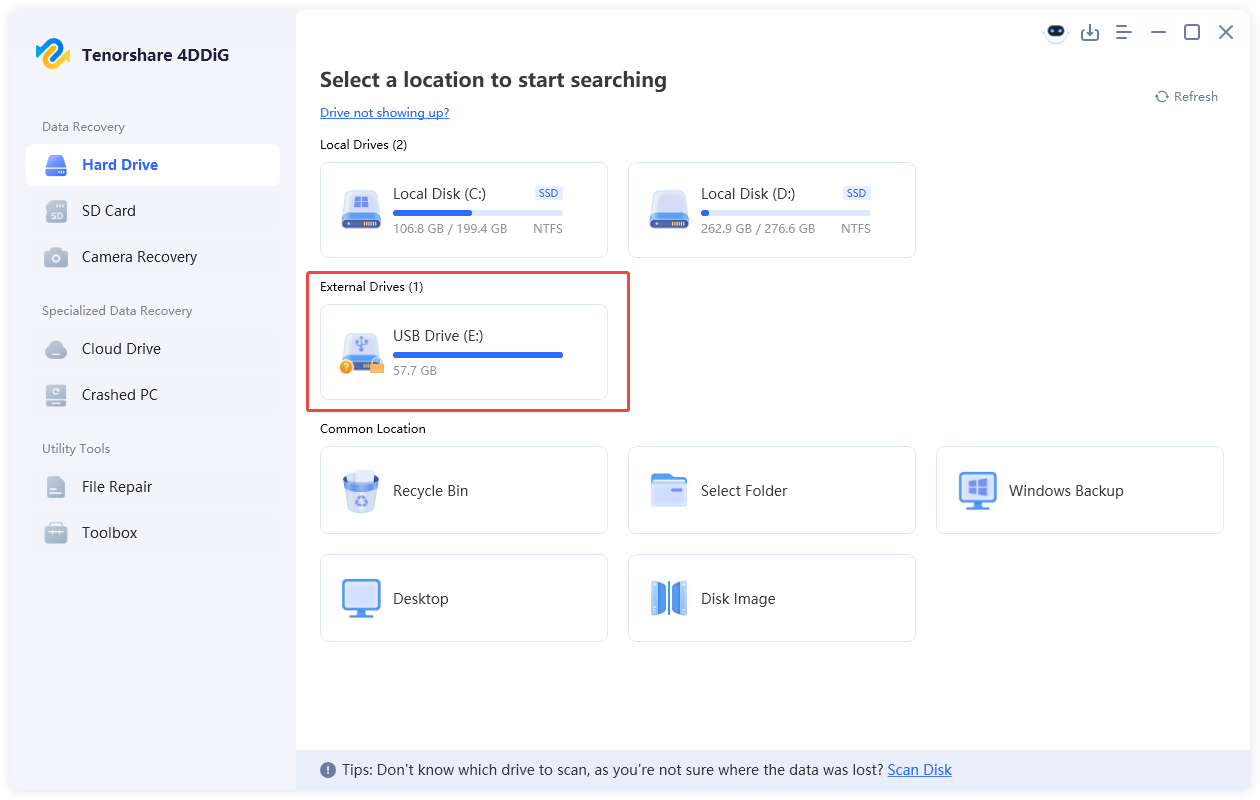
    Download and install 4DDiG Windows Data Recovery on a working computer. Launch the program and select the BitLocker-encrypted drive that is currently inaccessible.

    4ddig bitlocker encrypted drive interface
    Note:

    Before scanning, you can attempt one of the following methods:

    • Unlock BitLocker with password or recovery key
    • Use the Automatic Unlock feature
    • Scan the BitLocker-encrypted drive and recover data from it without unlocking

    After trying any of these methods, proceed with scanning the drive.

  • Scan the Drive

    Choose to begin analyzing the encrypted drive. The software will deeply scan for lost, deleted, or inaccessible files. The scanning process may take some time, depending on the drive size and condition.

    locate files you want to recover
  • Recover Files from BitLocker-Encrypted Drive

    After the scan completes, preview the recoverable files. You can filter by file type, such as documents, photos, videos, or emails. Click the "Recover" button to restore a file.

    click recover button
  • Save the Recovered Files

    Choose a different storage location (not the encrypted drive) and click "Save Now" to save the recovered files. This prevents data overwriting and ensures safe recovery.

    click save now button

Using recovery software does not bypass encryption, but it can help you access recoverable data if credentials are available or partial drive access exists.

Check Your Microsoft Account to Fix No BitLocker Recovery Key Found for This Device

In many cases, the recovery key is backed up to your Microsoft account. If you signed into Windows using a Microsoft account, your key may already be stored online.

This is one of the most common and easiest fixes for the no BitLocker recovery key found for this device issue. Learn how to check your Microsoft account and fix the problem:

  • On another device, open a browser and go to Microsoft account page.

  • Sign in using the Microsoft account linked to your locked PC.

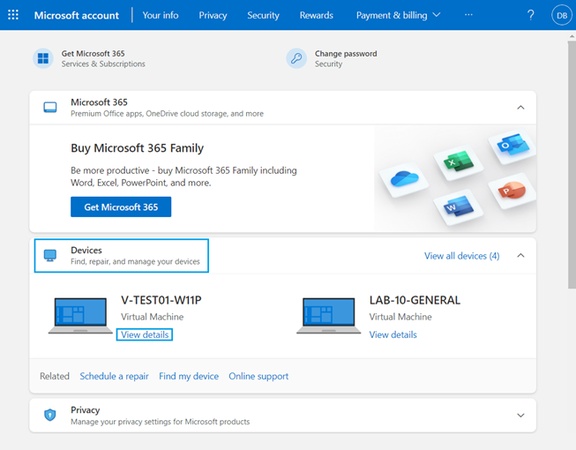
  • Look for the recovery key associated with your device name in the “Devices” section.

    find recovery key from microsoft account
  • Enter the 48-digit recovery key on the locked computer.

If the correct key is listed, you can immediately unlock your drive. If you don’t see a key, try signing in with another Microsoft account you may have used. Additionally, check for saved keys in:

  • Printed documents
  • USB flash drives
  • Company IT systems (for work devices)

This method works best if BitLocker was set up automatically during Windows installation.

Using Command Prompt to Find Missing Recovery Key

If you still have partial system access, Command Prompt may help retrieve BitLocker information. This method works only if you can log into Windows or access recovery tools. Steps tofind the missing recovery key using the command prompt:

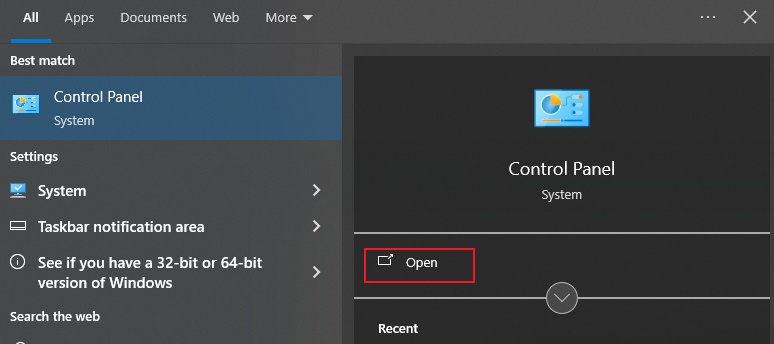
  • Press Win + S and search for "Command Prompt," then right-click it and choose "Run as Administrator". If you are stuck on the BitLocker Password screen, you will need to access Command Prompt from the "Recovery" screen.

  • Run the command: manage-bde -protectors C: -get and replace C: with the correct drive letter if your encrypted drive uses a different one. After running the command, Windows will display information about the BitLocker protectors associated with the drive.

    manage bde protectors c get command prompt
Notes:
  • This method only works if administrative access to the Command Prompt is still available.

  • It cannot generate a new recovery key if the original one is permanently lost.

  • If no recovery key information appears, you may need to check your Microsoft account or contact your IT administrator.

This is one of the simplest ways to attempt to retrieve your BitLocker recovery key directly from the affected device. Keep in mind that Command Prompt cannot magically generate a lost recovery key. It can only display information if the key is already stored or accessible.

FAQs

Q1: Can I recover my drive without a recovery key?

If you do not have the recovery key or password, unlocking the drive is extremely difficult. However, recovery software may help retrieve accessible data if partial access remains.

Q2: What do I do if there is no BitLocker recovery key?

First, check your Microsoft account, USB backups, and printed copies. If the key truly cannot be found, data recovery software may be your last option before reformatting the drive.

Q3: How to get BitLocker recovery key without a Microsoft account?

If you didn’t use a Microsoft account, check for a saved USB key file or printed document. For work devices, contact your organization's IT department to retrieve them from Active Directory.

Q4: What happens if I can’t find my recovery key?

Without the recovery key, you cannot unlock the encrypted drive normally. In most cases, the only option may be to erase and reformat the drive, which permanently deletes the encrypted data. However, you can use tools like 4DDiG for data recovery.

Conclusion

The error about no BitLocker recovery key found for this device can feel overwhelming, but there are still steps you can take. Always start by checking your Microsoft account and other backup locations, then use Command Prompt or contact your IT administrator if applicable.

If access remains limited, 4DDiG Data Recovery offers a practical solution to recover important files from BitLocker-encrypted drives safely and efficiently.

FREE DOWNLOAD

Secure Download

FREE DOWNLOAD

Secure Download

William Bollson (senior editor)

William Bollson, the editor-in-chief of 4DDiG, devotes to providing the best solutions for Windows and Mac related issues, including data recovery, repair, error fixes.

(Click to rate this post)

You rated 4.5 ( participated)