How to Bypass Lenovo BitLocker Recovery Key in 6 Methods?

5 mins read

Updated on 2026-03-10 11:26:03 to Windows Update

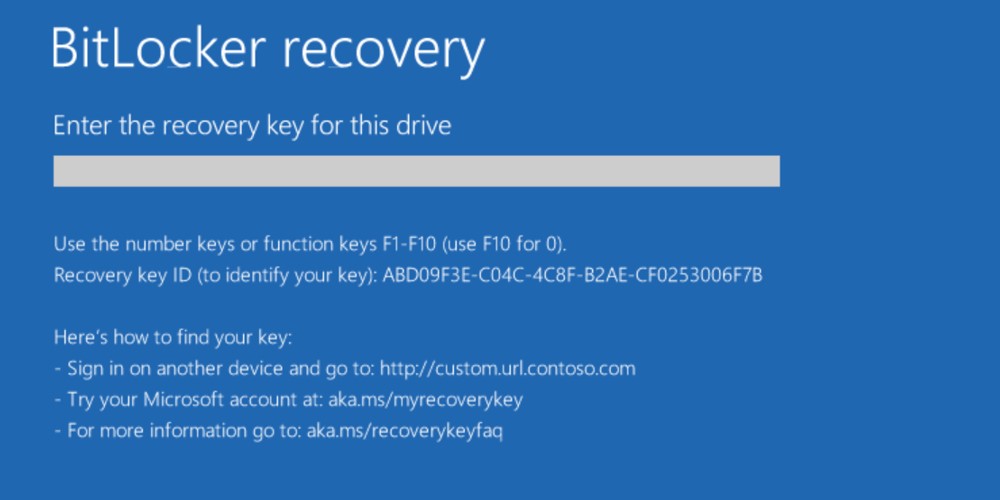
If your Lenovo laptop suddenly asks for a Lenovo BitLocker recovery key, it can be both confusing and stressful. Many users encounter this issue after updates, BIOS changes, or unexpected system errors. In this guide, you’ll learn why this happens, how to fix repeated recovery prompts, and how to recover your data safely if needed.

how to bypass lenovo bitlocker recovery key

Why My Lenovo Keeps Asking For BitLocker Recovery Key?

When your Lenovo device enters BitLocker recovery mode, it usually means the system detected a change that could affect security. BitLocker is designed to protect your data, so it locks the drive whenever it senses unusual activity. Understanding the cause can help you apply the correct fix.

1TPM Validation Failure

The Trusted Platform Module (TPM) stores encryption keys securely. If TPM fails to validate system integrity during startup, BitLocker requires the recovery key.

2Hardware Configuration Changes

Replacing RAM, SSD, motherboard, or even adjusting boot components may trigger BitLocker protection.

3BIOS/UEFI Firmware Updates

Updating or resetting BIOS settings can alter boot parameters, causing BitLocker to request verification.

4OS Reinstallations or Errors

Failed Windows updates, crashes, or corrupted system files can activate recovery mode.

5Malware or Security Threats

Malicious changes to boot files may trigger BitLocker’s protection mechanism.

6Severe System Corruption

Serious file corruption can prevent TPM validation, leading to repeated recovery prompts.

If you are seeing the Lenovo BitLocker recovery key screen on every boot, one of these causes is likely responsible.

How to Bypass Lenovo BitLocker Recovery Key?

When your Lenovo system keeps requesting the recovery key, you need a structured approach. Different root causes require different fixes. Below is a summary table followed by detailed methods.

Reasons and Corresponding Fixes

  • Cause
  • Recommended Fix
  • TPM Validation Failure
  • Reset or update TPM
  • Hardware Changes
  • Restore hardware or suspend BitLocker
  • BIOS Update Issue
  • Update BIOS properly
  • Windows Errors
  • Update Windows OS
  • Secure Boot Disabled
  • Enable Secure Boot
  • Severe Corruption
  • Reset or reinstall Windows

Method 1: Bypass Recovery Key via CMD

If you can access the Windows Recovery Environment, the Command Prompt can sometimes help resolve temporary BitLocker validation issues. This method works best when the recovery prompt appears after minor system changes. It allows you to check the drive status and temporarily disable protectors.

  • Press "Esc" on the BitLocker recovery screen and click "Skip this drive".

  • Now, go to "Troubleshoot", then "Advanced Options", and choose "Command Prompt".

  • Run the command manage-bde -unlock C to unlock your drive, then run manage-bde -protectors -disable C: to remove the BitLocker protectors.

    manage bde protectors disable c command prompt

This may stop the BitLocker recovery key prompt on a Lenovo laptop if it was triggered by a temporary validation failure.

Method 2: Update or Reset TPM

TPM issues are one of the most common reasons for repeated recovery key prompts. If TPM data becomes corrupted or outdated, BitLocker cannot verify system integrity. Resetting or clearing TPM may restore normal behavior.

  • Press Windows + R, type "tpm.msc", and press Enter.

  • Check your TPM version and download the latest TPM version from the Lenovo official website.

    check and update tpm
  • Follow the on-screen instructions to update your TPM and restart your Lenovo laptop.

This method often resolves Lenovo BitLocker recovery key error on Windows 11 related to TPM mismatch.

Method 3: Update BIOS

An outdated BIOS version can conflict with BitLocker security validation. If the recovery key request started after a firmware update or BIOS reset, updating to the latest stable version may help. Always follow Lenovo’s official instructions carefully.

  • Visit Lenovo’s official support website and download the latest BIOS update for your exact laptop model.

  • Install the update following the on-screen instructions and restart your system.

Updating the BIOS can fix compatibility problems that cause the Lenovo BitLocker recovery key issue every boot.

Method 4: Update Windows OS

Windows system bugs or incomplete updates may interfere with BitLocker validation. Installing the latest Windows updates can repair system components and restore proper boot verification. This method is safe and recommended before performing advanced repairs.

  • Open "Settings", then go to "Windows Update” and click "Check for updates".

    click to update windows os
  • Install all available updates and restart your device.

Keeping Windows updated reduces the chances of repeated recovery key prompts.

Method 5: Enable Secure Boot

Secure Boot ensures that only trusted software loads during startup. If it is disabled, BitLocker may interpret it as a security change and request the recovery key. Re-enabling Secure Boot restores trusted validation.

  • Restart your laptop and enter BIOS (press F1 repeatedly).

  • Navigate to the "Security" tab and enable Secure Boot.

    enable secure boot on windows
  • Save changes and exit BIOS, then restart the computer.

This may prevent further recovery prompts.


tips

Data Recovery Advice

BitLocker keeps asking for recovery key on your Lenovo laptop? What to do when you need to access the drive to find some important files? I recommend you using data recovery software like 4DDiG, it can quickly scan and recover files from your Levono computer even when the drive can't be unlocked.


FREE DOWNLOAD

Secure Download

FREE DOWNLOAD

Secure Download

Method 6: Reinstall or Reset Windows

If severe system corruption exists, simpler fixes may not work. In that case, resetting or reinstalling Windows can resolve persistent errors. However, this step should be considered carefully because data access may be affected.

  • Hold the Shift key and restart the computer to boot into Windows Recovery Environment.

  • Select "Troubleshoot" then "Reset this PC" and choose "Keep my files" if available.

    reset this pc via windows recovery environment
  • Follow the on-screen instructions to reset your Windows.

If data is inaccessible, consider recovering files before proceeding.

How to Find Lenovo BitLocker Recovery Key?

Instead of bypassing the recovery screen, you may be able to retrieve the original key. Many users don’t realize that BitLocker automatically saves the recovery key in several locations. Below are the most common methods.

Method 1: Find Recovery Key via Microsoft Account

If you signed into your Lenovo laptop using a Microsoft account, the recovery key was likely saved automatically. This is the easiest and most common way to retrieve it. You can access it from another device.

  • Open a browser on another device to go to Microsoft account page and sign in with your Microsoft account.

  • Locate your device and copy the 48-digit key in the "Devices" section.

    find recovery key from microsoft account
  • Enter the key on your Lenovo laptop.

Method 2: Find in Local Files

Some users choose to save the recovery key as a text file during setup. If you previously backed up files to another drive, the key might still be available locally. Searching carefully can save time.

  • Go to File Explorer and search for the "BitLocker Recovery Key" file.

  • Open the file to locate the 48-digit code.

    find bitlocker recovery key in local files

This method helps if you want to find the Lenovo BitLocker recovery key without Microsoft account access.

Method 3: Find in a USB Flash Drive

During BitLocker setup, Windows often offers the option to save the recovery key to a USB drive. If you used this method, the key will be stored as a text file on that drive. Checking old USB drives may resolve the issue quickly.

  • Insert any USB drives you previously used.

  • Browse for recovery key files. Then open and copy the recovery key.

    find bitlocker recovery key in usb drive

Method 4: Reach Out to Your IT Administrator

If your Lenovo laptop belongs to a company, school, or organization, the recovery key may be stored centrally. IT departments often save keys in Active Directory or Azure AD for security compliance. Contacting them is the safest solution in managed environments.

How to Recover Data from a BitLocker Drive on a Lenovo?

If your Lenovo computer asks for a BitLocker recovery key and you can’t access the system, it doesn’t necessarily mean your files are permanently lost. As long as the BitLocker-encrypted drive is still detectable, there may still be ways to scan the drive and recover important data.

The difficulty with BitLocker drives is that the data is protected by encryption, which prevents most standard recovery tools from reading the drive contents directly. Some recovery software, such as 4DDiG Data Recovery, provides support for BitLocker-encrypted drives.

FREE DOWNLOAD

Secure Download

FREE DOWNLOAD

Secure Download

It can automatically unlock the Lenovo or Dell BitLocker drive if you don’t have password or recovery key. Besides, it also allows users to scan the encrypted drive to search for recoverable files when the drive cannot be accessed normally.

With support for common file types like photos, videos, and documents, along with file preview before recovery, it can help you check whether your data is still recoverable before restoring it. Let’s see how it works to recover data from BitLocker-locked drive on Lenovo:

  • Choose the Encrypted Drive to Scan

    Install and launch 4DDiG on a working PC. Select the encrypted Lenovo drive after entering the main interface.

    4ddig bitlocker encrypted drive interface
    Note:

    Before scanning, you can attempt one of the following methods:

    • Unlock BitLocker with password or recovery key
    • Use the Automatic Unlock feature
    • Scan without unlocking

    After trying any of these methods, proceed with scanning the drive.

  • Scan the Drive

    The software will scan the drive for recoverable files automatically, please wait patiently.

    locate files you want to recover
  • Recover Files from BitLocker-Encrypted Drive

    After the scan completes, preview the found files and select the ones you need. You may use Filters to find specific files if you scanned all files. After that, click "Recover".

    click recover button
  • Save the Recovered Files

    Save files to a different storage device to prevent losing them again. Click "Save Now" and select the desired location to save the recovered files.

    click save now button

Conclusion

A persistent Lenovo BitLocker recovery key prompt can result from TPM errors, BIOS updates, hardware changes, or system corruption. By applying the correct troubleshooting method, you can often stop repeated recovery requests.

If unlocking fails, 4DDiG Windows Data Recovery provides a reliable solution to retrieve important files from BitLocker-encrypted Lenovo drives safely and efficiently.

FREE DOWNLOAD

Secure Download

FREE DOWNLOAD

Secure Download

William Bollson (senior editor)

William Bollson, the editor-in-chief of 4DDiG, devotes to providing the best solutions for Windows and Mac related issues, including data recovery, repair, error fixes.

(Click to rate this post)

You rated 4.5 ( participated)