Solve Acer Flickering Screen Issue with Proven Solutions

5 mins read

Updated on 2026-03-27 11:29:16 to Windows Fix

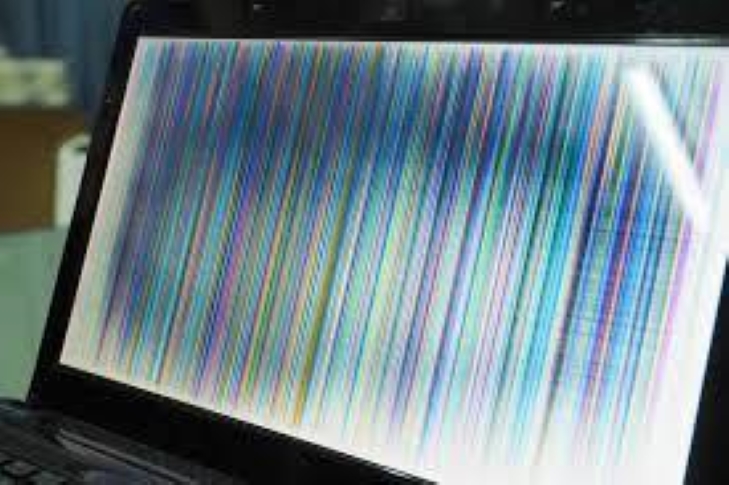
An Acer flickering screen can be extremely frustrating, especially when it interrupts work, gaming, or streaming. Many users report issues like an Acer laptop flashing screen, random blinking, or display glitching without warning. These problems can occur due to hardware faults, driver conflicts, or incorrect display settings.

The good news is that most Acer laptop screen issues can be fixed with the right approach. In this guide, you’ll learn the causes and step-by-step solutions to fix your Acer laptop blinking screen effectively.

acer flickering screen

1. What Causes an Acer Flickering Screen?

Before fixing the problem, it’s important to understand why your Acer laptop screen keeps flashing. Here are the most common causes of Acer laptop screen problems:

  • Loose or damaged display cable: A loose internal flex cable can cause intermittent flickering or an Acer monitor blinking on and off.
  • Outdated or corrupted display drivers: Drivers that are incompatible or outdated can lead to an Acer laptop blinking screen.
  • Incorrect refresh rate settings: Mismatched refresh rates may cause visible flickering or display instability.
  • Hardware issues (GPU or screen): A failing graphics card can result in the Acer laptop monitor not working properly.
  • Overheating: Excess heat can affect GPU performance and cause display glitching.
  • Software conflicts: Background apps or system bugs may trigger screen flickering.

Understanding these causes will help you fix your Acer laptop monitor flickering more efficiently.

2. How to Fix an Acer Laptop Blinking Screen?

Fixing an Acer laptop blinking screen requires a step-by-step approach. The issue can be caused by either hardware faults or software conflicts, so it’s important to address both areas.

Below, you’ll find effective methods to diagnose and fix the problem quickly.

Step 1: Diagnose Acer Flickering Screen & Hardware Checks

Before fixing, it is important to first check whether the issue is caused by hardware. These basic checks will help you identify if the flickering is related to the screen, cable, or internal components.

💻 Test External Monitor

This step helps isolate whether the issue lies in the display panel, GPU, or system configuration. It is especially useful when diagnosing Acer laptop monitor not working issues.

  • Connect your Acer laptop to an external monitor using HDMI.

  • Turn on both devices and observe the external display carefully.

If the external monitor also flickers, then it means there is a GPU issue with your laptop. If the external display is stable, then there is some sort of screen or cable issue.

🔌 Check the LCD Cable

A loose or damaged LCD flex cable is one of the most common reasons behind an Acer laptop flashing screen. This cable connects the motherboard to the display, and even slight movement can cause flickering.

  • Open a bright/white page or colorful image/video on the screen. Sit in good light, plug in charger if possible.

  • Start with lid fully closed. Then, very slowly open the lid from 0° to max and watch the screen the whole time.

    check lcd cable
  • Slow open and slow close in 5–10 times. Stop and wiggle gently at different angles.

If symptoms clearly change with lid position/movement, LCD cable is very likely the issue.

💥 Check for Overheating

Overheating can affect GPU performance and lead to display glitching or flickering screens. When internal components get too hot, the system may struggle to maintain stable display output. This often results in an Acer laptop blinking screen during heavy tasks.

  • Use the laptop for a while and check if it becomes unusually hot.

  • Ensure cooling vents are not blocked.

  • Use cooling pads if necessary and clean dust from fans and vents.

⚡ Bonus: Protect Data before Fixing Acer Laptop Screen Issues

Before performing deeper repairs or hardware checks, it is important to ensure your data is safe. Screen flickering issues can sometimes worsen and lead to system instability, making it difficult to access important files. Taking a full back up or cloning your system ensures that you don’t lose valuable data during troubleshooting.

4DDiG Partition Manager provides a reliable way to clone your entire operating system to another drive before making major changes. It creates an exact copy of your system, including Windows, apps, and files, allowing you to restore everything if something goes wrong. This makes it especially useful when dealing with serious Acer laptop screen repair scenarios or potential hardware failure.

  • Install and open 4DDiG Partition Manager, then select the “Clone OS Disk” option.

    FREE DOWNLOAD

    Secure Download

    clone os disk
  • Choose your “system drive” as the source and select another target drive to clone the data on, then press “Next”.

    select target disk
  • Use the graphical interface to manage the size of your drives and partitions and click “Start” to begin the process. Then, click "Sure" in the pop-up window and note that this process will overwrite any existing data on the target disk.

    click sure
  • Now, wait for the cloning process to complete. Once your data is cloned successfully, you may click "Finish.

complete cloning

Step 2: Fix Acer Laptop Blinking Screen with Software Solutions

If the hardware appears to be working properly, the issue is likely caused by system settings or software conflicts. The following solutions will help you resolve Acer laptop blinking screen issues through simple software adjustments.

Fix 1: Run Windows Troubleshooter & Check Task Manager

Software conflicts are a common reason behind Acer laptop blinking screen problems. Running the troubleshooter and checking the Task Manager can help identify these issues quickly.

  • Open “Settings", then go to System > Troubleshoot.

  • Run the display troubleshooter "Hardware and Devices."

    hardware and device troubleshooter
  • Open Task Manager and look for apps causing screen flickering.

  • End suspicious tasks by right-clicking them and choosing "End Task" one by one until you find the problematic task.

Fix 2: Disable Hardware Acceleration

Hardware acceleration sometimes causes compatibility issues with certain applications, leading to an Acer laptop flashing screen or unstable display behavior. Disabling it can resolve conflicts between software and GPU processing.

  • Right-click on your screen and click "Display Settings," then go to "Graphics”.

  • Click “Change default graphics settings” and toggle off the “Hardware-accelerated GPU scheduling” option.

    change graphics settings

Fix 3: Disable Adaptive Sync (Intel Graphics)

Adaptive Sync can sometimes cause flickering on certain Acer laptops. This feature adjusts refresh rates dynamically, but it may not work properly with all displays. Disabling it has helped many users fix Acer monitor blinking on and off issues.

  • Open Intel Graphics Command Center and go to “Display” section.

  • Locate “Adaptive Sync” and turn it off.

    turn off adaptive sync

Fix 4: Adjust Display Refresh Rate

An incorrect refresh rate can lead to flickering or unstable visuals. This is a common cause when users ask, my screen is flickering on my laptop. Setting the correct refresh rate ensures smoother and more stable display performance.

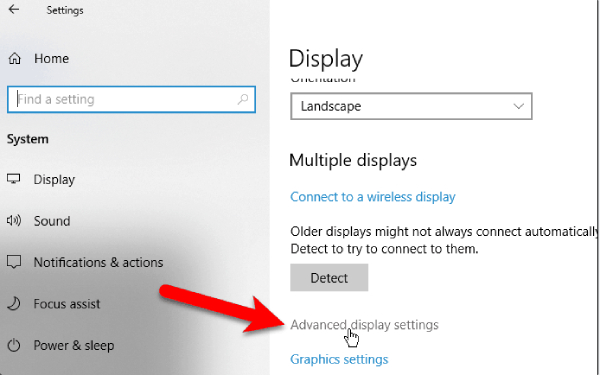
  • Right-click the desktop and click “Display Settings”.

  • Now, click “Advanced Display Settings” and choose your display.

  • Scroll down to the “Refresh Rate” option and choose the recommended refresh rate.

    change refresh rate

Fix 5: Update Display Driver

Outdated or corrupted drivers are one of the biggest causes of Acer laptop screen issues. Updating your display driver ensures compatibility with the latest system updates. This fix often resolves problems like monitor flickering or display crashes.

  • Press “Win + X” and open “Device Manager”.

  • Expand “Display Adapters," then right-click your GPU and choose “Update Driver”.

    update display driver
  • Choose “Search automatically” and let the process complete, then restart your laptop.

    select search automatically option

FAQs about Acer Laptop Flashing Screen

1.How to fix a flashing monitor?

You can fix a flashing monitor by checking cables, updating drivers, and adjusting display settings. Hardware issues like loose connections or overheating may also require inspection.

2.Why is my laptop screen suddenly blinking?

A laptop screen may start blinking due to driver issues, overheating, or software conflicts. In some cases, hardware damage or a loose display cable can also be the cause.

3.Does screen flickering mean a virus?

Screen flickering is usually not caused by viruses but by hardware or software issues. However, malware can occasionally affect system performance, so running a scan is still recommended.

Conclusion

An Acer flickering screen can result from both hardware and software problems, but most issues can be resolved with the right troubleshooting steps. From checking cables and external monitors to updating drivers and adjusting settings, these solutions cover the most common causes of Acer laptop screen problems.

If you are dealing with serious issues, tools like 4DDiG Partition Manager can help protect your data before repairs. By following this guide, you can restore your display and prevent future screen flickering problems effectively.

FREE DOWNLOAD

Secure Download

William Bollson (senior editor)

William Bollson, the editor-in-chief of 4DDiG, devotes to providing the best solutions for Windows and Mac related issues, including data recovery, repair, error fixes.

(Click to rate this post)

You rated 4.5 ( participated)