Complete Guide to Extend Partition in Ubuntu

5 mins read

Updated on 2026-04-30 18:42:37 to Windows Fix

Need to extend partition in Ubuntu due to low disk space? This usually happens when installing updates, adding software, or handling large files on limited storage.

The most effective way is using built-in tools Disks without reinstalling the system or losing data. This guide walks you through practical methods to safely resize partitions, so you can quickly regain usable space and keep your system running smoothly. Let’s get started.

Part 1. Preparation before Extending Partition in Ubuntu

Before you begin the process of Ubuntu extend partition, it’s very important to prepare your system properly. Disk operations in Linux are generally safe and reliable, but they still involve direct changes to storage structure. That’s why proper preparation is the most important step.

• Back Up your Data

Always create a full backup before making changes. Even if tools support resizing Ubuntu partition without losing data, risks like power failure or wrong selection can still happen.

• Ensure Unallocated Space Exists

The second essential requirement is having unallocated space available on your disk. You cannot increase Ubuntu partition unless there is free space adjacent to it. Unallocated space can be created in several ways:

  • Shrinking an existing partition
  • Removing unused or unnecessary partitions
  • Adding a new hard drive or virtual disk (especially in virtual machines)

Once you have a proper backup and confirmed unallocated space, you are fully ready to safely proceed with methods below.

✔Related article: Check Disk Space on Linux, Mac, and Windows [Beginner-Friendly Guide]

Part 2. How to Increase Ubuntu Partition?

Here are two reliable methods to extend partition in Ubuntu. Choose the one that best fits your situation and technical comfort level.

Method 1: Use Ubuntu’s Default Utility Disks

The Disks tool is the simplest built-in option for basic partition management. It is ideal for users who want to perform extend partition in Ubuntu without installing additional software.

  • Open the Activities menu and search for “Disks. Launch the Disks utility.

  • Select the correct storage device (HDD/SSD) from the left panel.

  • Click on the partition you want to resize. Click the gear icon below the partition and choose “Resize…”

    resize ubuntu partition
  • A slider will appear. Drag it to allocate free space and enlarge partition Ubuntu.

  • Confirm changes and click “Resize. Wait for the process to complete.

This method is useful for simple setups where you want to resize Ubuntu partition quickly.

Method 2: Use GParted

GParted is a powerful partition editor widely used for Linux systems. It provides more control and flexibility.

Notes:

Before you proceed with Ubuntu extend partition, keep these key points in mind to avoid issues during the process.

  • You may need to boot from a Live USB if resizing system (root) partition.
  • Swap partition should be disabled before resizing.
  • First, you need to install GParted. Now open GParted with administrator access, and you’ll see a visual map of all partitions.

  • At the top-right corner, choose the correct storage device such as /dev/sda (HDD/SSD systems). Be careful here, choosing the wrong disk can affect other drives.

    choose storage device
  • Now scan the layout and find the partition you want to modify. This is usually your root or home partition when performing Ubuntu extend partition tasks.

  • Right-click on the target partition and select “Resize/Move. Drag the slider into the unallocated space until it reach your desired size. This step is the core of resizing ubuntu partition, so take your time and double-check the space.

    resize ubuntu partition on gparted
  • Once everything looks good, click Resize/Move button, and the green Apply All Operations button. GParted will now process your changes.

After this, your system will reflect the new space, completing your Ubuntu extend partition size operation successfully.

Both methods allow you to safely perform resizing Ubuntu partition, but GParted is more powerful and flexible, especially for advanced users or complex disk layouts.

⚡ Bonus: Easier Way to Manage Partitions (For Dual-Boot or Windows Users)

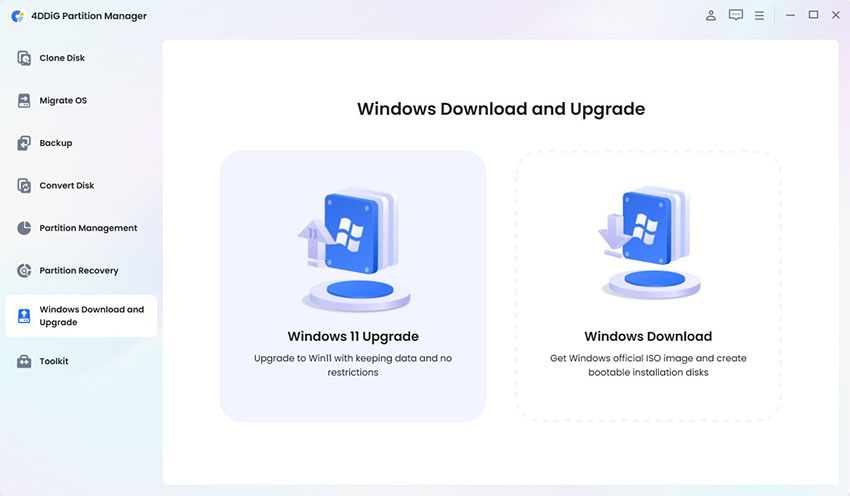
If you are not comfortable using tools like GParted or command-line methods, there is a more beginner-friendly solution: using 4DDiG Partition Manager, which is especially helpful for dual-boot users and Windows users.

It is a graphical disk management tool designed to simplify tasks like resize, move, merge, and extend partitions without complex steps.

Why use 4DDiG Partition Manager?

  • A clean visual interface for disk layout.
  • Safe resize partition functionality without data loss.
  • Easy drag-and-drop resizing.
  • Support for both system and data partitions.
  • Install and open 4DDiG Partition Manager. Go to “Partition Management “ from the left sidebar, then choose the partition you want to adjust. Click “Resize/Move” from the right panel.

    FREE DOWNLOAD

    Secure Download

    3 day free trial click resize
  • In the pop-up window, resize the partition by dragging its edges, or manually enter the desired size in GB. You can preview the changes before applying them. Once satisfied, click OK to add the operation to the queue.

    resize partition
  • The pending operation will appear in the Task List. Click “Execute 1 Task(s)”, then confirm by clicking OK to proceed.

    click ok
  • The resizing process will begin immediately and may take some time to complete. After it completing, click Done.

    resize successfully

More FAQs about Resizing Ubuntu Partition

1. How to create a partition more than 2TB in Linux?

You need to use the GPT format. GPT removes the size limitation of MBR and allows you to manage very large drives easily. Most modern tools make it simple to handle large storage when you plan to extend partition.

2. Can I increase my Linux partition?

Yes, you can increase your Linux partition if there is unallocated space available on your disk. This is a common process.

3. What is the best partition size for Ubuntu?

The best partition size depends on your usage. For basic users, 25–30 GB is usually enough, while developers may need 50–100 GB for applications and tools. Heavy users or those working with large files should consider 100 GB or more.

Conclusion

Learning how to extend partition in Ubuntu helps you manage your storage better and avoid low disk space issues. The process becomes safe when you prepare properly, keep a backup, and ensure there is unallocated space available before making changes. If you want to know how to extend C drive in Windows, please click here.

For users who want a simpler way, 4DDiG Partition Manager is a helpful option. It offers a visual interface that makes resizing easy without using complex commands.

FREE DOWNLOAD

Secure Download

William Bollson (senior editor)

William Bollson, the editor-in-chief of 4DDiG, devotes to providing the best solutions for Windows and Mac related issues, including data recovery, repair, error fixes.

(Click to rate this post)

You rated 4.5 ( participated)