[7 Ways] How to Recover Files from a Corrupted Flash Drive?

5 mins read

Updated on 2026-03-17 17:40:45 to USB Recovery

USB flash drives are widely used for storing and transferring files, but they can sometimes become corrupted without warning. When this happens, your documents, photos, and videos may suddenly become inaccessible. Fortunately, learning how to recover files from corrupted flash drive devices can help you retrieve your important data.

Whether the issue is caused by file system errors, improper removal, or malware, several recovery methods can help restore lost files. This guide explains effective ways to recover files and repair a corrupted flash drive safely.

Common Symptoms of a Corrupted USB Flash Drive

Before attempting recovery, it is helpful to recognize the signs of a corrupted flash drive. Corruption usually occurs when the file system becomes damaged or when hardware communication fails.

Here are some common symptoms users may encounter.

Flash Drive Not Recognized by Computer

Sometimes the USB drive does not appear in File Explorer after being connected. This usually indicates that the system cannot properly detect the device.

“You Need to Format the Disk” Error

A common error message may appear saying the disk must be formatted before use. This often means the file system is damaged or unreadable.

Files Missing or Unreadable

Files stored on the drive may suddenly disappear or show error messages when opened.

USB Drive Shows 0 Bytes

In some cases, the flash drive appears empty or displays incorrect storage information.

Slow Performance or Frequent Freezing

A corrupted USB drive may take a long time to load files or freeze when accessed.

If you notice any of these issues, there is a strong chance that the device is corrupted. Many users ask that can you recover files from a corrupted flash drive, and the answer is yes in many situations. Recovery methods can often restore the lost files if the device is still physically functional.

Recover Files from a Corrupted Flash Drive via Backup

If you regularly back up your data, recovering files becomes much easier. Backups allow you to restore previous versions of files without needing advanced recovery tools. Below are two ways to recover files using backups.

Method 1: Recover Files from Local Backup

Windows includes a built-in backup feature called File History. If it was enabled before the flash drive became corrupted, you may restore the files from previous backups.

  • Connect the corrupted USB flash drive to your computer.

  • Search for “File History” and open it, then choose “Restore personal files”.

    recover files from local backup on windows
  • Browse through the available backups to select the files you want to restore and click “Restore”.

This method works best when the files were previously copied or backed up from the flash drive.

Method 2: Recover Files from Cloud Backup

Many users automatically back up files to cloud services such as OneDrive. If your files were synced before the corruption occurred, they may still exist in your online storage.

  • Open your browser and sign in to “OneDrive," then navigate to the folder where your files were previously stored.

    recover files from cloud backup on windows
  • Locate the files you want to recover, then select the files and click “Download”.

  • Save them back to your computer or another storage device.

Cloud backups are useful when attempting to recover files from a corrupted USB flash drive storage without directly accessing the damaged device.

⚡ Recover Files from a Corrupted USB Flash Drive via Data Recovery Software

If you do not have a backup, specialized recovery software becomes the most reliable solution. Data recovery tools can scan the storage sectors of a corrupted flash drive and locate files that are no longer visible to the system.

One recommended solution is 4DDiG Data Recovery, which lets you recover your lost, deleted, or unsaved files(documents, photos, videos...) from the corrupted USB flash drive quickly. With 4DDiG, you can recover almost 2,000+ different types of files from any kind of device, including a corrupted/damaged USB flash drive, internal/external hard drive, SD card...

FREE DOWNLOAD

Secure Download

FREE DOWNLOAD

Secure Download

It is especially helpful when the drive is corrupted but still detectable by the computer. Using this tool is often the best alternative for users looking to know how to recover files from corrupted flash drive storage without backups.

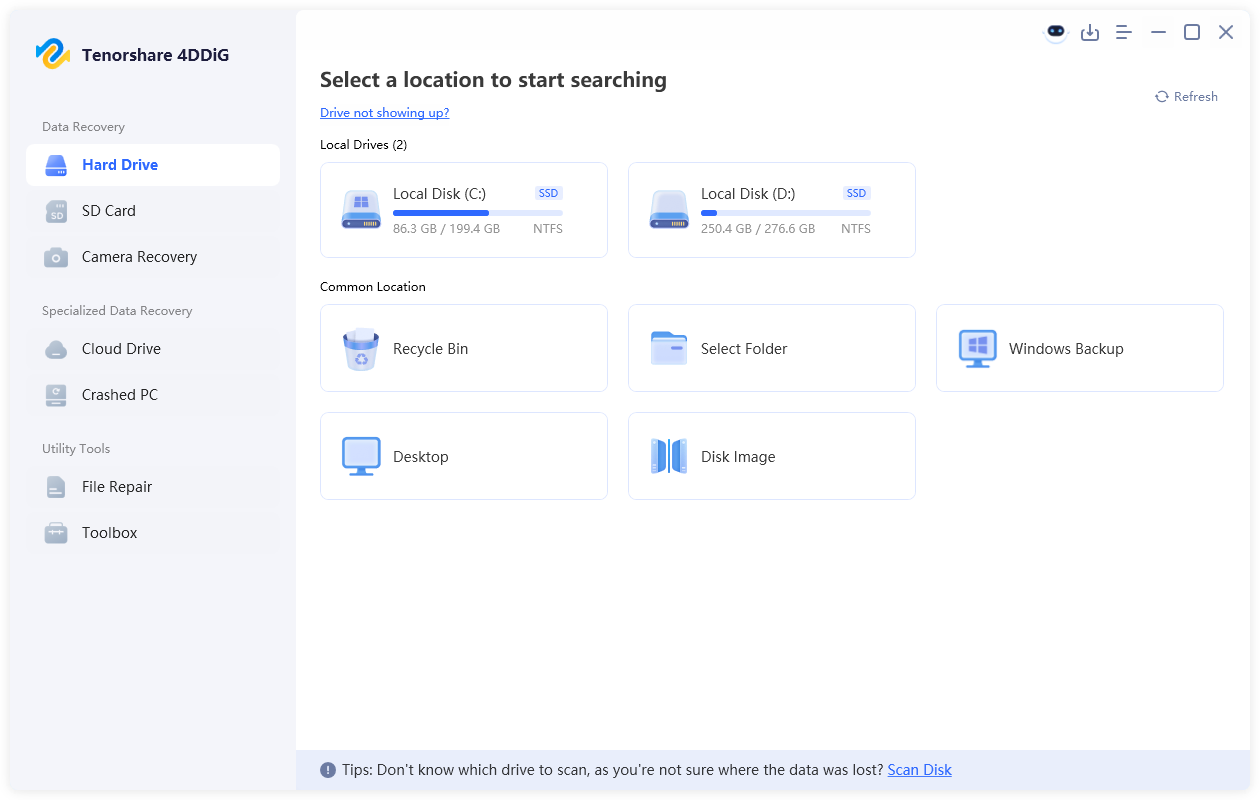
  • Insert the corrupted USB flash drive into your computer and launch 4DDiG after downloading and installing it. From the list of available storage devices, choose your USB flash drive.

    launch 4ddig and enter interface
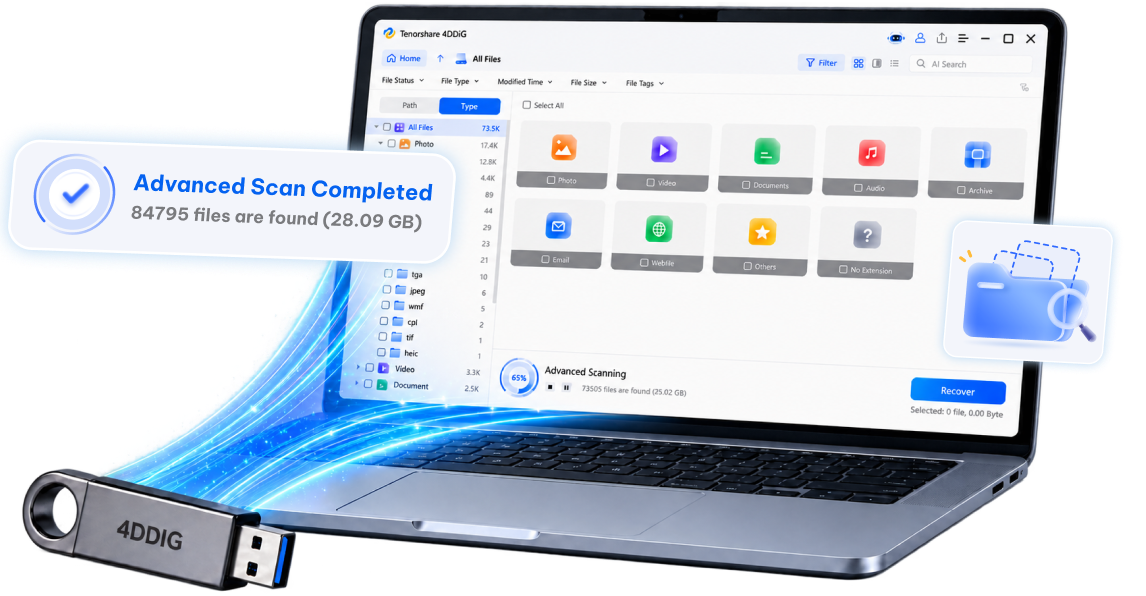
  • 4DDiG will start the scanning process automatically. The software will search for recoverable files, including photos, documents, and videos. After the scan is complete, you can use the "Filters" or the "Search" option to find the files you are looking for.

    click type to see all files 4ddig
  • Preview the discovered files and click “Recover” to save them to a safe location on your computer.

    preview and recover the files
  • Select a location for saving these files, then click "Save Now”.

    save the recoverable files

This process helps recover files from corrupted USB flash drive devices even when the file system is damaged or inaccessible.

Repair Corrupted Flash Drive and Recover Files

In some situations, repairing the flash drive first may help restore access to the stored data. However, these methods mainly repair the drive structure rather than directly restoring deleted files. After repairing the drive, you should use recovery software like 4DDiG to retrieve the data.

Method 1: Run CHKDSK Command

The CHKDSK command scans the drive for file system errors and attempts to repair them. This method is often recommended when users want to learn how to recover files from a corrupted flash drive using CMD.

  • Connect the corrupted flash drive to your computer.

  • Press “Windows + S” and search for “Command Prompt”. Right-click Command Prompt and choose “Run as administrator”.

    run command prompt as administrator
  • Type the following command: “chkdsk E: /f”. Replace E: with the letter assigned to your USB drive, press “Enter," and wait for the scan to finish.

    run the chkdsk prompt

If the corruption is caused by file system errors, CHKDSK may repair the drive and restore access to the files.

Method 2: Assign a New Drive Letter

Sometimes a flash drive appears inaccessible because its drive letter conflicts with another device.

  • Press “Windows + X” and select “Disk Management," then locate your USB flash drive in the list of storage devices.

    click disk management on windows
  • Right-click the drive and select “Change Drive Letter and Paths”.

    reassign a drive letter
  • Click “Change” and assign a new drive letter, then click “OK” to confirm.

After assigning a new letter, reconnect the flash drive and check whether the files become accessible.

Method 3: Reinstall or Update USB / Disk Drivers

Outdated or corrupted drivers may prevent the flash drive from functioning correctly.

  • Press “Windows + X” and select “Device Manager”.

  • Expand “Disk drives” or “Universal Serial Bus controllers”.

  • Right-click your USB device and select “Update driver” or “Uninstall”.

    update universal serial bus controllers
  • Restart your computer to reinstall the drivers automatically.

Updating drivers can sometimes resolve device communication issues.

Method 4: Format the Flash Drive

If the flash drive remains inaccessible after attempting other solutions, formatting may be required to repair the file system. However, formatting will erase existing data, so this should only be done after attempting recovery.

  • Insert the flash drive into your computer and open “File Explorer”.

  • Right-click the flash drive and select “Format”.

  • Choose a file system such as “NTFS” or “exFAT” and choose your "Format Options" as "Quick Format", then click “Start” to begin formatting.

    format your usb drive on windows

After formatting, you can run data recovery software to restore the lost files.

How to Prevent a USB Flash Drive from Being Corrupted?

While recovery methods are helpful, preventing corruption is always the best strategy. Following proper storage practices can reduce the risk of losing data:

  • Always safely eject the flash drive before removing it
  • Avoid interrupting file transfers
  • Scan for viruses regularly
  • Use reliable USB ports and card readers
  • Keep backup copies of important files

By following these precautions, you can reduce the chances of dealing with corrupted flash drives in the future.

Conclusion

A corrupted flash drive does not necessarily mean your files are permanently lost. By learning how to recover files from corrupted flash drive devices, you can restore important documents, photos, and videos using several practical methods.

Backup restoration, system repair tools, and command-line utilities may help resolve certain issues. However, when no backup exists, professional recovery tools like 4DDiG USB Data Recovery provide one of the most effective ways to scan the drive and safely retrieve lost data.

FREE DOWNLOAD

Secure Download

FREE DOWNLOAD

Secure Download

William Bollson (senior editor)

William Bollson, the editor-in-chief of 4DDiG, devotes to providing the best solutions for Windows and Mac related issues, including data recovery, repair, error fixes.

(Click to rate this post)

You rated 4.5 ( participated)