[5 Ways] How to Recover Deleted Outlook PST File in 2026

5 mins read

Updated on 2026-05-26 14:56:15 to Data Recovery

Deleted PST files can immediately block access to Outlook emails, contacts, calendars, and archived business data. The recovery methods below cover how to recover Outlook PST file data from backups, temporary folders, AutoArchive directories, and professional recovery software for permanently deleted Outlook files.

recover deleted outlook pst file

Why Was My Outlook PST File Deleted?

Accidental deletion, disk corruption, synchronization failures, and malware attacks are the most common reasons Outlook PST files disappear. Understanding the source of PST loss improves the chances of successful recovery and prevents further mailbox corruption. Here are the reasons to know about.

  • Accidental manual deletion from File Explorer
  • Emptying the Recycle Bin before restoration
  • Hard drive formatting or partition loss
  • Outlook profile corruption
  • Windows system crashes
  • Malware or ransomware attacks
  • Antivirus software mistakenly removes PST files
  • Damaged SSD or HDD sectors
  • Interrupted Outlook synchronization

⚡ How to Recover a Deleted Outlook PST File?

Recycle Bin restoration, Windows backup recovery, and specialized data recovery tools are the most effective methods for how to recover deleted Outlook PST file data. Recovery success mainly depends on whether the PST file was permanently deleted, overwritten, or still partially stored on the drive.

Method 1: Recover Deleted PST File from Recycle Bin

Recently deleted PST files often remain inside the Windows Recycle Bin until they are permanently removed. Restoring the original file location preserves Outlook compatibility and mailbox structure.

  • Open the "Recycle Bin" on your computer using the desktop icon. If you do not have a desktop icon, you can open it by searching for it in "Windows Search."

  • Look for the deleted “Outlook PST files” in the recycle bin and select the ones you want to recover.

  • Right-click the PST files and click “Restore”. This will recover the Outlook PST file back to its original location from where they were deleted.

    restore deleted outlook pst files from recycle bin

Method 2: Recover Deleted Outlook PST File Using File History or Backup

Windows File History and external backups provide one of the safest methods to restore previous PST versions without risking additional file corruption. Organizations using scheduled backup policies typically recover mailbox archives successfully through this approach.

  • Open “Control Panel” on your Computer and go to the "File History" option under the "System and Security" section.

  • Click “Restore Personal Files” on the left side and go through the available backups with the File History feature.

  • Select the available “Outlook PST Files” that you want to recover and click the “Restore” button.

    recover pst files from file history

Method 3: Recover Permanently Deleted PST File with Data Recovery Software

Permanent deletion bypasses the Recycle Bin and removes normal file references from Windows storage indexes. Professional recovery software scans remaining storage sectors and reconstructs recoverable Outlook data structures.

4DDiG data recovery supports deep scanning for deleted Outlook mailbox data, damaged PST containers, and formatted-drive recovery scenarios. The software can also recover data from PST archives stored on HDDs, SSDs, USB drives, and external storage devices. Here’re the steps to follow:

FREE DOWNLOAD

Secure Download

FREE DOWNLOAD

Secure Download

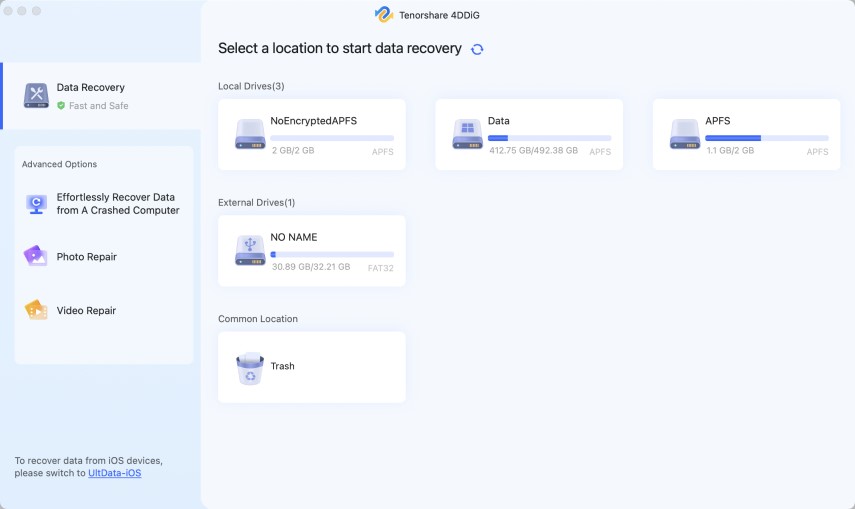
  • Launch 4DDiG on your computer after downloading and installing it. Select the drive that you want to restore your PST files from, and 4DDiG will scan the drive automatically.

    launch 4ddig and enter interface
  • Click “File Type” and choose “Email” to quickly shortlist the available recoverable PST files on your drive.

    click type to see all files 4ddig
  • Wait for the search to complete, and then you can click the results to check their previews. If you find a file you want to restore, click "Recover".

    preview and recover the emails
  • Finally, choose a location to save the recovered file and click “Save Now” to finish the process.

    save the recovered emails

Method 4: Recover PST File from Outlook Temp or AutoArchive Folder

Outlook sometimes stores temporary mailbox copies inside cache directories or AutoArchive folders even after the main PST disappears. Checking these directories can recover recently archived emails and mailbox snapshots.

This method is especially useful for users searching to recover outlook PST file without external recovery software.

  • Open Outlook on your computer and go to "File," then choose "Open & Export."

  • Here, you need to click the “Open Outlook Data File” option to proceed.

    open outlook data file
  • Check the "PST" files that can be recovered from AutoArchive, and from where you can export those files to your computer.

Method 5: Recover Email Messages from Your Backup PST File

Backup PST files allow the selective restoration of contacts, folders and deleted emails in Outlook. Importing mailbox backups is one of the most reliable methods for PST deleted email recovery after accidental mailbox deletion.

  • Open “Outlook," then go to "File" and choose the "Open & Export” option. Click the “Import/Export” option.

  • Choose “Import from another program or file” then click “Next”.

  • Click the "Outlook data file PST" option and click "Next" to browse. for your backup PST file using the File Explorer pop-up window. Once you find that file, import it, and you will recover your email messages.

    choose outlook daat file pst

How to Open a Recovered PST File in Outlook?

Recovered PST files must be reattached manually inside Outlook before the mailbox data becomes accessible again. Outlook's Import and Export tools support direct loading of restored PST archives. Steps to open a recovered PST file:

  • Open Microsoft Outlook and select “File” from the top menu.

  • Click “Open & Export” then choose “Open Outlook Data File.”

    how to open an outlook pst file
  • Now, in the pop-up window, you need to click "Next" after selecting the "Import from another program and file" option.

  • Choose the "PST" option and click "Next" again to open the file explorer window, where you will search for your recovered PST file.

  • Select the PST file and click "Open," and wait for Outlook to load the mailbox folders and email data.

Tips to Prevent Outlook PST File Loss in the Future

Regular backups, stable storage management, and controlled mailbox sizes significantly reduce PST corruption and accidental deletion risks. Preventive maintenance remains more reliable than emergency mailbox recovery. You can try these tips:

  • Enable Windows File History or scheduled backups
  • Store backup PST files on external drives
  • Avoid abrupt system shutdowns during Outlook synchronization
  • Maintain sufficient free disk space
  • Use reliable antivirus protection
  • Avoid excessively large PST archives
  • Periodically export mailbox backups manually
  • Keep Outlook and Windows updated
  • Avoid storing PST files on unstable network drives

Conclusion

Deleted Outlook PST files can often be restored through Recycle Bin recovery, Windows backups, AutoArchive folders, or deep storage scanning methods. Recovery success mainly depends on how quickly the deleted data is handled after loss occurs. The solutions above provide multiple ways to recover Outlook PST file data and restore mailbox access safely.

For permanently deleted or inaccessible Outlook archives, 4DDiG data recovery provides advanced scanning and reliable PST recovery support across damaged, formatted, and corrupted storage devices.

FREE DOWNLOAD

Secure Download

FREE DOWNLOAD

Secure Download

William Bollson (senior editor)

William Bollson, the editor-in-chief of 4DDiG, devotes to providing the best solutions for Windows and Mac related issues, including data recovery, repair, error fixes.

(Click to rate this post)

You rated 4.5 ( participated)