How to Fix “Connection Timed Out: getsockopt” in Minecraft?

5 mins read

Updated on 2026-09-04 10:10:39 to game

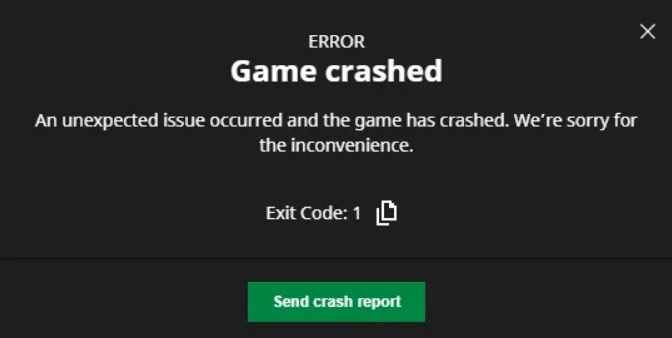
Seeing the Minecraft getsockopt error while joining a multiplayer server is one of the most common connection failures players face. The message typically reads “Connection timed out: getsockopt” or “Failed to connect to the server.” This guide explains what the error actually means, lists the most frequent causes, and provides step-by-step fixes that work for both public servers and LAN games.

💡 Quick Preliminary Checks

  • Confirm the server is online: An offline server will always produce a timeout.
  • Verify the exact IP and port: Use Direct Connect and try the raw IP address if you normally connect through a subdomain or domain name.
  • Restart the Minecraft launcher and the game completely.
  • Test on a different network, such as a phone hotspot. This quickly shows whether the issue is local (your PC or home network) or related to your ISP.

1. What the Minecraft Getsockopt Error Actually Means?

The function name getsockopt is a low-level networking call used by operating systems to read options from a socket. When Minecraft displays a “connection timed out getsockopt” message, the game has attempted to open a network connection to the target server and received no response before the timeout period expired.

getsockopt minecraft error

Players usually see one of these exact strings:

  • Connection timed out: getsockopt
  • Failed to connect to the server
  • Connection refused: getsockopt
  • Network is unreachable: getsockopt

In practical terms, the client never completed the TCP handshake with the server. The error can also appear as connection refused getsockopt when the target port is closed or filtered.

Common Causes of Minecraft Getsockopt Error

These causes account for the majority of reports, ranked by frequency:

  • Firewall or antivirus software blocking Java or Minecraft outbound traffic. Windows Firewall and many third-party security suites silently drop the connection.
  • Incorrect server IP, wrong port, or an outdated address that no longer points to the live server.
  • DNS resolution failures or slow DNS servers that never return a usable IP for the hostname.
  • LAN multiplayer misconfiguration—wrong local IPv4 address, missing firewall rules, or version mismatch between host and clients.
  • Router-level issues such as double NAT, CGNAT from the ISP, or strict outbound filtering.
  • The server itself is offline, overloaded, or temporarily unreachable.

2. How to Fix Getsockopt Error in Minecraft?

Most players clear the getsockopt error with the first three solutions. Each method includes clear steps you can follow immediately.

Method 1: Allow Java / Minecraft Through Windows Firewall

Minecraft relies on the Java runtime to open outbound sockets; if the firewall denies those sockets, the connection simply times out.

  • Open Windows Security and select Firewall & network protection.

  • Click “Allow an app through firewall.”

    allow app through firewall
  • Select “Change settings,” then “Allow another app.”

  • Browse to your Java installation folder (commonly under Program Files\Java or the Minecraft runtime directory) and add both java.exe and javaw.exe.

  • Make sure the checkboxes for both Private and Public networks are enabled.

  • Apply the changes, restart Minecraft, and attempt the connection again.

If you use a third-party antivirus, temporarily disable its real-time network shield and test. Many security suites maintain their own firewall rules that override Windows settings.

Method 2: Verify and Correct Server Address

An outdated or mistyped address frequently produces the getsockopt Minecraft server error even when everything else is configured correctly.

  • From the Minecraft main menu, open Multiplayer and choose Direct Connection.

    minecraft direct connection
  • Enter the full address in the format IP:port (example: 203.0.113.45:25565). Confirm the port with the server host if it is non-standard.

  • If you normally connect via a domain name, try the raw IP address instead. This bypasses any DNS problems that may be returning an unreachable host.

Ensure your client version matches the server version exactly. Version mismatches can cause the handshake to fail silently and surface as a timeout.

Method 3: Flush DNS and Switch to Reliable DNS

A corrupted DNS cache or an unreliable DNS provider can leave Minecraft unable to resolve the server hostname, resulting in a connection timed out getsockopt response.

Flush the DNS cache:

  • Open Command Prompt as Administrator.
  • Run the command: ipconfig /flushdns
  • Optionally follow with ipconfig /release and ipconfig /renew to refresh your IP lease.

Change to a DNS service:

  • Go to Settings > Network & Internet > your active adapter > Edit DNS server assignment.

  • Switch to Manual and enter 1.1.1.1 (Cloudflare) or 8.8.8.8 (Google) as the preferred DNS server. Add 1.0.0.1 or 8.8.4.4 as the alternate.

  • Save the settings, disable and re-enable the network adapter, then test the Minecraft connection again.

Method 4: Fix Getsockopt Error for LAN / Local Multiplayer

LAN games generate the same timeout when the host or joining clients are misconfigured. Follow the steps for both roles.

Host setup:

  • Open the world to LAN and note the port number displayed on screen.
  • Run ipconfig in Command Prompt and locate your IPv4 address. Share the full address in the form IP:port with the other players.
  • Confirm that Windows Firewall (and any third-party firewall) allows Java on both Private and Public profiles.

Client setup:

  • Use Direct Connect and enter the exact local IP and port supplied by the host.
  • Verify that every player is running the identical Minecraft version.
  • If the timeout continues, temporarily disable third-party antivirus network protection on both machines and retest. Some security products treat LAN traffic as suspicious and block it.

⚡ Bonus Tip: How to Fix Corrupted DLLs Automatically for Better Game Stability

In some cases the getsockopt timeout is made worse by missing or damaged system libraries—especially Visual C++ redistributables and network-related DLLs. Manually locating and replacing these files is slow and carries the risk of downloading incorrect versions.

4DDiG DLL Fixer offers a straightforward way to scan for and repair thousands of common DLL problems. The process is simple:

  • Download and install 4DDiG DLL Fixer. Launch the program and choose the Full Check option from the main interface.

    FREE DOWNLOAD

    Secure Download

    run a full dll check
  • Allow the scan to complete. The tool will display any missing or corrupted runtime libraries and related components.

    scanning results
  • Click Repair and wait for the process to finish.

    repair dll error successfully

Conclusion

The Minecraft getsockopt error almost always indicates a problem along the network path between your client and the server. Firewall rules, incorrect addresses, DNS failures, and LAN misconfigurations are the leading causes. Begin with the quick preliminary checks, then move systematically through the firewall, address, DNS, and LAN methods.

If the timeout persists after these steps, damaged system libraries may be contributing to the failure. Running a full check with 4DDiG DLL Fixer can restore missing runtime components and improve overall stability. Apply each fix in sequence, test after every change, and you should be able to eliminate the connection timed out message and rejoin your Minecraft server.

FREE DOWNLOAD

Secure Download

William Bollson (senior editor)

William Bollson, the editor-in-chief of 4DDiG, devotes to providing the best solutions for Windows and Mac related issues, including data recovery, repair, error fixes.

(Click to rate this post)

You rated 4.5 ( participated)