How to Fix Minecraft Exit Code 1?

5 mins read

Updated on 2026-06-01 10:42:12 to Windows Fix

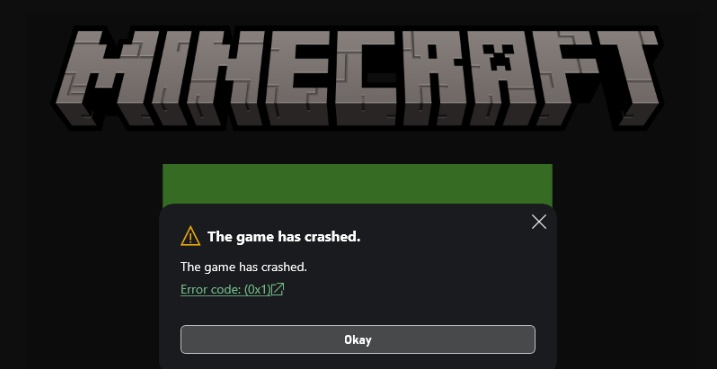
Whether you're running Minecraft Java Edition, a Forge-modded pack, or a CurseForge modpack, Minecraft Exit Code 1 can stop you cold at the launcher. The frustrating part is that the crash window only says exit code: 1 with no obvious fix.

This guide walks you through exactly how to diagnose and fix this error from reading crash logs to correcting your Java path, resolving mod conflicts, and reclaiming disk space when your system drive is too full to update.

1. What Does Exit Code 1 Mean in Minecraft?

Exit Code 1 is a Java process exit status that signals an abnormal termination — the JVM (Java Virtual Machine) shut down because something went wrong internally. In plain terms: Minecraft's Java process started, hit a fatal error, and quit. And it always points to a configuration or compatibility problem, not a hardware failure.

minecraft exit code 1

2. Why Is Minecraft Crashing with Exit Code 1?

Before jumping into fixes, it helps to know which root cause you're actually dealing with. Here are the most common culprits:

  • Incompatible or corrupted mods: A mod built for a different Minecraft version, a Forge/Fabric conflict, or a broken mod JAR is the single most common cause.
  • Wrong Java version or Java path: Minecraft 1.17+ requires Java 17; older versions need Java 8. Pointing the launcher at the wrong JDK triggers Minecraft java error code 1 on startup.
  • Incorrect launcher path: If the Minecraft installation directory contains spaces or special characters, the launcher can fail to locate game files.
  • Outdated or incompatible graphics driver: An old GPU driver can prevent OpenGL/Vulkan from initializing, which crashes the JVM before the game loads.
  • Corrupted Minecraft files: A failed update, interrupted download, or disk error can leave core game files in a broken state.

⚡ 3. How to Fix Minecraft Exit Code 1?
Start by reading your crash report. Before trying any fix, open the Minecraft launcher, click Output Log after the crash, or navigate to: %AppData%.Minecraft\logs\latest.log.

Search for lines containing ERROR, FATAL, or Exception. The specific mod name, class, or library listed there tells you which fix to try first, saving you from running through every step blindly.

Fix 1: Remove OptiFine and Relaunch Minecraft

OptiFine is notorious for conflicting with other mods, particularly shader mods, rendering mods like Sodium, and certain Forge versions. If your log shows a rendering or mixin error, OptiFine is a prime suspect.

  • Open the Minecraft Launcher and select your modded profile. Click Edit > Open Game Dir to navigate to the instance folder.

  • Open the mods folder and delete the OptiFine .jar file.

  • Relaunch the game. If it loads, OptiFine was the conflict.

Fix 2: Check Mod Compatibility with Your Minecraft Version

A single mod built for the wrong Minecraft or Forge version can prevent the entire mod list from loading. The JVM exits before the game window opens, and the launcher shows Exit Code 1.

  • Check the mod's page on CurseForge or Modrinth to verify it supports your exact Minecraft and Forge/Fabric version.

  • In your mods folder, remove any mod whose version doesn't match. Start with the most recently added mod, it's usually the culprit.

  • Also check that you're not mixing Forge and Fabric mods in the same instance — they are not interchangeable.

Fix 3: Change the Minecraft Launcher Path

Users who installed Minecraft in a custom directory with spaces or non-ASCII characters in the path. The JVM can misinterpret such paths and fail.

  • Right-click on the Minecraft icon and choose Properties from the menu.

  • Go to the Shortcut tab. Locate the Target box under Target location, but don’t remove the existing path. At the end of the current path, add: -workDir %ProgramData%.Minecraft

    change Minecraft launcher path
  • Finally, click Apply and then OK to confirm and save your changes.

Fix 4: Set the Java Executable Path

Players who have multiple versions of Java installed and find the launcher is using the wrong one. This directly triggers Minecraft java error code 1 when the Java version doesn't match what the game requires.

  • Open the Minecraft Launcher, go to Installations. Find the version you want to modify, then click the three dots (…) next to it and select Edit.

  • Click Browse and locate the javaw.exe file. Then, modify the Java path as java.exe.

    click browse java executable
  • Save the changes and relaunch Minecraft.

Fix 5: Free Up Space on System Drive for Minecraft Updates

Players who see Minecraft exit code 1 crash report errors right after a game update, or whose C: drive is nearly full. Rather than deleting files manually or buying a new drive, you can resize an existing partition to give your system drive more room.

With 4DDiG Partition Manager’s Windows Clean feature, you don’t need to hunt for junk files or worry about manual cleanup. It scans your system for temporary files, cache, log files, and other unnecessary data that take up valuable space on your C: drive. By safely removing these cluttered files, you can instantly free up storage, ensuring Minecraft has enough room to update and run smoothly.

  • Install and open 4DDiG Partition Manager, then navigate to Windows Clean from the left-hand menu. Choose the categories of junk files you want to remove, and click Start Scan.

    FREE DOWNLOAD

    Secure Download

    select categories of junk files
  • The program will take a few moments to scan your system. Once the scan is complete, a list of junk files will appear. Files that are safe to delete are pre-selected. Click the arrow to review and choose which files you want to clean.

    choose the files that you will delete
  • Click Clean and confirm your action to clear the selected junk files and free up disk space.

    click sure to confirm
  • After the process finishes, your system drive will have more available space and be optimized.

    system cleanup finished

Fix 6: Update or Reinstall Java

Players who haven't updated Java in a while, or whose Java installation is corrupted. An outdated or broken Java runtime is a reliable cause of exit code 1.

  • Go to Windows Settings > Apps. Find any existing Java entry, right-click it, and select Uninstall.

    uninstall java
  • Download the latest Java version. Install it and restart your PC.

  • Reopen the Minecraft Launcher and relaunch your profile.

Fix 7: Update Your Graphics Driver

An outdated GPU driver can cause the JVM's graphics layer to fail before the game window loads, producing Minecraft crash.

  • Right-click the Start button and open Device Manager.

  • Expand Display Adapters, right-click your GPU, and select Update Driver.

    update driver
  • Alternatively, go directly to your manufacturer's site: NVIDIA GeForce Experience, AMD Adrenalin, or Intel Arc Control for the latest drivers.

  • After installing the driver, restart your PC and relaunch Minecraft.

4.How to Prevent Minecraft Exit Code 1 from Happening Again?

  • Keep Mods and Mod Loaders Compatible
    Always verify that every mod in your instance targets the same Minecraft version and mod loader (Forge or Fabric) before adding it. Modrinth and CurseForge both display version compatibility clearly on each mod page.
  • Avoid Mixing Forge and Fabric Mods
    They run on entirely different mod-loading architectures. If you want mods from both ecosystems, run separate instances.
  • Update Java and GPU Drivers on a Schedule
    Set a reminder to check both after every major Minecraft update. New game versions often move to a newer Java target, and driver updates fix the OpenGL bugs that cause rendering crashes.

More FAQs about Minecraft Exit Code 1

1. Why does CurseForge keep crashing with exit code 1?

CurseForge crashes with exit code 1 almost exclusively due to mod conflicts or Java path issues. CurseForge modpacks can contain dozens of mods, and a single incompatible one will crash the whole instance.

2. Is exit code 1 a memory issue?

Rarely. Exit Code 1 is a generic Java crash signal, it just means the JVM exited abnormally. If you're running a large modpack with many mods and heavy shaders, low RAM allocation can be a contributing factor, but it usually produces an OutOfMemoryError in the log first.

3. Can mods cause Minecraft exit code 1?

Yes, mods are the most common cause. A mod that targets the wrong Minecraft version, depends on a missing library mod, conflicts with another mod's mixin targets, or contains corrupted bytecode will cause the JVM to exit with code 1 before the game window opens.

Conclusion

Minecraft Exit Code 1 is almost always fixable once you know where to look. Start with your crash log, identify whether the culprit is a mod conflict, a Java misconfiguration, or a driver issue, then work through the targeted fixes above.

For players whose system drive is too full for updates to land cleanly, 4DDiG Partition Manager offers a fast, risk-free way to reclaim disk space without reinstalling Windows. Once you've cleared the crash, the prevention habits in this guide will help you stay in the game, rather than diagnosing the same Minecraft error code 1 the next time you add a mod.

FREE DOWNLOAD

Secure Download

William Bollson (senior editor)

William Bollson, the editor-in-chief of 4DDiG, devotes to providing the best solutions for Windows and Mac related issues, including data recovery, repair, error fixes.

(Click to rate this post)

You rated 4.5 ( participated)