GPU Crash Dump Triggered in Marvel Rivals: Causes and Fixes

5 mins read

Updated on 2026-07-31 17:26:25 to Windows Fix

GPU crash dump triggered Marvel Rivals is one of the most frustrating errors players encounter on PC. Fortunately, this error is usually caused by driver issues, unstable GPU settings, corrupted game files, or software conflicts rather than faulty hardware. This guide explains what the error means, why it happens, and the best ways to fix it.

1. What Does Marvel Rivals “GPU Crash Dump Triggered” Mean?

The Marvel Rivals GPU Crash Dump Triggered error means the game detected that your graphics card or graphics driver stopped responding while the game was running. When this happens, Marvel Rivals automatically creates a crash dump, a diagnostic file that records information about the crash so developers can investigate the problem.

gpu crash dump triggered marvel rivals

What is a GPU crash dump ?

It’s simply a log file that contains technical details about the graphics failure. It doesn’t necessarily mean your graphics card is damaged.

Some players also notice marvel_win64_shipping in the crash window. This is the main executable file that launches Marvel Rivals. Its appearance in the error message doesn’t mean the executable itself is broken. Instead, it indicates the crash occurred while this game process was running.

2. What Triggers Marvel Rivals GPU Crash Dump?

Outdated or Unstable Graphics Drivers

Graphics drivers allow Windows and your GPU to communicate with the game. A buggy or incompatible driver can cause rendering failures that result in GPU crash dump errors.

GPU Overclock Instability

Manual or factory overclocking may improve performance, but unstable clock speeds can also cause the graphics driver to crash, especially during demanding scenes.

Hardware-Accelerated GPU Scheduling Issues

Hardware-Accelerated GPU Scheduling is designed to improve graphics performance, but it doesn’t work perfectly on every system. Some players report fewer crashes after turning this feature off.

Corrupted Game Files

If important game files become corrupted or go missing after an update, Marvel Rivals may fail to load graphics correctly and eventually crash.

Shader Cache Problems

Marvel Rivals compiles shaders to improve performance. If the shader cache becomes corrupted or incomplete, the game may encounter rendering errors and trigger a GPU crash dump.

3. How to Fix GPU Crash Dump Triggered in Marvel Rivals?

If Marvel Rivals GPU Crash Dump error keeps appearing, work through the fixes below one by one. After completing each solution, launch the game again to see whether the issue has been resolved.

Fix 1: Downgrade Your Graphics Driver

New graphics drivers don’t always work perfectly with every game. If the crashes started after updating your GPU driver, installing an older stable version may solve the problem.

  • Right-click the Start button and open Device Manager.

  • Expand Display adapters and double-click your graphics card.

  • Now open the Driver tab and click Roll Back Driver.

    roll back driver
  • Once the process is finished, restart your computer.

Note:

If the rollback option is unavailable, download an earlier stable driver directly from NVIDIA, AMD, or Intel’s official website and install it manually.

Fix 2: Disable Hardware-Accelerated GPU Scheduling

Turning off Hardware-Accelerated GPU Scheduling has helped many players eliminate random GPU crashes.

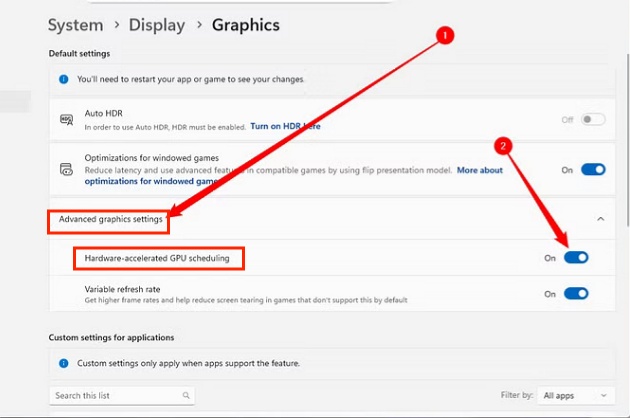
  • Press Windows + I to open Settings. Go to System > Display and click Graphics.

  • Select Change Default graphics settings.

  • Turn off Hardware-Accelerated GPU Scheduling.

    disable hardware-accelerated gpu scheduling
  • Then, you can restart your PC.

After restarting, launch Marvel Rivals and check whether the crashes continue.

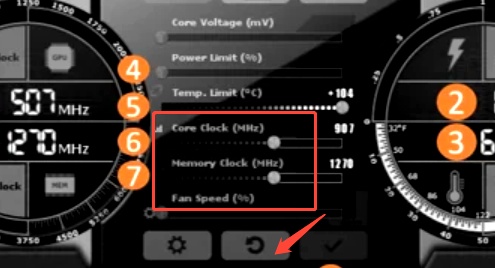
Fix 3: Lower Your GPU Core Clock

If your graphics card is overclocked, even a small amount, it may become unstable while running Marvel Rivals. Try returning your GPU to its default clock speed.

If you’re using MSI Afterburner or another GPU tuning tool:

  • Open MSI Afterburner or the GPU tuning software you use.

  • Look for the Core Clock setting.

    msi core clock setting
  • If you've increased the Core Clock before, click the Reset button to restore the default settings.

  • Click Apply to save the changes and restart your computer.

  • Once your computer starts, launch Marvel Rivals again and see if the crash is gone.

Even factory-overclocked graphics cards may benefit from lowering the core clock slightly if crashes continue.

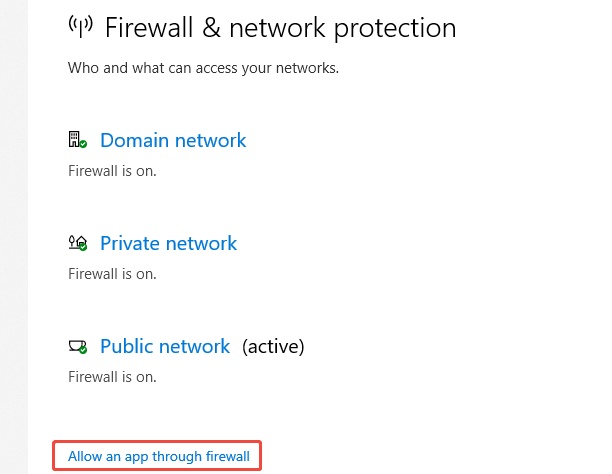
Fix 4: Disable Overlays

Game overlays can sometimes conflict with DirectX or graphics drivers, causing unexpected crashes. For example, to disable the Steam Overlay:

  • Open Steam and select Settings.

  • Click In Game and uncheck Enable the Steam Overlay while in-game.

    uncheck steam overlay

Now restart Steam. Repeat similar steps for any other overlay software you use.

Fix 5: Verify Integrity of Game Files

Missing or damaged game files can easily trigger the Marvel Rivals GPU Crash Dump Triggered error. To verify your game files in Steam:

  • Open your Steam Library and right-click Marvel Rivals.

  • Select Properties and click Installed Files.

  • Now choose Verify integrity of game files and wait for Steam to finish checking and repairing the files.

    verify integrity of game files
  • Once the process is finished, restart the game.

⚡ Bonus Tip: Clean Up System for a More Stable Marvel Rivals Experience

Low system drive space can also affect game stability. Windows uses your system drive to store temporary files, shader caches, DirectX files, and virtual memory. If the drive is nearly full, games may become less stable.

You can quickly remove unnecessary files using the Windows Clean feature in 4DDiG Partition Manager.

  • Open 4DDiG Partition Manager and click Windows Clean from the left menu. Select file types and start the scan. The tool will look for temporary files, caches, logs, and other junk files that can be removed safely.

    FREE DOWNLOAD

    Secure Download

    windows clean
  • When the scan is complete, you’ll see a list of junk files. Review the results and keep the selected items, or choose the files you want to delete. Next, click Clean to remove the selected files.

    select items to clean
  • Wait while the tool deletes the unnecessary files and frees up space on your system drive. After the cleanup is finished, you will have a more smooth game experience.

    clean successfully

More FAQs About Marvel Rivals GPU Crash Dump

1. Why Does Marvel Rivals Crash Even on a High-End PC?

A powerful PC doesn’t guarantee a crash-free experience. Keeping your drivers updated, disabling unnecessary overlays, and verifying game files are good first steps.

2. Can Bad RAM Cause GPU Issues?

Yes. Faulty RAM can indirectly cause GPU-related crashes. If you suspect faulty memory, run the Windows Memory Diagnostic tool or another memory testing utility to check for errors.

Conclusion

GPU crash dump triggered Marvel Rivals errors are usually caused by graphics driver problems, unstable GPU settings, overlay conflicts, corrupted game files, or Windows configuration issues. Fortunately, these problems can often be fixed without reinstalling the game or replacing your hardware. Follow the solutions in this guide one by one until the game becomes stable again.

To keep Windows running smoothly, it’s also a good idea to use 4DDiG Partition Manager to clean unnecessary system files and free up valuable storage space. A clean and well-maintained system can help reduce crashes and provide a more stable Marvel Rivals gaming experience.

FREE DOWNLOAD

Secure Download

William Bollson (senior editor)

William Bollson, the editor-in-chief of 4DDiG, devotes to providing the best solutions for Windows and Mac related issues, including data recovery, repair, error fixes.

(Click to rate this post)

You rated 4.5 ( participated)