Vulkan-1.dll Was Not Found? Proven Fixes for Windows

5 mins read

Updated on 2026-08-10 18:48:56 to DLL Issues

If a game or graphics app closes with “The code execution cannot proceed because vulkan-1.dll was not found,” do not copy a random DLL into System32. Vulkan-1.dll is the Windows Vulkan loader and is normally installed by a compatible graphics driver or an official runtime package. Start by updating or reinstalling the correct NVIDIA, AMD, or Intel driver. If Windows also shows broader corruption, run DISM and System File Checker. 4DDiG DLL Fixer can provide a guided scan when the missing-DLL error remains.

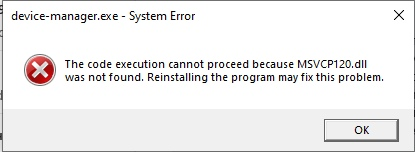
vulkan-1.dll was not found

1. What is Vulkan-1.dll?

Vulkan is a cross-platform graphics and compute API used by games, emulators, 3D tools, and creative apps. On Windows, vulkan-1.dll acts as the loader, connecting an application to the Vulkan layers and graphics drivers available on the PC.

The file is commonly found in C:\Windows\System32 on 64-bit Windows, with a 32-bit copy in C:\Windows\SysWOW64 when required. It does not belong to one specific game. If the loader is missing or incompatible, several Vulkan apps may fail—or only one app may fail if its installation is damaged.

2. Why Vulkan-1.dll Was Not Found

The message identifies the component the app could not load, but not one universal cause. Common reasons include:

  • The graphics driver is missing, outdated, or partially installed.
  • A driver update failed and damaged Vulkan components.
  • Windows is using Microsoft Basic Display Adapter.
  • Antivirus software quarantined the DLL or blocked an installer.
  • The game or app has damaged files or an incorrect local DLL reference.
  • The GPU does not support the required Vulkan version.

⚡ 3. How to Fix Vulkan-1.dll Was Not Found

If several Vulkan games fail, begin with the driver or runtime. If only one program shows vulkan-1.dll missing message, repair that program after checking the driver. Work through the following methods in order.

Method 1: Update or Reinstall the Graphics Card Driver

The graphics driver is the first place to start because GPU vendors commonly install the Vulkan runtime with their driver packages. Updating the correct driver can restore vulkan-1.dll and related Vulkan components together.

  • Press Windows + X and select Device Manager. Expand Display adapters and note the exact NVIDIA, AMD, or Intel GPU.

    locate graphics drive
  • Visit the official GPU manufacturer or laptop maker support page.

  • Download the driver that matches the GPU, Windows version, and system architecture.

  • Close games, install the driver, and restart Windows. Launch the affected app again.

If the error began after a driver update, use the vendor installer's clean-install or factory-reset option when available. Avoid unknown third-party driver updaters.

Method 2: Run DISM and System File Checker (SFC)

Use this method when the error appears alongside other DLL messages, failed Windows updates, freezing, or damaged system components. Microsoft recommends running DISM first so the Windows component store can provide healthy files to System File Checker.

  • Search for Command Prompt, right-click it, and select Run as administrator.

  • Run DISM and wait for it to complete.

    $ DISM /Online /Cleanup-Image /RestoreHealth
  • Next, run System File Checker:

    $ sfc /scannow
  • Keep the window open until verification reaches 100 percent. After that, restart the computer and test the app.

If SFC reports no integrity violations and vulkan-1.dll was not found still appears, use the method below.

Method 3: Use 4DDiG DLL Fixer

Checking drivers, Windows files, and application folders manually can take time, especially when more than one DLL is affected. 4DDiG DLL Fixer provides a guided scan for Windows 10 and 11 and may help when the error persists after a driver update.

  • Download and open 4DDiG DLL Fixer on your Windows PC. Select DLL Repair from the left-hand menu, then click Full Scan. The program will scan your system for missing, corrupted, or other problematic DLL files.

    FREE DOWNLOAD

    Secure Download

    select dll repair
  • Once the scan is complete, you’ll see a list of DLL files that may need to be fixed. Click Repair to begin the automatic repair process.

    repair dll error
  • Wait for the repair to finish. 4DDiG DLL Fixer will replace damaged or missing DLL files with clean and updated versions to help restore normal system operation.

    repair vulkan dll successfully

This reduces the risk of placing a file in the wrong folder or choosing the wrong architecture. The GPU must still support the Vulkan version required by the app.

Method 4: Install the Official Vulkan Runtime

If the driver is healthy but the loader is still absent, install the Vulkan runtime from an official source. LunarG publishes a Windows Runtime Installer and the larger Vulkan SDK. Most gamers need only the runtime; the SDK is mainly for developers.

  • Open the official LunarG Vulkan download page. Select Windows and choose the Runtime Installer for the correct architecture.

    install vulkan runtime
  • Close Vulkan apps and run the installer as an administrator.

  • Restart Windows and test the program.

Conclusion

When vulkan-1.dll was not found, treat the message as a Vulkan installation problem rather than an invitation to download one loose file. Update or clean-install the official GPU driver first, then use DISM and SFC if Windows shows wider corruption.

4DDiG DLL Fixer offers a simpler guided scan when missing DLL issues persist, while LunarG's official Runtime Installer can restore the Vulkan loader from a trusted source. After each repair, restart Windows and test the same application. If only one game still fails, verify or reinstall that game instead of repeatedly changing system files.

FREE DOWNLOAD

Secure Download

William Bollson (senior editor)

William Bollson, the editor-in-chief of 4DDiG, devotes to providing the best solutions for Windows and Mac related issues, including data recovery, repair, error fixes.

(Click to rate this post)

You rated 4.5 ( participated)