How to Resize a BitLocker Partition Step by Step?

5 mins read

Updated on 2026-10-20 17:49:17 to Windows Fix

Resizing a BitLocker partition isn't as simple as dragging a slider in Disk Management. Because the drive is encrypted, Windows often blocks the usual resize options, leaving users stuck with a full C drive or uneven partition layout. The good news is you don't always need to decrypt the entire volume first. Below are practical ways to resize a BitLocker-protected partition safely and efficiently.

Safety Warnings Before You Resize a BitLocker Partition

Back Up Your Data First

A partition change affects where Windows stores your files. Even when the operation is designed to preserve data, a power failure, wrong selection, or interrupted process can cause problems.

Make a complete backup to a separate physical drive and open several backed-up files to verify that the backup works. Connect your laptop to power and close all applications that are using the target drive.

Save Your BitLocker Recovery Key

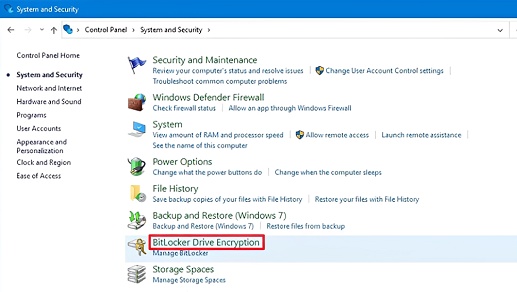
Go to Control Panel > System and Security > BitLocker Drive Encryption, then choose Back up your recovery key next to the relevant drive. Save it to a location outside that drive or print it. Available options may depend on your organization's policy.

⚡ Bonus: Forgot Your BitLocker Recovery Key? Find It with 4DDiG Partition Manager

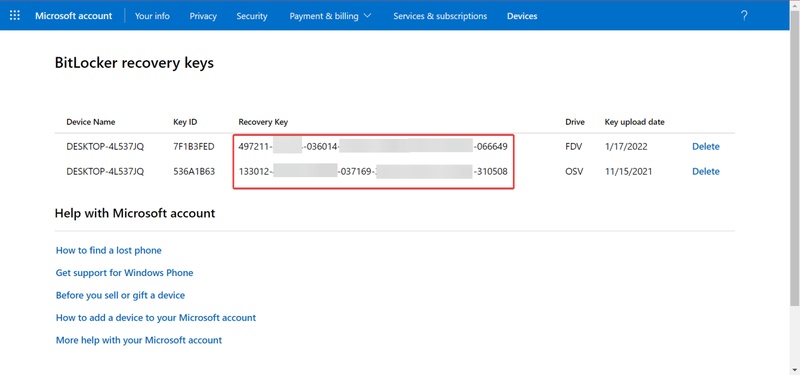
If you cannot find your saved key, first check the Microsoft account associated with the device, a printed copy, a USB backup, or your organization's IT department. Match the recovery key ID to the locked drive. Microsoft cannot recreate a lost recovery key.

As an additional option, 4DDiG Partition Manager's official guide describes a recovery-key lookup workflow within Remove BitLocker:

  • Install and launch 4DDiG Partition Manager, then open Toolkit and select Remove BitLocker.

    FREE DOWNLOAD

    Secure Download

    remove bitlocker
  • Select the relevant encrypted disk or partition and click Unlock.

    select the encrypted disk
  • Confirm the lookup prompt. If the tool retrieves a recovery key, copy it to a secure location.

    copy the bitlocker recovery key
  • After successful unlocking, use Disable BitLocker only if your resizing workflow requires decryption, and wait for completion.

If no key is found, return to account backups or IT support. Do not format or delete the partition when you still need its encrypted files.

How to Resize a BitLocker Partition in 3 Steps?

Follow the steps below in order. Use the same target drive throughout, and check its disk number, capacity, and label before accepting changes. The examples use C: for BitLocker commands and an explicitly selected volume for DiskPart; substitute your actual target.

Step 1: Suspend or Disable BitLocker

  • Open Command Prompt as administrator and check the current status:

    $ cmdmanage-bde -status C: --version

    Review both Conversion Status and Protection Status. An unlocked drive can still be encrypted, and "Protection Off" does not necessarily mean decryption is complete.

  • Open Manage BitLocker and select Suspend protection, or run the following command:

    $ cmdmanage-bde -protectors -disable C: -RebootCount 0

    This keeps the data encrypted while temporarily disabling protection. Remember to restore protection after the resize is finished.

If the resizing tool specifically requires a fully decrypted volume, you can turn off BitLocker with manage-bde -off C: and wait until the status shows Fully Decrypted.

✔ Suspend BitLocker: How to Temporarily Disable BitLocker Safely?

Step 2: Resize the Partition

To resize a BitLocker partition in Windows 11, use the same essential disk-layout checks as in Windows 10. This walkthrough focuses on basic NTFS volumes. Unlock the target, finish any required decryption, and inspect the lower graphical view in Disk Management.

  • Press Windows + X and select Disk Management.

  • Right-click the target volume and select Shrink Volume.

    shrink volume
  • Wait for Windows to calculate the available shrink space.

  • Enter the amount to remove in MB, leaving room for updates and future files.

    enter the amount
  • Click Shrink and confirm that the expected unallocated space appears afterward.

For drive extension, check that unallocated space sits immediately to the right of the target on the same physical disk. If Windows Disk Management cannot extend the partition, you can use 4DDiG Partition Manager to complete the process more easily.

Step 3: Re-enable BitLocker

  • Once the new size appears correctly, open representative files and check that applications still work. If you only suspended protection, select Resume protection in Manage BitLocker or run: manage-bde -protectors -enable C:.

    resume protection
  • If you fully decrypted the drive, use Turn on BitLocker and complete the setup wizard instead.

  • Save the newly provided recovery key; do not assume an old backup still applies.

  • Check the encryption progress and confirm Protection On with manage-bde -status C:.

Restart once after restoring protection and verify normal startup. Keep the backup until you have confirmed that the resized partition and Windows recovery options function as expected.

Common Issues and Fixes

Extend Volume is greyed out

Check the layout before changing encryption settings again. If a Recovery partition sits between C: and unallocated space, Windows cannot extend C: across it. A partition tool capable of moving the intervening volume may help. Verify its encryption requirements first; decrypt affected volumes if required. Do not casually delete EFI or Recovery partitions.

Windows offers less shrink space than expected

Total free space is not the same as shrinkable space. Paging files and shadow-copy storage can prevent Windows from shrinking beyond their location. Use a smaller amount or investigate the blocking file before making further changes. Removing personal files alone may not resolve this limit.

The tool still detects BitLocker after suspension

That is expected because suspension does not decrypt the volume. Check the tool's requirements and wait for Fully Decrypted if decryption is necessary. Changing the command-line utility will not remove an encryption compatibility restriction.

A recovery-key prompt appears after restarting

Use the saved 48-digit key matching the displayed ID. After Windows starts, verify the final partition layout and protection state. If the key is missing, revisit the recovery options above rather than repeatedly changing firmware settings.

Conclusion

To resize a BitLocker partition safely, begin with a verified backup and a saved recovery key. Match the encryption state to your chosen tool, check the position of unallocated space, and restore protection when the change is complete. Windows tools suit straightforward shrinking and adjacent-space extension; complicated layouts need more preparation.

If you are deciding how to resize a BitLocker partition when a key is misplaced or a partition needs moving, consider 4DDiG Partition Manager's documented key-lookup and Resize/Move features. Confirm support for your drive before proceeding, and keep your backup until startup and file access are verified.

FREE DOWNLOAD

Secure Download

Sawart Mashab (senior editor)

Sawart Mashab, the content writer for 4DDiG, is adept at creating informative and practical solutions related to Windows and macOS issues, data recovery, file repair, and RAID storage.

(Click to rate this post)

You rated 4.5 ( participated)