How to Fix Windows Update Error on Windows 10/11?
Nothing kills productivity faster than a Windows update error. You click “Check for updates,” and suddenly you’re staring at a frozen progress bar, cryptic error codes like 0x800f0831 or 0xc1900201 message. Whether it’s a Windows update install error, Windows update download error, or your PC simply refuses to check for updates at all, these issues affect millions of Windows users every month. The good news? Most of update errors can be fixed. Here’s exactly how to do it in 2025.
1. What Causes Windows Update Error?
Most Windows update errors stem from just a handful of common culprits. Understanding them helps you fix the problem faster instead of trying random solutions.
-
Missing or damaged system files
Core Windows components needed for installing updates can get corrupted by malware, or disk errors. When these files are broken, you’ll often see Windows update install error codes like 0x800f081f. -
Conflicting third-party antivirus or firewall
Over-protective security software sometimes blocks Windows Update services or quarantines legitimate update files, instantly triggering Windows update download error messages. -
Insufficient disk space
Feature updates (like Windows 11 24H2/25H2) can require 20–40 GB of free space. When your C: drive is almost full, the update process aborts with vague errors, even if it looks like it’s “downloading.” -
Broken Windows Update services & components
Background services can crash or get stuck in a bad state, preventing your PC from checking for or installing updates. -
Network restrictions, proxy, or VPN interference
Corporate networks, misconfigured proxies, metered connections, or aggressive VPNs can block Microsoft’s update servers, causing endless “download stuck at 0%” or timeout errors. -
Outdated or incompatible drivers
Especially older graphics, network, or storage drivers can conflict with new cumulative updates, resulting in rollback loops and repeated failure messages.
Part 2: Common Windows Update Errors & Quick Fixes
3. How to Fix Windows Update Error?
With the common causes covered, here are the six most effective fixes for Windows update error in 2025. These steps reliably solve Windows update install error, Windows update download error.
Follow them in order and your updates will be working again in minutes.
Fix 1: Clear Windows Update Cache
A corrupted update cache is the most common culprit when downloads get stuck or updates refuse to install. Clearing it is 100% safe and fixes the problem for most people in under two minutes.
-
Press Win + R, type “services.msc,” them click Enter to open Disk Cleanup. And click OK after select your Windows installation drive.
-
Next, choose “Clean up system files”, and click OK.
-
After Disk Cleanup completing calculating the space, choose "Windows Update Cleanup" option. Lastly, click OK at the bottom.
Then, some superficial windows update errors fixed after cache files being deleted completely.
Fix 2: Use Windows Update Troubleshooter Tool
Microsoft’s built-in tool automatically detects and fixes the majority of Windows 11 update errors and Windows update install error issues with zero technical knowledge required.
-
Open Settings, and navigate to Troubleshoot.
Windows 11: Click System → scroll down and select Troubleshoot.
Windows 10: Click Update & Security → Troubleshoot.
-
Next, Click Other troubleshooters (Windows 11) or Additional troubleshooters (Windows 10).
-
Run the “Windows Update” troubleshooter, then let it detect and apply fixes automatically.
When it says “Troubleshooting has completed”, click Close. Restart your computer and go back to Settings → Windows Update → Check for updates.
Fix 3: Run SFC & DISM to Repair System Files
When system files are damaged or missing, updates simply refuse to install. These two commands repair Windows image corruption that causes persistent Windows update install error codes.
-
Right-click the Start button, choose PowerShell (Admin). First, run the DISM repair command and press enter: DISM /Online /Cleanup-Image /RestoreHealth. It automatically pulls healthy files from Microsoft’s servers (internet required)
-
When it says “The restore operation completed successfully”, run SFC command to fix the actual system files: sfc /scannow.
After it complete, close the window and restart your computer. Then upgrade Windows again.
Fix 4: Manually Download and Install Updates from Microsoft Update Catalog
When Windows refuses to download updates on its own, take control. Head to the Microsoft Update Catalog, grab the exact KB package you need, and install it manually.
-
Open Settings > Windows Update >View update history. Look for the failed update. Note the KB number and the error code if shown, copy it.
-
Open the Microsoft Update Catalog, and paste the KB number that you copied into the search box and hit Enter.
Download the right file, saving the .msu file to your Desktop or Downloads folder, then install the update manually.
Bonus: Bypass Windows 11 Upgrade Requirements Without Triggering Update Errors
If you keep getting errors when trying to upgrade to Windows 11 24H2/25H2 on unsupported hardware and don’t want to upgrade manually, use 4DDiG Partition Manager---it bypasses TPM/Secure Boot/CPU checks cleanly during the upgrade process without causing Windows update install error.
Why users choose 4DDiG Partition Manager:
- One-click bypass of TPM/Secure Boot/CPU checks during Windows 11 24H2/25H2 upgrade
- Provides clean, unmodified official Windows ISO directly inside the program
- Creates bootable installation USB in the same tool — no need to download Rufus or similar utilities
Secure Download
-
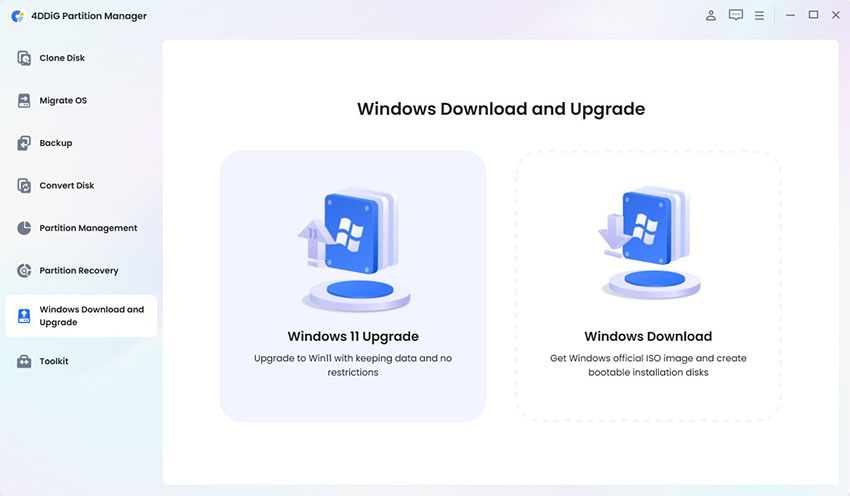
First, open the 4DDiG Partition Manager and choose the “Windows Download and Upgrade” from the left side and click “Windows 11 Upgrade” button.
-
Next, click "Detect and Upgrade" to check if your computer meets the minimum requirements for Windows 11.
-
Then it will show you a list of the requirements that your PC does not meet. Simply click the "Next" button, then click the "Start Upgrading" button and "Sure" to begin the Windows 11 upgrade process.
-
Windows 11 setup will shortly appear on your screen. Click “Next” and follow the on-screen instructions to complete your upgrade.
Fix 5: Check Disk Space and Perform Disk Cleanup
Running out of space is a silent killer of feature updates. Free up 20–30 GB in seconds and eliminate the hidden reason behind many “why won’t my Windows update” failures.
-
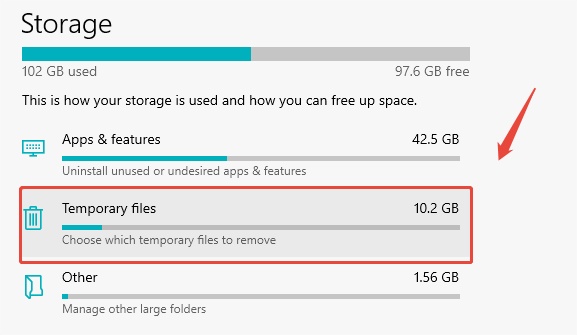
Right-click This PC > Properties (or just click on C: drive) to check hoe much free space you have. If it’s under 25 GB, you must clean up by moving data or use disk cleanup tools to ensure sufficient space for the update process.
Conclusion
A Windows update error doesn’t have to ruin your day. Start with clearing the update cache and running the built-in troubleshooter. If you’re still stuck, the manual reset or in-place upgrade will get you updated 100% of the time.
For users blocked by hardware requirements during Windows 11 upgrades, 4DDiG Partition Manager remains the safest, fastest way to skip restrictions without triggering new update errors. Stay secure — fix your Windows update error today!
Secure Download
ChatGPT
Perplexity
Grok