How to Download Discord on Xbox/PS5/Windows/Mac?

5 mins read

Updated on 2026-03-09 12:05:45 to Windows Fix

Discord has become an essential communication platform. Many users search for better Discord download options or struggle to install Discord on new devices. From PCs and Macs to consoles like the PS5 and Xbox, installation steps vary slightly across platforms.

If you’re unsure how to get started or are facing installation issues, this comprehensive guide will walk you through the process of downloading Discord safely and correctly on every major platform.

1. How to Download Discord for Windows & Mac?

The desktop version of Discord offers better performance, screen sharing, and stable voice chat compared to browser use. If you want to download Discord on PC, follow the steps below.

  • Open your web browser, visit the official Discord website, and scroll to the "Download for Desktop" section.

  • Click the “Windows” dropdown and select the version that suits your system, and the download will begin.

    click discord windows dropdown
  • Once the setup is downloaded, run the DiscordSetup.exe file by double-clicking it. Allow the loading to complete automatically, launch Discord, then log in or create an account.

After initially downloading, Discord will automatically update itself in the future.

For Mac users

Discord no longer be listed in the Mac App Store, so the process to download is also similar to Windows.

  • To download Discord on Mac, visit the official Discord website and scroll down to the “Download for Desktop” section. Click the “macOS” button and the download will automatically start.

  • Double-click the “DMG” file you just downloaded and drag “Discord” to “Applications”.

    drag discord to applications

Then, you can open Discord from Applications and log in. Make sure MacOS permissions allow microphone and notification access for full functionality.

2.How to Download Discord on PS5?

Many console players ask, “Can I download Discord on PS5?” Well, you cannot directly install the full Discord app on PS5 like on a computer. However, PlayStation supports Discord voice chat integration through account linking.

If you want to download Discord on PS5, what you actually need is to connect your Discord account to PlayStation Network, and here is how to do it. Before beginning with the steps below, make sure that you have the Discord app on your Phone with your account logged in.

  • Turn on your PS5 and select "Settings" from the top right, then go to "Users and Accounts".

    users and accounts in ps5 settings
  • Go to the "Linked Services” section and select “Discord", then select "LinK” and on the next screen press “Accept and Continue”.

    select discord in linked services interface
  • Now, the screen will show a QR code and a Text code. You can just scan the "QR Code" with your phone's camera, and it will take you to a webpage. Log in with your account credentials, and you will link Discord with your PS5.

    discord qr and text code
  • Join a voice channel in the Discord mobile app and tap “Join on PlayStation," then select your PS5 console and tap “Join Call on PlayStation” to move the voice chat.

Although you cannot directly download Discord on your PS5, account linking allows you to use Discord voice chat while gaming.

3.How to Download Discord on Xbox?

Xbox integration works similarly to PS5. You cannot install the Discord app directly from the Xbox store as a standalone application, but you can connect your accounts and transfer voice chat. If you’re trying to download the Discord app for Xbox, what you need instead is account linking.

  • Turn on your Xbox and go to “Settings” from the top right, then go to "Accounts" and choose “Linked Services”.

    choose linked services
  • Select the “Link” option under Discord and choose “Continue on Console".

    click link under discord
  • In the browser window, log in to Discord with your account credentials and then scroll down and select “Authorize."

  • Now, press the “X” button on your controller and select the "Parties and Chats” section to choose “Discord". From here, you can choose Servers and Voice Channels in them.

    choose discord under parties and chats section

Once connected, you can enjoy cross-platform voice chat while gaming on Xbox.

⚡ Bonus: Optimize Your Disk for Smooth Discord Performance with 4DDiG

Fragmented partitions with limited free space, or underlying partition errors, can quietly affect system responsiveness and application performance. When your storage structure is not optimized, even lightweight apps like Discord can struggle to run smoothly.

4DDiG Partition Manager helps optimize disk structure and improve overall system responsiveness by giving you full control over how your storage is organized. It allows you to resize or extend partitions without data loss, safely convert disk types such as MBR to GPT, and clone disks or migrate your operating system to a faster drive.

  • Download and install the program. Open it and select the “Partition Management” feature. Select the disk on which you want to optimize partitions and click “Resize/Move” from the right side of the screen.

    FREE DOWNLOAD

    Secure Download

    choose resize and move partition
  • A pop-up window will open where you can use the slider interface to resize the partition to optimize its space and click “OK” to proceed.

    click ok to proceed
  • Click the “Execute Tasks” button from the bottom right and click “OK” in the pop-up window.

    Resize Execute Task

    click execute task

  • Now, you just need to wait till 4DDiG optimizes your storage, and once it is successful, click "Done".

    manage partition successfully

Optimizing storage ensures a smoother Discord startup and stable background performance.

4.Can’t Download Discord? Here are the Fixes!

Sometimes users encounter errors while downloading Discord, wondering why cant I download Discord? These issues often result from leftover files, permission conflicts, or antivirus interference, and below are proven solutions:

Fix 1: Delete Discord Files Completely and Re-download

Corrupted or incomplete files can trigger repeated Discord download error messages even after multiple attempts. Completely removing all Discord-related folders before reinstalling often resolves stubborn issues.

  • Open Control Panel, then click "Uninstall a Program" under the "Programs" section. Now, find “Discord" and click to select it, then click "Uninstall" from the top.

    uninstall discord in control panel
  • After uninstall, press Windows + R, type %appdata%, and delete the "discord" folder.

  • Then type %localappdata% in Run and delete the "Discord" folder there too. After that, empty your recycle bin.

  • Now, go to the Discord official website and re-download it.

Fix 2: Run the Discord Setup File as Administrator

If Discord fails to install properly, Windows permission restrictions may be blocking the setup process. Running the installer with administrator privileges can resolve such problem related to Discord.

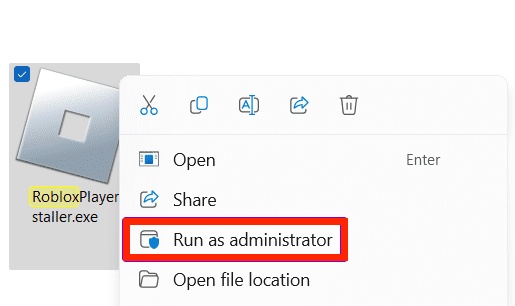
  • Right-click the “DiscordSetup.exe” file and select “Run as Administrator”.

    run discord as administrator
  • Confirm User Account Control and allow installation to complete.

Fix 3: Disable Antivirus/Firewall Temporarily

Security software sometimes mistakenly flags Discord’s installer as suspicious and blocks the download process. Temporarily disabling antivirus or firewall protection during installation can help determine whether security settings are interfering with Discord setup.

  • Open “Windows Security" and go to "Firewall and Network Protection," then click on the active network.

  • Toggle off the “Microsoft Defender Firewall” option and try downloading and installing Discord again.

    disable microsoft defender firewall

Final Words

Downloading Discord is simple on Windows and Mac, while console users can link accounts for voice integration. If you encounter issues like Discord download Windows errors or installation failures on macOS, deleting leftover files and adjusting permissions usually resolves them.

For long-term performance and smoother operation, optimizing your system disk with 4DDiG Partition Manager helps prevent lag and storage-related slowdowns. Whether you’re installing for the first time or troubleshooting, following these steps ensures a successful Discord setup across all platforms.

William Bollson (senior editor)

William Bollson, the editor-in-chief of 4DDiG, devotes to providing the best solutions for Windows and Mac related issues, including data recovery, repair, error fixes.

(Click to rate this post)

You rated 4.5 ( participated)