Roblox Installer Critical Error: How to Fix "Failed to Download or Apply Critical Settings"
If you've encountered the dreaded Roblox installer critical error stating "Failed to download or apply critical settings," you're not alone. Whether you're trying to join your friends in a new adventure or launch Roblox Studio to create your masterpiece, this error can bring everything to a halt. But don't worry, this comprehensive guide will walk you through exactly what causes this issue and provide proven solutions to get you back into the game quickly.
1. What Does Roblox Installer Critical Error Mean?
The Roblox installer critical error is a common issue that occurs when the Roblox installer encounters problems. The error message "failed to download or apply critical settings Roblox" means the installer cannot retrieve or implement essential configuration files needed to run the game properly.
This Roblox critical error typically appears during the installation process, when launching Roblox, or after a system update. Understanding this error is the first step toward fixing it, and now let us dive into its reasons.
2. What Causes Roblox Installer Critical Error?
Several factors can trigger the installer encountered a critical error Roblox message. Identifying the root cause will help you choose the most effective solution:
- Network Connection Issues: When your network connection drops or experiences high latency, the installer cannot properly download the required files, resulting in the Roblox critical error.
- DNS Server Problems: If your DNS servers are slow or misconfigured, they can prevent the Roblox installer from connecting to the necessary servers, triggering this critical error.
- Firewall or Antivirus Interference: Security software designed to protect your computer may mistakenly identify Roblox installer files as threats. This overzealous protection can block the installer from accessing necessary resources, causing the critical error.
- Corrupted Installation Files: Over time, Roblox installation files can become corrupted due to incomplete updates, system crashes, or malware. These corrupted files prevent the installer from functioning properly.
- Insufficient Administrative Privileges: Windows User Account Control (UAC) may prevent the Roblox installer from accessing system directories or making necessary changes without proper administrator permissions.
⚡ 3. How to Fix Roblox Installer Critical Error?
Now that you understand what causes this error, let's explore proven solutions to fix the Roblox critical error. Try these methods in order until you find the one that works for your situation.
Fix 1: Run RobloxPlayer.exe File as Administrator
Running Roblox with administrator privileges ensures the installer has full access to necessary system resources. This method resolves permission-related issues that often cause the Roblox failed to apply critical settings.
-
Navigate to the Roblox installation folder. Locate the RobloxPlayerBeta.exe file within the folder.
-
Right-click on RobloxPlayerBeta.exe and select Properties from the context menu. Click on the Compatibility tab at the top of the Properties window.
-
Check the box next to "Run this program as an administrator." Click Apply and then OK to save your changes. Try launching Roblox again to see if the error is resolved.
Fix 2: Restart Internet Connection
Network connectivity issues are frequently behind the Roblox installer critical error. Restarting your internet connection can resolve temporary network glitches and refresh your connection to Roblox servers.
-
Click on the network icon in your Windows taskbar. Click on your active network connection (Wi-Fi or Ethernet).
-
Click "Disconnect" to turn off your connection. Wait for approximately 30 seconds to ensure the connection is fully terminated. Then reconnect your network after a while.
-
Once reconnected, try launching Roblox to check if the failed to download or apply critical settings error persists.
Alternative Method:
Enable Internet Protocol Version 4: If restarting your connection doesn't work, you may need to ensure IPv4 is enabled. Open Network Connections (press Windows + R, type ncpa.cpl), right-click your active connection, select "Properties," find "Internet Protocol Version 4 (TCP/IPv4)" in the list, ensure it's checked, then click "OK" and restart your computer.
Fix 3: Change DNS Address
Switching to more reliable DNS servers like Google DNS or Cloudflare DNS can significantly improve connection stability and resolve this error.
-
Press Windows + R to open the Run dialog box. Type "ncpa.cpl" and press Enter to open Network Connections.
-
Right-click on your active network connection and select "Properties." Scroll down and select "Internet Protocol Version 4 (TCP/IPv4)" from the list.
-
Click the "Properties" button below the list. Select "Use the following DNS server addresses" radio button.
-
For Google DNS, enter 8.8.8.8 as the Preferred DNS server and 8.8.4.4 as the Alternate DNS server. For Cloudflare DNS, use 1.1.1.1 and 1.0.0.1 respectively.
-
Save your settings, restart your computer and try launching Roblox again.
Alternative Method:
Connect to Mobile Hotspot: If changing DNS doesn't resolve the issue, try connecting your PC to a mobile hotspot from your smartphone. This bypasses your regular network entirely and can help determine if the problem is with your home network configuration.
Fix 4: Try Different Device/Browser
Sometimes the Roblox installer not working is specific to your current browser or device configuration. Testing with alternatives can help isolate the problem.
-
If you're using Google Chrome, try switching to Microsoft Edge, Firefox, or another browser to download and install Roblox.
-
If available, try installing Roblox on another device (another computer, tablet, or phone) to determine if the issue is device-specific or account-related.
Important Tip: Back Up Your Important Data Before Editing Files
Before proceeding with more advanced fixes that involve deleting or modifying system files, it's crucial to protect your important data. System modifications can occasionally lead to unexpected issues, and having a backup ensures you can restore your files if something goes wrong.
We strongly recommend using 4DDiG Windows Backup, a professional and reliable backup solution designed specifically for Windows users. This powerful tool offers comprehensive protection for your valuable data with just a few clicks.
-
Connect an external hard drive to your computer. Open 4DDiG Windows Backup and click “Create a backup task” to proceed.
FREE DOWNLOADSecure Download
-
Next, select the drives/partitions you will back up. Then click the file icon to choose a location where your backup will be saved.
-
Then, click “Start Backup” button and then confirm when prompted. This will start the backup process immediately.
-
Wait for the backup to finish. When it complete, your files are safely backed up, so you can make changes to your system or clear app caches without worrying about losing data.
Fix 5: Delete Versions File in Roblox Folder
Corrupted version files can prevent Roblox from updating properly, causing the Roblox installer critical error. Deleting these files forces Roblox to download fresh, uncorrupted versions.
-
Close Roblox completely. Make sure no Roblox processes are running by opening Task Manager, looking for any Roblox-related processes, and ending them.
-
Press Windows + R, then type %localappdata%\Roblox and press Enter to open the Roblox data folder.
-
Locate the "Versions" folder within the Roblox directory snd delete it.
After that, try to relaunch to see if the error is resolved.
Fix 6: Turn Off Antivirus or Firewall
Security software can sometimes block legitimate applications like Roblox, mistaking them for threats. Temporarily disabling these programs can help you determine if they're causing the Roblox critical error.
-
Open Windows Security, and click on "Virus & threat protection" in the left sidebar.
-
Under "Virus & threat protection settings," click "Manage settings." Toggle off "Real-time protection" temporarily.
Open "Windows security" and go into windows defender firewall. Click "Allow an app or feature trough windows defender wall". Click change settings then allow another app.
If you're using third-party antivirus software, right-click it, and look for options like "Disable Shield" or "Turn Off Protection." Then, try launching Roblox again.
Fix 7: Reinstall Roblox
When all else fails, a complete reinstallation can resolve persistent issues by removing all corrupted files and providing a fresh start. This is often the most effective solution for how to fix Roblox installer encountered a critical error.
-
Uninstall Roblox first. After uninstalling, manually delete any remaining Roblox files. Press Windows + R, type %localappdata%\Roblox, and press Enter. Delete the entire Roblox folder if it still exists.
-
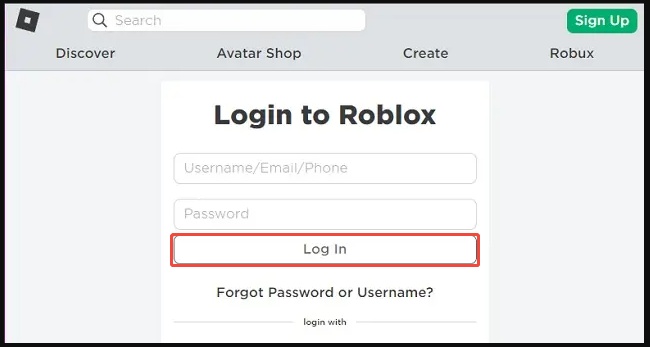
Visit the official Roblox website, log in to your account, and download the latest version of Roblox.
-
Run the installer and follow the installation wizard. Make sure to run the installer as administrator to avoid permission issues.
More FAQs about Roblox
Q1: Is Roblox error code 267 a ban?
Roblox error code 267 is not always a ban. It sometimes indicates that you've been kicked or banned from a specific game, it can also result from technical issues such as script errors, server problems, or network connectivity issues. If you're repeatedly getting error 267 across multiple games, you should check your account status on the Roblox website.
Q2: Why can't I download Roblox?
There are several common reasons. First, your internet connection might be unstable or too slow to complete the download. Browser issues can also prevent downloads; try clearing your browser's cache and cookies, or use a different browser entirely. Your antivirus or firewall might be blocking the download because it mistakenly identifies the installer as a threat.
Conclusion
Dealing with the Roblox installer critical error can be frustrating, but as this guide has shown, most cases can be resolved with systematic troubleshooting. Remember to start with simpler solutions before moving to more advanced fixes.
Before implementing any fixes that involve modifying or deleting system files, try protecting your valuable data with 4DDiG Windows Backup. This reliable backup solution ensures that your important files, documents, and system settings remain safe throughout the troubleshooting process.
Secure Download
💡 Summarize with AI:
You May Also Like
- Home >>
- Windows Fix >>
- Roblox Installer Critical Error: How to Fix "Failed to Download or Apply Critical Settings"
ChatGPT
Perplexity
Grok