Complete Guide to Resolving Roblox Error 280

5 mins read

Updated on 2025-12-17 18:34:59 to Windows Fix

Are you frustrated by Roblox Error 280? This error often appears with a "Disconnected from Game, Please Reconnect" message, causing interruptions to your gameplay. In this guide, we’ll walk you through the causes of this error and how to fix it. We will also share some tips for improving Roblox performance, so you can get back to gaming smoothly and without interruption. Read on for step-by-step solutions to resolve the error and keep your game running smoothly.

fix roblox error 280

Part 1. What is Error Code 280 on Roblox?

This error is a frustrating issue that many players encounter, so what does error code 280 mean on Roblox? Roblox Error 280 typically occurs when there’s a failure in maintaining a stable connection to the Roblox servers. It can result in sudden disconnections or game crashes, hindering your gaming experience. Some players wonder why I’m getting error code 280 on Roblox? Here are the most common causes:

📁 Common Causes of Roblox Error 280


  • Outdated Roblox Version: Running an outdated version of Roblox can lead to compatibility issues with game servers.
  • Internet Connection Problems: A poor or unstable internet connection is one of the most frequent causes of this error.
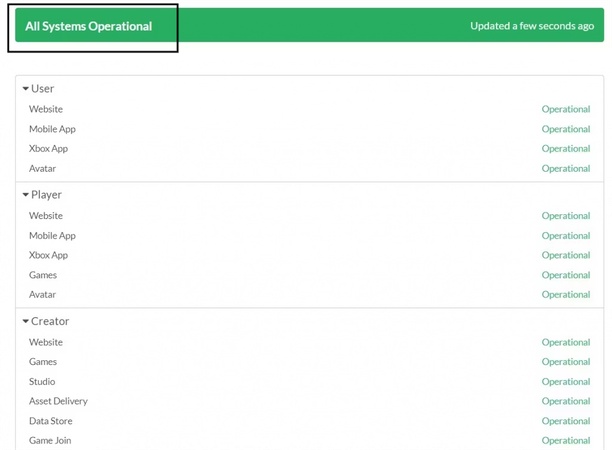
  • Server-Side Issues: Sometimes, Roblox’s servers experience downtime or technical difficulties, which can result in Roblox error code 280.
  • DNS or Proxy Configuration Problems: Issues with your DNS or proxy server settings can also lead to error code 280. If these settings are incorrect or if your network configuration is not properly set up, Roblox might be unable to establish a connection to the servers.

Understanding the meaning and causes of error code 280 can help you troubleshoot and fix the issue effectively, ensuring you can get back to your game without further disruptions. Now, let’s fix it step by step!

Part 2. How to Fix Roblox Error 280?

These fixes are arranged from the easiest to the more involved ones. Work through them step by step on your device (PC, mobile, or Mac), and you'll likely be back in your favorite games in minutes.

Fix 1: Check Internet Connection

A weak or restricted connection is a top reason for Roblox error 280, so make sure your Wi-Fi or wired connection is strong and reliable. If you’re using Wi-Fi, consider switching to a wired connection for better stability. You can also restart your router to ensure a clean connection.

  • Restart your router/modem. And switch your networks: Try mobile hotspot, Ethernet cable, or a different Wi-Fi if possible.

    check internet connection
  • You can also run a speed test to ensure stable upload/download speeds.

After stabilizing your connection, relaunch Roblox and check if the error disappears. If not, move to the next fix.

Fix 2: Adjust System Clock and Time Zone Settings

  • On Windows, open "Settings" and go to "Date and Time". Enable "Set time automatically" and "Set time zone automatically."

    set time automatically

On Mac: System Settings > General > Date & Time. Turn on the toggle for“Set date and time automatically ” and click the red dot to close this window.

After resetting your date and time, restart Roblox to verify if the error disappears.

Fix 3: Clear Roblox Cache and Data

Note:

Before doing this, please ensure that Roblox is not running in the background.

Clearing the cache and data stored by Roblox can help resolve any corrupted or outdated files that might be triggering the error.

  • Press “Windows + R” to open the Run dialog. Type the shortcut %localappdata%\Roblox and press Enter. This will open the Roblox folder located in your local app data.

    open the roblox folder
  • Then, find and open the "Cache" folder, select all files in the folder, and delete them. You can also go back to the Roblox folder and locate the "Versions" folder to clear Roblox Temp Files.

This can help clear any extra settings or corrupted files that might be causing issues. After clearing the data, restart Roblox to ensure that it loads fresh files.

Fix 4: Update Roblox to the Latest Version

If Roblox's automatic updates have failed or gotten stuck, it can also trigger Roblox error code 280. Update is especially effective forfixing the error, as it ensures your client matches the server requirements.

  • If you use the Microsoft Store version, just open Microsoft Store > Click your profile icon > Downloads and updates. Get updates and update Roblox if available.

  • The other method is go to roblox.com. After logging in to your account. Choose any game to click Play. Then the Roblox will automatically download and install the latest version.

    choose any game in roblox to play

After upgrading, restart your PC and launch Roblox again to test it.

Fix 5: Uninstall & Reinstall Roblox

If previous fixes haven't resolved Roblox error 280, a complete uninstall followed by a fresh reinstall is the most reliable solution.

  • Open Settings > Apps > Apps & features (or search for "Add or remove programs"). Search for Roblox, click it, and select Uninstall.

    search for roblox in apps settings
  • Follow the steps in Fix 3 to remove Roblox cache and versions. Then, restart your computer.

  • Go to the official roblox.com website. Click on the "Download" button to download the Roblox installer. Follow the on-screen instructions to install Roblox on your computer.

    download roblox

Reinstalling Roblox ensures that all game files are fresh and up to date, reducing the chance of corrupted files or improper installations causing errors like Error Code 280.

Bonus: Improve Roblox Stability Using 4DDiG Partition Manager

While fixing Roblox error 280 is important, ensuring your system runs smoothly overall can help prevent such errors from occurring in the future. One effective way to improve Roblox's performance is by optimizing your computer’s disk space and partition health.

4DDiG Partition Manager is a powerful tool designed to clean up and optimize your disk. By managing your disk partitions and eliminating unnecessary files, you create a more efficient environment for Roblox to run without slowdowns, crashes, or interruptions. Let's take a closer look at how using this tool can boost your Roblox gaming experience.

  • Install and open 4DDiG Partition Manager. In the left navigation menu, click on "Toolkit", then select "Data Erase" to begin the process.

    FREE DOWNLOAD

    Secure Download

    choose data erase function
  • Choose the disk or partition you wish to erase and click the Continue button to proceed.

    click continue to wipe
  • Double-check to ensure you’ve selected the correct disk or partition for erasure. Once confirmed, click the Sure button to continue.

    click sure to start wiping
  • The erasure process will take some time, so please be patient. Once the disk has been successfully erased, click Finish to complete the process.

    wipe disk finished

More FAQs about Roblox Error 280

1. Why does Roblox say it's out of date?

It means the version you are running is outdated. Make sure to update Roblox to the latest version via the official Roblox website.

2. Why can't I play Roblox even if I have wifi?

Having Wi-Fi doesn’t guarantee a stable connection. If Roblox isn't working even with an active internet connection, your router might be malfunctioning, or your connection speed might be too slow for stable gameplay. You can restart your router or switch to a more stable Wi-Fi.

If you're encountering issues beyond error code 280 on Roblox, don’t worry! We’ve got you covered with a range of troubleshooting guides for other common Roblox errors.

Conclusion

Roblox e rror 280 is a frustrating issue for many players, but it can be fixed with a few simple steps. For optimal performance and to prevent similar issues in the future, consider using 4DDiG Partition Manager.

By optimizing your disk and system partitions, you can improve game stability and enjoy Roblox without interruptions. Don’t let system errors hold you back.

FREE DOWNLOAD

Secure Download

William Bollson (senior editor)

William Bollson, the editor-in-chief of 4DDiG, devotes to providing the best solutions for Windows and Mac related issues, including data recovery, repair, error fixes.

(Click to rate this post)

You rated 4.5 ( participated)