How to Solve Pagefile.sys Huge Issue in Minutes?

5 mins read

Updated on 2026-03-09 12:05:45 to Windows Fix

Many users have been baffled by Windows page file, wondering whether it is safe to touch and what it is actually doing on their system. If your pagefile.sys huge situation is slowing you down or filling up your storage, you are in the right place. This guide will explain what is pagefile.sys, why it gets so large, and walk you through proven methods to reclaim your disk space safely.

1. What Is Pagefile.sys and Why Is Pagefile.sys So Big?

Pagefile.sys is a hidden system file located at the root of your Windows drive, typically C:\pagefile.sys. It acts as a virtual memory extension, and the pagefile.sys file is managed automatically by Windows.

When your physical RAM runs low, Windows temporarily moves inactive data from RAM into this page file system on your hard drive or SSD. This process, called paging, prevents apps from crashing due to memory shortages and keeps your system running smoothly.

What Causes Pagefile.sys to Grow?

There are several reasons why your pagefile.sys is huge:

  • Automatic sizing by Windows: By default, Windows manages the page file size automatically. If your system has experienced heavy memory usage, Windows may have expanded the file and never shrunk it back.
  • Low RAM: Machines with 4 GB or 8 GB of RAM rely more heavily on the page file, causing it to grow larger over time.
  • Memory-intensive applications: Running games, video editors, virtual machines, or browsers with many tabs can push Windows to write large amounts of data to the page file.
  • Crash dump settings: Windows stores crash dump data in pagefile.sys, which can significantly increase its size after system errors.

All of these factors contribute to pagefile.sys high disk usage, which reduces the usable space on your sys storage drive.

2. Is Pagefile.sys Needed? Can I Delete Pagefile.sys?

Yes, in most cases, pagefile.sys is needed for system stability. Windows requires virtual memory to function properly, even if your PC has a large amount of RAM. Without a page file, certain applications may refuse to launch, and Windows itself may become unstable or crash. Microsoft explicitly recommends keeping the page file enabled on all drives.

Can pagefile sys be deleted? Technically, you cannot delete pagefile.sys while Windows is running. But you can disable or move it through system settings. The real question is: is pagefile.sys safe to delete or disable?

Honestly, disabling it entirely is risky for most users. Doing so can lead to system instability or blue screen of death (BSOD) errors or application crashes, so the safe choice is: do not delete it outright. Instead, reduce its size or move it to another drive.

⚡ 3. How to Fix Large Pagefile.sys?

There are three main approaches to dealing with a pagefile.sys too big problem. Choose the method that best fits your situation.

Method 1: Reduce Pagefile.sys Size

This is the most direct way to fix the huge pagefile sys issue. By setting a custom size manually, you can prevent it from growing unchecked.

  • Press Windows + R, type sysdm.cpl, and press Enter to open System Properties.

  • Go to the Advanced tab and click Settings under the Performance section.

    click settings under performance section
  • In the Performance Options window, click the Advanced tab, then click Change… under Virtual Memory.

  • Uncheck "Automatically manage paging file size for all drives". Select your C: drive, choose Custom size, and set both the Initial size and Maximum size. If you are unsure what size to set, refer to the FAQ section at the end of this article for a detailed recommendation.

    adjust pagefile size
  • Click Set, then OK. Restart your computer for the changes to take effect.

Setting a fixed initial and maximum size prevents Windows from dynamically growing the file, which is one of the most effective ways to shrink pagefile.sys and keep it stable.

Method 2: Move Pagefile.sys to Another Drive

If you have a secondary drive with more free space, you can move pagefile.sys to another drive to relieve pressure on your primary drive.

  • Follow steps 1–4 from Method 1 to open the Virtual Memory settings.

  • Select the C: drive and choose No paging file, then click Set. (Note: a warning will appear — acknowledge it.)

    set no paging file in c drive
  • Select your secondary drive (e.g., D:), choose System managed size or set a custom size, then click Set.

  • Click OK and restart your computer.

Method 3: Expand the Drive Where Pagefile.sys Is Located

Another option is to give your drive more room to breathe. If you have unallocated disk space or a secondary partition you can merge, extending the C: drive is a clean, risk-free fix.

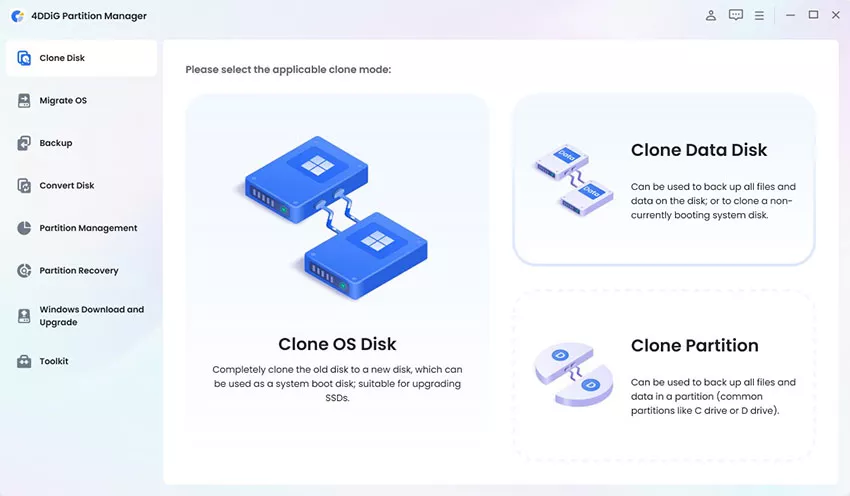
4DDiG Partition Manager offers a simple, visual interface to resize and merge partitions without data loss, no command-line knowledge needed. Besides partition management, this tool can also:

  • Backup Data: Back up files, partitions, or entire disks to prevent data loss.
  • Clone Disk/Partition: Easily clone entire disks or individual partitions to back up data or upgrade to a larger drive without loss.
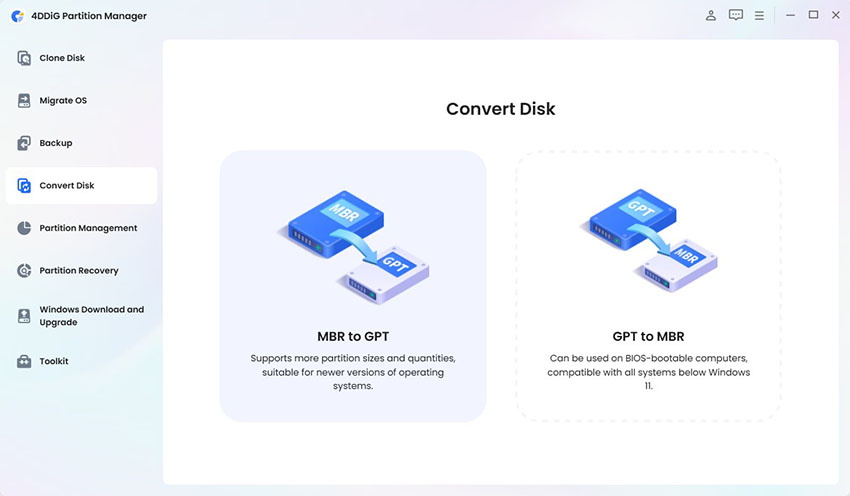
  • Convert File System & Partition: Convert MBR to GPT or NTFS to FAT32 without losing data.
  • Remove BitLocker: Access drives locked by BitLocker by bypassing or removing the protection.
Tip:

Always back up important data before resizing partitions, even when using a reliable tool.

  • Download and install 4DDiG Partition Manager. Launch the program and elect Partition Management in the left navigation bar.

    FREE DOWNLOAD

    Secure Download

    choose partition management
  • Click on the C: drive and choose Resize/Move Partition. Drag the partition boundary to extend C: into adjacent unallocated space, or first shrink another partition to create free space.

    set the size of c drive
  • Click Execute 1 Task(s) and click OK to commit the operation. The tool will handle the rest safely.

    resize c drive successfully

More FAQs About Pagefile.sys

1. Where to change paging file?

You can change the Windows paging file settings via: System Properties → Advanced → Performance Settings > Advanced > Virtual Memory > Change.

2. How to delete pagefile.sys?

You cannot erase pagefile.sys directly while Windows is running. To remove it, go to Virtual Memory settings, select the drive, choose "No paging file," click Set, and restart. After rebooting, the file will no longer exist on that drive. But reducing or moving the file is the safer choice.

3. How big should my page file be?

The ideal page file size depends on your RAM, workload, and need for crash dumps. To set page file size manually, recommended minimums are roughly 1~1.5× RAM for smaller systems and 0.5~1× RAM for 16 GB, with very small page files (512 MB~1 GB) acceptable for 32 GB+ RAM if crash dumps aren’t needed.

4. Does the paging file affect performance?

Yes, the paging file affects performance because it uses disk storage, which is much slower than RAM. While it improves system stability by preventing crashes when memory is low, heavy reliance on it can noticeably reduce system speed and responsiveness.

5. What does excessive paging mean?

Excessive paging is when the operating system repeatedly swaps data between RAM and the disk-based paging file due to insufficient physical memory. This constant data movement overwhelms the system, causing significant slowdowns, high disk activity, and reduced responsiveness, a state often referred to as thrashing.

Final Words

A pagefile.sys huge problem is frustrating, but it is entirely fixable. Whether you choose to reduce pagefile.sys size, move it to a secondary drive, or expand your partition, you now have the knowledge to reclaim your storage safely.

If your C: drive is simply too small to comfortably accommodate both Windows and the page file, 4DDiG Partition Manager's Resize Partition feature gives you a fast, safe way to expand it. Take control of your disk space today and stop letting pagefile.sys eat into your storage.

FREE DOWNLOAD

Secure Download

William Bollson (senior editor)

William Bollson, the editor-in-chief of 4DDiG, devotes to providing the best solutions for Windows and Mac related issues, including data recovery, repair, error fixes.

(Click to rate this post)

You rated 4.5 ( participated)