How to Fix NVIDIA Control Panel Access Denied?

5 mins read

Updated on 2026-03-31 11:01:38 to Windows Fix

Seeing an NVIDIA control panel access denied error can be frustrating, especially when you’re trying to adjust graphics settings or improve performance. Many users encounter messages like NVIDIA control panel access denied, failed to apply selected settings, or settings simply won’t save. Fortunately, most causes are fixable with the right steps. In this guide, we’ll explain why the Access Denied NVIDIA control panel happens and how to fix it on Windows 10 and 11 effectively.

nvidia control panel access denied

1. What is the NVIDIA Control Panel Access Denied Error?

In simple terms, the system blocks the NVIDIA software from saving or modifying its configuration files due to permission, driver, or system conflicts.

The error occurs when the system prevents changes from being applied within the NVIDIA Control Panel. This often appears when trying to adjust 3D settings, resolution, or display configurations, resulting in messages like failed to apply settings in the NVIDIA control panel.

Common Triggers Overview

Several underlying issues can lead to access denied in NVIDIA control panel, including:

  • Permission restrictions: The system may block NVIDIA from writing settings due to limited folder access.
  • Corrupted driver files: Damaged or outdated drivers can trigger NVIDIA control panel failed to apply settings errors.
  • Conflicting system updates: Windows updates may interfere with NVIDIA services.
  • Broken configuration files: Corrupted NVIDIA profiles can prevent changes from saving.
  • Software conflicts: Background applications or security tools may restrict access.

Understanding these causes helps answer makes troubleshooting easier.

2. How to Solve NVIDIA Control Panel Access Denied Error?

Once you understand the causes of the error, the next step is to apply targeted solutions to fix it. The following methods will help you resolve NVIDIA control panel access denied issues step by step, starting from simple fixes to more advanced solutions.

Fix 1: Repair NVIDIA Control Panel App

The NVIDIA Control Panel application itself may become corrupted or improperly installed, leading to access issues. When this happens, settings cannot be applied, and you may see NVIDIA access is denied messages. Repairing the app helps restore missing or damaged components.

  • Open Settings and go to “Apps", then open “Installed Apps”.

  • Locate “NVIDIA Control Panel” and click the “Advanced Options” button.

  • Select “Repair” and follow the on-screen steps, then restart your computer.

    repair nvidia control panel

Repairing the NVIDIA Control Panel can quickly resolve issues caused by corrupted or missing application files.

Fix 2: Grant Full Control Permissions to the NVIDIA ProgramData Folder

Permission issues are one of the most common reasons behind access denied NVIDIA control panel errors. If the NVIDIA folder does not allow full control, the system cannot save configuration changes. Granting proper permissions resolves this issue in most cases.

  • Press Win + R then type “%ProgramData%”, and press Enter.

  • Locate the “NVIDIA Corporation” file and right-click it, then select “Properties” and go to the “Security” tab.

  • Select “Users” and click “Edit," then grant “Full Control” to your user account.

  • Apply changes and restart the system.

Granting full control permissions ensures the system can save changes without restrictions. This fix is especially effective for resolving access denied errors caused by permission limitations.

Fix 3: Roll Back NVIDIA Driver

Sometimes the latest driver update may introduce bugs that cause NVIDIA control panel access denied Windows 10/11 errors. Rolling back to a previous stable version can resolve compatibility problems. This is especially useful if the issue started after a recent update.

  • Press Win + D and choose Device Manager.

  • Expand “Display Adapters” and right-click your NVIDIA GPU, then go to “Properties”.

  • Go to the “Driver” tab and click “Roll Back Driver”. Follow the on-screen steps and complete the process.

    roll back driver

Rolling back the driver helps eliminate bugs introduced by recent updates. It is a reliable solution when the issue appears after installing a new driver version.

Fix 4: Install GeForce Hotfix Display Driver 572.75

In some cases, NVIDIA releases hotfix drivers. Installing the correct hotfix can resolve bugs not yet fixed in standard releases. If the issue persists, resetting the NVIDIA DRS folder may also help.

  • Download GeForce Hotfix Driver 572.75 from NVIDIA.

  • Install the driver normally and restart your system.

  • If your problem is still there, navigate to “C:\ProgramData\NVIDIA Corporation” and delete the "DRS" folder, then create a new empty folder with the name "DRS."

  • Reopen the NVIDIA control panel, and the folder will be reset.

Installing a hotfix driver can address specific known issues that standard updates do not fix. Resetting the DRS folder further ensures that corrupted configuration files do not cause recurring errors.

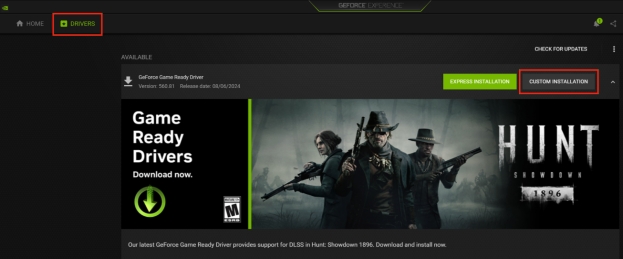
Fix 5: Perform Custom & Clean Installation of NVIDIA GPU Driver

Corrupted installations can cause persistent errors or failure to apply settings. A clean installation removes all old files and installs fresh components. This method is one of the most effective ways to fix stubborn driver issues.

  • Download the latest NVIDIA driver and run the installer.

  • Choose “Custom Installation” and select “Perform a Clean Installation”.

    perfrom clean installation of nvidia driver
  • Complete installation and restart.

A clean installation removes all corrupted driver files and reinstalls everything from scratch. This method is highly effective for fixing persistent NVIDIA control panel access denied errors.

⚡ Extra Tip: Restore Deleted or Formatted Partitions Safely

Sometimes system errors or failed updates can affect disk partitions, leading to missing data or configuration problems. This can indirectly contribute to issues like the NVIDIA control panel failing to apply settings if important system files are affected. Recovering lost partitions ensures your system remains stable and prevents further complications.

4DDiG Partition Manager provides a reliable way to recover lost or damaged partitions without risking data loss. It scans your disk deeply to locate missing partitions and restores them safely, making it especially useful after system crashes or accidental formatting. In addition to recovery, it also supports partition resizing, cloning, and disk management, helping maintain overall system health.

  • Install and launch 4DDiG Partition Manager. Select the “Partition Recovery” feature and choose the drive that you want to scan, then click "Quick Scan”. If the quick scan does not find the partitions, you can do a "Deep Scan" or "Full Scan" afterwards.

    FREE DOWNLOAD

    Secure Download

    scan your partitions
  • Once you find the partition you want to recover, Click "Start Recovery" to begin the process, and click "Sure" to confirm, noting that the process will erase and overwrite your current partition.

    start repairing
  • Wait as the process moves forward, and click "Finish" once it is complete.

    complete repairing

Recovering partitions helps restore system stability and prevents deeper issues.

Frequently Asked Questions

1.How to access the NVIDIA Control Panel?

You can access it by right-clicking on the desktop and selecting NVIDIA Control Panel. If it does not appear, reinstalling or updating the driver may restore access.

2.Why won’t the NVIDIA Control Panel open?

This usually happens due to corrupted drivers, missing files, or system conflicts. Restarting NVIDIA services or reinstalling the driver often fixes the issue.

3.How to fix the NVIDIA Control Panel won’t open?

Try restarting your PC, updating drivers, or repairing the application. If the issue persists, perform a clean driver installation.

4.How do I give permission to NVIDIA?

You can grant permissions by modifying the security settings of the NVIDIA ProgramData folder. Ensure your user account has full control access.

✅ Extended Reading: How to Fix Nvidia GeForce Experience Error Code 0x0003?

Conclusion

The NVIDIA control panel access denied error is usually caused by permission issues, driver conflicts, or corrupted system files. By following the solutions in this guide, such as repairing the app, adjusting permissions, and reinstalling drivers, you can resolve most problems quickly.

For deeper system issues, tools like 4DDiG Partition Manager can help restore lost partitions and maintain system stability. With the right steps, you can eliminate access denied NVIDIA control panel errors and regain full control over your GPU settings.

FREE DOWNLOAD

Secure Download

William Bollson (senior editor)

William Bollson, the editor-in-chief of 4DDiG, devotes to providing the best solutions for Windows and Mac related issues, including data recovery, repair, error fixes.

(Click to rate this post)

You rated 4.5 ( participated)