How to Fix ChatGPT Error in Message Stream?

5 mins read

Updated on 2026-01-15 12:32:29 to Windows Fix

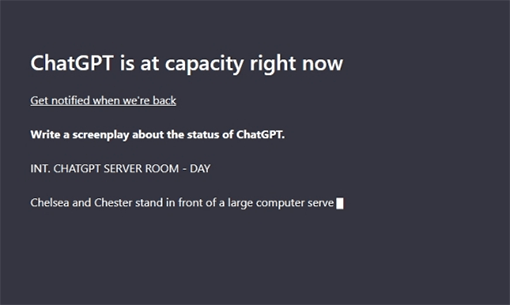
You’re typing a prompt into ChatGPT, hit Enter, and instead of a helpful response, you see a frustrating message: “ChatGPT error in message stream.” This issue can interrupt your workflow, whether you’re writing content, researching, coding, or just asking quick questions. The good news? This problem is usually easy to fix. This guide explains what this error means and provides practical solutions to fix it, ensuring smoother interactions with this powerful AI assistant.

chatgpt error in message stream

1. What Does Error in Message Stream Mean ChatGPT?

The Error in Message Stream notification is a technical issue in the communication between a user and ChatGPT's servers. This error occurs when a failure in data transfer between the client (your machine) and OpenAI servers takes place in the response generation cycle.

The error message means that although their prompt was successfully sent to ChatGPT, the AI was unable to deliver its response. This happens because the continuous stream of tokens was interrupted before completion. The error typically appears in a red notification box with the text "Error in message stream" and prevents the complete response from being delivered.

⚠ Common Causes of ChatGPT Error in Message Stream

Now let’s answer the question many users ask: why am I getting error in message stream on ChatGPT? Several technical factors can trigger this specific error:

  • Server side processing limitations: During peak usage times, OpenAI's servers may struggle to process all requests efficiently, causing timeouts in response generation.
  • API rate limiting: When developers call ChatGPT by API, surpassing assigned tokens or request quotas may cause stream disruptions.
  • Prompt complexity: A complex or long prompt that would demand very high computational effort can saturate the system by overwhelming the response stream.
  • Token limitation issues: When a response nears the ChatGPT token limit, the application may be cut off instead of running to completion.
  • Poor internet connection: Weak Wi-Fi, mobile data connections, or switching networks can disrupt the streaming connection.
  • Browser or extension interference: Certain extensions (ad blockers, VPNs, script blockers) may interfere with the live message stream.

These reasons explain the error in message stream ChatGPT meaning and why the issue may appear randomly. Knowing this helps you focus on the right fixes instead of changing your question unnecessarily.

2. How to Fix Error in Message Stream ChatGPT?

Encountering the error in message stream on ChatGPT can interrupt important conversations and workflow. Fortunately, there are several practical solutions to this problem. The following fixes range from simple checks to more technical solutions that address various causes of this common error.

Fix 1: Check ChatGPT's Server page

Sometimes the error is not caused by your device or internet. ChatGPT may be facing server downtime, partial outages, or maintenance issues. When servers are unstable, ChatGPT may fail to send or receive responses properly, causing the message stream error.

  • Open the OpenAI Status page. Look for ChatGPT or API service status. If you see an outage or degraded performance, wait until it’s fixed.

    openai status page
  • Refresh ChatGPT after some time and try again.

If servers are down, no local fix will work until OpenAI restores service.

Fix 2: Shorten Your Prompt

Long and complex prompts often cause ChatGPT to generate large responses. When responses are too long, the connection may fail, leading to the message stream error. Shorter prompts help ChatGPT respond smoothly.

  • Rewrite your prompt using shorter sentences.

  • Break large requests into smaller parts. Ask ChatGPT to respond “step by step” or “in parts.”

  • Continue the conversation only after the previous response finishes loading.

Tip:

You can add: “Please answer in parts and wait for my confirmation before continuing.”

Fix 3: Start a New Conversation in ChatGPT

Sometimes, the conversation history accumulates too many tokens, leading to processing difficulties. Creating a fresh chat clears this history and often resolves stream errors.

  • Click “New Chat” in the ChatGPT sidebar.

  • Re-enter your prompt in the new conversation. Avoid copying long chat histories into the new thread.

    start new conversation with chatgpt

This refreshes the session and often fixes the error instantly.

Fix 4: Sign Out and Sign Back In

Session related issues can trigger message stream errors. Signing out completely and then signing back into your OpenAI account often refreshes your connection to the servers. This simple step can resolve many temporary authentication or session problems that interrupt the message stream.

  • Click on your profile icon in ChatGPT. Select "Log out" and close your browser completely.

    log out chatgpt
  • Reopen the browser and sign back into ChatGPT, and try sending your prompt again. This refreshes your account session and clears temporary glitches.

Fix 5: Check Your Internet Connection

An unstable internet connection frequently causes stream interruptions. Ensure your network connection is stable by:

  • Make sure Wi-Fi or Ethernet shows Connected. Open another website or play a YouTube video to test speed.

    check internet connection
  • Restart your router. Unplug it for 30 seconds. Plug it back in.

  • Reopen ChatGPT and try again. You can also try a mobile hotspot to test.

Fix 6: Clear Your Browser Cache Files

Over time, cached data can conflict with ChatGPT's functionality. Clearing your browser cache removes potentially corrupted temporary files:

  • Open Google Chrome on your PC. Click the three dots (⁝) in the top-right corner.

  • Go to “Settings,” then select “Privacy and security,” and choose “Clear browsing data.”

    clear browsing data in setteings
  • Check "Cookies and other site data" and "Cached images and files." Select the time range, then click "Clear data," then restart your browser.

    click clear data button

Once you’ve cleared your browser data, open Chrome again and log in to ChatGPT to see if the issue is resolved.

Each of these solutions addresses different technical aspects that might cause the error in message stream. Moreover, implementing these fixes sequentially often resolves the issue without requiring advanced technical knowledge.

Extra Tip: Free Up Disk Space for Smoother ChatGPT Performance

If ChatGPT feels sluggish on your computer, the issue isn’t always your internet or browser, low disk space can quietly drag down overall system performance. When your system drive is nearly full, background processes slow down, caching becomes less efficient, and even simple web apps can feel less responsive.

This is where 4DDiG Partition Manager can help. Its Disk Space Analyzer gives you a clear visual breakdown of what’s eating up your storage, making it easy to spot large files, redundant data, or rarely used apps and clean them up safely. By freeing up disk space and optimizing storage usage, your system runs smoother — and tools like ChatGPT can respond faster and more reliably.

  • Download and open 4DDiG Partition Manager. If you plan to erase a partition on an external drive, make sure it’s properly connected to your computer first. In the left sidebar, click “Toolkit”, then choose “Data Erase” to continue.

    FREE DOWNLOAD

    Secure Download

    choose data erase
  • Choose the disk or partition you want to wipe, then click “Continue.

    click continue to wipe disk
  • Confirm that the selected disk or partition is correct, and click “Sure” to move forward.

    click sure to wipe disk
  • The wiping process may take a while. Please wait patiently. To prevent potential disk damage, do not disconnect the drive or exit the program during this process. Once the disk has been successfully erased, click Finish to complete the operation.

    wipe disk successfully

More FAQs about ChatGPT Error in Message Stream

1. How do I fix errors in the input stream in ChatGPT?

Try refreshing the page, shortening your prompt, checking your internet, and starting a new chat. These fixes solve most stream errors.

2. Why is my ChatGPT saying an error in the message stream?

It usually happens due to server issues, unstable internet, long prompts, or browser cache problems.

3. Why isn't my message sent on ChatGPT?

Your message may not be sent because of weak connectivity, expired login sessions, or overloaded ChatGPT servers.

Conclusion

The ChatGPT error in message stream is common but easy to fix. In most cases, checking server status, shortening prompts, starting a new chat, or clearing cache solves the problem quickly. Stable internet and a clean system also play a big role in smooth ChatGPT performance.

For long-term stability, freeing disk space is highly recommended. Tools like 4DDiG Partition Manager help protect your data while improving system performance. By following these steps, you can fix the ChatGPT error in the message stream and enjoy uninterrupted AI conversations again.

FREE DOWNLOAD

Secure Download

William Bollson (senior editor)

William Bollson, the editor-in-chief of 4DDiG, devotes to providing the best solutions for Windows and Mac related issues, including data recovery, repair, error fixes.

(Click to rate this post)

You rated 4.5 ( participated)