How to Open an XML File on Windows, Mac, and Online

5 mins read

Updated on 2026-10-21 14:29:34 to Wiki

XML files store structured data using tags, so you can view them with several common tools. The right choice depends on whether you want to read the contents, edit the code, or organize the data in a spreadsheet. This guide covers how to open an XML file, troubleshoot opening errors, and recover deleted XML files.

how to open an xml file

What Is an XML File?

An XML file is a text file that stores and organizes structured data using customizable tags. XML stands for Extensible Markup Language, and files typically use the .xml extension.

For example, a file containing product information might look like this:

<?xml version="1.0" encoding="UTF-8"?>
<product>
    <name>Wireless Mouse</name>
    <price>25.99</price>
    <category>Accessories</category>
</product>

Here, <product> is the root element, while <name>, <price>, and <category> identify individual data fields. You can read this content in a text editor or use another tool to display it in a more organized format.

How to Open an XML File

This part explains what program can open an XML file. Choose a method based on how you want to view or use the data.

1 Open an XML File in a Text Editor

A text editor is a simple way to view an XML file. Windows includes Notepad, while Mac computers include TextEdit.

On Windows:

  • Open File Explorer and locate your XML file.

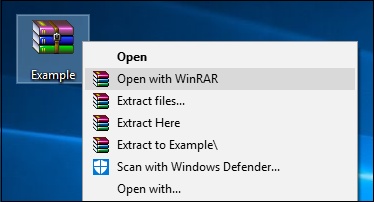
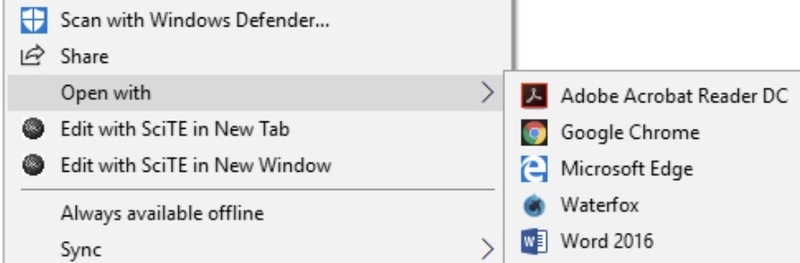
  • Right-click the file and select "Open with".

  • Choose "Notepad". If it doesn't appear, select the option to choose another app and locate Notepad.

    open an xml file in notepad
  • Read or edit the XML content in Notepad.

On Mac:

  • Open Finder and locate your XML file.

  • Launch TextEdit.

  • Select "File > Open".

    select file option in textedit
  • Find and select the XML file, then click "Open".

    open an xml file in textedit

This method works well for viewing XML contents or making simple edits. Large files can be harder to navigate in a basic editor.

2 Open an XML File in a Web Browser

A web browser lets you view a local XML file without installing a separate viewer. For example, to view an XML file in Chrome:

  • Open Chrome or another browser like Microsoft Edge, Firefox that supports local XML files.

  • Locate your XML file, on File Explorer or Finder.

  • Drag and drop the XML file into the browser window directly.

    how to view an xml file in web browser
  • Review the displayed content.

Depending on the browser, you may see a formatted tree view or the XML source text.

3 Open an XML File with Excel

Excel is useful when you want to check XML data in rows and columns, sort records, or work with values in a spreadsheet.

On Windows:

  • Open Microsoft Excel and create a blank workbook.

  • Go to "File > Open".

    open files in excel windows
  • Click the "Browse" button and you can look for your XML file.

    browse the xml file
  • Select your file and open it on your computer.

  • You should be able to open it by default. If the file isn't visible, click the "Type" menu and select "XML Files" to open it.

  • When the prompt appears. choose "As an XML table", which will convert the XML file into an Excel table.

    choose as an xml table

On Mac:

Excel for Microsoft 365 for Mac supports XML import through Power Query. Follow these steps to import XML data and open the XML file on Mac:

  • Open Excel and select the "Data" tab.

  • Select "Get Data (Power Query)".

    select get data power query on mac
  • Choose "XML" from the list of data sources. Find and select your XML file then click "Get Data".

    select your xml file in excel on mac
  • Review the available data and click "Load" to import it into a new worksheet.

    click to load the xml data on mac

If you don't see the XML option, check your Excel version. Power Query XML import is available in Excel for Microsoft 365 for Mac, but not Excel 2016 or 2019 for Mac.

4 Open an XML File in a Code Editor

A code editor is a good choice for large XML files or when you need to edit them. Visual Studio Code (VS Code) highlights XML tags and organizes the code with indentation, making the content easier to read.

  • Download and install Visual Studio Code from its official website if you haven't already.

  • Launch VS Code.

  • Select "File > Open File".

  • Browse to your XML file and select it.

    open an xml file in vscode
  • Review the content using syntax highlighting and indentation.

You can edit the XML in VS Code and save your changes. Syntax highlighting helps you read the code but doesn't automatically fix invalid XML. If you encounter parsing errors, check the file's structure.

5 Open an XML File with an Online XML Viewer

An online XML viewer lets you inspect and read XML content without installing desktop software. For example, XML Online Viewer supports file uploads, formatting, and tree views.

  • Open the XML Online Viewer website.

  • Click the "Import" option to find your file.

    open and read the xml file with online viewer
  • Review the output and expand elements as needed.

Some online viewers also offer validation or error messages to help identify malformed XML.

📝 Privacy tip:

Avoid uploading XML files containing sensitive personal or business information to third-party websites. Use a local editor for confidential files.

How to Fix an XML File That Won't Open

If an XML file won't open or displays an error, check these common issues before assuming the file is damaged.

Check the Default Application

Your computer may be opening the file with an application that doesn't support XML properly. Right-click the file and choose "Open with" and select Notepad in Windows, or open it through "File > Open" in TextEdit on Mac.

If the file opens in one editor but not another application, that application may not support XML properly.

Check the File Extension

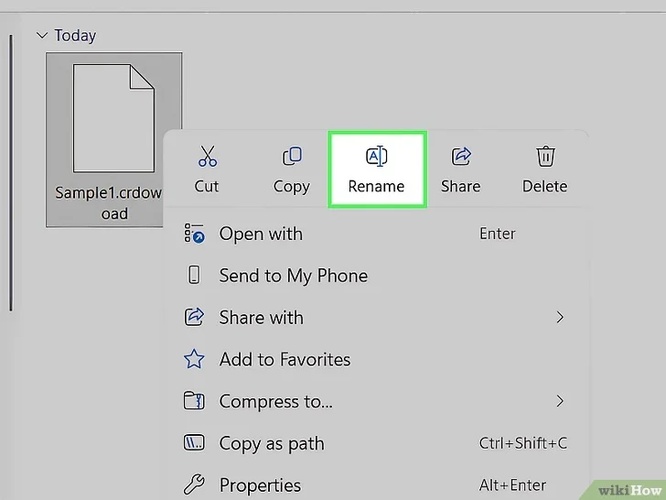
Check that the filename ends in .xml. If the extension is hidden, enable file extensions in File Explorer on Windows or inspect the filename in Finder on Mac.

Adding the .xml extension doesn't convert a file into valid XML. If the file uses another format, changing its extension won't fix the problem.

Check for XML Syntax Errors

If an editor or viewer reports a parsing error, check that the tags match and the elements are in the correct order.

For example, <name>Mouse</product> contains mismatched tags. The closing tag should be </name>.

Only correct the syntax if you understand the intended structure. If the file comes from another application or service, try getting a fresh copy instead of editing it manually.

Check Whether the File Is Incomplete

If the XML ends unexpectedly or contains only part of the expected data, it may not have downloaded or saved completely.

Try downloading or exporting the file again from the original source. If it's missing from your computer, check the Recycle Bin or Trash and any available backups before attempting recovery.

How to Recover Deleted or Lost XML Files

If you've checked your backups and still can't find a deleted or lost XML file, a data recovery tool may help you find it.

4DDiG Data Recovery can scan supported storage locations for recoverable XML files, including files lost through accidental deletion or other data loss scenarios. It also supports common file types such as json, log, txt, docx, xlsx, and pptx files.

Here's how to use 4DDiG to recover deleted or lost XML files:

FREE DOWNLOAD

Secure Download

FREE DOWNLOAD

Secure Download

  • Install and launch 4DDiG, then choose the drive or folder where the missing XML file was stored.

    launch 4ddig
  • Once scanning starts, filter the results by file type or search for .xml to narrow down the results.

    filter scan results to find xml files
  • Check the found files and preview their contents if supported. Select the XML files you need and click "Recover".

    preview recoverable xml files before recovery
  • To save the recovered XML files, choose a different drive or folder as the destination to avoid overwriting other lost data.

    save recovered xml files

Conclusion

Choose a tool based on whether you need to view, edit, or organize XML data. When deciding how to open an XML file, start with a text editor or browser for simple viewing. If an XML file has been deleted or lost, 4DDiG can help scan for recoverable files.

William Bollson (senior editor)

William Bollson, the editor-in-chief of 4DDiG, devotes to providing the best solutions for Windows and Mac related issues, including data recovery, repair, error fixes.

(Click to rate this post)

You rated 4.5 ( participated)