How to Fix Error Code 0xc000000e in 5 Proven Methods

5 mins read

Updated on 2026-10-22 12:08:17 to Windows Fix

Error code 0xc000000e usually appears when Windows cannot access the device or boot files needed to start. You may see a blue recovery screen and find that your PC cannot load Windows. This guide explains how to troubleshoot the issue, repair startup problems, and recover important files if Windows still won't boot.

error code 0xc000000e

Quick Guide: Which Fix Should You Try First?

What you notice Recommended method
The error appeared after connecting a USB drive or external device.Method 1: Disconnect External Devices and Check the Boot Drive
The system drive is missing from BIOS/UEFI or makes unusual noises.Stop repeated repair attempts and check for possible drive failure.
The computer starts from the wrong device.Method 2: Check BIOS/UEFI Boot Settings
Windows stopped booting after a recent update.Method 4: Uninstall the Recent Windows Update
Startup Repair did not fix the problem, and the boot configuration may be damaged.Method 5: Rebuild the Boot Configuration Data (BCD)
ℹImportant:

If you suspect physical drive failure, prioritize data recovery before running advanced repair commands. Do not format the drive or reinstall Windows before protecting important files.

What Does Error Code 0xc000000e Mean?

This error means Windows Boot Manager cannot find or access the device or startup configuration needed to load Windows. The problem may involve the Boot Configuration Data (BCD), which tells Windows where to find its startup files.

You may see a recovery screen with a message such as "Your PC needs to be repaired."

A message mentioning \Windows\System32\winload.efi can also indicate a startup problem. Check the surrounding error message to help determine which repair method to try.

What Causes the 0xc000000e Error?

Several problems can prevent Windows from finding the files or device it needs to start.

1. Corrupted Boot Configuration Data (BCD)

The BCD tells Windows where to find its startup files. If the configuration is damaged or points to the wrong partition, Windows may fail to load.

2. System Drive Access Problems

Windows cannot start if it cannot access the system drive. A loose connection or a failing drive may prevent the computer from reading the required boot files.

3. Incorrect BIOS/UEFI Boot Settings

The computer may try to start from the wrong device or boot entry instead of Windows Boot Manager. As a result, it cannot locate the expected startup files.

4. Recent Windows Updates or System Changes

Changes to Windows or its boot configuration can disrupt the startup process. If the error began after an update, the update may be related to the problem.

How to Fix Error Code 0xc000000e

Start with simple checks before trying recovery tools or boot configuration repairs. If the system drive appears to be failing, avoid advanced repairs and prioritize protecting your data.

1 Disconnect External Devices and Check the Boot Drive

External devices can sometimes interfere with startup, while an undetected system drive can prevent Windows from loading.

  • Shut down your computer.

  • Disconnect USB drives, memory cards, external hard drives, and other nonessential peripherals.

  • Turn the computer back on and check whether Windows starts.

  • If the error remains, enter BIOS/UEFI and check whether the internal system drive is detected.

If the drive is not detected, check its connection only if you can do so safely. If it repeatedly disconnects or makes unusual clicking noises, stop and seek technical assistance before attempting software repairs.

2 Check BIOS/UEFI Boot Settings

If BIOS/UEFI detects the system drive, check whether the computer is set to boot from the correct device.

  • Restart the computer and enter BIOS/UEFI using the key shown during startup. Common keys include F2, F10, F12, and Del, depending on the manufacturer.

  • Open the Boot menu and look for Windows Boot Manager or the correct system drive.

    windows boot manager
  • If another device has priority, select the appropriate Windows boot entry and save the changes.

  • Restart the computer.

Menu names vary by manufacturer. Avoid changing UEFI/Legacy mode or storage controller settings such as AHCI/RAID unless you know the original configuration, as incorrect changes can cause further boot problems.

3 Run Windows Startup Repair

Startup Repair can detect and attempt to fix some problems that prevent Windows from loading. Run it from the Windows Recovery Environment (WinRE).

  • Enter WinRE. If it does not open automatically, start the computer from a Windows installation USB.

  • Select "Repair your computer" rather than installing Windows.

  • Go to "Troubleshoot > Advanced options > Startup Repair".

    run startup repair under winre
  • Select your Windows installation if prompted and follow the on-screen instructions.

  • Restart the computer when the repair finishes.

If Startup Repair cannot fix the problem, continue with the next method that matches your situation.

4 Uninstall the Recent Windows Update

If the startup problem began immediately after a Windows update, uninstalling it may help.

  • Enter WinRE using the recovery screen or a Windows installation USB.

  • Select "Troubleshoot > Advanced options > Uninstall Updates".

    select uninstall updates under winre
  • Choose "Uninstall latest quality update" if the problem followed a recent monthly update.

  • Follow the prompts and restart your computer.

If the problem followed a major feature update, you may see an option to uninstall the latest feature update instead.

5 Rebuild the Boot Configuration Data (BCD)

If Startup Repair fails and the boot configuration is damaged, use bcdboot to recreate the boot files. First, identify the Windows partition and EFI System Partition, which may have different drive letters in WinRE.

  • Boot from a Windows installation USB.

  • Select "Repair your computer > Troubleshoot > Advanced options > Command Prompt".

  • If BitLocker requests a recovery key, enter it to access the protected drive.

  • Inspect the available volumes:

    diskpart
    list volume
  • Identify the Windows volume and EFI System Partition. On a typical UEFI/GPT system, the EFI partition is usually a small FAT32 volume, but do not rely on size alone. If you cannot identify it confidently, stop and seek assistance.

  • Exit DiskPart and check which drive contains the Windows folder:

    exit
    dir C:\Windows

    If the folder is not found, try other drive letters until you locate the correct Windows installation.

  • If the EFI partition already has a drive letter, confirm that it belongs to the correct partition. If it has no letter, return to DiskPart and inspect the volume:

    diskpart
    list volume
    select volume N
    detail volume

    Replace N with the identified volume number. Confirm that it is the EFI System Partition before proceeding.

  • If you have confirmed the correct EFI partition and S: is available, assign it a drive letter:

    assign letter=S
    exit

    Do not format or delete the partition.

  • For a UEFI-based installation, run this command after confirming both drive letters:

    bcdboot C:\Windows /s S: /f UEFI

    Replace C: with the actual Windows partition letter and S: with the EFI partition letter. This command is for UEFI systems.

  • Wait for the command to finish, close Command Prompt, and restart the computer.

If you cannot confidently identify the partitions, seek technical assistance rather than risk changing the wrong volume.

How to Recover Data from a Computer That Won't Boot

If Windows still won't start after troubleshooting, recover important files before reinstalling the operating system. 4DDiG Data Recovery includes a Crashed PC Recovery feature that lets you recover files without starting the affected Windows installation normally.

It can help recover inaccessible or lost photos, videos, documents, and other common file types from supported HDDs, SSDs, and other storage devices. This lets you recover important files before reinstalling Windows.

FREE DOWNLOAD

Secure Download

FREE DOWNLOAD

Secure Download

In short, create a bootable USB drive on another working Windows computer, then boot the affected PC from it. Follow the recovery steps below.

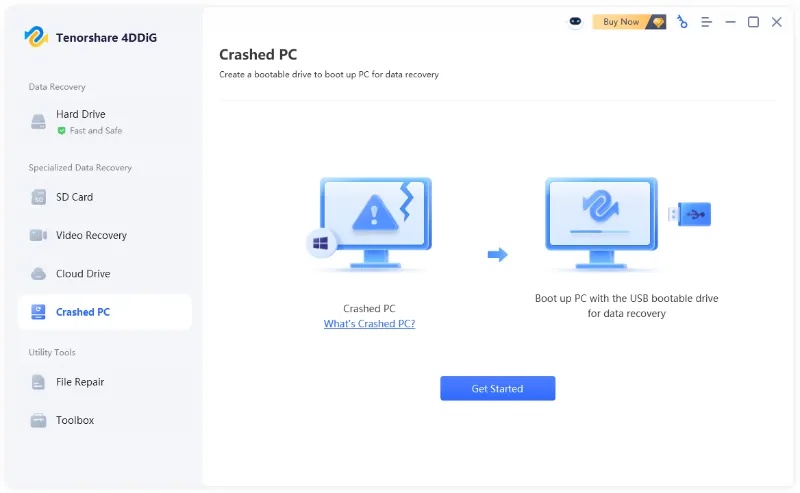
  • On another working Windows PC, install and launch 4DDiG. Select "Crashed PC" from the left menu and click "Get Started" to create recovery media for the computer affected by error code 0xc000000e.

    choose crashed pc feature in 4ddig
  • Connect a USB drive to the working PC, select it in 4DDiG, and click "Create Now." The USB drive will be formatted, so back up any important files on it first.

    select usb drive to create a bootable drive
  • Wait for 4DDiG to download the required files and create the bootable USB drive. Keep the USB drive connected and maintain a stable internet connection until the process finishes.

    4ddig creating the bootable drive
  • Connect the bootable USB drive to the computer showing error code 0xc000000e. Enter BIOS/UEFI, set the USB drive as the boot device, and restart the computer to load the 4DDiG recovery environment.

    4ddig bootable drive created successfully
  • Once the computer boots from the USB drive, select the storage device containing your inaccessible or lost files. Start the scan to find files that may be recoverable.

    4ddig advanced scan
  • After scanning, review the results and select the files you want to recover. Click "Recover" and save them to a separate, healthy drive rather than the original storage device.

    4ddig recover files

Note that data recovery does not repair Windows startup files. If the storage drive shows signs of physical failure, stop using it and seek professional recovery advice.

Frequently Asked Questions

Can I fix error code 0xc000000e without reinstalling Windows?

Yes, in many cases. Checking the boot drive and boot settings or running Startup Repair may resolve the issue. More advanced repairs, such as rebuilding the BCD, may be needed if simpler methods fail.

Will rebuilding the BCD delete my files?

The bcdboot command recreates boot files and is not intended to delete personal files. However, selecting the wrong partition or running unrelated disk commands can cause problems, so verify the drive letters before proceeding.

Can a Windows update cause error code 0xc000000e?

A Windows update may contribute to this error if it disrupts the startup process or boot configuration. If the problem started immediately after an update, you can try uninstalling it through the Windows Recovery Environment (WinRE).

Conclusion

When Windows will not start, begin with the boot drive and startup settings before moving on to advanced repairs. If error code 0xc000000e persists, protect your files before reinstalling Windows or making major disk changes. 4DDiG offers another option for attempting to recover accessible files when startup repairs are unsuccessful.

William Bollson (senior editor)

William Bollson, the editor-in-chief of 4DDiG, devotes to providing the best solutions for Windows and Mac related issues, including data recovery, repair, error fixes.

(Click to rate this post)

You rated 4.5 ( participated)