How to Fix Baldur’s Gate 3 Crashing

5 mins read

Updated on 2026-06-18 19:19:38 to Windows Fix

Is Baldur’s Gate 3 keeps crashing every time you try to play? This issue can quickly ruin the experience. Many players report that it crashes during startup, multiplayer sessions, or after installing updates and mods.

In this guide, we’ll explain reasons of crashing and walk you through proven solutions to get the game running smoothly again. Let’s get started.

1. Why Does Baldur’s Gate 3 Keep Crashing?

● Corrupted or Missing Game Files

Game files can become damaged due to interrupted downloads, failed updates, or storage errors. When essential files are missing, Baldur’s gate 3 crashes may occur during startup or gameplay.

● Outdated Graphics Drivers

BG3 relies heavily on your graphics card. Old or incompatible GPU drivers can trigger graphical glitches, crashes, and performance issues.

● Incompatible or Outdated Mods

Many players install mods to customize their experience. However, after a major game patch, outdated mods can conflict with new files and cause instability.

● Outdated Windows Components

Windows updates often include important compatibility fixes, DirectX improvements, and security patches that affect gaming performance.

● Damaged Game Installation

If the game installation itself becomes corrupted, you may experience a BG3 crash on launch, random freezes, or repeated error messages.

Check Crash Information Using Event Viewer First

Before trying any fixes, check the crash details to identify the source of the problem.

  • Press Windows + X and select Event Viewer.

  • Now expand Windows Logs and click Application.

  • After that, look for recent Error entries that occurred when BG3 crashed.

    check event viewer
  • Open the error and review the details.

  • Check whether bg3.exe, DirectX files, graphics drivers, or launcher files are listed.

Reviewing the BG3 crash logs can help determine whether the issue is related to drivers, mods, or corrupted files.

2. How to Solve Baldur’s Gate 3 Crashing with 6 Proven Methods?

Fix 1: Verify Integrity of Game Files

Corrupted game files are one of the most common causes of crashes.

  • First of all, open Steam and go to Library.

  • Right-click Baldur’s Gate 3 and select Properties.

  • Click Installed Files and choose Verify Integrity of Game Files.

    verify integrity of game files
  • Now, wait for the scan to finish. Steam will automatically replace missing or damaged files. This method also works for fixing the Battlefield 6 undefined error.

Fix 2: Remove Mod Files

Many cases where BG3 crashes when starting new game are linked to outdated mods.

  • Completely close Baldur's Gate 3 and any mod management tools you may be using.

  • Open File Explorer and go to your Baldur's Gate 3 mods folder. If you're not sure where it is located, search for the BG3 mods folder location using the search icon.

    locate mod folder
  • Create a new folder on your desktop called BG3 Mod Backup. Copy all mod files from the mods folder and paste them into this backup folder. This allows you to restore them later if needed.

  • After creating the backup, remove the mod files from the original BG3 mods folder so the game launches without any mods.

  • Restart your computer and launch Baldur's Gate 3 again. Play the game for a few minutes and check whether the crashing issue is gone.

If the game runs normally, one of your mods is likely causing the problem. Reinstall or enable your mods one at a time, testing the game after each one. This will help you identify the specific mod responsible for the crashes.

Fix 3: Clear Launcher Cache

Launcher cache corruption can prevent the game from launching properly.

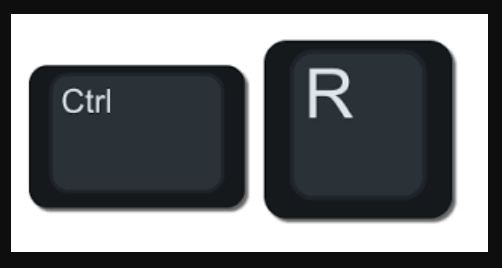
  • Close Steam and the Launcher. Press Windows + R and type: %LocalAppData%

  • From here, locate the Larian Studios folder and find cache-related files and folders.

  • Delete temporary cache files. Then, restart your PC and launch the game again.

⚡ Bonus: Optimize Your PC for Smooth Gaming with Windows Clean Feature

Even if the game files are healthy, excessive junk files can affect system performance. Temporary files, outdated logs, and unnecessary system clutter consume valuable storage space and may contribute to slower loading times.

The Windows Clean feature in 4DDiG Partition Manager helps remove unnecessary files safely and free up disk space.

  • Download and open 4DDiG Partition Manager on your computer. Click Windows Clean from the left-side menu. Choose the types of junk files you want to remove and click Start Scan. The program will begin scanning your system.

    FREE DOWNLOAD

    Secure Download

    windows clean
  • Once the scan is complete, a list of detected junk files will appear. The files that are safe to delete are selected automatically. You can expand each category to review the files and choose what you want to clean.

    select items to clean
  • After reviewing the results, click Clean. Confirm the action when prompted, and the software will start removing the selected junk files from your system.

    confirm to clean
  • When the cleanup process finishes, you will see how much storage space has been recovered. Your computer should now have more free disk space and less unnecessary clutter.

    clean successfully

Keeping your system clean can improve overall responsiveness and provide a smoother gaming experience.

Fix 4: Update GPU Driver

An outdated graphics driver can cause random crashes, black screens, and performance issues.

Update NVIDIA Drivers

  • Open GeForce Experience. Go to the Drivers tab and check for updates.

    check for updates
  • If updates are available, download and install the latest version.

Update AMD Drivers

  • Open AMD Software. Check for available updates.

  • Install the newest recommended driver.

After updating, restart your PC and test the game again.

Fix 5: Update Windows

Windows updates contain important fixes that help games run correctly.

  • Open Windows Settings and select Windows Update. Click Check for Updates.

    check for updates
  • Download and install all available updates. Once the process is completed, restart your PC.

Fix 6: Perform a Clean Reinstall of Baldur’s Gate 3

If none of the previous solutions work, a clean reinstall can eliminate deeply corrupted files.

  • First of all, back up your save files.

    keep baldure gate saves
  • Uninstall Baldur’s Gate 3. Delete remaining game folders, and restart your computer.

  • Download a fresh copy of the game from Steam and install the game again.

  • Once the installation is completed, launch without mods initially.

For console players experiencing this issue, reinstalling the game can also help. If Baldur’s Gate 3 keeps crashing on xBox series X, ensure both the game and console firmware are fully updated before reinstalling.

More FAQs About Baldur’s Gate 3 Crashes

1. Is BG3 CPU or GPU Heavy?

Baldur’s Gate 3 uses both the CPU and GPU extensively. The GPU handles graphics rendering, while the CPU manages character AI, physics, and game logic. In graphically demanding areas, the GPU generally carries a larger workload.

2. Can Bad RAM Cause Games to Crash?

Yes. Faulty RAM can lead to game crashes, freezing, blue screens, corrupted saves, and random application errors. Running a memory diagnostic test can help identify RAM-related problems.

3. What Mods Cause BG3 to Crash?

Outdated mods, Script Extender conflicts, UI modification mods, and mods that are incompatible with the latest patch are among the most common causes of crashes.

Conclusion

If Baldur’s Gate 3 keeps crashing, start by checking Event Viewer and reviewing BG3 crash logs to identify potential causes. Then work through the fixes, including verifying game files, removing mods, clearing cache, updating drivers, updating Windows, and reinstalling the game if necessary.

For additional performance improvements, consider using the Windows Clean feature in 4DDiG Partition Manager to remove unnecessary system clutter and help maintain a smoother gaming experience.

FREE DOWNLOAD

Secure Download

William Bollson (senior editor)

William Bollson, the editor-in-chief of 4DDiG, devotes to providing the best solutions for Windows and Mac related issues, including data recovery, repair, error fixes.

(Click to rate this post)

You rated 4.5 ( participated)