Complete Guide for AMD Error 195: Causes & Fixes

5 mins read

Updated on 2026-04-29 14:44:43 to Windows Fix

If you encounter AMD error 195 while installing AMD drivers, the installation usually stops with a message like “error 195 AMD installer cannot continue.” This problem often appears when downloading or installing AMD Adrenalin software on Windows 10 or 11.

It can prevent your graphics driver from updating, causing performance issues or display problems. Here, you will learn exactly what causes this error and how to fix it step by step.

1. What Does AMD Error 195 Mean?

The message “error 195 AMD installer cannot continue” usually means the installer failed to connect to the internet or was blocked by system settings. This AMD error occurs when the AMD installer cannot download or access the required files from AMD servers.

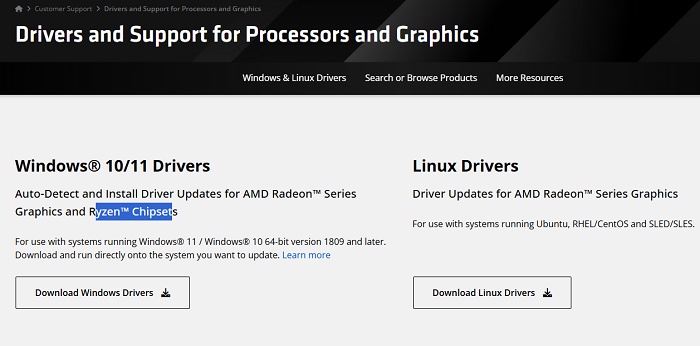
download amd driver

In simple terms, it is a network connectivity error, which means the AMD Software Installer cannot connect to the internet to download the files it needs from AMD's servers.

Common Causes of AMD Error 195

Here are the most common reasons why this error happens:

  • Firewall blocking the installer: Windows Firewall or third-party security tools may block AMD installer processes. As a result, the installer cannot communicate with AMD servers.
  • Antivirus interference: Antivirus software may incorrectly flag AMD installer components as threats. This can stop downloads or block installation processes.
  • Corrupted installer files: A damaged or incomplete installer package may fail to run correctly. This can lead to connection errors even if your internet is working.

Understanding these causes helps you choose the correct fix instead of trying random solutions.

2. How to Fix AMD Error 195 Step-by-step?

Below are proven methods to fix error 195 AMD installer issues. Follow them for the best results.

Fix 1: Manually Install the Driver

Bypassing it and installing the driver manually gives you direct control over the process, sidestepping the conditions that trigger the error.

  • Open your browser and go to the official AMD Drivers page, then select your driver version and click "Submit," then choose your operating system and its edition.

  • Download the full offline driver package that is around 500-600 MB in size by clicking "Download."

    download amd driver
  • Once downloaded, right-click the file “MBSetup.exe” and select "Run as administrator," then follow the on-screen instructions to complete the installation.

Fix 2: Disable Windows Defender and Windows Firewall

Sometimes, built-in security features block the installer from connecting to AMD servers. Temporarily disabling them can allow the installation to proceed.

  • Press “Windows + I” and open Settings, then go to Update & Security and open Windows Security.

  • Go to Virus & Threat Protection > Manage Settings and turn off “Real-time protection” temporarily, then confirm the action by clicking "Yes" in the pop-up.

    disable real time protection
  • Go back and open “Windows Defender Firewall” by searching for it in the “Start” menu.

  • Choose the “Turn off Windows Defender Firewall” for both your “Public” and “Private” network settings.

    turn off defender firewall
  • Turn off the firewall for your active network by clicking “OK” and running the AMD installer again.

Disabling these protections removes restrictions that may block network access. This often resolves AMD error 195 on Windows 11/10 when caused by security filtering. Remember to turn security features back on after installation.

Fix 3: Enable Firewall Access for AMD Servers

Instead of disabling the firewall, you can allow AMD services through it. This is a safer long-term solution.

  • Search for "Windows Security" in the Start menu and open it, then go to "Firewall & Network Protection."

  • Click “Allow an app through Firewall” then click “Change settings”.

    allow app through firewall
  • Look for AMD-related services in the list and check the box for both "Private" and "Public". If not listed, click “Allow another app” and add the AMD installer manually, and ensure both “Private” and “Public” boxes are checked.

  • Save changes by clicking “OK” and running the installer again.

This method ensures AMD installer traffic is not blocked. It allows proper communication with AMD servers, resolving error 195. The AMD installer cannot continue without disabling protection completely.

⚡ Bonus: Give Your Driver Install a Clean Space to Work

Before installing drivers again, cleaning your system can prevent hidden conflicts. Leftover files, broken registry entries, or disk issues can interfere with installations. Many users clean and prepare their system using tools like 4DDiG Partition Manager, which helps remove clutter and optimize storage before driver installation.

Other Key Features:

  • Partition Management: Running low on C drive space is a common trigger for installer errors. Easily reallocate space from other partitions to give your system drive more room.
  • Clone Disk/Partition: Create an exact copy of your entire disk or a specific partition, so you can upgrade to a larger drive or back up your data without losing a single file.
  • Repair Boot: If a failed driver installation leaves your system unable to boot, 4DDiG can repair corrupted boot files and get Windows back up without a full reinstall.
  • Bootable Media (WinPE): When Windows won't start after a bad install, boot into WinPE directly from a USB drive to perform disk repairs and recovery operations outside of the OS.
  • Install and launch 4DDiG Partition Manager on your Computer and go to the "Windows Clean" feature from the left side. Choose all file types that you want to clean, then click "Start Scan”.

    FREE DOWNLOAD

    Secure Download

    click start scan
  • When the scan is complete, you will get a list of files that you need to clean. Select all the files that you want to clean and click “Clean”.

    click clean after selecting
  • Confirm the action by clicking the "Sure" button in the pop-up window.

    click sure to proceed
  • Now, your disk space will be cleaned of the junk files. Restart your PC before installing AMD drivers again.

    clean successfully

This process ensures your system is in a stable state. A clean system reduces the chance of AMD Adrenalin error 195 caused by leftover or conflicting files.

Conclusion

The AMD error 195 is mainly caused by permission issues, not faulty drivers. By manually installing drivers, adjusting firewall settings, or temporarily disabling security tools, you can resolve the error effectively.

Cleaning your system beforehand further improves success rates. For smoother installations and better system stability, tools like 4DDiG Partition Manager can help prepare your system and prevent future driver-related problems.

FREE DOWNLOAD

Secure Download

William Bollson (senior editor)

William Bollson, the editor-in-chief of 4DDiG, devotes to providing the best solutions for Windows and Mac related issues, including data recovery, repair, error fixes.

(Click to rate this post)

You rated 4.5 ( participated)