What Is an XMP File? Open and Use It on Windows

5 mins read

Updated on 2026-10-23 14:50:19 to Wiki

You copy camera photos to your Windows PC and find IMG_1042.CR2 beside IMG_1042.xmp. What is an XMP file, and can you delete it? It stores information about the photo, including editing settings. Deleting it leaves the original image intact, but can remove the instructions needed to reproduce its edited appearance.

Here is how to identify the file, decide whether to keep it, and use it on Windows.

What is an XMP file and how to use it on Windows

What an XMP File Contains

XMP stands for Extensible Metadata Platform, Adobe's framework for exchanging metadata. The XMP file format uses XML-based text to store information such as captions, copyright details, ratings, and adjustments. A text editor displays the tags; a photo editor interprets supported settings.

First identify which form you have:

What you have What it stores How to use it
RAW and matching XMP sidecar Information associated with one photo Keep the pair together and open the RAW in Lightroom Classic or Camera Raw
Downloaded XMP preset Adjustments intended for reuse Import through the intended application's preset controls
XMP embedded in an image Metadata inside the image file Read with the application's metadata tools

A sidecar such as IMG_1042.xmp belongs with the matching IMG_1042.CR2. Their shared base name helps the application associate them. The sidecar is not another copy of the photo.

Can You Delete XMP Files

Yes, deleting a separate XMP does not delete the pixels in its matching RAW image. Whether you should delete it depends on where the settings are preserved:

Your situation What to do What deletion changes
Wanted edits remain in the catalog Back up the catalog; save metadata again if needed Catalog edits stay; disk copy is removed
XMP holds the only settings copy Keep it with the original That record of the edits is lost
Downloaded preset Test import; keep a backup Installed preset is separate from the download

For photos received from someone else, keep the pair until you have checked the result in the intended editor. An exported JPEG preserves the rendered appearance, but does not replace editable RAW settings.

When copying through File Explorer, select the associated files as well as the RAW. For an existing collection, move or rename photos through the photo application where possible, then reopen a few to check their appearance.

How to Open and Use XMP Files on Windows

Use Notepad to inspect text, a photo editor to apply sidecar settings, or preset import to add reusable adjustments.

Identify the File and Open It in Notepad

An unknown icon does not mean the file is damaged. In Windows 11, open File Explorer and choose View > Show > File name extensions. In Windows 10, select File name extensions on the View tab.

Windows 11 File Explorer View menu with Show and File name extensions highlighted
  • Make a copy of the XMP before inspecting important settings.

  • Right-click it and choose Open with > Choose another app > Notepad. Alternatively, open Notepad, choose File > Open, and change the filter to All files.

  • Read the XML without changing or saving it.

To correct an unwanted default program, open Settings > Apps > Default apps, search for .xmp, and choose an app. This changes the opening behavior, not the file's contents. Renaming .xmp to .jpg does not convert it into a photo.

Apply a Matching Sidecar to a RAW Photo

Keep the RAW and XMP in the same folder with matching base names. Open the RAW in Lightroom Classic or Adobe Camera Raw. In Photoshop, opening a supported camera RAW file brings it into Camera Raw.

In Camera Raw, Image Settings uses the photo's saved settings. Load Settings lets you select a settings file explicitly. The Adobe reference menu below shows these options; their appearance varies by version.

Camera Raw settings menu showing Image Settings and Load Settings commands

For a Lightroom catalog with external changes, select the photo in Library and choose Metadata > Read Metadata From File. Back up the catalog first: this replaces its current settings for that photo. If the catalog has the edits you want instead, save them to disk as described below.

Import an XMP Preset in Lightroom Classic

Use this route for a downloaded Lightroom preset, rather than a sidecar from a photo folder.

  • Open a photo and switch to Develop.

  • In Presets, select Add > Import Presets.

  • Select the preset file or supported ZIP, then choose Import.

  • Find it in User Presets and apply it to a suitable photo.

XMP preset controls in the Lightroom Classic Develop module

If an imported preset is missing, check Edit > Preferences > Presets > Show Partially Compatible Develop Presets. This reveals partially compatible presets; it does not make unsupported settings work.

Windows Lightroom Classic Preferences with Show Partially Compatible Develop Presets selected
People Also Read:

RAW File Viewers for Windows

Save XMP Changes in Lightroom Classic

To save supported catalog settings externally, select the photo and choose Photo > Save Metadata to File. Confirm Continue if prompted. For automatic saving on Windows, use Edit > Catalog Settings > Metadata > Automatically Write Changes Into XMP.

Check the Metadata panel's Sidecar Files field:

Lightroom Classic Metadata panel showing XMP and ACR sidecar files

Starting with Lightroom Classic 15.0, heavier edits can create an additional .acr sidecar. Keep it when present, alongside the original, XMP, and catalog backup.

What to Do When an XMP File or Original Photo Is Missing

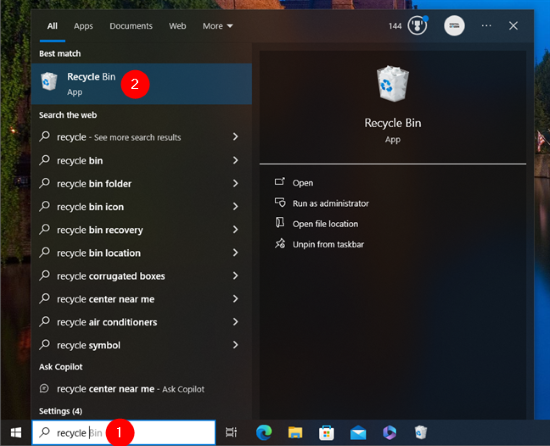
If the original exists but its edits are missing, check the filenames, folders, and Lightroom catalog. A catalog retaining the wanted adjustments can write supported settings back to disk. Otherwise, check the Windows Recycle Bin, earlier catalogs, and backups before overwriting anything.

If only the photo's location changed, reconnect it in the photo application. If the original was deleted, stop writing to the affected drive and look for a backup. An XMP cannot reconstruct the original's pixels.

Recover a Deleted Original Photo with 4DDiG

Without a backup, 4DDiG Data Recovery can scan supported Windows storage devices for recoverable photos, including CR2, NEF, ARW, and DNG. Scanning and supported previews are free; check the current edition's recovery limits.

FREE DOWNLOAD

Secure downloadSecure Download

FREE DOWNLOAD

Secure downloadSecure Download

  • Download the Windows version from the official product page. Save the installer and install on a different drive from the affected one. Launch it, select the disk containing the deleted photos, and start scanning. Choose photo types if prompted.

    Select the Windows disk containing deleted photos in 4DDiG
  • Filter or search the results and preview supported photos to check which originals are readable.

    Filter and preview photo scan results in 4DDiG for Windows
  • Select the wanted files, choose Recover, and save to another drive. Open the recovered photos to check their contents.

    Recover selected photos to a separate drive in 4DDiG for Windows

Overwriting, SSD TRIM, and device damage can prevent recovery. Recovering a photo does not automatically restore its XMP settings; confirm sidecar recovery support separately.

Frequently Asked Questions

Can You Convert XMP to JPG

Not by itself: an XMP sidecar lacks image pixels. Open its corresponding original in Lightroom Classic or Camera Raw, apply supported settings, then export as JPEG.

Is XMP the Same as EXIF

No. EXIF commonly records camera and capture details. XMP can carry descriptions and editing information as well. Some fields synchronize between formats, but the names are not interchangeable.

Does XMP Replace a Catalog Backup

No. Sidecars store information associated with individual assets; they do not preserve the entire Lightroom catalog. Back up the catalog, original photos, and associated files.

Conclusion

Identify the XMP before acting: keep photo sidecars with their originals, import downloaded presets through preset controls, and inspect text with Notepad. Before deleting anything, confirm where the wanted settings are backed up.

Looking for the best data recovery tool for your missing photos? Try 4DDiG Data Recovery to scan and preview supported files before recovery.

FREE DOWNLOAD

Secure downloadSecure Download

FREE DOWNLOAD

Secure downloadSecure Download

Ehtsham Ahmed (senior editor)

Ehtsham Ahmed, the content writer for 4DDiG, is dedicated to offering workarounds for Windows Data Recovery, Windows Troubleshooting, iDevices System Repair, etc.

(Click to rate this post)

You rated 4.5 ( participated)