How to Open an IPYNB File on Windows: View, Edit, or Run It

5 mins read

Updated on 2026-10-23 17:25:23 to Wiki

Have an IPYNB file but don’t know how to open it on Windows? This file format stores code, notes, and sometimes saved results. You can view its contents using VS Code, Jupyter Notebook, or Google Colab.

This guide explains which option to choose, how to open your file, and what to check if it won’t open. If you also want to run the code, we’ll explain the extra setup you need.

How to open an IPYNB file on Windows: view, edit, or run it

What Is an IPYNB File?

An IPYNB file is a Jupyter notebook document containing code, Markdown text, metadata, and any saved outputs. A notebook editor displays these as cells, tables, and charts. The name comes from IPython Notebook, but notebooks can use languages other than Python.

What you need Best fit Before you start
Read or edit a local file VS Code Install the Jupyter extension
Use a local browser interface Jupyter Notebook Use Anaconda Navigator or a Python environment
Work without local installation Google Colab Sign in and upload the file
Only view a public notebook nbviewer Have its public notebook URL

Method 1: Open the File in VS Code

Download VS Code from its official website and install Microsoft's Jupyter extension from the Extensions view. For running Python cells, also install Microsoft's Python extension and a Python environment. That environment needs ipykernel: if it is missing, open the environment's terminal and run python -m pip install ipykernel, then select that environment in the kernel picker.

  • Open the notebook. Choose File > Open File and select your .ipynb file. It should display as separate cells.

  • Read or edit. Review the text and saved outputs; press Ctrl+S to save changes. Work on a copy of shared course material.

  • Run only when needed. Click Select Kernel, choose the appropriate environment, and use a cell's Run button after checking its code.

    Select Kernel control in the Visual Studio Code notebook editor

If it opens as JSON, right-click the editor tab and choose Reopen Editor With > Jupyter Notebook. Restricted Mode blocks execution and hides rich outputs until you trust the workspace.

Make VS Code the Default on Windows

Right-click the notebook in File Explorer, select Open with > Choose another app, and select Visual Studio Code. Choose Always or enable Always use this app, depending on your Windows version. Open it again to check the association.

Alternatively, go to Settings > Apps > Default apps, search for .ipynb, and choose VS Code. If it is not listed, use File > Open File inside VS Code first. Associating the extension does not install notebook support or a kernel.

Method 2: Open It in Local Jupyter Notebook

Jupyter runs a local server and displays your notebook in a browser. This does not upload it to a public website. Choose the setup that matches your experience.

Beginner Route: Anaconda Navigator

Anaconda Distribution includes Navigator, a graphical environment manager; Miniconda does not include it by default. Download Anaconda Distribution from its official website, choose the Windows installer, and complete installation. Then search for Anaconda Navigator in the Windows Start menu. On Home, select your environment, find Jupyter Notebook, and click Install if needed, then Launch. In the browser's file list, navigate to your notebook and open it.

Notebook and JupyterLab are separate applications. If your course uses Lab, launch its tile instead; both work with .ipynb files.

Existing Python Setup: Use the Terminal

Open the terminal for your intended Python environment. Install Notebook in that environment:

python -m pip install notebook

Then launch your file, replacing the example path:

python -m notebook "C:\Users\Alex\Downloads\analysis.ipynb"

Keep quotation marks around paths with spaces and leave the server terminal running while working. Read the cells, select the required kernel before execution, and save changes before closing.

The Jupyter Notebook interface with its menu, toolbar, and an empty code cell

If jupyter is not recognized, the module command above avoids relying on its command shortcut. If it reports No module named notebook, install Notebook using the same Python interpreter. If python itself is unavailable, activate the correct environment or use Navigator.

Method 3: Open It Online with Google Colab

Use Google Colab when local installation is inconvenient and your project allows cloud uploads.

  • Sign in and upload. Choose File > Upload notebook and select the .ipynb file.

  • Read or run. View saved outputs; connect to a runtime only to execute code. Upload required data and install missing packages separately.

  • Save your work. Save a copy to Drive or download an .ipynb copy through the File menu.

Your Windows Downloads path will not automatically exist in Colab's hosted runtime. Runtime files are temporary, so save important results separately.

Just Viewing a Public Notebook?

For a notebook already available at a public URL, use Jupyter nbviewer to render it without a local installation. It displays saved content rather than running cells. Treat this as a public-link viewing option, not a private local-file upload service. For a private local notebook, use VS Code or local Jupyter.

Why Won't the IPYNB File Open or Run?

Check the actual file location first: an entry under Recent may point to a moved or deleted file. If the notebook is present, match the symptom:

  • The name ends in .ipynb.txt: In Windows 11, enable View > Show > File name extensions in File Explorer. On a copy of a genuine notebook, remove the accidental extra extension. Renaming ordinary text does not create a notebook.

  • Cells appear, but imports fail: Select the intended kernel. For a missing Python package, install it into that kernel's environment; for example, a notebook cell containing %pip install pandas installs pandas into the current Python kernel. Restart the kernel if needed.

  • A data file cannot be found: Check the referenced CSV or image path and the notebook's working folder. The .ipynb file need not contain those resources. If the referenced CSV was deleted, see our guide to restoring a CSV file.

  • The file is empty or invalid: Preserve it and restore a known-good backup or download another copy. Extension changes cannot rebuild missing contents.

What If the Notebook Was Deleted?

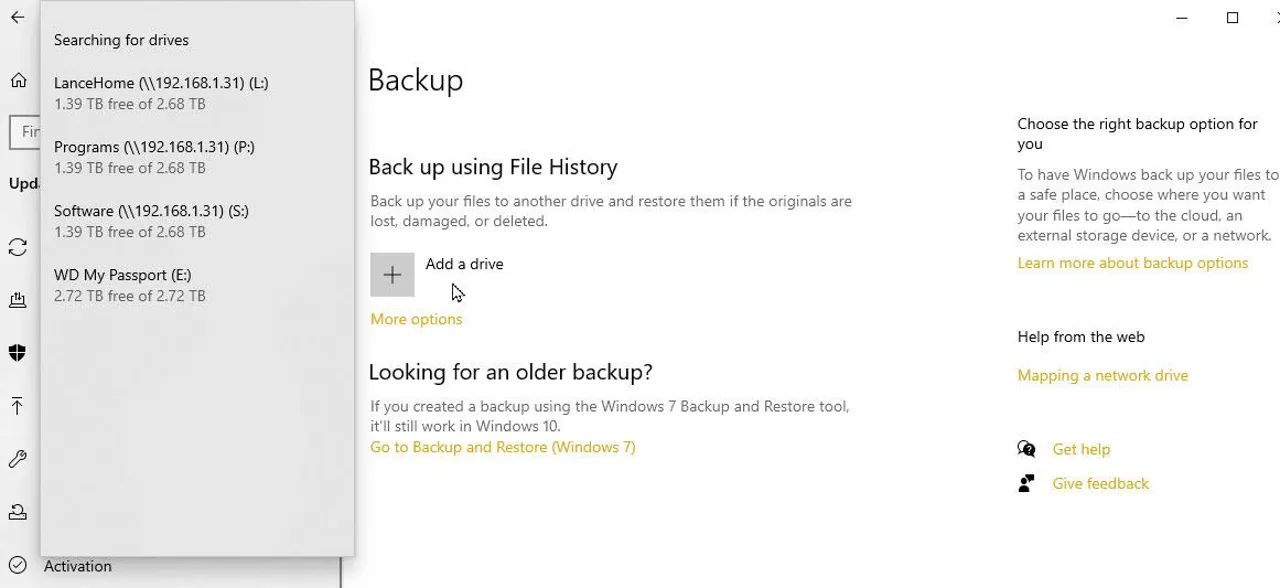
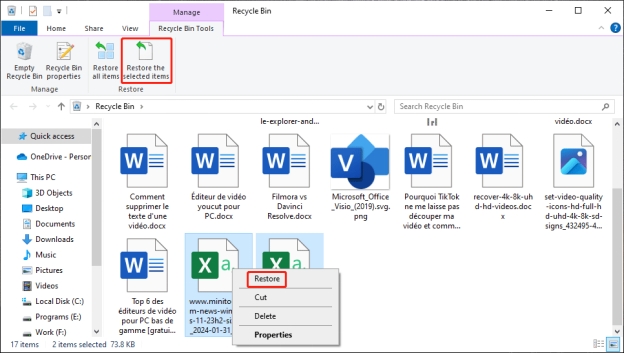
Search Downloads and the project folder for *.ipynb. Check Recycle Bin recovery and your backups. If File History previously backed up the notebook’s folder, you can restore it from a File History backup. Downloading the original assignment again can replace the starting file, but will not restore edits saved only on your computer.

If no backup exists, 4DDiG Windows Data Recovery offers a way to scan the original storage location for recoverable files.

FREE DOWNLOAD

Secure downloadSecure Download

FREE DOWNLOAD

Secure downloadSecure Download

Before you start, stop writing to the original drive. Download and install 4DDiG on a different drive, and prepare another storage device for recovered files to avoid overwriting recoverable data.

  • Select the original location. Launch 4DDiG and choose the drive or folder where the notebook was stored.

    Select the original drive or location in 4DDiG Windows Data Recovery
  • Scan and find the notebook. Start scanning, then use Search or Filter to locate relevant results by filename or extension.

    Scan results and file categories in 4DDiG Windows Data Recovery
  • Recover to another device. Select the relevant files and save them to the separate device. Open the recovered copy in VS Code or Jupyter to check its contents.

    Choose a separate destination for recovered files in 4DDiG Windows Data Recovery

Recovery depends on usable data remaining. Notebook-cell preview in 4DDiG is unconfirmed; verify the recovered file in a notebook editor. Check current license terms before purchasing.

FAQs

Can I Open an IPYNB File in Notepad?

Yes, to inspect its JSON text. Notepad does not render notebook cells or execute their code. Avoid saving accidental edits over the original.

Does Opening a Notebook Run All Its Code?

Opening and executing are separate actions. Review unfamiliar code before running it; saved results do not prove it will run successfully in your environment.

Conclusion

Use VS Code for local editing, Jupyter for a local browser workspace, or Colab for cloud access. For a deleted local notebook without a backup, consider 4DDiG and check the recovered copy before continuing your work.

FREE DOWNLOAD

Secure downloadSecure Download

FREE DOWNLOAD

Secure downloadSecure Download

Ehtsham Ahmed (senior editor)

Ehtsham Ahmed, the content writer for 4DDiG, is dedicated to offering workarounds for Windows Data Recovery, Windows Troubleshooting, iDevices System Repair, etc.

(Click to rate this post)

You rated 4.5 ( participated)