[2026 Full Guide] How to Recover an Overwritten Excel File on Mac
Accidentally overwriting an Excel file on a Mac can be stressful, especially when the document contains important work data, financial records, or information related to long-term projects. Many users assume that once a file is replaced, it will be gone forever. Fortunately, that is not always the case.
This guide explains how to recover an overwritten Excel file on Mac using reliable built-in features and professional recovery tools, even when no obvious backup appears to exist.
Can You Recover an Excel File That Has Been Overwritten?
Yes, it is possible to recover an overwritten Excel file on a Mac, but success depends on several important factors. When a file is overwritten, the original data is replaced by a newer version at the same location.
macOS typically does not immediately erase the old data; instead, it marks that space as reusable, which creates an opportunity for recovery under the right conditions. Whether recovery is successful depends on:
- Whether Time Machine or another backup system was enabled
- Whether the file was synced with a cloud service
- How much time has passed since the overwrite
- Whether new data has replaced the old file content
In simple terms, an “overwritten” Excel file means the original version was replaced by a newer save using the same filename and location. This is different from deleting a file, but both situations can still allow recovery. For users asking if there is a way to recover an overwritten Excel file, the answer is yes, if action is taken quickly and the right recovery method is used.
Recover Overwritten Excel File on Mac Using Time Machine
Time Machine is the most reliable built-in solution for recovering overwritten files on macOS. If Time Machine was enabled before the overwrite occurred, you can easily restore a previous version of the Excel file without third-party tools. Start by understanding that Time Machine continuously creates snapshots of your system.
These snapshots often include older versions of files, even if they were replaced later. Here is how to retrieve an overwritten Excel file using Time Machine:
-
Open the folder where the Excel file was originally stored and click the “Time Machine” icon in the menu bar. If you create your Time Machine backups in an external drive, that must be connected.
-
Select “Browse Time Machine backups” and use the timeline on the right side of the screen to browse earlier dates.
-
Locate the version of the Excel file from before it was overwritten and select it, then press the "Space Bar" to get its preview. Once you are sure it is the file, click "Restore."
Once restored, macOS places the recovered file back into its original folder. This method is ideal for users who want a straightforward way to retrieve an overwritten Excel file without modifying system settings or installing additional software.
Restore Overwritten Excel File on Mac with 4DDiG
When Time Machine is unavailable or disabled, professional recovery software becomes the next best option. 4DDiG Mac Data Recovery is designed to scan macOS drives for recoverable files, including overwritten or unsaved Excel documents that are no longer visible in Finder.
Secure Download
Secure Download
Unlike backups, data recovery software searches disk sectors for remnants of previous file versions that have not yet been permanently replaced. Why 4DDiG is suitable for overwritten Excel recovery is that it supports Excel file formats, including XLS and XLSX.
It works on internal drives, external disks, and USB devices and helps recover unsaved, replaced, and missing files. The best part is that it is compatible with the latest macOS versions. Here's how to recover replaced Excel files on Mac using 4DDiG:
-
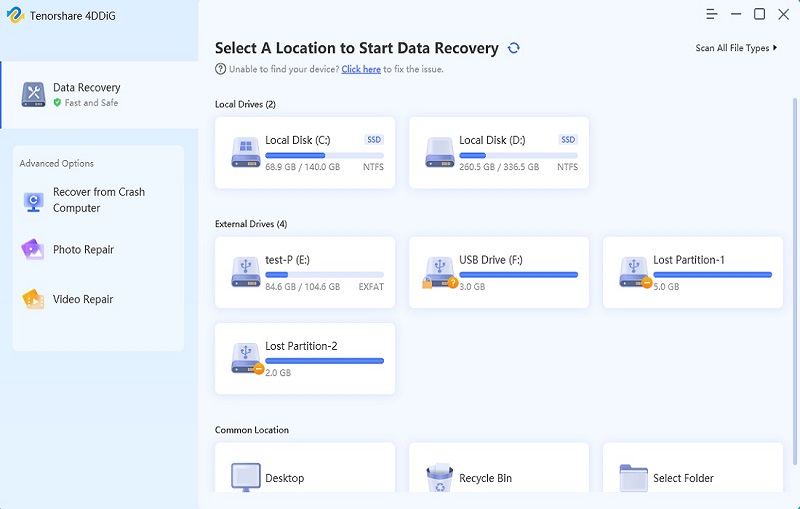
Download and install 4DDiG Mac Data Recovery. Launch the program and select the drive where the Excel file was stored.
-
4DDiG will begin searching for lost and overwritten files. Then, you can filter results by file type to locate Excel documents quickly and preview recoverable Excel files by clicking them.
-
Select the desired version of Excel you want and click “Recover”.
-
Choose a location between your local drive and cloud storage options, then click “Save Now” to save the file.
This approach is especially useful for users who need to recover an Excel file that was overwritten without prior backups. Acting quickly improves the likelihood of a successful recovery.
Retrieve Overwritten Excel File on Mac via Cloud Drive
If your Excel file was stored in iCloud Drive, OneDrive, or Google Drive, there may be a built-in version history that allows recovery. Cloud services often keep multiple versions of files for a limited time, even after they are overwritten locally.
This method works best if cloud syncing was enabled before the file was replaced.
Steps to recover an overwritten Excel file using iCloud Drive:
Visit iCloud.com and sign in with your Apple ID.
-
Open iCloud Drive and locate the Excel file.
-
Click the file and choose it, then click the "Download" button from the top right to download it to your computer.
Cloud versioning is a valuable solution for users searching for how to recover an overwritten Excel file with no previous version stored locally, as cloud backups often operate independently of macOS backups.
Recover the Replaced Excel File on Mac from Local Snapshots
macOS automatically creates local snapshots when Time Machine is enabled, even if the backup drive is not connected. These snapshots may contain previous versions of overwritten Excel files.
-
Open the "Disk Utility" on your Mac and click "View" from the top, then choose "Show APFS Snapshots”. Now you will need to select which drive you want to check, and Disk Utility will show a lot of snapshots along with the information when they were taken.
-
Right-click on a snapshot and choose "Open in Finder”. Now you can simply go through the contents of that snapshot and recover the replaced Excel file.
If Finder does not show the restore option, you can mount the snapshot manually using Terminal. This technique provides another way for users looking for how to restore an overwritten Excel file without relying on external drives.
FAQs
Q1: Is it possible to recover a file that has been overwritten?
Yes, recovering an overwritten file is possible under certain conditions. If backups, snapshots, or cloud version history exist, recovery is straightforward. Without backups, recovery software may still retrieve older data if it has not been permanently replaced by new content.
Q2: Can I recover overwritten files if there are no previous versions?
Even without visible previous versions, recovery is still possible using professional data recovery tools. These tools scan the disk for remnants of older file data that macOS has not yet overwritten.
Q3: How do I recover overwritten files on Mac without Time Machine?
If Time Machine is unavailable, options include cloud drive version history, macOS local snapshots, or data recovery software such as 4DDiG Mac Data Recovery.
Conclusion
Losing an important spreadsheet does not have to be permanent. By understanding how to recover overwritten Excel files on Mac, users can take advantage of Time Machine, cloud backups, local snapshots, and professional recovery tools. Acting quickly is key.
When no backup exists, 4DDiG for Mac provides a dependable solution to retrieve overwritten or replaced Excel files safely and efficiently.
Secure Download
Secure Download
💡 Summarize with AI:
You May Also Like
- Home >>
- Office Recovery >>
- [2026 Full Guide] How to Recover an Overwritten Excel File on Mac
ChatGPT
Perplexity
Grok