How to Free Download Office 2016: Complete Setup Guide

5 mins read

Updated on 2026-06-08 17:12:15 to Office Recovery

Many people search for "how to download Office 2016 for free" but the truth is, you cannot legally use it completely for free. Office 2016 is commercial software, and a valid product key or a license linked to your Microsoft account is required for use.

This article explains the official way to download and install Office 2016. We also cover how to recover Excel, Word, or other Office files if they are accidentally deleted.

About Microsoft Office 2016

Microsoft Office 2016 is an Office suite released in September 2015. It includes major applications like Word, Excel, PowerPoint, Outlook and OneNote, and has been widely used in business and educational settings.

Its key features include enhanced cloud integration and real-time collaboration. Integration with OneDrive allows smooth file synchronization across multiple devices.

However, extended support for Office 2016 ended on October 14, 2025, meaning security updates are no longer provided. If you are planning a new installation, it’s recommended to consider Microsoft 365 or Office 2024. If you already have a license and need to use Office 2016, you should do so understanding the potential security risks.

How to Download Microsoft Office 2016

To download Office 2016, you need a valid product key and a Microsoft account. There is no official free trial or free version available. Here're the step:

  • Open your browser and go to https://setup.office.com/ and click "Get Started." Sign in with your Microsoft account.
  • Enter your 25-character product key accurately.
  • Select the language and version (32-bit or 64-bit) you want to install.
  • Click the "Download" button to start downloading the installation image file.

download office 2016

How to Mount the Disk Image

To install Office 2016, you need to mount the downloaded image file as a virtual drive. Steps to mount the disk image:

  • Locate the image file in your Downloads folder.
  • Right-click the file and select "Mount." Windows will recognize it as a virtual DVD drive.
  • Open File Explorer. You will see a new DVD drive (e.g., F: drive) under "This PC," which is your mounted installation disk.

How to Install Microsoft Office 2016

Now, you can install Office 2016 directly from the mounted disk image.

  • Open the mounted virtual drive and double-click "Setup.exe".
  • The installation process will start automatically with the message "Installing Microsoft Office 2016".
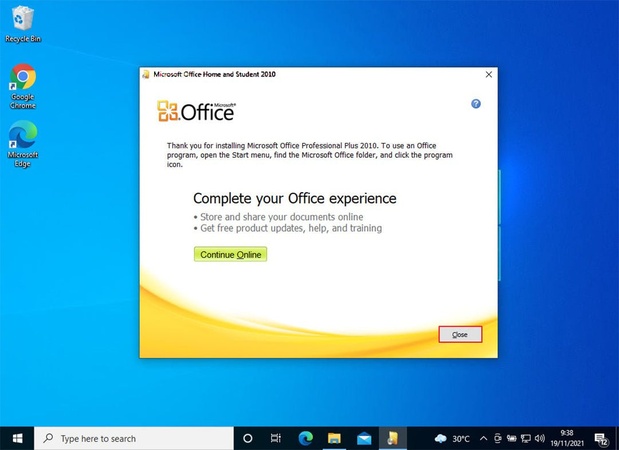
  • Once you see "You're all set," click "Close".
  • Open the Start menu and confirm that Word 2016, Excel 2016, and other Office apps have been added.

installing office 2016

How to Unmount the Disk Image

After installation is complete, you can remove the mounted Office disk image with the steps below.

  • Open File Explorer.
  • Right-click the virtual drive and select "Eject".

It is recommended to keep the original file in a safe location in case you need to reinstall Office in the future.

First Launch of Microsoft Office 2016

The first time you launch an Office application, you will need to activate your license.

  • Open Word 2016 or Excel 2016 from the Start menu.
  • Accept the Microsoft Software License Terms.
  • If prompted, enter your 25-character product key.
  • Wait for automatic activation via the internet until you see a success message.

enter product key for office installation

Update Microsoft Office 2016

Office 2016 may not include the latest security updates after installation. You should update it manually.

  • Open any Office app such as Word or Excel.
  • Click the "File" tab in the top-left corner.
  • Go to "Account" and select "Update Options" > "Update Now".
  • Restart Office if prompted after the update completes.
Warning

Office 2016 is no longer supported, so only limited security updates are available. Upgrading to Microsoft 365 or Office 2024 is recommended for better security.

Bonus: How to Recover Lost/Deleted Office Files (Excel, Word, and PowerPoint)

Have you ever accidentally deleted important Office documents or lost them due to a system crash? In such cases, 4DDiG data recovery can help. This software uses advanced recovery technology to restore deleted Excel, Word, and PowerPoint files in Microsoft 2013/2016/2019 quickly. Here's how to use it for file recovery:

Office File Recovery

Secure Download

Office File Recovery

Secure Download

  • Launch Tenorshare 4DDiG, select the hard drive or partition where your deleted Office files were stored, and start a scan.

    launch 4ddig and enter interface
  • As the scan runs, use the "File Type" filter or the "Search" function to quickly locate the files you need.

    click type to see all files 4ddig
  • Wait for a few minutes, your lost files will appear. You can preview them before recovery by double-clicking Excel, Word, or PowerPoint files.

    preview and recover the files
  • Next, choose the Office files you want to restore and select a destination to save them. Consider saving them to a cloud drive like OneDrive or Google Drive for added security.

    save the recoverable files
Note:

Do not save recovered files to the original location, as this may overwrite data and make recovery impossible.

FAQ

How long can I download Office 2016?

Although support has ended, downloads are still available for now. However, no further security updates are provided.

Why did Microsoft Office suddenly stop working?

Possible reasons include:

  • Expired license activation
  • Changes to Microsoft account
  • File corruption
  • Exceeded device installation limit

Try checking your license status, repairing Office, signing in again, or reinstalling the software.

Should I choose 32-bit or 64-bit Office?

Choose 32-bit for better compatibility, or 64-bit for better performance depending on your needs.

Conclusion

This article explained how to download, install, and set up Microsoft Office 2016 step by step. Office 2016 is not free and requires a valid product key or license.

Since unexpected data loss can happen during daily work, tools like Tenorshare 4DDiG can help you recover important files when needed.

FREE DOWNLOAD

Secure Download

FREE DOWNLOAD

Secure Download

William Bollson (senior editor)

William Bollson, the editor-in-chief of 4DDiG, devotes to providing the best solutions for Windows and Mac related issues, including data recovery, repair, error fixes.

(Click to rate this post)

You rated 4.5 ( participated)