MW4 Secure Boot Requirements: Check Your PC and Get Ready

5 mins read

Updated on 2026-09-20 10:26:00 to game

Modern Warfare 4 launches on October 23, 2026. Activision currently explicitly lists TPM 2.0 and Secure Boot as requirements for its PC Beta; that documented scope should not be mistaken for a complete statement about every full-release mode. If your computer reports a security warning, check its status before changing BIOS settings. This guide explains the requirements, shows how to run the official checker, and covers disk conversion and persistent errors. Start by identifying which requirement your PC actually fails.

1. Does MW4 Require Secure Boot and TPM 2.0?

Yes, Activision requires both features for MW4 on PC and states that computers failing these requirements cannot access its online modes. Call of Duty Secure Boot checks help establish a trusted startup environment, while Call of Duty TPM 2.0 requirements concern the hardware-backed security component used in verification. They support the game’s anti-cheat security checks.

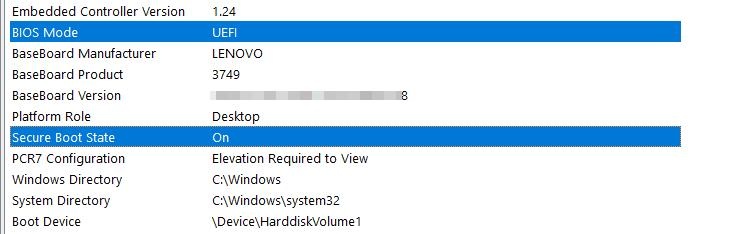
Secure Boot requires an appropriate UEFI configuration. For the Windows system disk, GPT is the relevant partition style. A separate drive holding game files is not automatically the disk that needs conversion.

2. How to Check Whether Your PC Meets MW4 Secure Boot Requirements?

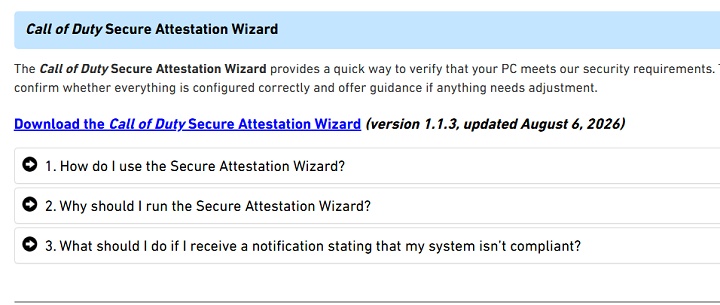
Use the official Call of Duty Secure Attestation Wizard before following general BIOS tutorials. Download it through Activision’s support article rather than a third-party script or reuploaded executable.

  • Open the official TPM and Secure Boot support page and locate the Secure Attestation Wizard download.

    download secure attestation wizard
  • Extract the ZIP archive into a folder, then launch CODSecureAttestationWizard.exe.

  • Accept the terms, run the scan, and approve the legitimate Windows permission prompt when required.

  • Read the individual results. Record any failed check and its exact wording rather than remembering only the overall failure message.

  • After addressing that item, restart where instructed and run the checker again.

    The wizard checks whether your computer meets the relevant attestation requirements. A failed result should guide your next action.

3. What to Do If Your PC Fails MW4 Secure Boot Requirements?

Choose the action matching the failed check. The detailed enabling tutorials are useful after you know which setting needs attention.

Check result Next action Related guide
Secure Boot is disabled Confirm GPT and UEFI prerequisites, then enable Secure Boot for your device. How to Enable Secure Boot
TPM is disabled Check firmware TPM support and the corresponding Intel PTT or AMD fTPM setting. Enable TPM 2.0
Windows uses MBR and Legacy mode Check conversion eligibility before converting the system disk and switching boot mode. Convert MBR to GPT
All checks pass Leave disk format unchanged and investigate the specific remaining error. Security errors section below

Before firmware changes, back up important files and retrieve BitLocker recovery key if encryption is active. Follow manufacturer guidance about suspending protection.

⚡ Bonus: How to Convert MBR to GPT for MW4 Secure Boot Setup

If your Windows system disk is MBR and your motherboard supports UEFI, conversion can address the disk-format prerequisite. 4DDiG Partition Manager provides a graphical MBR-to-GPT workflow. It does not enable TPM, install missing hardware, or guarantee that unrelated authentication errors will disappear.

Back up first, confirm encryption requirements, and keep the PC connected to reliable power. Then follow this workflow based on the product guide.

  • Open 4DDiG Partition Manager and choose Convert Disk, followed by Convert MBR to GPT.

    MBR to GPT

    Secure Download

    mbr to gpt
  • Identify your Windows system disk and select Continue after verifying its identity.

    select system disk
  • Save open work. Allow the software to download its PE component and restart into that environment when prompted.

  • In PE, select the MBR-to-GPT operation and choose the system disk again, and let conversion finish without interrupting power.

    select mbr to gpt again select disk again
  • Follow the completion instructions to configure UEFI startup. Confirm Windows boots, then enable Secure Boot using your manufacturer’s guidance and rerun the official checker.

    set boot

Windows also offers MBR2GPT for eligible system disks, with validation and layout requirements. Whichever method you choose, firmware configuration must match the converted installation.

4.Why Does MW4 Still Show a Security Error When Everything Is Enabled?

⚠ Enabled settings ≠ successful security check

Start with the exact failed item shown in the wizard and follow its linked instructions. Different messages (e.g. authorization-key vs TCG event-log) point to different problems, and do not respond with unrelated actions like repeated disk conversion.

Before retesting:

  • Install any pending Windows updates and restart.
  • When adjusting firmware, use guides that match your exact motherboard model and revision. Avoid instructions for similar boards, and do not reset TPM or Secure Boot keys without device-specific guidance.

Recommended approach:

Do not make a clean Windows installation your first step. If all checks pass but the game still rejects the PC, collect the error screenshot, motherboard model, BIOS version, Windows build, and wizard result, then contact support.

More FAQs About Call of Duty Secure Boot

1. Do I need to enable Secure Boot for Call of Duty?

It depends on the title and its current requirements. Activision explicitly lists it for MW4 Beta and certain other COD experiences. Check the applicable title instead of assuming every older release has identical restrictions.

2. How do I enable TPM 2.0 on my MSI AM4 motherboard?

On supported MSI firmware, enter BIOS, switch to Advanced Mode if needed, and look under Settings > Security > Trusted Computing. Enable Security Device Support and select AMD CPU fTPM where offered. Menu labels vary by model and BIOS version. Save, restart, and verify using tpm.msc.

3. Is UEFI required for Secure Boot?

Yes. Secure Boot is a UEFI feature. For this Windows setup, confirm the system disk is GPT before replacing Legacy boot with UEFI. Changing that firmware setting alone does not convert the disk.

Conclusion

Check your PC before changing it. The official wizard helps separate disabled features, boot-configuration problems, and errors that persist despite enabled settings. If your supported Windows installation uses MBR, 4DDiG Partition Manager is an option for preparing the disk for UEFI and Secure Boot. Back up first and verify the result afterward. If GPT and the required security features already pass, focus on the remaining diagnostic message instead. That approach avoids unnecessary disk changes and gives support useful evidence when further investigation is needed.

FREE DOWNLOAD

Secure Download

Sawart Mashab (senior editor)

Sawart Mashab, the content writer for 4DDiG, is adept at creating informative and practical solutions related to Windows and macOS issues, data recovery, file repair, and RAID storage.

(Click to rate this post)

You rated 4.5 ( participated)