How to Fix Steam Application Load Error?

5 mins read

Updated on 2026-07-02 16:37:02 to Windows Fix

Are you seeing a Steam application load error when trying to launch a game through Steam? Errors such as application load error 3:0000065432 can prevent games from opening and leave you stuck on the launch screen.

Fortunately, this issue is usually caused by a few common problems that can be fixed without advanced technical knowledge. In this guide, you’ll learn what causes a Steam application load error and how to resolve it using several proven methods.

1. What Causes Steam Application Load Error?

Application load error 3:0000065432 is a common Steam launch error that appears when Steam cannot properly locate, verify, or communicate with a game’s files. This type of application load error Steam issue often appears after moving game files, reinstalling Steam incorrectly, or experiencing file corruption.

Steam Lacks Administrator Permissions

Some games require elevated permissions to access protected system resources. If Steam does not have sufficient permissions, it may fail to launch certain games correctly.

Corrupted Game Files

Missing or damaged game files can prevent the game from loading. This is one of the most common causes of a Steam application load error.

Incorrect/ Damaged Game Installation Location

If game files are corrupted or moved manually outside of Steam or corrupted, the platform may lose track of the correct installation path and trigger launch errors.

Antivirus or security software interference

Security tools may block Steam API calls, quarantine game DLLs, prevent executable injection. This breaks Steam’s authentication handshake with the game.

2. How to Fix Steam Application Load Error?
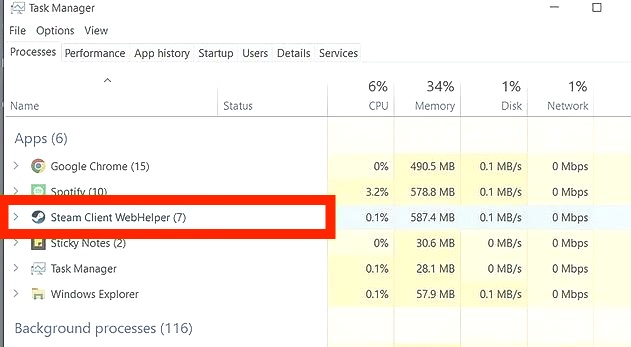
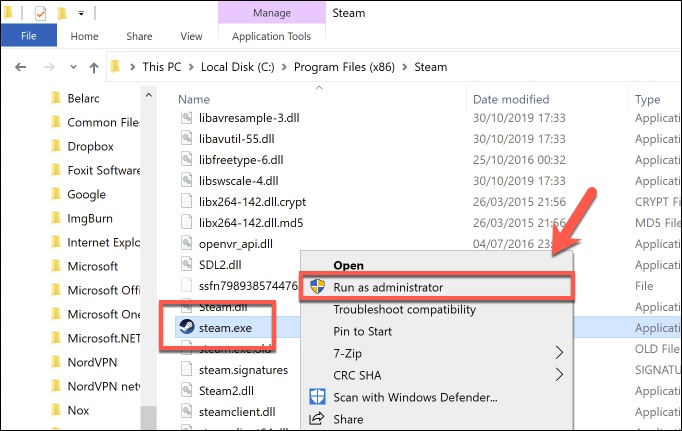
Fix 1: Run Steam as Administrator

Running Steam with administrator privileges can help resolve permission-related launch issues.

  • Exit Steam completely, including any background processes running in the system tray.

  • Find the Steam shortcut on your desktop or search for Steam in the File Explorer.

  • Right-click the Steam icon and select Run as Administrator.

    run steam as administrator
  • Try launching the affected game again and check whether the error has been resolved.

If the issue was caused by permission restrictions, this fix may immediately solve the Steam application load error.

Fix 2: Verify Integrity of Game Files

Steam includes a built-in tool that can detect and repair damaged game files automatically.

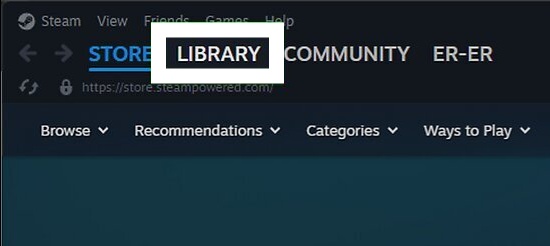
  • aunch Steam and go to your Library.

  • Right-click the game that is showing the error and select Properties.

  • Click Installed Files and then select Verify Integrity of Game Files.

    verify integrity of game files
  • Steam will scan the game files and automatically replace any missing or corrupted data.

  • Once the scan is complete, launch the game again.

Fix 3: Restore the Game to Its Original Folder

Many cases of application load error Steam occur because game files were moved manually. Here’s how to solve:

  • Open Steam Library, right-click the game, and select Properties.

  • Make sure the game is installed inside a valid Steam Library folder.

  • If the game is in the wrong location, use Steam’s built-in move feature instead of manually copying files. If you’re not sure where to find this option, follow this guide.

  • Close Steam completely and reopen it. Test the game and see if the error message has disappeared.

Restoring the correct installation path often fixes application load error 3:0000065432 immediately.

Fix 4: Reinstall Steam

If Steam itself is corrupted, reinstalling it can resolve launch-related issues.

  • Save screenshots and configuration files if necessary.

  • Open Apps & Features in Windows Settings and uninstall Steam.

  • Visit Steam’s official website and download the newest version.

  • Run the installer and complete the setup process.

    run steam installer
  • Log into your account and try launching the affected game again.

A fresh installation can resolve persistent Steam application load error issues caused by damaged Steam files.

⚡ Windows Cleanup Tips to Improve Steam Launch and Gameplay Performance

Temporary files, cache data, and other system clutter can accumulate over time and affect overall system performance. While junk files may not directly cause every Steam application load error, keeping your system clean can help improve responsiveness and reduce potential software conflicts.

The Windows Clean feature in 4DDiG Partition Manager provides an easy way to remove unnecessary files and free up storage space.

  • Install and open 4DDiG Partition Manager. Click Windows Clean from the left-side menu. Select the types of junk files you will remove and click Start Scan. The software will begin searching your computer for unnecessary files.

    FREE DOWNLOAD

    Secure Download

    windows clean
  • Once the scan is complete, you will see a list of junk files. Files that are safe to delete are selected automatically. You can expand each category to review the files before cleaning them.

    select items to clean
  • Click Clean and confirm your selection. The software will start deleting the selected junk files and freeing up storage space on your drive.

    confirm to clean
  • After the process is finished, you will see the cleanup results. Your computer will now have more available disk space and fewer unnecessary files.

    clean successfully

Conclusion

A Steam application load error is commonly caused by permission issues, corrupted game files, incorrect installation paths, damaged Steam files, or configuration problems. Fortunately, most users can resolve the issue by running Steam as administrator, verifying game files, restoring the correct game location, or reinstalling Steam.

If you also want to improve overall system performance, consider using the Windows Clean feature in 4DDiG Partition Manager to remove junk files and free up valuable storage space. Keeping your system clean and properly maintained can help reduce future launch issues and provide a smoother gaming experience.

FREE DOWNLOAD

Secure Download

William Bollson (senior editor)

William Bollson, the editor-in-chief of 4DDiG, devotes to providing the best solutions for Windows and Mac related issues, including data recovery, repair, error fixes.

(Click to rate this post)

You rated 4.5 ( participated)