Top Ways to Fix Battlefront 2 Error Code 721 Online Free 2026
Are you diving into the epic battles of Star Wars Battlefront 2 only to be hit with the frustrating Battlefront 2 Error Code 721? This pesky issue, often displaying a message like "failed to connect to EA servers," prevents you from joining multiplayer matches, queuing up, or even launching the game properly.
Don't worry—this comprehensive guide walks you through proven, step-by-step troubleshooting methods to get you back in the fight. From simple restarts to advanced network tweaks, we'll resolve this nightmare and restore your connection in no time!
1.What Does Error Code 721 in Battlefront 2 Mean?
Star Wars Battlefront 2 error code 721 basically means the game can’t authenticate your connection with EA’s online services. When you try to go online, Battlefront 2 needs to contact EA servers to verify your account, load multiplayer services, and sync matchmaking. If that connection fails, the game blocks online features and shows Error 721.
You’ll usually see a message like: “Failed to connect to EA servers. Online features will be unavailable.” So, this isn’t a story-mode bug. It’s a server/authentication/network handshake problem between your device and EA.
Common Causes of Battlefront 2 Error Code 721
The "failed to connect to EA servers 721" message appears due to several underlying factors:
- EA Server Outages or Maintenance: If EA’s servers are down, overloaded, or undergoing maintenance, Battlefront 2 won’t be able to connect. In these cases, all players may see this error.
- Unstable or Weak Internet Connection: A slow or fluctuating connection can prevent your system from completing the login process. High ping, packet loss, or sudden drops in your Wi-Fi signal can all trigger Error 721.
- DNS or Routing Problems: If your ISP's DNS routes EA traffic poorly, the game may fail to locate/communicate with EA services, resulting in error code 721.
- NAT Type Issues: If your NAT type is Strict, it may limit communication with EA’s servers. This often happens with certain routers, multi-device networks, or when using hotspot connections.
- DirectX 12 Conflicts (PC Only): When DX12 fails during the handshake process, the game may throw error 721 instead of launching correctly.
2. How to Fix Error Code 721 in Battlefront 2?
Error Code 721 usually appears when Battlefront 2 cannot communicate with EA servers. This can happen due to server outages, DNS issues, corrupted network settings, or DirectX conflicts. These methods address various potential causes, ranging from server issues to network configurations.
Fix 1: Check the EA Servers
Error 721 usually pops up when EA/Battlefront II servers are overloaded, in maintenance, or having an outage. If servers are down, every local tweak will fail until the service is restored. So confirm server health first before changing settings.
-
Visit the official EA Help page to check the STAR WARS Battlefront II server status. Alternatively, check @EAHelp on Twitter for real-time server updates and announcements.
-
If servers are down, typically you'll need to wait until EA resolves the problem.
Sometimes, clicking “Connect” a few times works when servers are just slow.
Fix 2: Verify Network Connection
A weak or unstable connection can block Battlefront II from authenticating with EA, triggering 721. Packet loss, strict NAT, VPNs, or flaky Wi-Fi are common culprits. Stabilizing your internet and ensuring your console/PC is properly online fixes the error for many players.
-
Restart your router and modem. Plug it in for 30 seconds, then reconnect it.
-
Use a wired Ethernet connection if possible. Run a speed and ping test; high ping can cause login failures.
-
Disable any VPN or proxy. On console, run “Test Network Connection.” Then relaunch the game and reconnect.
Fix 3: Flush DNS Cache
Your DNS cache stores old server routes. If those routes become outdated or corrupted, Battlefront 2 may fail to locate EA servers and throw Error 721. Flushing DNS forces your PC to fetch fresh addresses. It is safe, fast, and one of the most effective quick fixes.
-
Press Win + S and type “cmd.” Right-click Command Prompt and choose "Run as administrator."
-
Type this command: ipconfig /flushdns, press "Enter" and wait for the success message.
After that, restart your PC to launch Battlefront 2 and try logging in again.
Fix 4: Switch to a Different DNS
Sometimes your ISP’s DNS resolves EA services slowly or incorrectly. Switching to a faster public DNS (like Google or Cloudflare) improves server discovery and reduces handshake failures that cause 721. This is one of the most consistently reported fixes.
-
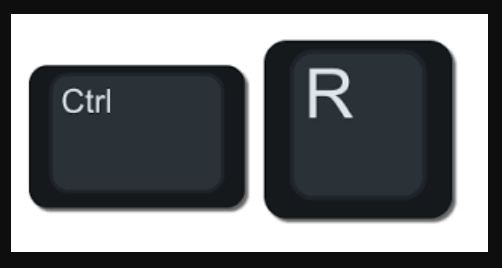
Press Windows+ R and type "ncpa.cpl" to open Network Connections.
-
Right-click your active network connection and choose “Properties.”
-
Click “Internet Protocol Version 4 (TCP/IPv4)” and then choose “Properties.”
-
Select "Use the following DNS server addresses." In the DNS boxes, type 8.8.8.8 for Preferred DNS and 8.8.4.4 for Alternate DNS. Lastly, click “OK” to save changes and restart your computer.
Fix 5: Force DirectX 11 via the EA App
On PC, DirectX 12 can sometimes cause instability, login loops, or connection failures that end in Error 721. Forcing DirectX 11 removes DX12 conflicts and helps the game connect properly. You can do this using EA App launch arguments or the BootOptions config file.
-
Open the EA App on your computer and find Star Wars Battlefront 2 in your game library.
-
Tap the three-dot menu for advanced game options, positioned above the Play button. Choose "View Properties". In the "Advanced launch options" box, type "-dx11." Then, click "Save" to apply the changes.
It will now run using DirectX 11, which often fixes Error 721.
Extra Tip: How to Boost Star Wars Battlefront 2 Performance?
If Battlefront 2 feels slow, stutters during matches, or takes forever to load, your hard drive might be part of the problem. Many players focus only on internet fixes, but storage health also matters. A cluttered or messy disk can cause longer loading screens, texture pop-ins, and random lag spikes.
One effective way to refresh your storage is by using 4DDiG Partition Manager’s Disk/Partition Wipe tool. It doesn’t just “delete” files like Windows normally does. Instead, it removes leftover data fragments and hidden junk that keep piling up over time. This can free space properly and help your drive run smoother, especially if your game is installed on an older HDD or a nearly full SSD.
-
Install and open 4DDiG Partition Manager. If you want to wipe a partition from an external drive, plug it in now. Open the "Toolkit," and then go to "Data Erase."
FREE DOWNLOADSecure Download
-
Select the drive or specific partition you want to wipe, then click "Continue."
-
Double-check you selected the correct location. Click "Sure" to start the process. The software will begin wiping the disk. Wait until it finishes (don’t unplug/close).
-
Once completed, click "Finish" and your drive will be fully wiped and refreshed.
Disk wiping permanently removes data. So only wipe partitions you’re sure you don’t need (like old game drives or storage partitions). After cleaning, reinstall Battlefront 2 or move it to the optimized drive for optimal performance.
More FAQs about Battlefront 2 Error Code 721
1. How to fix Battlefront 2 not connecting to EA servers?
Try the fixes above in this order:
- Confirm EA servers
- Reboot router
- flush DNS / switch DNS
- Force DX11 on PC
If still stuck, repair game files in the EA App/Steam, and temporarily disable the firewall/antivirus to test. Some players also succeed by retry-spamming “Connect” because the login queue is server-side.
2. How do I fix error code 721 on DirecTV?
DirecTV’s 721 is unrelated to Battlefront 2. It usually means the channel or program isn’t in your package. Check your subscription, then contact DirecTV support if you think you should have access.
3. When did EA abandon Battlefront 2?
EA ended major content updates in 2020, and Battlefront 2 has been in maintenance mode since. Servers are still live in 2025, but without active development, login issues like 721 can return during player surges.
Conclusion
Battlefront 2 error code 721 is frustrating but it’s rarely permanent. Most players get back online within minutes using those steps. After that, if your game still feels slow or stuttery, cleaning up your drive can help a lot. That’s where 4DDiG Partition Manager comes in. Its Disk Wipe/Format feature makes it easy to clear messy partitions and keep your gaming drive fast. Fix the connection, optimize your storage, and get back to the battle.
Secure Download
💡 Summarize with AI:
You May Also Like
- Home >>
- Windows Fix >>
- Top Ways to Fix Battlefront 2 Error Code 721 Online Free 2026
ChatGPT
Perplexity
Grok