Why Does My Hard Drive Have Two Recovery Partitions? Can I Delete One?

5 mins read

Updated on 2026-07-29 10:20:50 to Windows Fix

Hard drive has 2 recovery partitions? In most cases, it isn’t. Windows can create more than one recovery partition after major updates, reinstallations, or when moving your system to a new drive.

But having multiple recovery partitions can take up valuable disk space and leave you unsure which one is actually being used. In this guide, we’ll explain why this happens, whether it’s safe to remove an extra recovery partition, and how to do it without affecting your Windows recovery options.

1. What is a Healthy Recovery Partition?

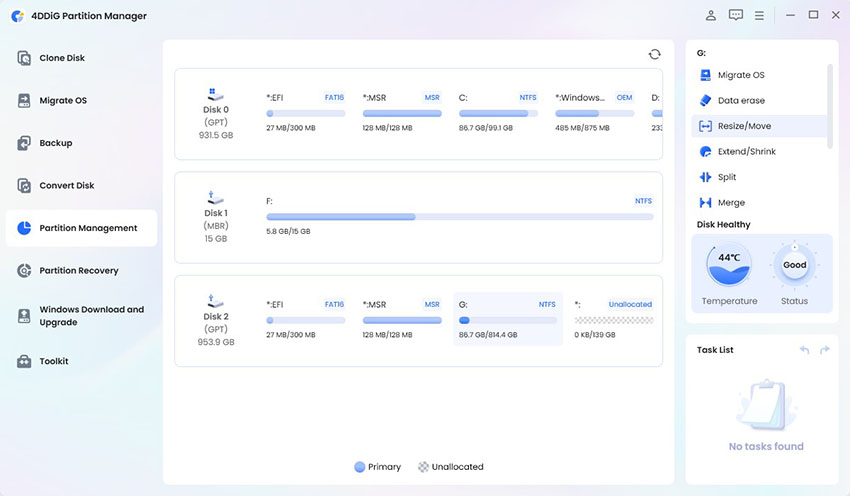
A Healthy (Recovery Partition) is a small, hidden partition that Windows creates during installation. It stores the Windows Recovery Environment (WinRE), which helps you repair or recover your PC if Windows won’t start normally.

You may use the recovery partition to:

  • Run Startup Repair.
  • Reset your PC while keeping or removing personal files.
  • Access Advanced Startup Options.
  • Troubleshoot boot problems.

Normally, you don’t need to access or modify this partition during everyday use.

Common Causes of Two Recovery Partitions

  • Windows Feature Updates: Large Windows updates sometimes require a bigger recovery partition. If the current recovery partition doesn’t have enough free space, Windows may create a new one and leave the old partition in place.
  • Windows Reinstallation: If Windows is reinstalled without deleting the existing partitions, Setup may create another recovery partition while keeping the previous one. This often results in multiple recovery partitions Windows 11 users notice after reinstalling the operating system.
  • Disk Cloning or Drive Migration: When cloning Windows to a new SSD or HDD, both the old and new recovery partitions may remain. As a result, you may find multiple healthy recovery partition entries in Disk Management.
  • Manufacturer Recovery Partition: Many computer manufacturers, such as Dell, HP, Lenovo, and ASUS, include their own recovery partition in addition to the standard Windows recovery partition. This allows you to restore the computer to its factory settings if needed.

2. Can I Delete One of the Two Recovery Partitions?

Yes, but only if you’re sure it’s not the active recovery partition. You should not delete a recovery partition if:

  • It’s the active Windows Recovery Environment (WinRE) partition.
  • It’s the manufacturer’s recovery partition that you may want to use in the future.

Deleting the wrong recovery partition may prevent you from using built-in recovery tools, so you need to confirm which recovery partition Windows is currently using.

⚡ 3. What to Do Before Deleting an Extra Recovery Partition?

Step 1: Identify the Active Recovery Partition

  • Open Command Prompt as administrator. Type the following command and press Enter:

    $ reagentc /info.
  • Look for the Windows RE location. It will show the partition currently used for Windows Recovery Environment.

Match the Partition Number Using DiskPart

Next, identify which physical partition matches the Windows RE location.

  • In the same Command Prompt window, type the following commands one by one:

    $ diskpart
    list disk
    select disk 0
    list partition
  • Compare the partition number shown by reagentc /info with the partition list displayed in DiskPart.

Confirm the Partition

  • In Disk Management. Locate the recovery partitions on your system drive.

  • Compare their sizes and positions with the information you found using DiskPart.

  • Make a note of the active recovery partition so you don’t delete it by mistake.

Step 2: Back Up Important Files and the System

Before deleting any partition, it’s a good idea to create a backup. That way, you can restore your data if something doesn’t go as planned. You can use the Clone Disk feature in 4DDiG Partition Manager to create a copy of an important partition.

  • Launch 4DDiG Partition Manager and go to Clone Disk. Choose Clone OS Disk.

    FREE DOWNLOAD

    Secure Download

    select clone os disk feature
  • Select the partition you want to back up, then click Next. Choose another drive or an empty partition where you want to save the cloned copy.

    select source and target disk
  • Review the settings, then click S tart to begin cloning the partition.

    click start to clone
  • After the cloning process is complete, you’ll have a backup copy that can be used if you accidentally delete the wrong partition.

    complete cloning

4. How to Delete Multiple Recovery Partitions Safely in Windows 11/10?

Once you’ve confirmed which recovery partition is active and created a backup, you can safely remove the extra recovery partition.

Method 1: Use DiskPart

DiskPart is a built-in Windows command-line tool that lets you delete protected partitions.

  • Open Command Prompt as Administrator.

  • Run the following commands one by one:

    $ diskpart
    list disk
    select disk 0
    list partition
  • Identify the extra recovery partition. Replace X with the correct partition number. Type:

    $ select partition X
  • Then run:

    $ delete partition override

Close DiskPart after the partition has been removed.

Method 2: Use 4DDiG Partition Manager

If you prefer not to use Command Prompt, 4DDiG Partition Manager provides an easier way to delete an unnecessary recovery partition.

  • Open 4DDiG Partition Manager on your computer. Find the recovery partition you want to remove, and choose Delete Partition.

    locate recovery partition
  • Review the selected partition carefully to make sure you’ve chosen the correct one. Click Yes to begin deleting the partition.

    click yes
  • Once the operation finishes, the recovery partition will be removed and the space can be used to create a new partition or extend an existing one.

    complete deleting

💡 Extended Reading: How to Recover a Lost Partition in Windows

Conclusion

If your hard drive has 2 recovery partitions, there’s usually no need to worry. Windows updates, reinstallations, drive cloning, and manufacturer recovery tools can all create multiple recovery partitions over time. Before deleting any partition, always identify the active recovery partition, create a recovery drive, and back up your important data.

If you decide to remove an extra recovery partition, 4DDiG Partition Manager offers a simple way to clone important partitions beforehand and safely delete unnecessary ones afterward. Taking these precautions helps keep your system protected while reclaiming valuable disk space.

FREE DOWNLOAD

Secure Download

William Bollson (senior editor)

William Bollson, the editor-in-chief of 4DDiG, devotes to providing the best solutions for Windows and Mac related issues, including data recovery, repair, error fixes.

(Click to rate this post)

You rated 4.5 ( participated)