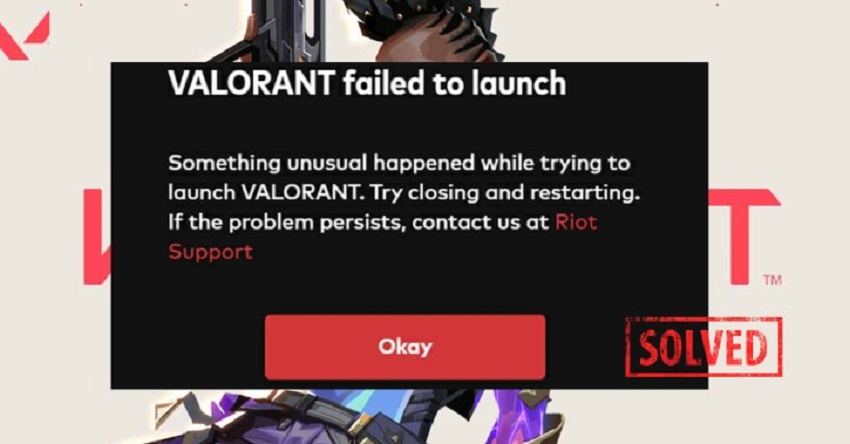
How to Fix Valorant Couldn't Install a Required Dependency

5 mins read

Updated on 2026-06-09 17:18:38 to Windows Fix

“ VALORANT we couldn’t install a required dependency” error prevents many players from installing or launching the game, often without clearly explaining what went wrong. In most cases, the problem is related to Riot Vanguard, Windows security settings, registry conflicts, or system compatibility issues.

In this guide, we’ll explain why the issue occurs and walk you through the most effective solutions to get VALORANT installed and running again. Let’s get started.

valorant dependency error

1. What Does “Failed to Install a Dependency” Mean?

A dependency is a required component that a program needs in order to install or function properly. In VALORANT’s case, these dependencies often include:

  • Riot Vanguard anti-cheat service
  • Windows security components
  • TPM 2.0 support
  • Required background services
  • System permissions

When one of these components cannot be installed or configured correctly, you may encounter this error message.

2. Why Does Valorant Say “Couldn’t Install a Required Dependency”?

Several issues can trigger this dependency error, including:

  • Riot Vanguard failed to install properly This is the most common cause. Vanguard may be missing, partially installed, corrupted, or blocked during installation.
  • Vanguard services are broken or not starting Valorant relies on Vanguard components such as its service and driver. If they are disabled, deleted incorrectly, or stuck after a failed update, the Riot Client may show the dependency error.
  • Antivirus, firewall, VPN, or proxy interference Security tools can block Vanguard because it works at a low system level. Riot also notes that proxy or VPN usage can trigger Vanguard-related errors.
  • Incompatible drivers or software conflicts Vanguard may block or fail because of incompatible drivers or low-level software. Riot has separate support pages for incompatible software and OEM driver issues.
  • Windows security requirements or system configuration issues On newer Windows systems, Valorant/Vanguard can be sensitive to settings such as Secure Boot, TPM, virtualization-based security, or exploit protection. Riot’s support pages mention Vanguard restrictions and errors related to Windows security settings.
  • Leftover Vanguard files after uninstalling If Riot Vanguard was removed incompletely, old folders, services, or drivers may prevent a clean reinstall.

Identifying the root cause can help you choose the right solution more quickly.

3. How to Fix “Valorant Couldn’t Install a Required Dependency”?

Fix 1: Restart Your PC and Run the Installer as Administrator

Sometimes the simplest solution works. Background processes or pending Windows updates can interfere with Riot’s installer and prevent required components from being installed correctly.

  • Close the Riot Client completely and restart your computer.

  • Now locate the VALORANT installer file, right-click on it, and select Run as Administrator.

    run riot client as admin
  • Allow Windows User Account Control if prompted.

  • In Riot Client, open Valorant and let it continue installing or updating the required dependency, including Riot Vanguard.

Running the installer with elevated permissions often resolves installation-related permission issues.

Fix 2: Verify TPM 2.0 is Enabled

Newer versions of Riot Vanguard require TPM 2.0 on Windows 11 systems. If TPM is disabled, VALORANT may refuse to install required security components.

  • Press Windows + R. Type tpm.msc and press Enter.

  • Look for the TPM status window. Verify that TPM is available and ready for use.

    check tpm status

Enable TPM in BIOS

If TPM is disabled:

  • Restart your PC and enter BIOS or UEFI settings.

  • Locate the Security or Advanced tab and find TPM, Intel PTT, or AMD TPM settings.

  • Enable the TPM, save changes and restart Windows.

    enable tpm

After enabling TPM, try installing VALORANT again. If the TPM not detected, you can follow this guide to resolve that.

Fix 3: Temporarily Disable Antivirus and Firewall

Security software can sometimes mistake Riot Vanguard files for suspicious activity and block their installation. To test whether your antivirus is causing the problem:

  • Go to Windows security and locate Real-Time Protection settings. Temporarily disable active protection.

    disable real time protection
  • After that, open Windows Security and select Firewall & Network Protection. Temporarily disable the active firewall profile.

  • Run the VALORANT installer again.

If the installation succeeds, add Riot Games and Riot Vanguard to your antivirus exceptions list before re-enabling protection.

Fix 4: Set DevOverrideEnable to 0 in Registry Editor

Some users have reported that an incorrect Windows registry value can prevent Riot Vanguard from installing properly.

Important:

It is strongly recommended to create a system restore point, which allows you to roll back your system to a previous working state and helps prevent potential loss of important files or settings.

  • Press Windows + R, type regedit and click OK.

  • Now go to: Computer\HKEY_LOCAL_MACHINE\SOFTWARE\Microsoft\Windows NT\CurrentVersion\Image File Execution Options

  • Locate the DevOverrideEnable entry, double-click the value, set its value data to 0, and click OK.

  • After that, close Registry Editor and restart your PC.

After restarting, launch the installer and check whether the VALORANT dependency error has been resolved.

⚡ Bonus Tip: Clean Up Your PC for a Smoother VALORANT Installation

Insufficient storage space, excessive temporary files, and accumulated system clutter can sometimes interfere with software installations. If your system drive is nearly full, cleaning unnecessary files before installing VALORANT can improve the installation process.

A simple way to do this is by using 4DDiG Partition Manager, which includes a Windows Clean feature designed to remove junk files and optimize storage.

  • First, install and launch 4DDiG Partition Manager on your computer. From the left-side menu, select Windows Clean and choose the types of junk files you want to remove. Once you're ready, click Start Scan.

    FREE DOWNLOAD

    Secure Download

    windows clean
  • After the scan is complete, you'll see a detailed list of detected junk files. Take a moment to review the results and expand different categories if you want to see exactly what will be removed. Files that are safe to delete are usually selected automatically, making the cleanup process quick and straightforward.

    select items to clean
  • Now, click Clean and Sure to start removing the selected files. This step helps free up disk space and clears system clutter that could potentially interfere with software installations or updates.

    start cleaning junk files
  • Once the process is complete, you'll have more available storage space and a cleaner system environment.

    clean successfully

This quick cleanup process can help eliminate installation obstacles caused by low disk space or excessive system clutter.

Fix 5: Reinstall Riot Vanguard by Deleting VGC and VGK Services

If none of the previous solutions worked, there's a good chance that Riot Vanguard itself has become corrupted. Completely removing the old Vanguard services and allowing Riot to install fresh copies often resolves the problem.

  • Press Windows + X and select Command Prompt (Admin). Next, type the following command and press Enter: sc delete vgc. This command removes the Vanguard user service that may be preventing a successful installation.

  • Then, enter the following command and press Enter: sc delete vgk. This removes the Vanguard kernel service.

    delete vgc and vgk services
  • After deleting both services, restart your PC. This ensures Windows fully removes the old Vanguard components before a fresh installation begins.

  • Once your computer restarts, open File Explorer and navigate to: C:\Program Files. If you see a Riot Vanguard folder, delete it completely. Then empty the Recycle Bin to make sure no leftover files remain on the system.

    delete riot vanguard file
  • Open the Riot Client and launch VALORANT. The launcher will automatically detect that Vanguard is missing and begin downloading a fresh copy. Follow the on-screen instructions and allow the installation to complete.

  • When prompted, restart your computer one last time. Launch VALORANT and check whether the dependency error message has disappeared.

Conclusion

The “VALORANT we couldn’t install a required dependency ” error can be frustrating, butby following the fixes in this guide, most players can successfully complete the installation and launch the game without further issues.

If your PC is cluttered with temporary files or low on storage, using 4DDiG Partition Manager to clean and optimize your system can also improve installation success rates. With the right troubleshooting approach, you’ll be back in VALORANT in no time.

FREE DOWNLOAD

Secure Download

William Bollson (senior editor)

William Bollson, the editor-in-chief of 4DDiG, devotes to providing the best solutions for Windows and Mac related issues, including data recovery, repair, error fixes.

(Click to rate this post)

You rated 4.5 ( participated)