How to Fix DirectX 12 Is Not Supported on Your System?

5 mins read

Updated on 2026-10-22 17:01:13 to Windows Fix

Seeing DirectX 12 is not supported on your system when a game starts does not automatically mean DirectX is missing. Windows may already include DirectX 12 while your graphics card, driver, or selected rendering mode fails the game’s requirements.

The important first step is checking hardware compatibility. If your hardware qualifies, software fixes may restore the game without reinstalling Windows. This guide will walk through five targeted fixes, and shows when repairing DirectX-related files is useful, so you can choose the next step based on evidence.

directx 12 not supported

1. What Causes DirectX 12 Is Not Supported on Your System

The message means the game could not initialize the DirectX 12 graphics environment it requires. Common causes include an outdated graphics driver, unsupported GPU features, a forced rendering argument, damaged game files, and Windows component problems. On laptops, the game may also launch on integrated graphics instead of the supported dedicated GPU.

Before troubleshooting:

  • Press Windows + R, enter dxdiag, and open the DirectX Diagnostic Tool.
  • The System tab shows the installed DirectX version. The Display tabs identify your graphics adapters and list Feature Levels.
  • Compare the exact GPU model, required Windows version, and graphics requirements with the game publisher’s specifications. These are separate checks. A System tab showing DirectX 12 does not prove that the GPU meets every game’s feature-level or shader-model requirement.

2. How to Fix DirectX 12 is Not Supported on Your System?

Try one fix at a time and relaunch the game after each change. Keep a note of the original launch settings so you can restore them.

Fix 1: Update the Graphics Driver

An old or generic display driver can prevent a capable GPU from exposing the features a game needs. Download the appropriate driver from NVIDIA, AMD, Intel, or your laptop manufacturer rather than a third-party driver collection.

  • Identify the graphics adapter in dxdiag or Device Manager > Display adapters.

  • Download a compatible driver for that GPU and your Windows version.

  • Close games, install the driver, and restart the computer.

  • Open dxdiag again and retest the game.

Updating drivers can resolve an incorrect capability report, but it cannot turn an unsupported card into supported hardware.

Fix 2: Remove DX12 Launch Arguments

A manually added argument may force a rendering mode the game cannot initialize. Remove that override before adding another one, particularly if the error started after following an optimization tutorial.

  • In Steam, right-click the game and open Properties > General.

  • Copy the existing Launch Options into a note.

  • Remove graphics arguments such as -dx12 or -d3d12, leaving unrelated settings intact.

  • Close Properties and start the game normally.

Other launchers may expose similar arguments in the game’s settings. A desktop shortcut can also contain them in its Target field. Remove only arguments you recognize.

Fix 3: Force DirectX 11 When the Game Supports It

A DirectX 11 mode can help only when the developer includes one. It is not a universal workaround for a DirectX 12 requirement. Check the publisher’s documentation before editing launch options.

  • Open the game’s own launcher or go into the in-game Graphics / Video settings and look for a DirectX 11 / DX11 / Graphics API option. Select it if available.


  • Force it through Steam Launch Options (most common method):

  • In Steam Library, right-click the game > Properties.

  • On the General tab, find the Launch Options box

  • Enter one of these (try the first one first): -dx11 or -d3d11

    enter dx11
  • Close the window and launch the game.
    Then, start the game and check if it runs normally. If it fails to launch or the argument is ignored, clear the Launch Options and try another method.

Fix 4: Install Windows Updates and Repair System Files

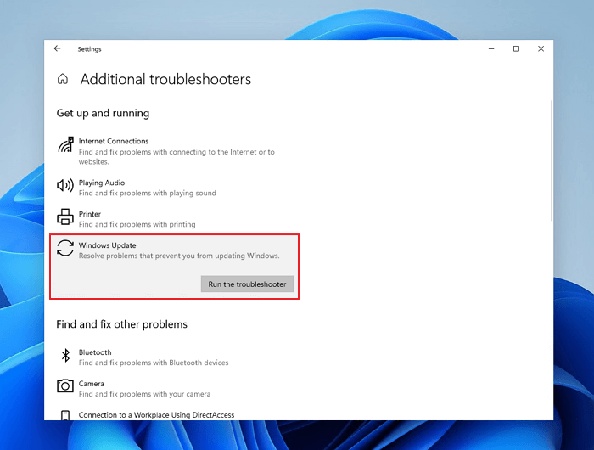
To update DirectX 12 on Windows 10 or 11, use Windows Update. Core DirectX components are part of Windows; an old standalone runtime installer is not a replacement for the operating system’s DX12 components.

  • On Windows 11, open Settings > Windows Update. On Windows 10, open Settings > Update & Security > Windows Update.

  • Install available updates for your device and restart when prompted.

  • If component corruption remains plausible, open Command Prompt as administrator.

  • Run DISM.exe /Online /Cleanup-Image /RestoreHealth and wait for completion.

    run dism command
  • Run sfc /scannow, let verification finish, and restart before testing again.

If either reports an unresolved problem, keep the error details for further diagnosis. Windows 10 standard support ended on October 14, 2025, so update availability depends on your edition and applicable support arrangements.

Fix 5: Verify Game Files

Verification is useful when the error began after an interrupted update, a crash, or changes to the installation. It compares the local installation with the launcher’s expected files and reacquires files that need replacement.

  • Close the game and open Steam Library.

  • Right-click the title and choose Properties > Installed Files.

  • Select Verify integrity of game files and wait for it to finish.

    verify integrity of game files
  • Allow any replacement downloads to complete, then restart the game.

Back up custom modifications before proceeding because verification can replace modified installation files. If only one game fails, this is more targeted than reinstalling Windows. If verification changes nothing, avoid repeating it indefinitely; record the exact error and review the developer’s troubleshooting guidance.

⚡ Bonus: How to Repair DirectX Files Automatically?

If hardware is compatible but launch failures also mention missing DirectX-related DLLs, such as xinput1_3.dll or d3dcompiler_43.dll, a component repair may be relevant. 4DDiG DLL Fixer provides a DirectX Repair function that scans for related file issues and offers a repair workflow.

  • Download 4DDiG DLL Fixer from its official website and close the affected game.

    FREE DOWNLOAD

    Secure Download

  • Launch the program, open DirectX Repair, and select Full Scan.

    do a directx repair
  • Review the detected issues to see whether they relate to the launch failure.

    review the results
  • Select Repair for the issues you choose to address, and keep the internet connection available while required files are obtained.

  • Wait for completion, restart if requested, and launch the game again.

    complete repairing

More FAQs About DirectX 12 Not Supported

1. How Do I Enable DirectX 12 Ultimate?

DirectX 12 Ultimate requires compatible hardware, drivers, and Windows support; there is no universal activation switch. If you are researching how to enable DirectX 12, first check the GPU specifications and the game’s graphics settings. Installing compatible updates can expose supported features, but it cannot add hardware capabilities.

2. How Do I Run a Game Without DirectX 12?

Use a DirectX 11, Vulkan, or other rendering option only if the developer supplies and supports it. Check the launcher or official documentation for the correct selection. If DX12 is mandatory and the GPU is unsupported, a software switch will not make the game run correctly.

3. What Does DirectX 12 Not Supported Mean?

It means the game could not use the DX12 environment it needs. The cause may involve hardware capability, drivers, Windows, or launch configuration.

Conclusion

The best response to DirectX 12 is not supported on your system starts with checking the game’s requirements against your GPU and Windows installation. If the hardware qualifies, update the graphics driver, remove forced launch arguments, and try a documented DirectX 11 mode where available.

For compatible systems with specific DirectX-related DLL problems, consider 4DDiG DLL Fixer’s DirectX Repair workflow after reviewing the scan results. Match each repair to the evidence, and remember that unsupported GPU features require a hardware solution rather than repeated software scans.

FREE DOWNLOAD

Secure Download

William Bollson (senior editor)

William Bollson, the editor-in-chief of 4DDiG, devotes to providing the best solutions for Windows and Mac related issues, including data recovery, repair, error fixes.

(Click to rate this post)

You rated 4.5 ( participated)