Google Chrome Not Downloading Files? Try 10 Fixes

5 mins read

Updated on 2026-08-12 17:10:09 to Windows Fix

When you face the Chrome not downloading files issue, the problem may appear as a download stuck at 0%, a failed network message, or a file that never reaches the Downloads folder. The cause can range from an unstable connection to insufficient storage, security restrictions, or corrupted browser data.

This detailed guide starts with quick checks and then covers detailed Chrome settings, extensions, security tools, and recovery options for missing downloads.

chrome not downloading files

Why Is Chrome Not Downloading Files?

Chrome can fail to download a file for several different reasons. The browser must connect to the website, receive the data, pass security checks, and save the file to an accessible location. A problem at any stage can interrupt the download.

The following table shows the most common causes and the messages you may encounter when the Chrome browser is not downloading files.

Cause What Happens Possible Error Message
📡 Unstable Network Connection A weak Wi-Fi connection, interrupted internet access, VPN, proxy, or server timeout can stop or pause a download. "Failed - Network Error"
💾 Insufficient Disk Space Chrome cannot save the file when the destination drive does not have enough free space. "Disk Full" or "Insufficient Storage"
📁 Incorrect or Inaccessible Download Location The selected folder may have restricted permissions, may no longer exist, or may be unavailable. "Insufficient permissions" or "System busy"
🛡 Chrome Safe Browsing Blocked the File Chrome may stop a download when Safe Browsing identifies a website or file as potentially dangerous. "Download blocked" or security warning
🔒 Antivirus or Windows Security Blocked the Download Security software can stop a download if it detects a potential threat or considers the file unsafe. "Virus scan failed" or "Virus detected"
🧩 Conflicting Extensions or Corrupted Chrome Data Extensions, cookies, cached data, or other browser problems can interfere with downloads. Download may fail without a clear message
📄 The File or Website Is Unavailable The file may have been removed, moved, or incorrectly linked on the website. "No file" or "File missing"
🔑 Website Authorization or Server Restrictions Some files require authentication or permission before they can be downloaded. "Needs authorization" or "Forbidden"

Google's official troubleshooting guidance says identifying the error first can save time. For example, a “Disk full” message requires storage cleanup, while a “Forbidden” message usually points to website permissions rather than a Chrome problem.

7 Quick Tips for Chrome Not Downloading Files Issue

Before changing advanced browser settings, try the basic checks below. They address common temporary problems without changing your Chrome profile or security configuration.

Tip 1: Check and Resume the Download

An interrupted download may not require a new download. Chrome can resume some paused or interrupted transfers when the source is still available.

  • Open Chrome.

  • Enter chrome://downloads in the address bar.

  • Find the failed or paused download.

  • Click Resume if the option is available.

    resume the download in chrome page
  • Wait for the download to continue.

Tip 2: Restart Chrome

A temporary browser process can prevent downloads from completing. Closing Chrome completely and reopening it can clear that temporary state.

  • Save any work in your open tabs.

  • Close every Chrome window.

  • Reopen Chrome.

  • Visit the original download page to try the download again.

Tip 3: Check the Internet Connection

A weak or unstable connection can interrupt large downloads or leave them stuck at 0%.

  • Open another website in Chrome.

  • If pages load slowly, test another device on the same network.

  • Restart your router if necessary.

  • Temporarily disconnect from a VPN or proxy if you use one.

  • Try the download again.

Tip 4: Download Another File

Testing a different file helps determine whether Chrome or the original website is responsible.

Try downloading a small file from a trusted website. If it works normally, the original website, file, or download link may be the problem.

Tip 5: Free Up Disk Space

Chrome cannot save a download when the destination drive is full. Check the available storage on the drive containing your Downloads folder and remove unnecessary files if space is low.

Tip 6: Try Incognito Mode

Incognito mode can help identify whether an extension or stored browsing data is interfering with the download.

Press Ctrl + Shift + N on Windows or Command + Shift + N on Mac. Open the download page in the new window and try again.

Tip 7: Try Another Browser

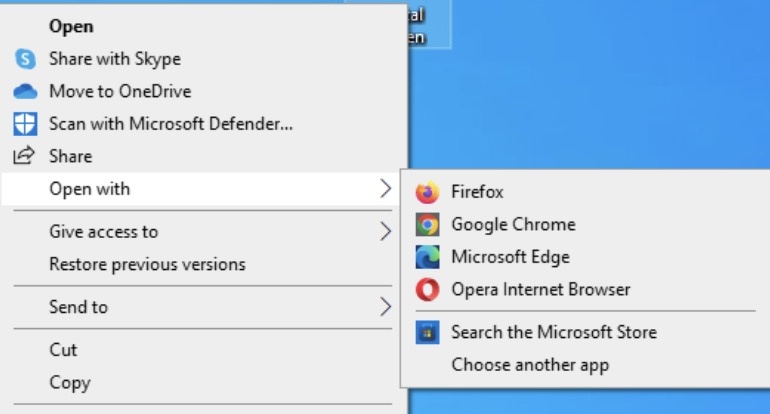
Download the same file using Microsoft Edge, Firefox, or another trusted browser. If the file also fails there, the website, network, or security software is more likely to be responsible.

If these quick checks do not solve the problem, move to Chrome’s settings and system-level troubleshooting methods below.

Google also recommends checking the connection, trying the download later, and contacting the website owner when the problem is server-side. You can also review the official Chrome download troubleshooting guide for Chrome’s current download-error recommendations.

10 Further Fixes for Chrome Not Downloading Files Error

The next solutions change Chrome’s download behavior, permissions, stored data, or installation. Apply them in order and test the download after each method. This makes it easier to identify which setting caused the problem.

Method 1. Change Chrome's Download Location

A damaged, unavailable, or restricted Downloads folder can prevent Chrome from saving files. Changing the destination to another accessible folder is a quick way to rule out a location problem.

  • Open Chrome and click the three-dot menu in the upper-right corner.

  • Select "Settings," then open "Downloads," then click "Change" next to the download location.

    change the chrome downloads location
  • Select a folder such as Desktop or Documents and click "Select Folder".

  • Try downloading the file again.

Chrome’s current settings allow users to change the default download location or enable an option that asks where each file should be saved.

Method 2. Allow Downloads from the Website

Some websites use additional permissions or automatic-download behavior that Chrome may restrict. Checking the site’s permissions can help when downloads from one particular website fail while other sites work normally.

  • Open the website where the download fails and click the site information icon to the left of the address bar.

  • Select "Site settings" to review the available permissions.

    check the chrome site settings
  • If the site requires automatic downloads, find "Automatic downloads" under Chrome’s permissions settings. Allow the required download behavior if you trust the website, reload the page, and try again.

Chrome lets users manage permissions for individual websites rather than changing settings for every site. So, only allow additional download permissions for websites you trust.

Method 3. Use "Save Link As" to Download the File

A normal click may trigger a website script instead of directly saving the file. Using Chrome's Save link as option can bypass some download-related problems.

  • Open the webpage containing the download link and right-click the download link.

  • Select "Save link as" and choose a folder with sufficient storage.

    choose save link as for downloading files
  • Enter a filename if necessary, then click "Save" and wait for the download to finish.

Google specifically recommends this approach for some "Insufficient permissions" and "System busy" download errors.

Method 4. Disable Conflicting Chrome Extensions

Extensions can modify webpages, monitor downloads, block scripts, or add security filters. This method is especially useful when downloads work in Incognito mode but fail in a normal Chrome window.

  • Open Chrome and click the three-dot menu, then select "Extensions" and go to "Manage Extensions".

    manage the chrome extensions
  • Review the installed extensions and turn off extensions that affect downloads, security, privacy, VPNs, or webpages.

  • Restart Chrome and try downloading the file again. Re-enable extensions individually to identify the one causing the problem.

Do not permanently disable a security extension unless you have another reliable security layer in place.

Method 5. Clear Chrome Cache and Site Data

Corrupted cached data or website cookies can cause a download page to behave incorrectly. Clearing the affected site’s data is preferable when the problem occurs on only one website.

  • Open Chrome, then click the three-dot menu and go to "Settings," then "Privacy and security".

  • Select "Third-party cookies" or the available site-data settings and open the option for viewing site data.

    clear chrome cache and site data
  • Search for the affected website and remove its stored data.

  • Restart the page and try the download again.

If the issue affects many websites, you can clear broader browsing data, but remember that removing cookies can sign you out of websites.

Method 6. Update Google Chrome

An outdated browser can contain bugs that affect downloads, security checks, or website compatibility. Updating Chrome ensures that you are using the latest available browser build.

  • Open Chrome and click the three-dot menu, then select "Settings" and go to "About Google Chrome".

    update google chrome directly
  • Chrome will check for available updates. Allow the update to install.

  • Relaunch when prompted and try the download again.

Method 7. Check Safe Browsing, Antivirus, and Windows Security

Security software can block files that it considers dangerous. Chrome’s Safe Browsing system also checks websites and downloads for known security threats.

First, check Chrome's download history for a warning explaining why the file was blocked. Then review your antivirus or Windows Security notifications for a corresponding event.

Do not disable Safe Browsing simply to force an unknown file to download. Google specifically warns that turning it off removes important protection against dangerous websites and downloads.

If you trust the file and believe security software has incorrectly blocked it, verify the file’s source and review the security software’s quarantine or detection history.

Method 8. Reset Chrome Settings

Resetting Chrome can resolve problems caused by changed browser settings, extensions, cookies, and other configuration changes. Google notes that resetting Chrome does not delete saved bookmarks or passwords.

  • Open Chrome and click the three-dot menu to select “Settings”.

  • Open "Reset settings" and select "Restore settings to their original defaults".

    reset chrome settings
  • Review the information shown and click “Reset settings", then restart Chrome and test the download.

Method 9. Create a New Chrome Profile

A damaged user profile can cause problems that remain even after changing individual settings. Creating a separate profile helps determine whether the problem is limited to your current Chrome profile.

  • Open Chrome and click the profile icon near the upper-right corner, then select "Add".

    create a new chrome profile
  • Choose whether to sign in to a Google Account and complete the new profile setup.

  • Open the download page in the new profile and try downloading the file.

If downloads work normally in the new profile, the original profile may contain corrupted settings, extensions, or stored data.

Method 10. Reinstall Google Chrome

Reinstalling Chrome should be one of the final steps because it takes more time than changing a setting. It is useful when Chrome itself is damaged or repeated troubleshooting has not solved the download problem.

  • Close Chrome, then open "Windows Settings" and go to "Apps & Features" on Windows.

  • Find "Google Chrome" and select "Uninstall" and follow the uninstall instructions.

    reinstall google chrome
  • Download the latest Chrome installer from Google’s official website and install it.

  • Install Chrome again, then test the download.

If the Chrome settings menu itself is unavailable or malfunctioning, Google also recommends uninstalling and reinstalling Chrome as a troubleshooting step.

⚡ How to Recover Missing or Deleted Chrome Downloads?

A download problem can sometimes be confused with file loss. The download may have completed but been moved, deleted, or saved to a different folder. First, check Chrome’s download history and search the computer for the filename.

If the file was actually deleted and is no longer in the Recycle Bin, Trash, or expected download location, a data recovery tool may help. 4DDiG Data Recovery can scan storage devices for deleted or inaccessible files and is useful when a downloaded document, image, video, archive, or other file can no longer be found.

FREE DOWNLOAD

Secure Download

FREE DOWNLOAD

Secure Download

  • Install and open 4DDiG. Select the drive where Chrome normally saves downloaded files.

    launch 4ddig and enter interface
  • Start the scan automatically with 4DDiG and wait while the software searches for deleted and lost files. Use the file-type filters to narrow the results or search for the original filename or browse the relevant file category.

    click type to see all files 4ddig
  • Preview available results when available to ensure that you are recovering the required files. Click "Recover" to recover to your storage.

    preview and recover the files
  • Save the recovered file to another drive or safe storage location and click "Save Now" to finish this process.

    save the recoverable files
Note:

Avoid repeatedly downloading new files to the same drive when important data has been deleted. New data can overwrite recoverable file fragments and reduce the chance of successful recovery.

Conclusion

When Chrome is not downloading files, start by checking the connection, available storage, download status, and website itself. If those checks fail, try the next advanced solutions.

If files are not downloading in Chrome because of a website or security restriction, verify the source before changing protection settings. When a completed download is later missing, 4DDiG can help scan for recoverable files.

William Bollson (senior editor)

William Bollson, the editor-in-chief of 4DDiG, devotes to providing the best solutions for Windows and Mac related issues, including data recovery, repair, error fixes.

(Click to rate this post)

You rated 4.5 ( participated)