Camera Does Not Recognize SD Card? 10 Safe Ways to Fix It

5 mins read

Updated on 2026-08-17 18:59:57 to SD Card

Your camera does not recognize the SD card even though it is properly inserted, showing errors like "No SD Card," "Memory Card Error," or "Unable to Read Memory Card." This problem can happen because of an incompatible SD card, incorrect formatting, corrupted file system, dirty contacts, or a damaged camera slot.

If the card contains important photos or videos, avoid formatting or writing new data to it for now. First, identify whether the problem is caused by the SD card or the camera, then follow the safest methods to make it detected again.

camera does not recognize the sd card

Why Does My Camera Not Recognize the SD Card?

Cameras from brands like Canon, Nikon, Sony, Fujifilm, and Insta360 may not detect an SD card for several reasons. Understanding the cause helps you choose the right fix and avoid unnecessary data loss.

The SD Card Is Not Compatible with the Camera

Not every SD card works with every camera. Cameras support specific card types, capacities, file systems, and speed classes.

For example, an older camera may only support SDHC cards up to 32GB. It may not recognize a 64GB or 128GB SDXC card. Some cameras may also need a firmware update to support newer cards. Check your camera manual or the manufacturer's memory card list before using a new SD card.

The SD Card Is Locked

Full-size SD cards have a small lock switch on the side. When the switch is locked, the camera may prevent you from saving new photos or videos.

This usually causes a "Card Locked" or write-protection error. However, some cameras may show a general memory card error instead.

The File System Is Not Supported

The file system controls how the camera reads and stores data on the SD card. SDHC cards usually use FAT32, while SDXC cards usually use exFAT.

If the card was formatted with an unsupported file system, the camera may not recognize it. Formatting the card in the camera can fix this issue, but it will erase existing files.

The SD Card Contacts Are Dirty

The gold contacts on the back of the SD card connect it to the camera. Dust, oil, or corrosion can interrupt this connection.

When the contacts cannot connect properly, the camera may show that no SD card is inserted. Cleaning the contacts carefully may solve the problem.

The SD Card File System Is Corrupted

The SD card file system can become damaged if the card is removed during saving. Sudden power loss or unsafe removal from a computer can cause the same issue.

A corrupted SD card may appear as RAW on a computer. Windows or macOS may also ask you to format the card before using it.

The SD Card or Camera Slot Is Physically Damaged

Physical damage to the SD card or camera slot can prevent the camera from reading the card. A cracked, bent, wet, or burned SD card may stop working properly and show read errors or incorrect capacity information.

The camera slot can also fail because of dust, bent pins, impact damage, or internal connection issues. If several known-good SD cards fail in the same camera, the slot may be the problem.

SD Card vs. Camera: Find Out Where the Problem Is

Before trying repairs, use a simple cross-test to find out why the SD card is not showing up on camera.

Test Result What It Means What to Do Next
The SD card works on another camera or computer The SD card is likely working properly. Check camera compatibility, firmware, and card slot issues.
The SD card is not recognized by any device The SD card may be damaged or corrupted. Stop using the card and recover important files first.
Another compatible SD card works in the camera The original SD card has a problem. Recover files, then format or replace the card if needed.
Several compatible SD cards fail in the camera The camera may have a hardware or software issue. Update firmware or check the camera slot.
The computer detects the card but cannot open it The card may have a file access problem. Recover files from SD card before repairing or formatting it.
The card works in the camera but not on the computer The reader, adapter, or computer may be the problem. Try another card reader, adapter, USB port, or computer.

Recover Photos and Videos from an SD Card the Camera Cannot Detect

If the test results suggest the SD card is damaged or inaccessible, recover your photos and videos before trying repair methods. Formatting the card or repairing the file system may change the card structure and make recovery harder.

When the camera cannot read the SD card, you can use dedicated software like 4DDiG Data Recovery to check whether your photos and videos are still recoverable. With 4DDiG, you can recover camera photos and videos from different SD cards, cameras, and file formats, including:

Category Details
💾 Supported SD Cards SD, SDHC, SDXC, microSD, microSDHC, microSDXC, CF cards, and other camera memory cards.
📷 Supported Cameras Canon, Nikon, Sony, Fujifilm, Panasonic, Olympus, GoPro, Insta360, DJI, and other digital cameras, action cameras, and camcorders.
📹 Recoverable Video Formats MP4, MOV, AVI, MTS, M2TS, and other common camera video formats.
📇 Recoverable Camera RAW Formats Canon CR2, CR3, Nikon NEF, NRW, Sony ARW, Fujifilm RAF, Panasonic RW2, Olympus ORF, Pentax PEF, Adobe DNG, and other RAW image formats.
📁 Supported Recovery Scenarios Deleted photos or videos, formatted SD cards, corrupted SD cards, RAW cards, inaccessible cards, and SD cards that cameras cannot recognize.
FREE DOWNLOAD

Secure Download

FREE DOWNLOAD

Secure Download

Follow these steps to recover photos and videos from a camera SD card:

  • Connect the SD card to your computer using a reliable card reader. Launch 4DDiG, select the SD card, and click "Scan" to start searching for recoverable files. select sd card in 4ddig
  • Wait for the scan to complete. Browse the results and use the filter option to quickly find photos, videos, or specific file types. scan results in 4ddig
  • Preview the found files to check photo and video quality. Select the files you need and click "Recover". preview and recover files
  • Save the recovered files to your computer or another storage device. save recovered camera files safely
Important:

Do not save recovered files back to the same SD card. New data may overwrite other recoverable photos or videos.

DIY recovery works best when your computer can detect the SD card with the correct or close-to-correct capacity. If no device detects the card, or the card is cracked, wet, burned, or shows the wrong capacity, stop using it and consider a professional recovery service.

How to Fix a Camera That Does Not Recognize an SD Card

Start with the simple methods. Some advanced fixes may change the SD card structure or erase files, so recover important data before continuing.

1 Check SD Card Compatibility

An SD card may fit the camera but still use an unsupported standard, capacity, or file system. Check the camera manual before replacing the card or changing its format.

SD Card Type Typical Capacity Common File System Compatibility Notes
SD Up to 2GB FAT16 Mostly used by older digital cameras.
SDHC 4GB to 32GB FAT32 Supported by many older and current cameras.
SDXC 64GB to 2TB exFAT May not work with cameras that support only SD or SDHC cards.
microSD Varies FAT32 or exFAT Requires an adapter when used in a full-size SD card slot.

Also check the required speed class. Many 4K action cameras require U3 or V30 cards. Cameras with higher recording bitrates may require V60 or V90 cards. The exact requirement depends on the camera model and recording mode.

📝 Note:

Do not choose an SD card based only on storage capacity. Check the supported card type, maximum capacity, speed class, and recommended models.

2 Turn Off the Camera and Reinsert the SD Card

A card may look inserted even when it is not fully connected. Reinserting it while the camera is off can fix temporary contact or camera does not recognize SD card issues.

  • Turn off the camera completely and wait several seconds.

  • Open the card compartment and remove the SD card.

  • Check the correct insertion direction shown near the slot or in the manual.

  • Insert the card until it clicks or sits firmly in place.

  • Close the card compartment and turn the camera back on.

📝 Note:

Do not remove the SD card while the camera is recording, saving files, or the memory indicator light is active, which may interrupt data writing and cause file corruption or SD card errors.

3 Unlock the SD Card

The lock switch mainly controls write protection. It usually prevents saving new files rather than causing complete SD card detection failure. However, some cameras may show a general memory card error.

  • Turn off the camera and remove the SD card.

  • Find the small switch on the left side of the card.

  • Move the switch away from the "Lock" position.

    check sd card physical lock
  • Insert the card again and test the camera.

If the switch feels loose or moves when the card enters the slot, replace the card or microSD adapter.

4 Test the SD Card on Another Device

Cross-testing helps identify whether the SD card or the camera is causing the problem. It is also useful when the SD card is not showing up on camera but may still be detected by another device.

  • Insert the original SD card into another camera or computer.

  • If it opens, copy important files to another drive immediately.

  • Insert a known-good compatible SD card into the original camera.

  • Compare the results with the diagnostic table in Part 2.

💡 Tip:

On Windows, open Disk Management to check whether the SD card is detected. On Mac, open Disk Utility. The card may appear there even when it is missing from File Explorer or Finder.

5 Clean the SD Card Contacts and Camera Slot

Dust and oil can interrupt the connection between the card and camera. Clean both areas carefully and avoid touching the internal slot contacts.

  • Turn off the camera and remove the card.

  • Wipe the gold contacts gently with a clean, dry microfiber cloth.

  • Inspect the camera slot under good light.

  • Use a camera air blower to remove loose dust while the slot faces downward.

  • Reinsert the card and test the camera.

6 Update the Camera Firmware

Firmware updates can fix card detection bugs and improve compatibility. Use only the update designed for your exact camera model.

  • Open the camera menu and find the current firmware version.

  • Visit the camera manufacturer's official support website.

  • Search for your exact camera model and check the latest firmware notes.

  • Charge the camera battery fully.

  • Download the correct update and follow the official instructions.

📝 Note:

Do not turn off the camera, remove the battery, or disconnect the cable during a firmware update.

7 Repair the SD Card File System on a Computer

Use file system repair only when the computer detects the SD card. If the card contains important files, recover them first because repair tools may modify damaged file records. To run Error Checking on Windows:

  • Connect the SD card to the computer.

  • Press Windows + E to open File Explorer.

  • Right-click the SD card and select "Properties."

  • Open the "Tools" tab and select "Check" under Error checking.

    error checking the drive
  • Follow the instructions and safely eject the card when finished.

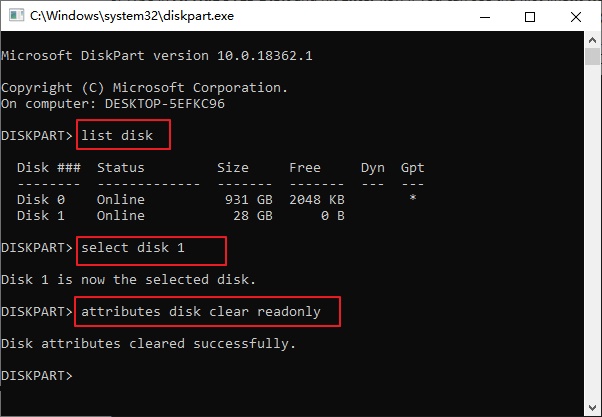
For advanced users, Windows also provides CHKDSK through Command Prompt. It performs a deeper file system check and can fix logical errors on the SD card.

Open Command Prompt as administrator and run the following command. Replace "X" with the correct SD card drive letter: chkdsk X: /f

run the chkdsk prompt

On Mac, you can use Disk Utility First Aid:

  • Connect the SD card and open Disk Utility.

  • Select "View" and choose "Show All Devices."

  • Select the SD card and click "First Aid."

    run first aid on sd card
  • Confirm the check and wait for it to complete.

Warning:

Check the drive letter carefully before running CHKDSK. Using the wrong letter may affect another storage device.

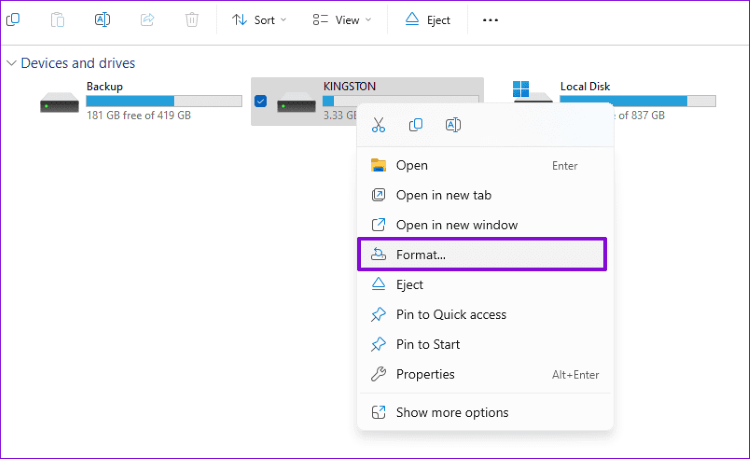
8 Format the SD Card in the Camera

Formatting creates a new file system and can fix some card errors. Use it only after important photos and videos have been copied or recovered.

  • Insert the card into the camera where you plan to use it.

  • Open the camera settings or setup menu.

  • Choose "Format," "Format Card," or "Format Memory Card."

    format an sd card on camera
  • Select the correct slot if the camera has two card slots.

  • Confirm the warning and wait for formatting to finish.

  • Take a test photo and check it in playback mode.

Formatting in the camera is usually better than formatting on a computer because the camera creates the file system and folder structure it expects.

9 Replace the SD Card

A card that keeps failing should not be trusted with important photos. Replace it if the problem continues after troubleshooting and formatting. Replace the SD card if:

  • It fails in several devices.
  • It has cracks, damaged contacts, or signs of water damage.
  • Files become corrupted repeatedly.
  • The camera frequently reports read or write errors.
  • The card becomes unusually hot.
  • The displayed capacity is incorrect.
  • The recognition error returns soon after formatting.

Choose a replacement that matches the camera's supported card type, capacity, speed class, and recommended card list.

10 Repair the Camera Card Slot

The camera slot may need professional repair when several compatible cards fail in the same camera. This is not a normal DIY repair because the internal contacts are small and easy to damage. Arrange a professional inspection if you meet the following situations:

  • You can see bent or missing contacts inside the slot.
  • Only one slot works in a dual-slot camera.
  • Cards connect only when held in a certain position.
  • The camera was dropped or exposed to water.
  • Compatible cards and a firmware update do not solve the problem.
📝 Note:

Contact the camera manufacturer or a qualified repair center. Do not repair slot contacts with a screwdriver, needle, or other metal tools.

How to Prevent Camera SD Card Recognition Problems

Proper SD card handling can prevent many issues that cause a camera to stop recognizing or reading the card. These habits also reduce the risk of losing photos during important shoots.

  • Use an SD card approved for your camera model.
  • Check the supported capacity, card type, and speed class before buying a card.
  • Buy memory cards from trusted sellers to avoid counterfeit products.
  • Format a new SD card in the camera before the first use.
  • Turn off the camera before inserting or removing the SD card.
  • Never remove the card while the camera is recording, saving files, or the activity light is blinking.
  • Keep the card contacts clean and store unused cards in a protective case.
  • Avoid frequently switching the same SD card between different cameras.
  • Replace cards that show repeated read, write, or formatting errors.
  • Back up photos and videos after every important shoot.
💡 Tip:

Do not use an SD card as the only copy of important photos and videos. Keep at least one backup on a computer, external drive, or trusted cloud service.

Conclusion

When a camera does not recognize an SD card, start with compatibility checks, reinserting the card, and cross-testing to find out whether the issue comes from the card, camera, or connection.

If the card contains important photos or videos, recover them before repairing or formatting. 4DDiG SD Card Recovery can scan unreadable, corrupted, or formatted SD cards and help recover files with ease. If the problem continues after troubleshooting, replace the card or seek professional camera repair.

FREE DOWNLOAD

Secure Download

FREE DOWNLOAD

Secure Download

FAQs

Why does my SD card work on my computer but not my camera?

The card may use an unsupported capacity, card type, or file system. Check the camera requirements and format the card in the camera after backing up important files.

Should I format an SD card that my camera cannot read?

Do not format it if you need the files. Recover or back up your photos and videos first, then format the card in the camera if needed.

How do I know if the SD card or camera slot is broken?

Test the SD card on another device and try a known-good compatible card in the camera. If multiple cards fail in the same camera, the slot may be the problem.

Can I recover photos from an SD card the camera cannot recognize?

Yes, recovery may be possible if a computer detects the card. Stop using it and scan the card with recovery software before repairing or formatting it.

Why does my old camera not recognize a new SD card?

Older cameras may not support newer SDXC cards or large capacities. Check the camera manual and use a card that matches its supported standards.

Why does my camera keep asking me to format the SD card?

This usually happens because of file system corruption, incompatibility, or card failure. Recover important files first, then format the card in the camera.

William Bollson (senior editor)

William Bollson, the editor-in-chief of 4DDiG, devotes to providing the best solutions for Windows and Mac related issues, including data recovery, repair, error fixes.

(Click to rate this post)

You rated 4.5 ( participated)