How to Fix Slow Xbox App Download Speed on PC

5 mins read

Updated on 2026-07-29 10:02:28 to Windows Fix

Slow Xbox app download speed has long been one of the most frustrating issues for PC users. Even with a fast internet connection, many people find their games and updates crawling along far below the speeds they’re paying for.

Microsoft is currently testing a new Smart Download Client that automatically selects the fastest available servers and periodically switches connections to maintain better speeds. While early results look promising and the feature may eventually reach the Xbox PC app, it’s still limited to Insider testers for now.

In the meantime, here are several practical ways you can fix slow Xbox app download speed on your PC right away.

1. Why Does Xbox App Download So Slow on PC?

Users often notice slow Xbox app downloads after comparing Xbox with Steam or a speed test. Common causes include:

  • Delivery Optimization limits: Windows uses a feature called Delivery Optimization that can restrict how much bandwidth the Xbox app is allowed to use, especially for background downloads.
  • Poor server selection: The Xbox app sometimes connects to slower or congested content servers instead of the fastest available one. This is a long-standing issue that Microsoft is currently trying to fix with the new Smart Download Client.
  • TCP Auto-Tuning problems: If Windows’ Receive Window Auto-Tuning is disabled or not working properly, large downloads can be heavily limited.
  • Background processes and real-time scanning: Antivirus (especially Windows Defender real-time protection), other downloads, cloud sync apps, or games running in the background can significantly reduce available speed.
  • Network-related issues: Unstable Wi-Fi, router congestion and ISP throttling during peak hours.
  • Disk performance: If the drive is nearly full or is a slow hard drive, the Xbox app may appear to download slowly because it is also busy unpacking and writing files.
  • App or service glitches: Outdated Xbox app, corrupted cache, or problems with Gaming Services can also cause unusually slow speeds.

In short, the problem is usually a combination of Windows bandwidth restrictions, suboptimal server routing, and local system/network factors rather than just your internet plan.

⚡ 2. How to Make Xbox Download Faster on PC?

The following sequence moves from low-risk actions to deeper system changes. Test the same game after each fix so you can identify what improved the speed.

Fix 1: Fully Restart the Xbox App and PC

Closing the Xbox window may leave background processes running. A full restart clears a stuck session and reloads Gaming Services, Microsoft Store, and the adapter.

  • Pause the game download in the Xbox app. Right-click the Xbox icon in the system tray and exit it if the icon is present.

  • Open Task Manager and end Xbox, Gaming Services, or Microsoft Store only if they remain unresponsive.

  • Restart the PC rather than choosing Shut down and immediately powering it back on.

  • Open Xbox, resume the download, and monitor the speed for several minutes.

Try this first when Xbox downloading drops to 0 B/s after starting normally or the PC has resumed from sleep.

Fix 2: Check Delivery Optimization Settings

Delivery Optimization downloads Windows updates, Store apps, and other Microsoft content. Its limits or cache can contribute when the Xbox download speed is slow but the internet is fast for other services.

  • Open Settings > Update & Security > Delivery Optimization.

    delivery optimization settings
  • Click Advanced options or Download options, depending on your Windows version.

  • Check whether an absolute or percentage bandwidth limit is enabled. Raise an unusually low limit or temporarily remove it for testing.

    check download settings
  • Review Activity monitor to see whether Delivery Optimization has recently downloaded or uploaded significant data.

  • If you do not want peer-to-peer transfers, turn Allow downloads from other devices off. Windows will still download directly from Microsoft.

  • Restart the Xbox app and test again.

Delivery Optimization is not the only speed control. If changes have no effect, restore the previous setting and continue.

Fix 3: Clear Xbox App Cache and Temporary Files

Corrupted cache can cause repeated checks or failed resumes. 4DDiG Partition Manager’s Windows Clean feature can review system and application cache categories together:

  • Download and install 4DDiG Partition Manager from the official website. Launch it and go to the Windows Clean module. Select App cache and other types of junk files you want to clean. Click Start Scan button to begin scanning.

    FREE DOWNLOAD

    Secure Download

    windows clean
  • After scanning, expand the results and select the file categories you want to delete and click Clean to proceed.

    select items to clean
  • Confirm cleanup and wait patiently. Then, restart computer and download the game in Xbox again.

    clean successfully

This can increase Xbox app download speed only when cache errors or low space contribute; it cannot increase ISP bandwidth or fix a remote server.

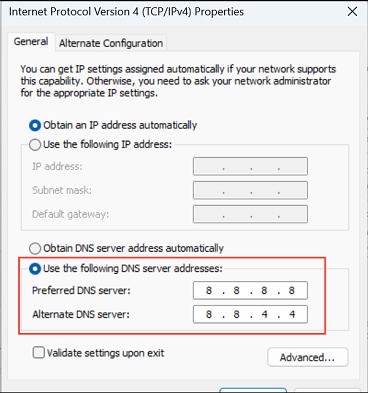
Fix 4: Flush DNS and Reset the Network Stack

DNS does not control disk speed, but stale resolution or a damaged Winsock catalog can disrupt Microsoft endpoint connections. Try this when disk activity looks normal.

  • Search for Command Prompt, right-click it, and choose Run as administrator.

  • Run these commands one at a time:

    ipconfig /flushdns

    netsh winsock reset

  • Restart the computer. Disable any VPN or proxy temporarily, then retry the download.

  • If all applications are slow, restart the router and test Ethernet or a stronger 5 GHz/6 GHz Wi-Fi connection.

Fix 5: Update Windows and the Xbox App

Xbox depends on Windows, Microsoft Store, and Gaming Services. Version mismatches can cause slow or hanging downloads.

  • Open Settings > Windows Update and install available updates, including relevant optional updates from your PC or network-adapter vendor.

  • Open Microsoft Store > Library and select Get updates.

  • Update the Xbox app, Gaming Services, and Microsoft Store.

  • Reopen Xbox and test with more than one game. If only one title is slow, its package or server may be the limiting factor.

More FAQs About Xbox App Download Speed Slow

1. How to Remove Download Speed Limit on Xbox App?

Open Settings > Windows Update > Advanced options > Delivery Optimization > Advanced options and remove an unusually low bandwidth limit. Pause other downloads too. No Xbox toggle guarantees unlimited speed, so speeding Xbox downloads up still requires network and storage checks.

2. What Is Xbox Smart Download Client?

The 2026 Xbox Insider smart client checks available content-server pools, selects the fastest connection, and repeats the test during installation. It also targets hanging downloads. Availability varies, so not every Windows PC necessarily uses it yet.

3. How to See Download Speed in Xbox App?

Open the Xbox download queue and select the active installation. For more detail, compare Task Manager > Performance > Wi-Fi/Ethernet with Disk. Falling network speed with a busy disk usually means unpacking or verification.

Conclusion

When the Xbox app download speed is slow only on your PC, begin by separating network transfer from disk installation. Restart Xbox and Windows, review Delivery Optimization, clear Store and app cache, reset the network stack, and update every Xbox-related component.

If the installation drive is nearly full, 4DDiG Partition Manager Windows Clean can help review unnecessary system and app files before the next download. When Network activity is low but Disk activity remains high, wait for unpacking to finish and consider moving future games from an older HDD to an SSD instead of repeatedly changing network settings.

FREE DOWNLOAD

Secure Download

William Bollson (senior editor)

William Bollson, the editor-in-chief of 4DDiG, devotes to providing the best solutions for Windows and Mac related issues, including data recovery, repair, error fixes.

(Click to rate this post)

You rated 4.5 ( participated)