How to Fix Fortnite Not Loading on PC/PS/Xbox?

5 mins read

Updated on 2026-05-28 17:04:47 to Windows Fix

Fortnite not loading is one of the most common issues players face across PC and consoles. Some users get stuck on the loading screen, while others cannot launch the game, join matches, or load maps properly.

This guide explains what to do if Fortnite is not loading on PC, PS5, Xbox, Switch, or PS4. You’ll learn practical fixes for Fortnite stuck on loading screen issues, login problems, game crashes, and Fortnite game modes not loading.

【 Quick Fixes for Fortnite Not Loading 】

Before trying advanced solutions, start with these quick fixes. Sometimes Fortnite is not working because Epic Games' servers are down. Visit Epic Games Server Status to confirm whether matchmaking or login services are experiencing outages. Also, you can try the following quick fixes:

  • Restart Fortnite and Epic Games Launcher
  • Restart Your Modem and Router

1. How to Fix Fortnite Not Loading on PC/PS/Xbox?
Whether you play Fortnite on PC or a console, this section will cover all the solutions that you can try:

Method 1: Change DNS Settings

DNS problems can prevent Fortnite from connecting to matchmaking or loading servers. Switching to a faster public DNS often fixes Fortnite not loading into a match issue and improves overall connectivity.

  • Open “Control Panel” and go to “Network and Internet", then click “Network and Sharing Center”.

  • Select your active network connection and click “Properties”.

  • Click “Internet Protocol Version 4 (TCP/IPv4)" then click "Properties" from the bottom, and select “Use the following DNS server addresses”. Enter:

    a. Preferred DNS: 8.8.8.8

    b. Alternate DNS: 8.8.4.4

    change dns
  • Save changes and restart your PC.

Steps on Console (PS5)

  • Open “Settings” and go to “Network settings," then click "Set up internet connection."

    set internet on ps
  • Select your network and press the “Options” button to select manual DNS configuration.

  • Enter Google DNS values, then restart the console and relaunch Fortnite.

This method is especially useful if Fortnite is stuck on connecting or loading screens.

Method 2: Disable or Uninstall Riot Vanguard (PC Conflict)

Some PC players experience conflicts between Riot Vanguard and Fortnite’s anti-cheat system. This can cause Fortnite not loading on PC or random crashes. Disabling Vanguard temporarily helps determine whether the software conflict is causing the issue.

  • Open “Settings” and go to “Apps & Features," then locate the “Riot Vanguard” app.

    uninstall riot vanguard
  • Click “Uninstall” and let the process finish. Manually delete any leftover folders in the AppData or Program Files directories and then restart the computer to ensure a clean slate.

If Fortnite launches normally afterward, Vanguard is likely responsible.

Method 3: Verify Game Files

Corrupted or missing game files are one of the biggest reasons Fortnite game not loading issues happen. Verifying files checks your installation and automatically replaces damaged data.

This method is safe and does not delete your saved progress. It is especially effective for Fortnite stuck on the loading screen problems after updates or crashes.

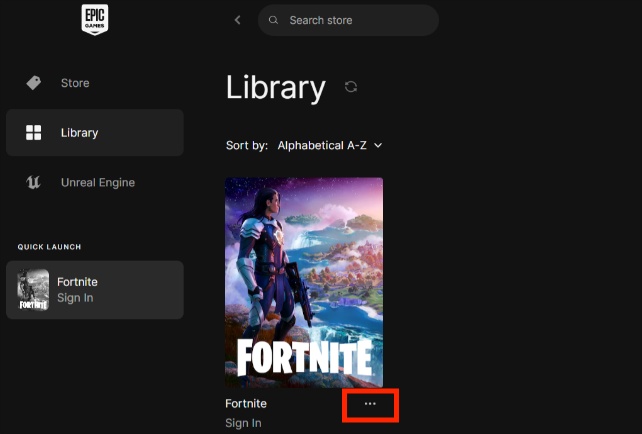
  • Open “Epic Games Launcher” and go to “Library”.

  • Find Fortnite and click the “three dots” beside it, then select “Manage”.

  • Click “Verify," and the launcher will scan the installation and redownload corrupted files if necessary.

    verify game files

Method 4: Switch DirectX Rendering Mode (DirectX 11)

Graphics API compatibility issues can cause Fortnite to not load on some systems. DirectX 12 offers advanced performance features, but certain GPUs or drivers handle it poorly. DirectX 11 is more stable and compatible across a wider range of hardware.

  • Open Epic Games Launcher, then click your profile picture and open “Settings”.

  • Scroll down to Fortnite settings and expand them, then enable “Additional Command Line Arguments”.

  • Go to Settings > General. In the Launch Options field, replace the old DirectX version with ‘-dx11’ and then relaunch your game.”

    switch to dx11

After that, launch Fortnite again.

Method 5: Clear System Cache and Reinstall Fortnite (PS/Xbox)

  • Press Win + R to open the Run dialog. Type %localappdata% and press Enter. Locate and open the Temp folder, select all files and delete.

  • Open the Epic Games Launcher > Library. Find Fortnite, click the three dots (⋯). Select Uninstall and confirm.

  • Next, navigate to: C:\Users\YourUsername\AppData\Local\FortniteGame, and delete the FortniteGame folder if it still exists.

Open the Epic Games Launcher again, and go to Library. Click Install under Fortnite, waiting for the installation to complete

⚡ 2.How to Prevent Fortnite Loading Problems?

Preventing loading issues is often easier than fixing them later. Installing Fortnite on an SSD greatly improves loading speed and reduces stuttering. SSDs provide faster read speeds than traditional HDDs, helping Fortnite load maps and assets more efficiently.

Many players use tools like 4DDiG Partition Manager to move Fortnite or clone their operating system to an SSD safely. This avoids reinstalling Windows or losing game data during the upgrade process.

  • Connect the SSD to your computer and open 4DDiG Partition Manager. Select the “Clone Disk” feature and click “Clone OS Disk”.

    FREE DOWNLOAD

    Secure Download

    clone os disk
  • Choose a destination disk to store the cloned data from the source drive, then click Next. And the target disk is typically the one newly connected to your computer.

    click next
  • Verify the storage situation with the visual interface provided in 4DDiG and click "Start" then "Sure" to begin.

    click sure to proceed
  • Wait for the process to complete and click “Finish”.

    finish cloning

After completion, boot from the SSD in BIOS. This improves loading times and overall game responsiveness.

3.Why is Fortnite Not Loading?

There are several reasons why Fortnite is not working properly. Understanding the cause helps you apply the correct fix instead of trying random solutions.

  • Corrupted Game Files: Interrupted updates or crashes can damage important Fortnite files. This often leads to Fortnite stuck on the loading screen issues.
  • Internet Connection Issues: Slow or unstable internet can prevent the game from loading assets or connecting to servers properly.
  • Outdated Graphics Drivers: Old GPU drivers may cause compatibility issues, crashes, or rendering failures.
  • Software Conflicts: Programs like Riot Vanguard, overlays, or antivirus software may interfere with Fortnite.
  • Corrupted Console Cache: On PS5, Xbox, and PS4, corrupted cache data can prevent Fortnite from launching correctly.
  • Storage Drive Problems: If Fortnite is installed on a failing or slow hard drive, loading performance may become unstable.

✔ Related Articles: 5 Ways to Fix Fortnite Crashing Quickly [Easy for Beginners]

Fortnite IoStore.Signature Error: Meaning, Causes, and Solutions

More FAQs about Fortnite

1.Why won’t my Epic Games Launcher open?

Corrupted launcher files, antivirus conflicts, or missing system components can stop the launcher from opening. Reinstalling the launcher or clearing its cache often fixes the issue.

2.How to fix Fortnite not booting up?

Verify game files, update GPU drivers, disable background conflicts, and restart the Epic Games Launcher. On consoles, clearing cache data usually helps.

3.Why is my Fortnite stuck on the login screen?

This usually happens because of server issues, unstable internet, or corrupted local cache files. Restarting the router and verifying game files are common fixes.

Conclusion

Fortnite not loading can happen for many reasons, including corrupted files, network problems, launcher conflicts, or outdated system settings. Fortunately, most issues can be fixed by changing DNS settings, verifying game files, clearing console cache, or reinstalling Fortnite.

If you want smoother loading and better gaming performance long-term, upgrading to an SSD is highly recommended. Many players use 4DDiG Partition Manager to safely clone their system drive and improve Fortnite loading performance without reinstalling Windows.

FREE DOWNLOAD

Secure Download

Sawart Mashab (senior editor)

Sawart Mashab, the content writer for 4DDiG, is adept at creating informative and practical solutions related to Windows and macOS issues, data recovery, file repair, and RAID storage.

(Click to rate this post)

You rated 4.5 ( participated)