How to Fix Valorant Error Code VAN 79
5 mins read

Updated on 2026-08-10 18:55:32 to Windows Fix

Valorant error code VAN 79 prevents the game from connecting properly. You may see a message saying that VALORANT has encountered a connection error and asking you to relaunch the client. Restarting the game sometimes helps, but VAN 79 can keep returning when there is a problem with Riot Vanguard, the vgc service, your network settings, or Windows itself. This guide explains what VAN 79 means and walks you through the most effective solutions step by step.

1. What Does Error Code VAN 79 Mean?

The error code VAN 79 means VALORANT is having trouble establishing or maintaining the connection it needs to run correctly. The problem is commonly associated with Riot Vanguard, particularly when its vgc service is not running correctly.

error code van 79

❓ Common Causes of VAN 79 Error Code

Riot Vanguard vgc Service is Not Running

The vgc service is an important part of Riot Vanguard and needs to run properly for VALORANT to work. If this service is stopped, disabled, or fails to start with Windows, Vanguard may not initialize correctly, resulting in VAN 79.

Corrupted Riot Vanguard Installation

Vanguard files can become damaged because of an interrupted update, incomplete installation, or software conflict. When Vanguard cannot load its required components correctly, VALORANT may fail to connect.

Pending or Outdated Windows Updates

VALORANT and Riot Vanguard rely on Windows services and system components. Missing important Windows updates can sometimes create compatibility problems that prevent Vanguard services from starting or operating as expected.

Firewall or Antivirus Interference

Windows Firewall and third-party antivirus programs can block applications or background services they consider suspicious. If Riot Client, VALORANT, or Vanguard is restricted by security software, the game may have trouble establishing the connection it needs.

Outdated or Corrupted Drivers

Your network adapter depends on drivers to communicate with Windows. If a network or related system driver is outdated, damaged, or incompatible after an update, it may cause connectivity problems when VALORANT tries to communicate with Riot services.

Temporary Riot Server Problems

The problem isn't always on your computer. Riot Games may experience temporary server outages, maintenance, or other service disruptions. In such cases, VAN 79 can appear even when Vanguard, Windows, and your internet connection are working correctly.

2. How to Fix Valorant Error Code VAN 79?

Since there is no single cause in every case, start with the quick checks below before moving to the more detailed fixes.

Quick Fixes to Try First

Before changing Windows or Vanguard settings, try these two simple solutions.

Fully Restart Your PC

Don’t just close and reopen VALORANT. Restart the entire computer. A full restart reloads Vanguard, Riot Client, network services, and other Windows components that may have stopped responding. If you still receive the error, continue to the next check.

Check Riot Games Service Status

VAN 79 may sometimes appear because Riot is experiencing a temporary server or service problem. Visit the official Riot Games Service Status page, select VALORANT and your region, and check for current incidents or maintenance. If Riot reports a service problem, wait until it is resolved and try the game again.

Fix 1: Check and Restart the Riot Vanguard vgc Service

Riot Vanguard depends on a Windows service called vgc. If this service is disabled or fails to start, VALORANT may not be able to establish the required connection.

  • Press Windows + R to open the Run dialog, type services.msc, and press Enter.

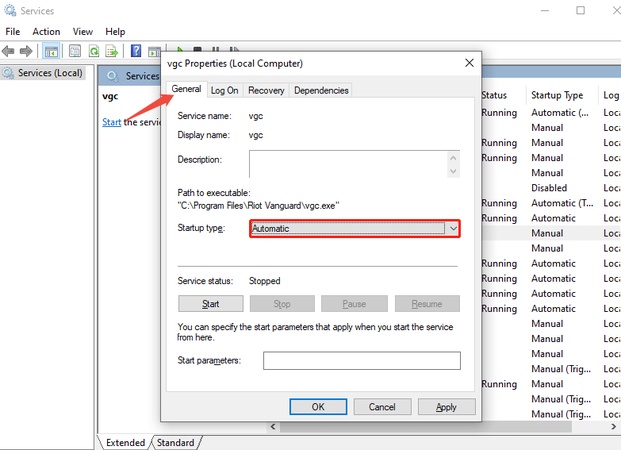
  • Scroll through the Services window until you find vgc. Right-click vgc to open its properties.

    open vgc properties
  • And set Startup type to Automatic. If Service status shows Stopped, click Start.

  • Click Apply > OK, close the Services window, and restart your computer.

Launch VALORANT again and check whether the error has disappeared.

Fix 2: Reset DNS & Windows Network Settings

If Vanguard is working but the game still cannot connect, corrupted DNS or network configuration may be responsible. Resetting these settings allows Windows to rebuild important network information.

  • Search for Command Prompt in the Start menu. Right-click it and select Run as administrator.

  • Enter the following commands one at a time, pressing Enter after each:

    $ ipconfig /flushdns
    netsh winsock reset
    netsh int ip reset
  • Once the commands finish, close Command Prompt.

  • Restart your computer and reconnect to the internet.

If Valorant has encountered a connection error VAN-79 because of a local network configuration problem, the reset may restore the connection.

Fix 3: Check Firewall and Antivirus Conflicts

Windows Firewall or third-party security software can occasionally interfere with Riot Client, VALORANT, or Vanguard communication.

  • Search for Windows Defender Firewall and open it. Click Allow an app or feature through Windows Defender Firewall.

    allow app through windows defender firewall
  • Select Change settings. Make sure Riot Client and VALORANT-related entries are allowed on the appropriate networks.

  • Save the changes and restart the game.

If you use third-party antivirus software, check its blocked-app or firewall settings for Riot and VALORANT components. You can also temporarily disable third-party security software as a troubleshooting test. If VALORANT works afterward, turn the protection back on and create the appropriate exceptions instead of leaving your security software disabled.

Fix 4: Update or Roll Back Network and System Drivers

Drivers provide communication between Windows and hardware such as your network adapter. A broken, incompatible, or recently updated network driver can contribute to connection problems.

  • Right-click Start and choose Device Manager. Expand Network adapters and right-click the adapter you currently use.

  • Select Update driver and then choose Search automatically for drivers.

    update network driver
  • Install an update if Windows finds one. Once the process is completed, restart your PC.

If VAN 79 started immediately after a driver update, try rolling it back instead. Open the adapter’s Properties, select the Driver tab, and click Roll Back Driver if the option is available.

Fix 5: Reinstall Valorant

If none of the previous solutions work, the VALORANT or Riot installation itself may contain damaged files. A clean reinstall can replace those files. Before proceeding, make sure you know your Riot account login information.

  • Open Settings > Apps > Installed apps. Locate VALORANT and uninstall it.

  • Remove Riot Vanguard as well if it remains installed, and restart the computer.

  • After that, download VALORANT again from the official Riot Games website. Run the installer and complete the installation.

    install valorant
  • Restart your computer if Vanguard requests it. Sign in and launch VALORANT.

Reinstallation takes longer than the other solutions, so it is best saved for cases where simpler fixes have failed.

⚡ Bonus: Optimize Windows Storage for a Smoother Valorant Experience

Fixing Valorant error code VAN 79 restores access to the game, but your overall Windows environment also affects how smoothly VALORANT runs. If the system drive is crowded with temporary files, caches, logs, and other unnecessary data, freeing some space can help keep Windows responsive.

Instead of searching through folders and deciding what to delete manually, you can use 4DDiG Partition Manager. Its Windows Clean feature scans for unnecessary files and lets you review the detected items before cleaning them.

  • Install and launch 4DDiG Partition Manager on your computer. Select Windows Clean from the left menu. Choose the types of junk files you want to check, then click Start Scan. The scan may take a few minutes, so wait until it finishes.

    FREE DOWNLOAD

    Secure Download

    windows clean
  • After the scan, files that are generally safe to remove are selected automatically. You can click the arrow next to each category to review the files before deleting them. Once you have checked the selected items, click Clean.

    select items to clean
  • Wait for the cleaning process to complete. Once finished, unnecessary files will be removed, giving you more free space on your drive.

    clean successfully

Keeping enough free space on your Windows drive is useful beyond gaming. It gives the operating system more room for updates, temporary data, and everyday system operations.

Conclusion

Valorant error code VAN 79 is usually connected to Riot Vanguard, the vgc service, network settings, security software, drivers, or damaged game files. Start by restarting your PC and checking Riot’s service status. If the problem continues, work through the solutions in order, especially restarting vgc, reinstalling Vanguard, and resetting Windows network settings.

Once VALORANT is working again, keeping Windows storage organized can also contribute to a smoother overall PC experience. 4DDiG Partition Manager provides Windows Clean along with disk and partition management tools, making it a convenient option for cleaning unnecessary files and managing your Windows storage.

FREE DOWNLOAD

Secure Download

William Bollson (senior editor)

William Bollson, the editor-in-chief of 4DDiG, devotes to providing the best solutions for Windows and Mac related issues, including data recovery, repair, error fixes.

(Click to rate this post)

You rated 4.5 ( participated)