How to Speed up Computer with Proven Ways?

5 mins read

Updated on 2026-07-02 16:38:55 to Windows Fix

A slow computer is one of the most frustrating everyday tech problems, but the good news is that most causes are fixable without buying new hardware. Whether you want to speed up computer performance for work, gaming, or general use, this guide walks you through everything from quick cleanup tricks to deeper system optimizations. By the end, you will know exactly how to make PC run faster and keep it that way.

Part 1: Common Causes of a Slow Computer

Before fixing the problem, it helps to understand what is slowing your machine down in the first place. Here are the most common culprits that prevent you from getting the better computer performance:

  • Low disk space: When your storage drive is nearly full, Windows has no room to create temporary files, which significantly slows down operations.
  • Malware and viruses: Malicious software runs silently in the background, draining system resources and degrading performance over time.
  • Outdated Windows or drivers: Skipping system updates means missing critical performance patches and security fixes.
  • Fragmented or aging hard drive (HDD): Mechanical drives slow down considerably as data becomes fragmented across the disk.
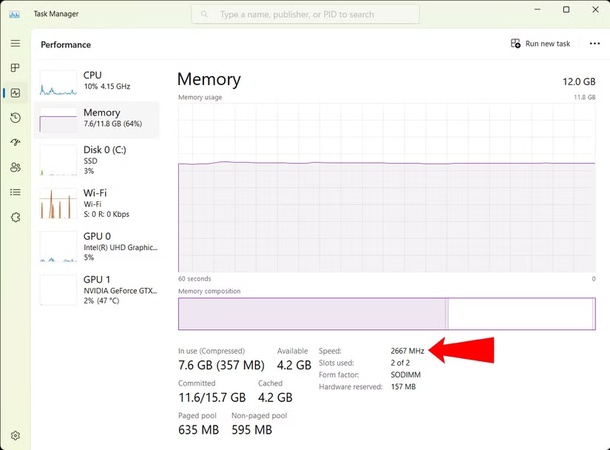
  • Insufficient RAM: Running memory-heavy applications on a system with limited RAM causes constant disk swapping, which is much slower than actual memory.

Identifying which of these applies to your machine is the first step toward a noticeably faster computer.

⚡ Tip: Quick Ways to Speed Up Computer

If you want the fastest results with the least effort, 4DDiG Partition Manager's Windows Clean function is one of the most effective tools to speed up a slow computer in just a few clicks. It is an all-in-one disk and system optimization tool designed for Windows users of all skill levels. Here is how to use it to boost your system:

  • Download and install 4DDiG Partition Manager. Launch the application and navigate to the Windows Clean module from the left sidebar. Select the types of junk files you want to clean and click Start Scan button to begin scanning.

    FREE DOWNLOAD

    Secure Download

    windows clean
  • After scanning, 4DDiG will display files that can be safely removed. Select the file categories you want to delete and click Clean to proceed.

    select items to clean
  • Once complete, the tool will confirm how much space has been freed.

    clean successfully

This computer speed up software handles junk files, temp data, browser cache, and even disk management tasks, making it one of the best computer speed up tools available for Windows 10 and 11.

2. How to Make PC Run Faster?

Here are several proven manual methods to improve PC performance. Work through each one and you will notice a meaningful difference in day-to-day responsiveness.

Method 1: Uninstall Unused Apps

Unused applications do not just waste disk space, many also run background processes, schedule automatic updates, and load services at startup. Removing them is one of the best ways to speed up computer performance with zero cost.

  • Press Windows + I to open Settings. Go to Apps > Installed apps.

  • Sort by Size or Install Date to identify bloatware. Select any program you no longer use and click Uninstall.

    uninstall app

Pay special attention to trial software, old games, and manufacturer-installed bloatware — these are common offenders on systems where the computer is slow.

Method 2: Scan for Malware and Virus

Malware is a silent performance killer. If you are wondering how do I speed up my computer and nothing seems to work, a malware scan should be your next step.

  • Open Windows Security from the Start menu. Click Virus & Threat Protection > Quick Scan.

  • For a deeper check, choose Full Scan. This takes longer but examines every file on your drive.

    full scan
  • Remove any detected threats and restart your PC.

For persistent infections, consider a second-opinion scanner like Malwarebytes. After removal, you should notice an immediate improvement in computer speed.

Method 3: Enable Storage Sense

Windows has a built-in feature called Storage Sense that automatically deletes temporary files, empties the Recycle Bin on a schedule, and frees up local disk space, all without manual effort. Enabling it is one of the simplest ways to speed up computer maintenance over the long term.

  • Go to Settings > System > Storage. Toggle Storage Sense to On.

    enable storage sense
  • Click Configure Storage Sense to set your preferred cleanup schedule (daily, weekly, or monthly).

    set cleanup schedule
  • Enable Delete temporary files that my apps aren't using for maximum benefit.

You can also run Storage Sense manually at any time by clicking Run Storage Sense now on the same page. This alone can recover gigabytes of wasted space and help speed up my computer noticeably.

Method 4: Update Your Windows

Keeping Windows up to date is often overlooked as a performance fix, but Microsoft regularly ships patches that boost computer performance alongside security improvements. Outdated systems also carry driver conflicts that cause slowdowns.

  • Open Settings > Windows Update. Click Check for updates and install all available updates.

    check for updates
  • Go to Advanced Options > Optional Updates and install any pending driver updates.

  • Restart your computer after updates complete.

Staying current is especially important on older hardware — manufacturers often release optimized drivers that meaningfully improve computer speed without any additional cost.

Method 5: Upgrade Hardware

If you have tried all the software-based fixes and your machine still struggles, it may be time for a hardware upgrade. Two upgrades deliver the most impact for users looking to speed up an older computer:

Add RAM

RAM determines how many tasks your computer can handle simultaneously. If your system has 4 GB or less, upgrading to 8 GB or 16 GB is one of the most cost-effective ways to improve PC performance. You will immediately notice smoother multitasking, faster browser performance, and fewer freezes.

Switch to SSD

If your computer still runs on a traditional hard disk drive (HDD), switching to a SSD is the single most transformative upgrade you can make. SSDs have no moving parts, which means data is accessed almost instantly. Boot times drop from minutes to seconds, applications launch faster, and the overall system feels dramatically more responsive. This is widely considered the best way to speed up computer hardware for the money.

Conclusion

From removing unused apps and enabling Storage Sense to upgrading your RAM or switching to an SSD, there are proven methods at every budget to speed up computer performance and get your system running like new.

For the quickest and most comprehensive results, 4DDiG Partition Manager's Windows Clean function handles junk removal, disk optimization, and system cleanup in one place, making it the go-to computer speed up software for Windows users who want fast, reliable results without the guesswork. Start with the quick wins today, and work through the deeper fixes as needed, your faster computer is closer than you think.

FREE DOWNLOAD

Secure Download

William Bollson (senior editor)

William Bollson, the editor-in-chief of 4DDiG, devotes to providing the best solutions for Windows and Mac related issues, including data recovery, repair, error fixes.

(Click to rate this post)

You rated 4.5 ( participated)