“New CPU Installed, fTPM/PSP NV Corrupted”: Complete Troubleshooting Guide

5 mins read

Updated on 2026-07-31 18:39:49 to Windows Fix

If your boot screen is stuck on the “New CPU installed, fTPM/PSP NV corrupted” prompt asking you to press Y or N, don't panic. Before you press any key and risk locking yourself out of BitLocker, this guide explains exactly what the new CPU installed ftpm/psp nv corrupted error means and how to fix it without losing a single file.

1. What Does “New CPU Installed, fTPM/PSP NV Corrupted” Mean?

The message indicates that the AMD firmware Trusted Platform Module data no longer matches the current processor or firmware environment. AMD fTPM is implemented through the Platform Security Processor, or PSP, and helps Windows protect cryptographic keys used by BitLocker, Device Encryption, Windows Hello, and other security features.

new cpu installed ftpm psp nv corrupted

The “NV” in the warning refers to non-volatile data retained by the firmware. In this context, “corrupted” usually means the saved TPM record is no longer valid for the current platform. It does not mean that ordinary files on the SSD have already been corrupted.

2. How to Fix the fTPM/PSP NV Corrupted Warning by Scenario?

The safest answer depends on whether the PC contains an existing encrypted Windows installation. Use this table before pressing a key:

Situation Press Why
New PC with no Windows or data Y No existing TPM-protected keys need to be preserved.
New CPU installed, BitLocker off Y Creates a fresh fTPM state for the new processor.
New CPU installed, recovery key available Y The key can unlock Windows if recovery is triggered.
BitLocker status unknown N first Check encryption and locate the recovery key.
BitLocker on, no recovery key N Resetting fTPM may prevent automatic drive unlock.
Temporary replacement CPU N Keeps the previous fTPM record for the original CPU.
No CPU was replaced N first Investigate firmware changes before clearing TPM.

Before Pressing Y: Check Whether BitLocker is Enabled and Find BitLocker Recovery Key

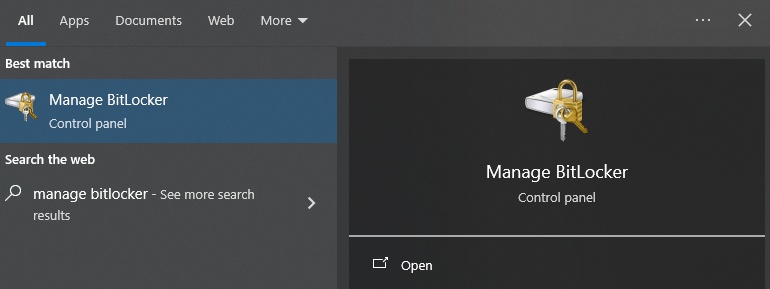
BitLocker matters because it may use TPM measurements to unlock the Windows drive automatically. Resetting fTPM does not format the SSD, but it removes the TPM state that Windows may rely on. If the system drive is encrypted, Windows can request the 48-digit recovery key at the next boot.

If you are unsure which drives are encrypted or want to avoid getting locked out, 4DDiG Partition Manager’s Remove BitLocker feature can:

  • Identify Encrypted Drives: Automatically scans all connected drives and clearly shows which partitions have BitLocker enabled.
  • Retrieve & Backup Recovery Keys: Helps you verify and export the exact 48-digit recovery key before making system changes, ensuring you can smoothly unlock Windows if prompted after resetting fTPM.
  • Open 4DDiG Partition Manager and go to Toolkit > Remove BitLocker.

    choose remove bitlocker
  • The program identifies BitLocker-protected volumes in its disk list, so you can immediately see which drives are encrypted. Select the partition you need, and click Unlock button.

    select partition to unlock
  • 4DDiG Partition Manager will find the BitLocker Recovery Key and unlock the partition. You can copy the BitLocker Recovery Key or click "Disable BitLocker" to remove it.

Note:

Decrypting your drive, allowing Windows to boot smoothly after you press Y to reset the fTPM/PSP NV state. This completely eliminates the risk of getting locked out by a BitLocker recovery screen.

find bitlocker recovery key

You can also choose suspend BitLocker to temporarily prevents the existing TPM change from forcing recovery while you complete the hardware transition.

Case 1. A Brand-New PC with No Existing Windows Data

If the computer is a new build, the SSD is blank, or there is no existing Windows installation to preserve, press Y. The motherboard will clear the old fTPM record and create a fresh state for the installed CPU.

  • Allow the restart to complete without cutting power.

  • In BIOS, confirm that AMD fTPM, AMD PSP fTPM, or Security Device Support remains enabled.

  • Install or start Windows, then check Device Encryption after setup and back up the new recovery key if encryption becomes active.

Case 2. You Permanently Replaced the CPU on an Existing Windows PC

  • Press N once and try to enter Windows with the previous fTPM record.

  • Check BitLocker, save the recovery key outside the PC, and suspend protection.

  • Restart the machine and press Y when the warning returns.

  • Let the board reset fTPM and boot Windows. If recovery appears, enter the saved 48-digit key.

    enter the bitlocker recovery key
  • Run tpm.msc and confirm “The TPM is ready for use” and Specification Version 2.0.

  • Resume BitLocker protection and recreate the Windows Hello PIN if Windows requests it.

Case 3. You Did Not Replace the CPU

  • When no CPU was replaced, press N first.

  • After Windows starts, secure the BitLocker recovery key and review what changed immediately before the warning appeared.

  • Check the BIOS version and whether the clock or custom settings reset after every shutdown.

  • If the prompt appeared once after a legitimate BIOS update and does not return, it may only reflect a one-time TPM structure migration.

  • If it appears at every boot, update or reflash the correct stable BIOS from the PC or motherboard manufacturer, then load optimized defaults once and re-enable the required boot and security settings.

Do not clear CMOS repeatedly before protecting the recovery key, because doing so can alter Secure Boot, storage mode, boot order, and TPM configuration again.

More FAQs about the fTPM/PSP NV Corrupted Error

1. What happens if I reset fTPM on my Windows PC?

Resetting fTPM clears the firmware TPM state and creates a new trust relationship for the current processor and firmware. It does not erase the SSD by itself. However, BitLocker, Device Encryption, or Windows Hello may require recovery or reconfiguration because the old TPM-protected keys are no longer available in the same way.

2. What if I disable fTPM?

Disabling fTPM can remove TPM 2.0 availability from Windows. That may affect BitLocker automatic unlocking, Windows Hello, device security checks, and Windows 11 compatibility. It can sometimes bypass the startup prompt, but it does not repair the mismatch and is not the preferred long-term solution.

3. Should I press Y to reset fTPM?

Press Y when the CPU change is permanent and either the Windows drive is not encrypted or the recovery key is safely available. Press N first when encryption status is unknown, the key is missing, the CPU is temporary, or no CPU was actually replaced. N is a safety step, not always the final fix.

⚡ Conclusion

The fTPM/PSP NV corrupted warning is mainly a TPM-state mismatch, not proof of damaged hardware or lost files. A new or empty PC can usually reset fTPM with Y, while an existing Windows system should first preserve its BitLocker recovery path. If N lets Windows boot, check encryption, copy the key, suspend protection, and then reset fTPM for the permanent CPU.

4DDiG Partition Manager can make this preparation easier by identifying BitLocker-protected partitions and helping you retrieve and copy the recovery key before a firmware reset. Use the key-checking and unlock steps first; remove encryption only when that is your actual goal.

FREE DOWNLOAD

Secure Download

William Bollson (senior editor)

William Bollson, the editor-in-chief of 4DDiG, devotes to providing the best solutions for Windows and Mac related issues, including data recovery, repair, error fixes.

(Click to rate this post)

You rated 4.5 ( participated)