What Is a DDS File? How to Open and Recover DDS Files

5 mins read

Updated on 2026-10-19 19:09:11 to Wiki

A DDS file is a texture image format commonly used in games and 3D applications. Unlike common image formats such as PNG or JPG, DDS files are mainly used for graphics engines and can include compressed textures and additional data for faster loading. This guide explains what DDS files are used for, how to open them, and how to recover deleted DDS files.

what is a dds file

What Is a DDS File?

A DDS file is a DirectDraw Surface file with the .dds extension. Developed by Microsoft, the DDS format is mainly used to store texture data for DirectX and other graphics applications. It is designed for real-time rendering environments, especially games and 3D applications.

Key features of DDS files include:

  • Texture compression: DDS supports compressed texture formats that reduce file size while keeping textures efficient for rendering.
  • Mipmap support: A DDS file can store multiple versions of a texture at different resolutions, helping applications load suitable texture sizes based on viewing distance.
  • Game and 3D graphics support: DDS is commonly used for textures in games, simulations, and other real-time graphics projects.

What Are DDS Files Used For?

DDS files are mainly used when applications need to load textures quickly and efficiently. Common uses include:

what are dds files used for

  • Video games: Game developers use DDS files for character textures, environment textures, and other visual assets.
  • 3D modeling and rendering: DDS files can store texture maps used in 3D projects and rendering workflows.

DDS vs. PNG: What's the Difference?

DDS and PNG are both image formats, but they are designed for different purposes. DDS focuses on storing textures for games and real-time graphics, while PNG is a general image format commonly used for websites, screenshots, and everyday images.

FeatureDDSPNG
Main purposeGame textures and 3D graphicsGeneral images and graphics
Common useGames, rendering, and 3D assetsWebsites, photos, and illustrations
CompressionSupports texture compressionLossless image compression
CompatibilityRequires specific softwareWidely supported
Multiple texture dataSupports mipmaps and texture-related dataUsually stores one image

Choose DDS when working with game textures or 3D graphics resources. PNG is usually a better choice for normal images that need broad compatibility.

How to Open DDS Files on Windows and Mac

You need a DDS-compatible image editor to open DDS files. GIMP is a free tool available for both Windows and Mac that can open and edit DDS textures.

gimp tool

To open a DDS file:

  • Download and install GIMP on your computer.

  • Open GIMP, go to "File > Open", and select the .dds file.

  • View or edit the DDS texture, or export it to another image format if needed.

How to Convert DDS Files to Other Formats?

DDS files are often converted when users need to open them in standard image applications or use them outside game and 3D workflows. Common conversions include DDS to PNG, JPG, and BMP.

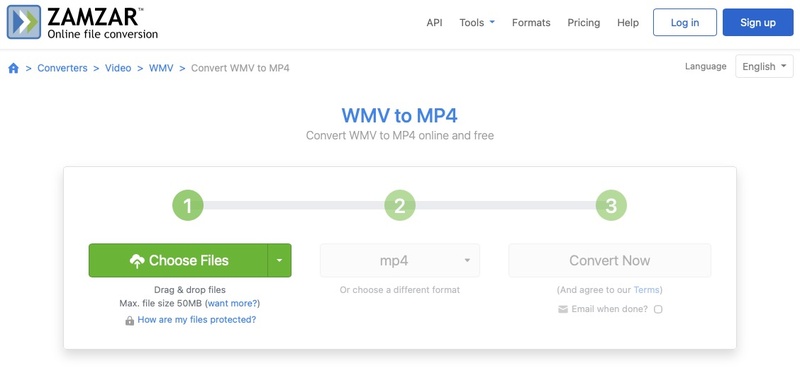
You can use an online DDS converter, such as Convertio, to quickly change DDS files into more widely supported image formats. To convert a DDS file:

  • Open Convertio DDS Converter and upload your .dds file.

    how to convert dds files
  • Select the output format, such as PNG or JPG.

  • Start the conversion and download the converted image file.

Keep in mind that some texture information, such as mipmaps or compression settings, may not remain the same after converting DDS files to other formats.

How to Recover Deleted or Lost DDS Files?

Deleted DDS files can happen due to accidental deletion, formatting, or other storage issues. Check the Recycle Bin, Trash, and available backups first. When no copy is available, data recovery software may help restore lost DDS files.

4DDiG File Recovery is a practical solution for recovering deleted DDS files from supported storage devices. It supports many image formats, including DDS, PNG, JPG, ICO and other common file types, making it useful for recovering lost game textures, 3D resources, and image files.

The recovery process does not require advanced technical knowledge. Follow the steps below to recover deleted DDS files with 4DDiG:

FREE DOWNLOAD

Secure Download

FREE DOWNLOAD

Secure Download

  • Download and install 4DDiG. Launch the software and select the drive where the DDS files were lost. The scan will start automatically after you select the location.

    launch 4ddig and enter interface
  • Find the deleted DDS files in the scan results. Use the file type filter or search feature to quickly locate DDS files among recovered game textures, 3D resources, and other files.

    filter and find recovered DDS files in 4ddig
  • Preview the found DDS files to check whether they are the one you need. Select the DDS files you want to recover and click "Recover".

    preview and recover DDS files with 4ddig
  • Save the recovered DDS files to a different storage location to avoid overwriting the deleted data.

    save recovered DDS files

Conclusion

DDS files are mainly used for game textures and 3D graphics resources rather than everyday images. Understanding what is a DDS file can help you choose the right tools to open, convert, and manage these files. If important DDS files are deleted, 4DDiG can scan supported storage devices and help recover lost DDS files.

William Bollson (senior editor)

William Bollson, the editor-in-chief of 4DDiG, devotes to providing the best solutions for Windows and Mac related issues, including data recovery, repair, error fixes.

(Click to rate this post)

You rated 4.5 ( participated)