How to Recover Deleted Files from a USB Drive (4 Ways)
Accidentally deleting important files from a USB drive can be stressful, especially when the flash drive contains work documents, photos, or backups with no replacement. Many users assume that once files are deleted from a USB drive, they are gone forever.
Fortunately, that is not always true. In this guide, you’ll learn how to recover deleted files from a USB drive safely, understand what really happens when files are deleted, and follow proven recovery methods step by step.
Can You Recover Deleted Files from a USB Flash Drive?
Yes, in most cases, deleted files from a USB flash drive can be recovered. However, recovery depends heavily on what happens after the deletion and how quickly you act.
When files are “deleted” from a USB drive, the data itself is not immediately erased. Instead, the file system simply removes the file reference and marks the space available for new data. Until that space is overwritten, recovery tools can still locate and rebuild the deleted files.
This is why many users can recover permanently deleted files from a USB drive even after emptying folders or using Shift + Delete. The key factor is whether new data has overwritten the deleted files. The less you use the USB drive after deletion, the higher the chances of successful recovery.
Why Are Deleted Files Lost on a USB Drive?
Understanding why files disappear helps you avoid actions that reduce recovery success. Files on a USB drive are commonly lost due to the following reasons:
- Files are removed manually or using keyboard shortcuts without a backup.
- Quick formatting removes file system references, making files appear lost.
- Malicious software can hide, corrupt, or delete files from flash drives.
- Removing the USB drive without safely ejecting it can corrupt file tables.
- Power failures or unstable connections may damage the USB drive’s structure.
After a file loss occurs, your actions immediately afterward are critical. To greatly improve the chances of recovering deleted files from a USB thumb drive, follow these rules:
- Stop using the flash drive immediately
- Do not copy, move, or save anything to the same drive
- Do not run repair tools like CHKDSK before recovery
- Use reliable data recovery software as soon as possible
Ignoring these precautions often leads to permanent data loss.
How to Recover Deleted Files from a USB Drive Without Software?
Before turning to recovery software, some users prefer trying built-in Windows features. These methods can work in limited situations but are not guaranteed.
1Recover via the Restore Previous Versions Feature
Windows includes a feature that allows users to restore earlier versions of files or folders, provided certain system protections were enabled beforehand. So, if you have the “File History” feature enabled already, this method will work for you.
-
Insert the USB drive into your computer. Open File Explorer and navigate to the USB drive.
-
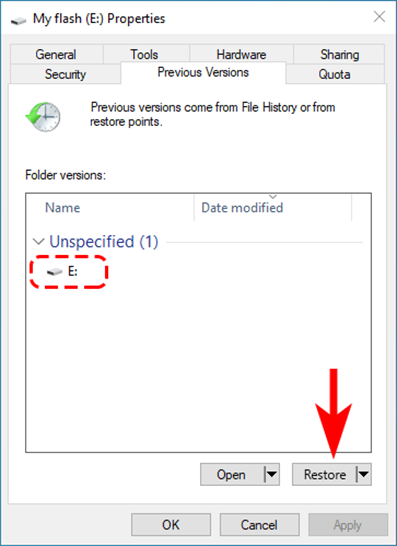
Right-click the folder where the deleted files were stored and select "Restore Previous Versions”.
-
Choose an available version and click “Restore," and it will restore all the files to the version that you selected.
Restrictions of this method: This option only works if File History or System Protection was enabled before deletion. Most USB drives do not have this feature activated by default, making this method unavailable in many cases.
2Restore Using CMD
Command Prompt can sometimes help locate files that are hidden rather than deleted, especially after virus infections.
Connect the USB drive to your PC.
-
Search “CMD” and right click “Command Prompt” then select “ Run as administrator”.
-
Type the following command and press Enter: “attrib -h -r -s /s /d X:.” (Replace X with your USB drive letter)
Check the USB drive for restored files.
Restrictions of this method: CMD does not recover deleted files from a USB flash drive. It only reveals hidden files and folders. If files were removed or overwritten, this method will not help.
How to Recover Deleted Files from a USB Flash Drive?
When manual methods fail, data recovery software becomes the most reliable option. These tools scan the USB drive at a deeper level to locate deleted data fragments and rebuild files.
1 Try 4DDiG Data Recovery
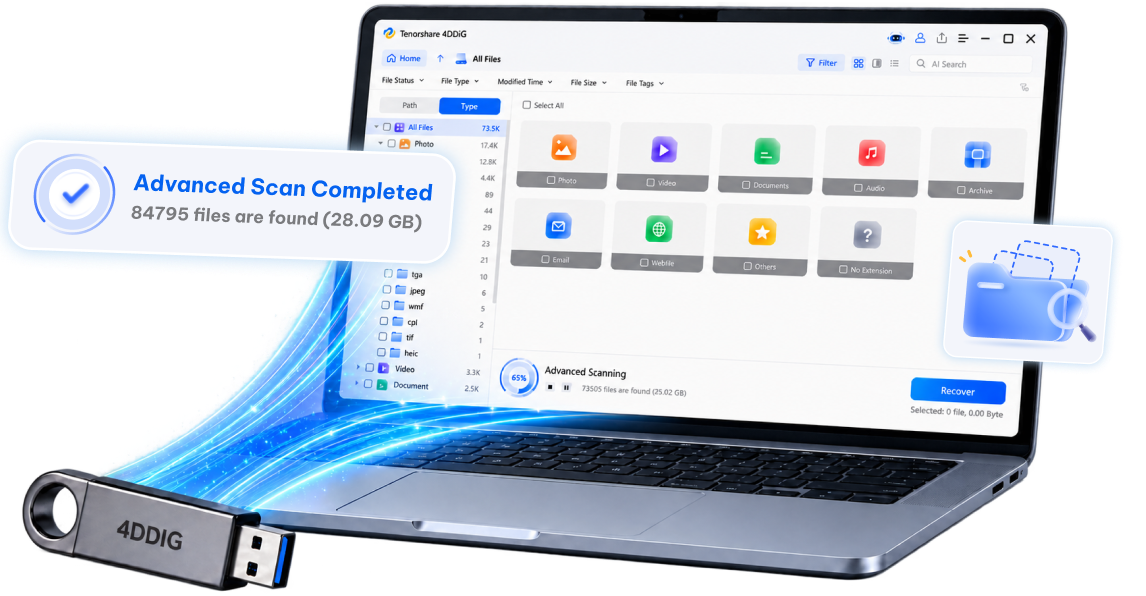
4DDiG Windows Data Recovery is designed to recover deleted, formatted, or inaccessible files from USB drives without modifying the original data. It supports a wide range of file systems and file types, making it suitable for most flash drive recovery scenarios.
-
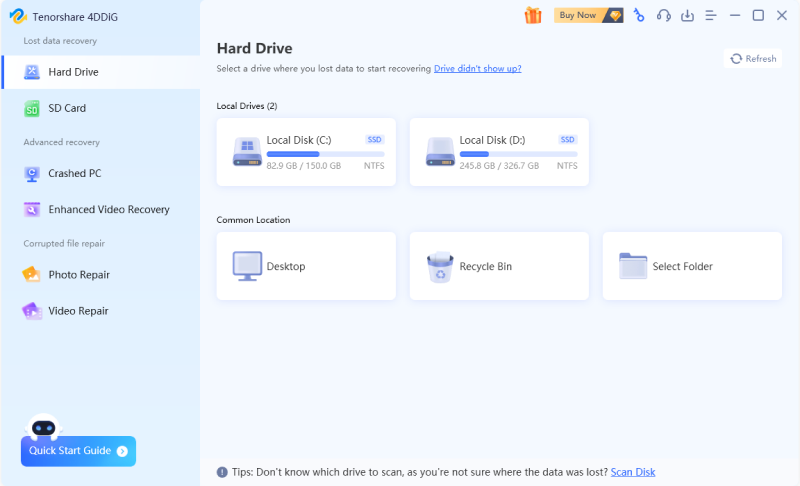
Open 4DDiG Data Recovery on your computer and select the drive where you want to recover the data from.
-
On the left panel, switch to the "Type" tab and choose the file you want to recover, you can choose from Photo, Video, Document...
-
Wait for 4DDiG to complete scanning. After that, select the files you need, and click to have a quick preview. When ready, click "Recover".
-
When you're sure what files to recover, select a new location to save the recoverable files, and begin the process. And it's suggested not to choose the original place to avoid data overwriting.
This method is highly effective for users searching for how to undo deleted files in a USB or retrieve deleted files from a flash drive after accidental deletion or formatting.
2 Try Windows File Recovery Tool
Windows File Recovery is a free command-line utility provided by Microsoft for Windows 10 and 11 users. It can recover deleted files from USB drives, but requires technical knowledge.
-
Download and install Windows File Recovery from the Microsoft Store, then connect your USB drive.
-
Open Command Prompt as administrator by searching for “CMD” in Search and choosing “Run as administrator” after right-clicking Command Prompt.
-
Run a recovery command: “winfr c: e: /n \Users\USERNAME\Documents\” (you need to replace your USB drive letter with “e:” and your username.
-
Once the scan is complete, Windows File Recovery will put your recovered files in your destination drive.
Now that you know the 2 software methods to recover your deleted files on your Windows computer, let's compare the two. The comparison table below will help you decide which provides you with a better user experience and better value.
FAQs About Retrieving Deleted Files from USB Thumb Drive
Q1: When you delete a file from a USB drive, where does it go?
Deleted files on a USB drive do not go to the Recycle Bin. The file system simply removes the reference, marking the space as free. The data remains until overwritten.
Q2: Can I recover permanently deleted files from a USB drive?
Yes. Even permanently deleted files can often be recovered using data recovery software, as long as the storage space has not been overwritten.
Q3: How to recover deleted files on a USB drive on Windows 10/11 for free?
You can try Windows File Recovery or CMD-based methods, but success is limited. Free tools work best when files were deleted recently, and the USB drive hasn’t been reused.
Conclusion
Losing files from a USB drive does not always mean permanent loss. Understanding how deletion works and acting quickly greatly increases recovery success. While built-in Windows tools can help in rare cases, recovery software remains the most reliable solution.
For users looking to recover deleted files from a USB drive safely and efficiently, Tenorshare 4DDiG offers a practical balance of ease, power, and reliability.
Secure Download
Secure Download
ChatGPT
Perplexity
Grok