Macrium Reflect Error 9: Causes & 5 Fixes

5 mins read

Updated on 2026-06-09 17:18:38 to Windows Fix

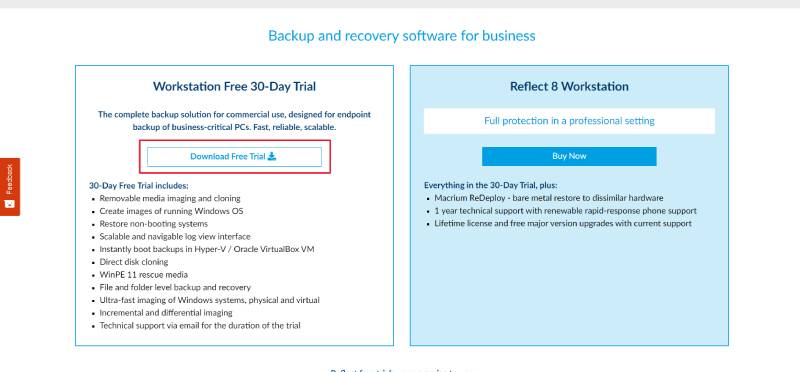
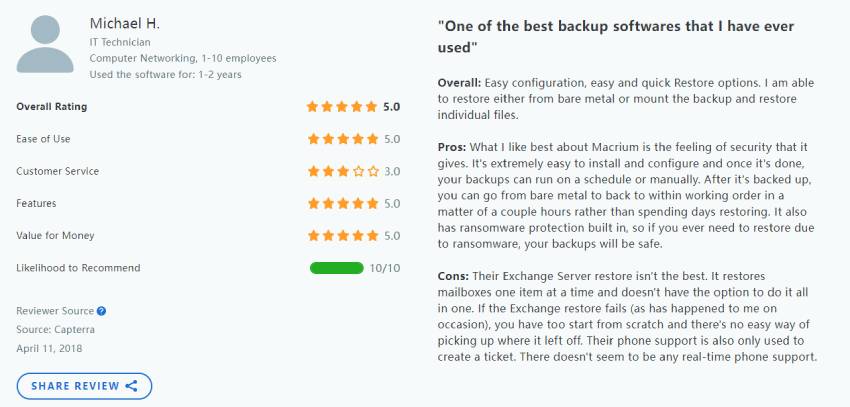
Macrium Reflect Error 9, which typically appears when creating a disk image, cloning a drive, or backing up important files. The error often indicates that Macrium Reflect cannot read data properly from the source drive or write data to the destination drive.

If you’re facing this problem, don’t worry. In this guide, we’ll explain what causes Macrium Reflect Error 9, how to fix it using several proven methods, and how to complete your cloning task successfully with an alternative solution when Macrium Reflect fails.

⚡ Part1.Urgent Fix: Complete Your Clone with 4DDiG Partition Manager

When you encounter Macrium Reflect Clone Failed Error 9 and need to complete disk cloning or data migration urgently, spending hours on troubleshooting may not be the best option. In this case, 4DDiG Partition Manager is a practical alternative to clone your drive or migrate your system more safely and smoothly.

This tool offers a straightforward disk cloning feature that allows users to copy an hard drive to another SSD or HDD without dealing with complicated errors.

  • Download and install 4DDiG Partition Manager on your computer. Launch the software and connect the target drives. Choose the Clone Disk option and select Clone Data Disk.

    FREE DOWNLOAD

    Secure Download

    clone data disk
  • First of all, select the disk that contains the data you want to clone. After that, choose the SSD or HDD that will receive the cloned data.

    select source and target disk
    Note:

    All existing data on the destination drive may be overwritten, so please back up your important data first.

  • Review the disk information and verify that you’ve selected the correct source and destination drives. You can also drag the handle to resize cloned partition.

    preview the clone settings
  • Click Start and allow the software to complete the cloning process. The duration depends on the size of your data.

    click start and sure to clone
  • Once completed, your cloned drive should be ready for use without encountering the errors commonly associated with failed cloning operations.

    clone successfully

Part 2. What Causes Macrium Reflect Error 9?

Understanding the root cause helps determine the most effective solution. Several issues can trigger this error during backup or cloning operations.

Corrupted File System

File system corruption can prevent software from accessing certain files correctly, leading to read errors.

Faulty External Drive Connection

Loose SATA cables, damaged USB cables, or unstable drive connections may interrupt data transfer during cloning.

Antivirus Interference

Some security programs actively monitor disk operations and may block or interrupt cloning processes.

Partition Style Mismatch

Differences between MBR and GPT partition styles can trigger cloning errors and messages such as Macrium unable to match partition.

Bad Sectors on the Source Drive

Physical damage or aging storage devices can develop bad sectors. When Macrium attempts to read data from these damaged areas, the cloning process may fail.

Part 3. How to Solve Macrium Reflect Error 9?

Method 1: Confirm the External Hard Drive Connection

Connection problems are often overlooked but can easily trigger cloning failures. Before attempting more advanced troubleshooting, verify that all hardware connections are secure and functioning properly.

  • Shut down your computer first. Disconnect the external hard drive and inspect the USB or SATA cable for visible damage.

  • Connect the drive to a different USB port. If possible, use a different cable. Test the drive on another computer.

  • Then, launch Macrium Reflect and try cloning again.

If the issue was caused by unstable connectivity, the cloning process may complete successfully after reconnecting the drive.

Method 2: Run CHKDSK Command to Check Bad Sectors

Bad sectors are one of the most common causes of Macrium Reflect error and cloning failures. The built-in CHKDSK utility can scan your drive, repair file system issues, and identify damaged sectors.

  • Press Windows + S and search for Command Prompt. Right-click Command Prompt and choose Run as Administrator.

  • Enter the following command: chkdsk X: /f /r (replace “X” with your drive letter), and Press Enter.

    Note:

    /f repairs detected file system errors, /r locates bad sectors and attempts to recover readable data.

    run chkdsk command
  • Wait for the scan to complete. Next, restart your computer if prompted and retry the cloning operation.

Method 3: Disable Antivirus Program

Security software sometimes interferes with low-level disk operations performed by cloning applications. Temporarily disabling antivirus protection can help determine whether security software is causing the issue.

  • First, open Windows Settings. Go to Privacy & Security > Windows Security.

  • Click Virus & threat protection. Under Virus & threat protection settings, click Manage settings. Toggle Real-time protection to Off.

    disable real time protection
  • After that, close any unnecessary applications running in the background and retry the cloning operation again to check whether the error still appears.

Finally, once the cloning process is complete, remember to turn Real-Time Protection back on to keep your system secure.

Method 4: Convert Disk to MBR/GPT

A partition style mismatch can sometimes trigger cloning failures, converting the disk to the correct format may resolve the problem. 4DDiG Partition Manager provides a simple way to convert disks between MBR and GPT without manually using complex command-line tools.

  • Download and install 4DDiG Partition Manager. Launch the program and select Convert Disk from the left-hand menu. Then choose Convert MBR to GPT (or Convert GPT to MBR if needed) to begin.

    FREE DOWNLOAD

    Secure Download

    mbr to gpt converting
  • Choose the disk that needs conversion and click Continue.

    click continue
  • Once everything is ready, you'll receive a notification reminding you to save any open work and ensure your computer has a stable power supply. Confirm the prompt to proceed.

    click sure to proceed
    Note:

    If you're converting an external hard drive rather than the system disk, the conversion can usually proceed directly without restarting the computer.

  • After the program starts in the PE environment, select the Convert MBR to GPT option again to continue.

    select mbr to gpt again
  • Select the disk you will convert and click Continue to verify your selection before the conversion starts.

    click continue to clone
    Note:

    In the conversion environment, only the system disk may be displayed.

  • The tool will now begin converting the disk. Once the conversion is finished, you'll see a success message. Follow any on-screen instructions to ensure your computer boots correctly after the partition style change.

    follow step 1 follow step 2

After the conversion is complete, launch Macrium Reflect again and retry the cloning operation. In many cases, correcting the partition style mismatch resolves cloning errors and allows the process to finish successfully.

Method 5: Try Alternate Cloning Options: Image Backup

If direct cloning continues to fail, creating a disk image can be an effective workaround.

  • Connect an external hard drive with enough free space. Open Control Panel and go to: System and Security > Backup and Restore.

    backup and restore
  • Click Create a system image from the left panel.

    create a system image
  • Select where you want to save the backup, and choose the drives to include in the backup and click Next. Review the settings and click Start backup.

After the backup is created successfully, store the backup drive in a safe location.

Conclusion

Macrium Reflect Error 9 is usually caused by bad sectors, file system corruption, cyclic redundancy check errors, hardware connection issues, antivirus interference, or partition mismatches. Fortunately, most users can resolve the problem by checking drive connections, running CHKDSK, disabling antivirus software, converting disks between MBR and GPT, or switching to image-based backups.

If you need a faster and more reliable solution, 4DDiG Partition Manager provides powerful disk cloning and partition management features that can help you complete drive migrations without the frustration of repeated cloning failures. Whether you’re upgrading to an SSD or backing up important files, it’s a practical alternative when Macrium Reflect refuses to cooperate.

FREE DOWNLOAD

Secure Download

William Bollson (senior editor)

William Bollson, the editor-in-chief of 4DDiG, devotes to providing the best solutions for Windows and Mac related issues, including data recovery, repair, error fixes.

(Click to rate this post)

You rated 4.5 ( participated)