How to Check Computer Specs in Several Methods?

5 mins read

Updated on 2026-07-31 17:14:32 to Windows Fix

Need to confirm whether a game will run, buy compatible RAM, update a driver, or describe your PC to technical support? How to check computer specs depends on the detail you need. Windows Settings gives a fast summary, System Information identifies the motherboard and BIOS, Task Manager shows hardware plus live usage, and DxDiag focuses on graphics and DirectX. This guide explains exactly where to see my PC specs, what each built-in tool reveals, and where its limits begin. You will also learn what to do when checking storage shows that the system drive is almost full.

1. How to Check Computer Specs: Choose the Right Method

There is no single screen that presents every useful detail equally well. Use the comparison below to decide how to check PC specs without opening several tools unnecessarily.

Method Best for What it shows
Settings > About A quick overview Processor, installed RAM, system type, device model, Windows edition and version
System Information A complete system summary Motherboard, BIOS, processor, memory, model, components, drivers and software environment
Task Manager Hardware details and real-time performance CPU, RAM, GPU, disks, network, speed, capacity and current usage
DirectX Diagnostic Tool Graphics and DirectX information GPU model, VRAM, display mode, graphics driver and DirectX version

Method 1: Check Basic PC Specs in Windows Settings

Settings is the best answer when you ask, “how to see my PC specs quickly?” It takes only a few clicks and covers the information most software installers and support teams request.

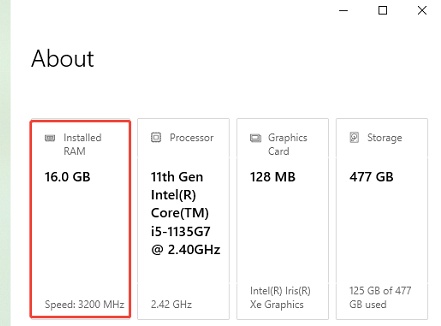
  • Press Windows + I to open Settings. Select System, scroll down, and open About.

    click about
  • Read Device specifications for the processor, installed RAM, device model, device name, and 32-bit or 64-bit system type.

  • Check Windows specifications for the edition, version, installation date, and OS build.

Settings gives a clean overview of your basic PC specifications. The Copy buttons also make it easy to paste the details into a support ticket or compatibility checklist.

Limitation: The About page does not show your dedicated GPU, VRAM, motherboard model, RAM speed, individual storage drives, or CPU core count. Use the next methods when those details matter.

Method 2: View Full Computer Specs with System Information

  • Press Windows + R, type msinfo32, and press Enter.

  • Select System Summary for the main hardware and Windows details.

  • Expand Components to inspect storage, display, network, sound, and other devices.

    specs in system information

Important Fields to Check

  • System Manufacturer and System Model: Useful for finding the correct OEM support page, manuals, and drivers.
  • BaseBoard Manufacturer and BaseBoard Product: Identifies the motherboard in many desktop systems.
  • Processor: Shows the CPU model and clock information for checking CPU specs and software requirements.
  • Installed Physical Memory: Reports the RAM recognized by Windows.
  • BIOS Version/Date and BIOS Mode: Helps with firmware updates and confirms whether the PC uses UEFI or Legacy mode.
  • Secure Boot State: Useful when checking ame anti-cheat or Windows 11 requirements.

Method 3: Check CPU, RAM, GPU, and Storage in Task Manager

  • Press Ctrl + Shift + Esc to open Task Manager.

  • Select Performance. If necessary, click More details first.

  • Choose CPU, Memory, Disk, GPU, or Wi-Fi/Ethernet in the left pane. Read the model and hardware values below each graph.

    pc specs in task manager

Limitation: Task Manager prioritizes performance, so it does not give a complete motherboard or BIOS report. Storage model reporting can also vary by controller and driver.

Method 4: Check GPU, VRAM, and DirectX Specs with DxDiag

Use the DirectX Diagnostic Tool when a game, graphics application, or support agent asks for GPU, display driver, audio, or DirectX information.

  • Press Windows + R, type dxdiag, and press Enter.

  • Open the Display or Render tab to see the GPU name, manufacturer, display memory, current display mode, and driver details.

    system details in directx tool
  • Check the System tab for the processor, memory, Windows build, and DirectX version.

  • Select Save All Information to create a text report.

⚡ Bonus Tip: What to Do If Your Computer is Low on Storage

Checking your hardware may reveal that the C drive has little free space. Low storage can block Windows updates, limit temporary files, and slow tasks that need room for caches. Instead of deleting random folders, use a review-first cleanup program.

With 4DDiG Partition Manager, you can automatically scan the drive and perform a deep cleanup that targets junk files, temporary data, and system clutter while carefully preserving important personal files and essential system data.

  • Download and install 4DDiG Partition Manager from the official website. Launch it and go to the Windows Clean module. Select the types of junk files you want to clean and click Start Scan button to begin scanning.

    FREE DOWNLOAD

    Secure Download

    windows clean
  • After scanning, the tool will display temporary files, system caches, log files, and other junk that can be safely removed. Select the file categories you want to delete and click Clean to proceed.

    select items to clean
  • Once complete, the tool will confirm how much space has been freed.

    clean successfully

If cleanup does not release enough room, the problem may be partition size rather than junk files. Back up important data, open Partition Management, and use Resize/Move or an appropriate extend operation to add usable space to C from available disk space.

More FAQs About PC Specifications

1. Where to see my PC specs?

Open Settings > System > About for the quickest overview. Use System Information for motherboard and BIOS details, Task Manager for CPU, RAM, GPU, and storage performance, and DxDiag for graphics and DirectX data.

2. What are my PC specs?

Your specifications include the processor, RAM capacity and speed, graphics processor, storage type and capacity, motherboard or PC model, Windows edition, system architecture, and firmware. The relevant list depends on your goal: a game mainly needs CPU, GPU, RAM, storage, and Windows details, while a hardware upgrade may also require motherboard and slot information.

3. How to see CPU specs?

Open Task Manager with Ctrl + Shift + Esc, select Performance > CPU, and read the model, speed, cores, and logical processors. For a simple processor name, use Settings > System > About. For a report that includes BIOS and motherboard context, run msinfo32.

Conclusion

The simplest way to learn how to check computer specs is to match the tool to the question. Settings supplies a fast overview, System Information gives the broadest built-in report, Task Manager combines hardware details with live usage, and DxDiag concentrates on graphics and DirectX. If the inspection shows that C is nearly full, remove verified junk first with 4DDiG Partition Manager’s Windows Clean feature. When cleaning is not enough and suitable space exists elsewhere on the disk, consider extending the C drive after backing up important files and reviewing the partition layout.

FREE DOWNLOAD

Secure Download

William Bollson (senior editor)

William Bollson, the editor-in-chief of 4DDiG, devotes to providing the best solutions for Windows and Mac related issues, including data recovery, repair, error fixes.

(Click to rate this post)

You rated 4.5 ( participated)