Mac SSD Data Recovery: How to Recover Lost Files from SSD on Mac

5 mins read

Updated on 2026-05-26 14:56:12 to Data Recovery

Deleted files on Mac SSDs can become permanently unrecoverable within minutes because of TRIM technology and fast storage overwrite behavior. Accidental deletion, formatting, corrupted APFS partitions, and failed macOS updates are some of the most common causes of SSD data loss.

The following recovery methods focus on Mac SSD data recovery: Time Machine restoration, SSD recovery software, and situations where professional recovery services become necessary.

mac ssd data recovery

Can I Recover Data from an SSD on Mac?

SSD recovery on Mac is possible in many situations, but recovery success depends heavily on TRIM activity, overwrite timing, and SSD health condition. Recently deleted files, backup snapshots, and recoverable APFS metadata provide the highest recovery chances before storage sectors are overwritten permanently.

Recovery success rates drop significantly after TRIM executes deletion cleanup tasks automatically on modern SSDs. Users attempting to recover data from SSD Mac systems should immediately stop writing new files to the affected drive. Continued usage increases overwrite probability and reduce recoverable storage sectors.

Why SSD Data Recovery on Mac Is Difficult?

Modern SSD architecture prioritizes storage performance and lifespan optimization rather than long-term deleted-file retention. TRIM execution, rapid data allocation, and macOS storage optimization mechanisms make SSD recovery more difficult compared to traditional hard drives.

Reason 1: TRIM Automatically Removes Deleted Data

TRIM allows macOS to notify SSD controllers that deleted blocks are no longer required. The SSD then wipes these blocks proactively to improve write performance and extend storage lifespan. Once TRIM completes cleanup operations, deleted files often become unrecoverable because physical storage blocks no longer contain intact file structures.

Reason 2: Deleted Data Is Quickly Overwritten

SSDs distribute writes dynamically across storage cells using wear-leveling algorithms. Deleted sectors can therefore be reassigned rapidly during normal system usage. Installing applications, downloading files, or updating macOS after deletion increases the overwrite probability substantially.

This is one of the main reasons professional recovery attempts to recommend minimizing SSD activity immediately after data loss occurs.

Reason 3: macOS Storage Optimization Reduces Recoverable Space

macOS storage optimization tools aggressively manage cache files, local snapshots, and temporary system data to maximize available SSD capacity.

These background cleanup tasks may unintentionally overwrite deleted storage sectors. iCloud synchronization, automatic cache clearing, and Spotlight indexing can also modify recoverable storage areas during normal system operation.

notes Summary

SSD data recovery on Mac is harder than on HDD because of TRIM, fast data overwriting, and system optimizations. To improve recovery chances, stop using the SSD immediately and try recovery as soon as possible before new data replaces the deleted files.

How to Recover Data from SSD on Mac?

Trash restoration, Time Machine recovery, SSD recovery software, and professional data recovery services are the most practical recovery methods for deleted Mac SSD data.

Recovery success depends primarily on how quickly recovery procedures begin after file deletion occurs.

Method 1: Check Trash and Recently Deleted Folder

Recently deleted files commonly remain inside Trash or application-specific Recently Deleted folders temporarily before permanent removal occurs. Recovering files from these locations preserves original filenames, metadata, and directory structure. Here's how to do:

  • Click the “Trash” icon in the Dock and browse the deleted files and folders carefully.

  • If you find the missing file, right-click it and select “Put Back” to restore it to its original location.

    put back mac ssd files from trash

Method 2: Use Time Machine Backup

Time Machine backups provide one of the safest and most reliable solutions for restoring deleted SSD files on macOS. Backup snapshots preserve historical file versions even after local SSD deletion occurs. Using Time Machine significantly improves recovery reliability for users performing Mac SSD data recovery after accidental formatting or file deletion.

  • Connect your Time Machine backup drive to the Mac, or if you store your Time Machine backups in the built-in drive, then move to the next step.

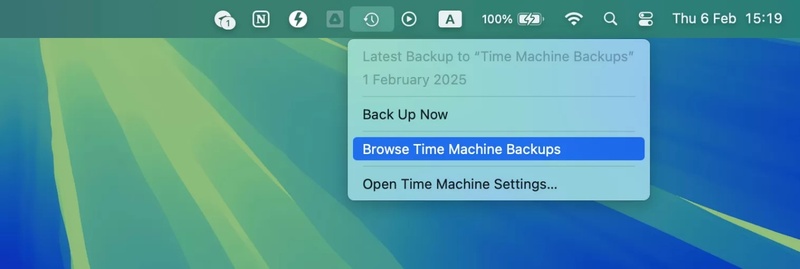
  • Open the folder where the lost file was originally stored and click the “Time Machine” icon in the top menu bar, then select “Enter Time Machine.”

    mac ssd data recovery from time machine
  • Use the timeline on the right side of the screen to browse older backups, then locate the file or folder you want to recover. Select the item and click "Restore," and the recovered file will return to its original location.

Method 3: Recover Using Data Recovery Software

Deep scanning can help detect deleted SSD files before they are permanently overwritten. In many cases, early recovery improves the chance of restoring APFS metadata and file fragments.

4DDiG for Mac can scan internal and external SSDs to recover deleted or overwritten documents, photos, videos, and archives, including data lost from formatted or corrupted APFS and HFS+ partitions. It also allows users to preview recoverable files before restoring them on MacBook Pro, MacBook Air, iMac, and Mac mini systems. Follow the steps:

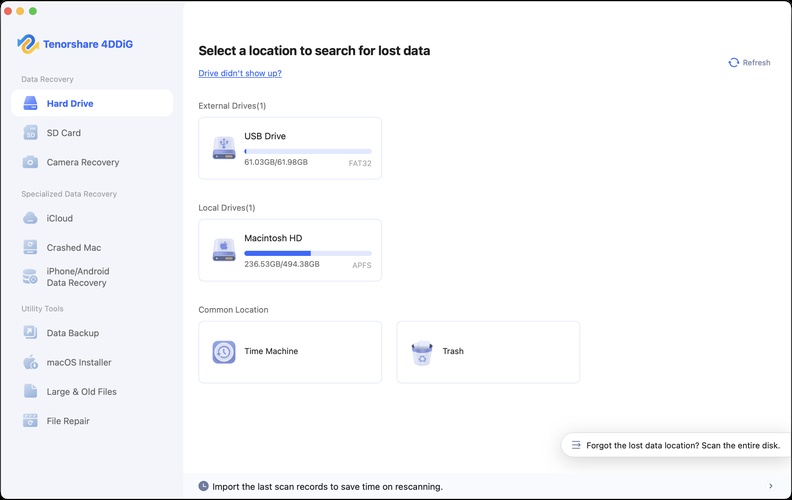
  • Launch 4DDiG Mac after downloading and installing it on your Mac. Connect the SSD on which you want to perform data recovery, if it is not an internal one, and click on it from the list of drives to begin scanning.

    4ddig mac main interface
  • Wait for the scanning to complete, and when it is complete, then use "Filters”, “Path”, "Type", or "Search" options to find the files you want from data recovery on Mac SSD.

    preview all recoverable files on mac 4ddig
  • Click the file to see its preview, and for the ones you want to recover, click the "Recover" button.

    click to recover files on mac 4ddig
  • Finally, select a safe location to save the Mac files and click “Save Now”.

    save recovered files on mac 4ddig

Method 4: Send Your SSD to a Data Recovery Service

Physically damaged SSDs, controller failures, burned NAND chips, and inaccessible logic boards often require specialized hardware-level recovery procedures. Professional recovery labs use chip-off extraction, firmware reconstruction, and advanced forensic tools unavailable in consumer recovery software.

Professional intervention is recommended immediately for SSDs producing clicking sounds, overheating symptoms, or complete detection failure.

When SSD Data Cannot Be Recovered?

Certain SSD failure conditions permanently eliminate recoverable file structures regardless of recovery software or hardware-level repair attempts. Understanding these limitations helps avoid unnecessary recovery attempts and additional SSD damage. Cases where SSD recovery may fail:

· TRIM Fully Erased the Deleted Sectors

Completed TRIM cleanup operations often remove the remaining physical traces of deleted files permanently.

· Overwritten Storage Blocks Replaced Original Data

Installing new applications, copying files, or updating macOS may overwrite deleted sectors completely.

· Severe SSD Hardware Damage Exists

Burned controllers, damaged NAND chips, or failed PCB components may prevent storage access entirely.

· Encryption Keys Became Corrupted

FileVault-encrypted SSDs rely heavily on intact encryption metadata. Corrupted encryption keys can make stored data inaccessible permanently.

· SSD Firmware Corruption Prevents Detection

Firmware-level failure may stop the Mac from detecting the SSD entirely, limiting software-based recovery possibilities.

Conclusion

Successful Mac SSD data recovery largely depends on how quickly recovery is attempted after data loss, such as deletion, formatting, or corruption. Common recovery options include Trash restoration, Time Machine backups, and recovery software, depending on the situation.

For deleted files or inaccessible APFS storage, 4DDiG Mac data recovery provides a recovery solution designed for modern macOS systems.

FREE DOWNLOAD

Secure Download

FREE DOWNLOAD

Secure Download

William Bollson (senior editor)

William Bollson, the editor-in-chief of 4DDiG, devotes to providing the best solutions for Windows and Mac related issues, including data recovery, repair, error fixes.

(Click to rate this post)

You rated 4.5 ( participated)