How to Prepare Mac for macOS 27 Update: Complete Checklist

5 mins read

Updated on 2026-08-17 18:59:59 to Mac Update

A macOS update is usually straightforward, but a little preparation can help you avoid installation errors, app compatibility problems, and missing files. Whether you are installing a routine update or moving to a major release such as macOS 27, follow to see how to prepare mac for macOS 27 Golden Gate update before you begin.

how to prepare mac for macos update

What Should I Do Before Updating My Mac?

Before updating your Mac, you can make some preparations using this quick checklist:

  • Make sure your Mac supports the new macOS version.
  • Confirm that your essential apps, plug-ins, and devices are compatible.
  • Check that you have enough free storage for the update.
  • Back up your Mac and keep a second copy of irreplaceable files when needed.
  • Update essential apps and install available updates for your current macOS version.
  • Resolve existing disk errors or system problems.
  • Use a stable internet connection and connect a MacBook to power.
  • Save your work, finish file transfers, and close open apps.
  • Make sure you have your administrator password and Apple Account information.
  • Consider waiting if the release is a beta or you rely on the Mac for critical work.

1. Check Whether Your Mac Supports the macOS Update

First, make sure your Mac supports the macOS version you plan to install. An unsupported Mac cannot install the release through the normal update process, and some new features may require a newer chip or Mac model.

To identify your Mac model:

  • Open the "Apple menu" in the upper-left corner.

  • Select "About This Mac".

    check mac version under about this mac
  • Note the model name, model year, and chip or processor.

  • Compare those details with the supported models for the macOS version you plan to install.

If you are preparing for macOS 27, review its compatibility and supported Mac information. Do not judge compatibility by appearance or approximate age alone. Two similar-looking Macs may use different processors and have different support status.

A supported Mac may still miss some advertised features. Check the requirements for any feature that matters to you, especially one that requires Apple silicon or other specific hardware.

2. Check Whether Your Important Apps and Devices Are Compatible

Next, confirm that the apps and devices you use every day support the new macOS version. Check common essentials such as Microsoft Office, Adobe apps, VPN software, printers, external drives, and docks. If you use professional audio, video, or design tools, also check their plug-ins, drivers, and hardware.

Review compatibility for:

  • Professional photo, video, design, and audio apps
  • Audio units, plug-ins, and virtual instruments
  • VPN, security, backup, and disk management tools
  • Printer and scanner drivers
  • External drives, docks, and display adapters
  • Audio interfaces and video capture hardware
  • Older utilities that use system extensions

Check the developer's or manufacturer's support page to confirm that your installed version works with the new macOS release. Verify the exact version number; the product name alone does not confirm compatibility.

If compatibility is unclear, contact the developer or wait for an update. If the Mac is critical to your work, test the new system on another computer before updating your main machine.

3. Check How Much Free Storage Your Mac Has

Check your available storage before downloading the macOS update. Your Mac needs space for the installer, temporary files, and the updated system. The exact amount varies by release and by your current setup, so use the requirement shown for your update.

To check available storage:

  • Open the "Apple menu".

  • Select "System Settings".

  • Go to "General > Storage".

    check mac storage
  • Wait for macOS to calculate how your storage is being used.

  • Compare the available space with the requirement shown for the update.

If storage is low, delete files you no longer need, uninstall unused apps, and move large personal files to an external drive or cloud storage. Review the Downloads folder, then empty the Trash after making sure it contains nothing important.

Do not delete files you do not recognize from the System or Library folders. Removing the wrong files can damage macOS or your apps without freeing much useful space.

4. Back Up Your Mac Before Updating

Back up your Mac before a major macOS upgrade. Updates normally keep your personal files, but a current backup gives you a way to recover if the installation fails, the drive develops a problem, or you need to restore an earlier setup.

1 Back Up Your Mac with Time Machine

Time Machine is built into macOS and can create ongoing backups on an external storage device. Use it to keep a restorable copy of your files and other supported data.

To create a Time Machine backup:

  • Connect an external drive with enough space for your Mac's data.

  • Open "System Settings".

  • Select "General > Time Machine".

  • Click "Add Backup Disk" and choose the external drive.

    create time machine backup
  • Follow the prompts to configure the drive.

  • Start a backup if one does not begin automatically.

  • Keep the drive connected until Time Machine reports that the backup is complete.

Do not disconnect the drive while the backup is running. Before installing macOS, open Time Machine settings and confirm that a recent backup is listed.

After checking the backup, disconnect the drive before the upgrade unless Apple's instructions say otherwise. Keeping it separate helps protect the backup during installation or troubleshooting.

2 Back Up Important Files Separately

For irreplaceable files, consider keeping more than one backup. Copy critical documents, photos, project files, recovery keys, and other essential data to a separate drive or trusted cloud service.

Wait for copying or syncing to finish before you update. Open a few files from the backup location to make sure they are accessible.

Cloud syncing is useful, but it is not always an independent backup. A deletion or unwanted change may sync to every device. Keep a separate copy when losing a file would have serious consequences.

5. Update Your Apps Before Updating macOS

Update the apps you rely on before changing macOS. Recent versions are more likely to include compatibility fixes, while older apps may not work correctly after a major upgrade.

For App Store software:

  • Open the "App Store".

  • Select "Updates".

  • Install available updates for the apps you plan to keep using.

For apps installed outside the App Store, open each app and look for its update option. You can also get the latest version from the developer's official website.

Take extra care with professional software. An update may affect plug-ins, file compatibility, or licensing. Make sure your entire workflow, not just the main app, supports the new macOS version.

6. Install the Latest Updates for Your Current macOS Version

Before upgrading to a new major macOS version, install the latest updates available for your current version. These may include security, firmware, and stability fixes that help prepare the Mac for the upgrade.

To check for updates:

  • Open "System Settings".

  • Go to "General > Software Update".

  • Review the update name and version carefully.

  • Install the updates that apply to your current system.

  • Restart the Mac if prompted.

Read the Software Update screen carefully before you continue. It may show both an update for your current system and an upgrade to a new major macOS version. Choose the one you intend to install.

After your Mac restarts, return to Software Update and confirm that your current system is up to date.

7. Check Your Mac for Disk or System Problems

Fix existing disk or system problems before installing a major macOS update. If your Mac crashes often, reports disk errors, or behaves unpredictably, do not treat an upgrade as a general repair.

Disk Utility's First Aid feature can check the startup disk for certain file system or disk structure problems:

  • Save your work and close open applications.

  • Open "Disk Utility" from the Applications folder.

  • Choose "View > Show All Devices" if you cannot see the full storage structure.

  • Select the relevant volume in the sidebar.

  • Click "First Aid", then confirm that you want to run it.

    run first aid on mac
  • Review the results when the check finishes.

First Aid cannot find every hardware or software problem. If it reports an error it cannot repair, or your Mac keeps crashing, resolve the issue before updating. Get qualified technical help if the drive may be failing or important data is at risk.

8. Prepare Power and a Stable Internet Connection

Use a stable internet connection and keep your Mac connected to reliable power during the update. A weak network can interrupt the download, and a loss of power during installation may cause a more serious problem.

Before starting:

  • Connect a MacBook to its power adapter.
  • Make sure the battery is charging.
  • Use a stable, trusted internet connection.
  • Avoid public networks that require repeated browser sign-ins.
  • Pause large downloads or other activity that may slow the connection.
  • Set aside enough time for the download, preparation, installation, and restarts.

Do not force-restart your Mac just because the update seems slow. The screen may not change for a while, and the Mac may restart more than once. Wait unless Apple's troubleshooting guidance specifically recommends a restart.

9. Save Your Work and Prepare Your Account Information

Right before the update, save your work and close anything that should not be interrupted. Your Mac will restart during installation, and unsaved changes can be lost even if the macOS update finishes successfully.

Complete these final preparations:

  • Save all open documents.
  • Make sure important files have finished uploading or syncing.
  • Close applications.
  • Finish active file transfers.
  • Eject external storage that is not needed for the installation.
  • Make sure you know the Mac administrator password.
  • Keep your Apple Account information and a trusted device nearby.
  • Record any software license information you may need later.

If other people use the Mac, ask them to save their work and sign out before you start.

10. Decide Whether You Should Update Immediately or Wait

You do not have to install a macOS update as soon as it becomes available. Waiting may be safer if the release is a beta, has just launched, or could disrupt a Mac you rely on for essential work.

Consider waiting if:

  • You are evaluating a beta version of macOS.
  • The new major release has just launched.
  • Your Mac is essential for business, school, or production work.
  • An essential app has not confirmed compatibility.
  • You depend on specialized plug-ins, drivers, or external hardware.
  • You do not have a verified backup.

You can usually update once your Mac and essential tools are compatible, your backup is complete, and you have enough time for the installation. If you are deciding whether to upgrade to macOS 27, consider app compatibility, system stability, and how much downtime you can afford.

What If Files Are Missing After macOS 27 Golden Gate Update?

A macOS update normally keeps your personal files, but some may appear to be missing afterward. Before assuming they are deleted, check Finder, iCloud Drive, the Trash, other user accounts, and your Time Machine backup.

If you still cannot find the files, 4DDiG Mac Data Recovery can scan your Mac for recoverable photos, videos, documents, and other common file types. It is suitable for files that were lost, deleted, or became inaccessible after a macOS update, especially when no backup is available.

FREE DOWNLOAD

Secure Download

FREE DOWNLOAD

Secure Download

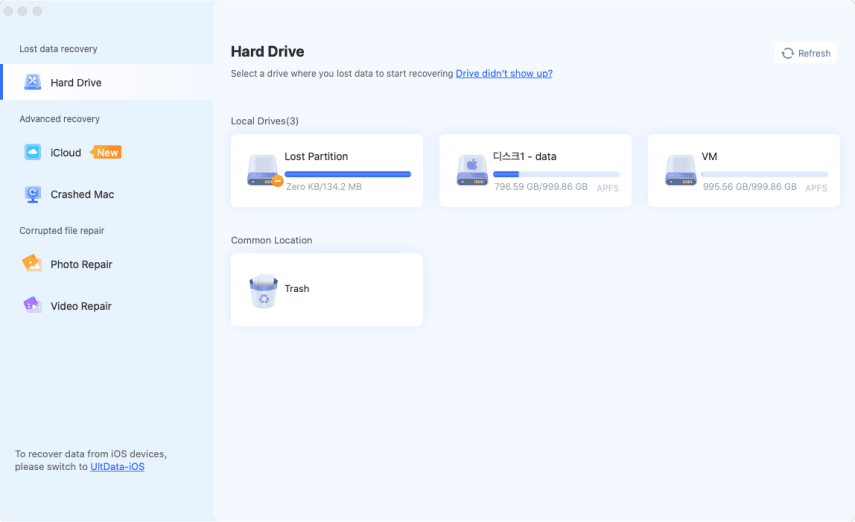
  • Download and open 4DDiG. Select the Mac drive that contained the missing files, then start the scan.

    4ddig mac main interface
  • 4DDiG scans the selected drive for recoverable files. Use filters or search to find missing photos, videos, documents, and other files.

    preview all recoverable files on mac 4ddig
  • Preview the files found by the scan. Select the files you need, then click the "Recover" button.

    click to recover files on mac 4ddig
  • Save the recovered files to a different location. Do not save them back to the original drive, because doing so may overwrite other recoverable data.

    save recovered files on mac 4ddig

FAQs About Preparing a Mac for an Update

Do I need to back up my Mac before updating?

Yes. Back up your Mac before installing a macOS update, especially a major upgrade or beta. Updates normally preserve personal data, but a verified backup gives you a recovery option if installation fails or files become inaccessible.

How much free space should I have before updating macOS?

There is no single free-space requirement for every macOS update. The amount depends on the release, installer, and your current system. Check Software Update or Apple's documentation, and leave extra room for temporary installation files.

Should I update my apps before updating macOS?

Yes. Update essential apps before changing macOS when compatible versions are available. Recent releases may support the new operating system, but professional users should also check plug-ins, drivers, file formats, and licensing.

Should I clean my Mac before updating?

Clean your Mac only if storage is low or unnecessary files are causing problems. Remove downloads you recognize, unused apps, and disposable files. Do not delete unfamiliar system data or run aggressive cleaning tools right before an upgrade.

Can I use my Mac while macOS is updating?

You may be able to use your Mac while the update downloads or prepares, but not during installation and restarts. Save your work first, then leave the Mac connected to power until the process is complete.

Conclusion

To prepare your Mac for a macOS update, confirm compatibility, fix existing problems, and create a backup you have verified. Wait to update if an essential app is not supported or you cannot risk downtime on a work-critical Mac.

If the update is complete and files are truly missing with no usable backup, 4DDiG Mac File Recovery can scan the affected storage for recoverable data.

FREE DOWNLOAD

Secure Download

FREE DOWNLOAD

Secure Download

William Bollson (senior editor)

William Bollson, the editor-in-chief of 4DDiG, devotes to providing the best solutions for Windows and Mac related issues, including data recovery, repair, error fixes.

(Click to rate this post)

You rated 4.5 ( participated)