[2026 Tricks] How to Fix Word Not Responding | How to Save
Few things are more frustrating than seeing Microsoft Word suddenly freeze while you’re in the middle of important work. Whether it happens during saving, editing, or opening a document, the Word not responding issue can put your data at serious risk.
The good news is that many freezes are temporary, and unsaved content can often be recovered. This guide explains why Word stops responding, how to save your work safely, and proven fixes for both partial and complete freezes.
Why Is My Word Not Responding?
When Word becomes unresponsive, it’s usually reacting to an internal conflict rather than failing completely. Understanding the underlying causes can help you choose the safest fix and avoid repeating the problem. Common reasons for Word not responding issue include:
- Large or corrupted Word documents
- Conflicting or outdated add-ins
- Insufficient system memory or disk space
- Hardware graphics acceleration issues
- Outdated Microsoft Office or Windows versions
- Antivirus or firewall interference
- Damaged Word installation files
⚡ How to Save When Word Is Not Responding?
When Word freezes, your priority should always be saving your work. Even if the program seems stuck, Word often continues running in the background. Acting carefully at this stage can prevent permanent data loss. The following methods focus on saving or recovering content before attempting repairs.
1 Save Word Files with Shortcut
If Word is slow but not completely frozen, keyboard shortcuts may still work. This method is especially useful when menus are unresponsive, but the cursor is still visible. Trying to save manually is always worth doing before closing it when Microsoft Word is not responding.
Press “Ctrl + S” on Windows or “Command + S” on Mac.
-
Wait at least 1–2 minutes to see if Word processes the save request.
-
If prompted, choose a different file name or save location in the “Save As” window.
Avoid clicking repeatedly, as this may worsen the freeze.
2 Use AutoRecover to Restore Unsaved Word document
Microsoft Word includes an AutoRecover feature designed specifically for unexpected shutdowns or freezes. Even if Word crashes, AutoRecover may have saved a recent version of your document automatically. This feature is enabled by default in most Word installations.
-
Open MS Word, and the Document Recovery pane will open on the left side upon opening any document.
-
Choose the document that you want to recover from the list and save it as a new file to a secure location.
3 Try the "Recover Unsaved Documents" Feature
If AutoRecover doesn’t appear automatically, Word still provides a built-in recovery option. This feature scans temporary storage for unsaved files created during the session. It’s particularly helpful when Word was force-closed.
-
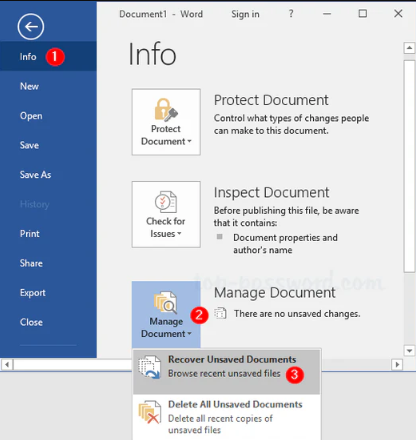
Reopen Microsoft Word after the freeze and go to "File → Info → Manage Document → Recover Unsaved Documents".
-
Select the latest AutoRecovered version and save it immediately to a secure location.
4 Use Data Recovery Software to Recover Unsaved Word Documents
When built-in Word recovery options fail, specialized recovery software becomes essential. This situation usually occurs when Word crashes abruptly; files are overwritten, or temporary data is deleted. In such cases, relying solely on Word is no longer enough.
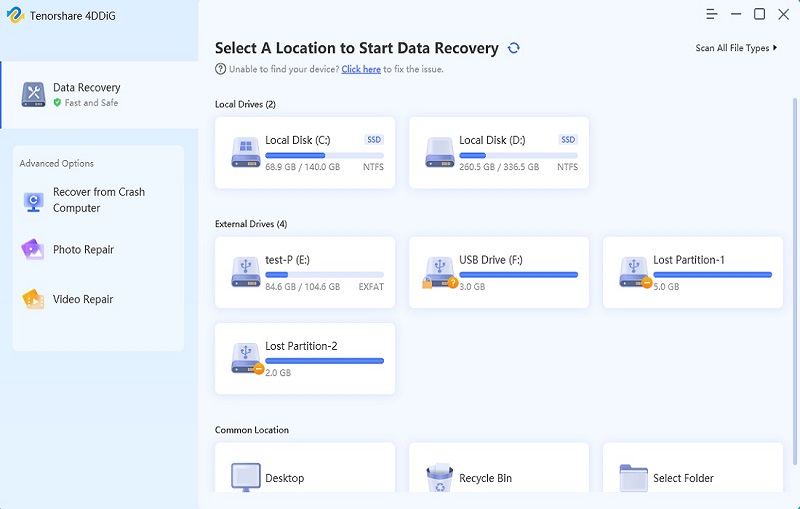
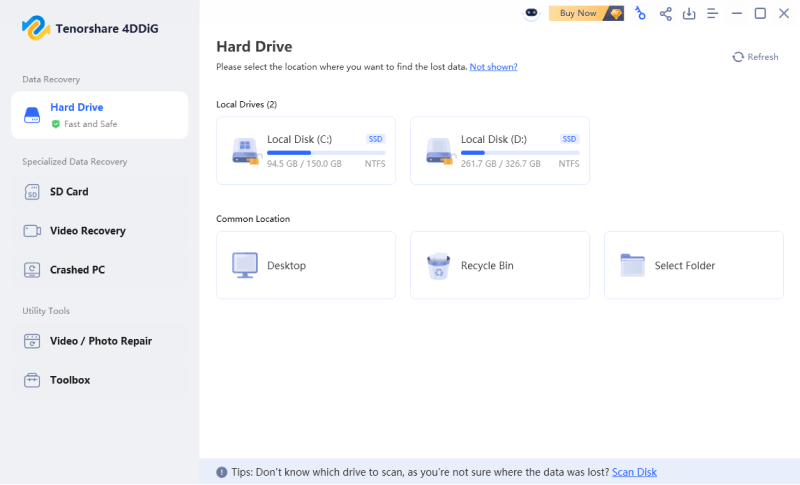
4DDiG Data Recovery is designed to recover unsaved, deleted, or lost Word documents from local storage. It scans temporary files, system caches, and document paths where Word content is often stored during editing. This makes it highly effective when Word not responding results in lost work.
Secure Download
Secure Download
-
Install and launch 4DDiG Windows Data Recovery and select the drive where Word files were stored or where Word always stores its documents by default.
-
4DDiG will automatically scan the drive for your document files. Once the scanning is complete, use the “Search” and “Filter” features to narrow down the results.
-
Preview recoverable Word documents by double-clicking them to see file contents, then click “Recover” button to proceed.
-
Next, pick a location and click "Save Now” to save the recovered files, please store them to somewhere save to prevent data overwriting risk.
How to Fix Word Not Responding? (Partially Responsive)
If Word still opens but behaves slowly or freezes during certain actions, the issue is often caused by settings or extensions. These fixes can be accessed directly within Word without reinstalling the program. Addressing them early can restore normal performance quickly.
1 Disable Add-ins
Add-ins extend Word’s functionality but can also cause conflicts. If Word freezes during startup or specific actions, add-ins are a common culprit. Disabling them helps isolate the problem.
Open Word and click “File", then open "Options”.
-
Select “Add-ins” and at the bottom, choose “COM Add-ins" then click “Go”.
Uncheck all add-ins, then click “OK” and restart Word.
2 Disable Hardware Graphics Acceleration
Hardware acceleration improves performance on capable systems, but it can cause freezing on incompatible graphics drivers. Disabling it often stabilizes Word instantly. This fix is especially effective on older computers to fix the Microsoft Word does not respond issue.
Open Word and go to “File” then “Options”.
-
Click “Advanced” and scroll to “Display," then check “Disable hardware graphics acceleration” and restart Word.
3 Update Word to the Latest Version
Outdated versions of Word may contain bugs that cause freezing or crashes. Microsoft regularly releases performance and stability updates. Keeping Word updated reduces compatibility issues.
Open Word and go to "File" then choose "Account."
-
Locate "Update Options" and click "Update Now."
-
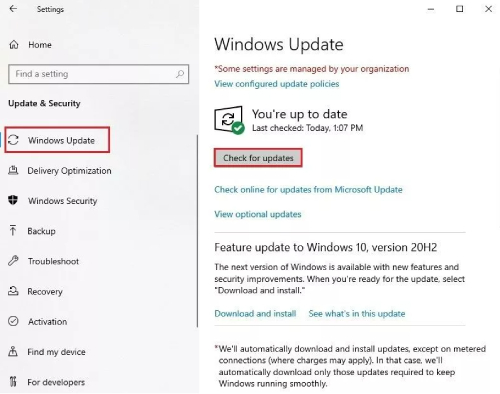
Once the update is complete, you will see the “You are up to date” window. Close it and restart Word if your Microsoft Word stops responding or does so often.
How to Fix Word Not Responding? (Completely Frozen)
When Word becomes fully unresponsive, stronger measures are required. These fixes focus on restoring control without losing work whenever possible. Follow the steps carefully to minimize the risk of permanent data loss.
1 Close Word in Task Manager
If Word refuses to close normally, Task Manager provides a controlled way to end the process. This is often necessary before recovery features can activate. After this, you can normally restart Word and recover your work. Here is how to close Microsoft Word when it is not responding:
-
Press “Ctrl + Shift + Esc” to open Task Manager and locate “Microsoft Word” under the "Processes” tab.
-
Right-click MS Word and choose "End Task”.
Reopen Word and check for recovery options.
2 Free Up System Space
Low disk space can cause Word to freeze while saving or editing. Word needs temporary space to function correctly. Clearing space often restores stability because it also allows the OS to have more virtual RAM for processing Word document contents. Here is how to fix Word not responding without losing work:
-
Open Settings and go to “System", then open “Storage” and go to “Cleanup Recommendations”.
-
Delete “temporary files” or others. After you select these, you need to click the “Clean Up” button.
3 Repair the Word Document Before Opening
Sometimes a single corrupted document causes Word to freeze. Word’s built-in repair feature can fix this without affecting other files. This method is ideal when only one document triggers the problem.
-
Open Word and click “File", then go to "Open" to browse for the problematic file.
-
Click the dropdown arrow next to Open and select “Open and Repair”.
4 Boot Word in Safe Mode
Safe Mode starts Word without add-ins or custom settings. This helps determine whether the issue is caused by extensions or configuration problems. In this way, you can remove problematic configurations or repair bad Word files causing the issue.
-
Press “Windows + R” then type “winword /safe” and press “Enter”.
Test Word performance in Safe Mode.
5 Use Word's Office Repair Tool
If Word files are damaged, repairing the Office installation can restore functionality. This process fixes corrupted program components without removing data. It is a 100% free method and works with Office apps as a default solution.
Open “Control Panel” and go to "Programs & Features."
-
Select the “Microsoft Word/Office” installed on your computer and click “Change” from the top.
-
Choose “Repair” and click "Continue", and on the next screen, you can select "Quick Repair”. Now you just wait and let the repair tool do its job automatically.
6 Uninstall and Reinstall Microsoft Word
When all else fails, reinstalling Word ensures a clean setup. This method resolves deep configuration or installation errors, causing Word not respond repeatedly. Uninstallation ensures that all the configurations are deleted, and a fresh install will possibly fix all the bugs.
-
Open “Control Panel” on your computer and go to "Programs and Features."
-
Locate and uninstall Microsoft Office by right-clicking it and choosing “Uninstall”.
Restart your computer.
-
Restart your computer and re-download Office from the official Microsoft website. It brings all MS apps like Word.
-
Run the setup and install your desired MS apps on your computer, including Word.
How to Avoid Microsoft Word from Stopping Responding Again
Preventing future freezes is just as important as fixing current ones. Simple maintenance habits can significantly reduce the chance of Word crashing again.
- Keep Word and Windows updated.
- Avoid unnecessary add-ins
- Save files frequently
- Use AutoRecover and AutoSave
- Maintain sufficient disk space
- Scan documents for corruption
Conclusion
The Word not responding issues can feel alarming, but most cases are recoverable with the right approach. From saving work safely to fixing freezes and preventing future crashes, knowing the correct steps makes all the difference.
Built-in Word tools handle many scenarios, but when data is truly at risk, professional recovery solutions become essential. For reliable recovery of unsaved or lost documents, Tenorshare 4DDiG Data Recovery offers a dependable safeguard against permanent data loss.
Secure Download
Secure Download
💡 Summarize with AI:
You May Also Like
- Home >>
- Office Recovery >>
- [2026 Tricks] How to Fix Word Not Responding | How to Save
ChatGPT
Perplexity
Grok